How to reserve a WhatsApp username
How to reserve a WhatsApp username
- You must have access to Settings > WhatsApp in Klaviyo, or to your business's WhatsApp Business Account in WhatsApp Manager — whichever method you plan to use.
- WhatsApp usernames are rolling out gradually. If you don't see the option to add or edit a username next to your phone number, the feature isn't available for your business yet.
Reserve a WhatsApp username to claim a unique identifier for your business before the feature becomes available in your region. Reserving your username helps protect your preferred business name and makes it easier for customers to recognize your business once usernames are available.
You can reserve your username using either Klaviyo or Meta's WhatsApp Manager — you only need to use one of these methods, not both. Both methods reserve the same username for your WhatsApp Business Account, since Klaviyo's WhatsApp settings connect directly to your Meta account.
Before you begin
Before you reserve a username, keep the following in mind:
- Usernames are unique and can only be assigned to one phone number.
- If your business uses multiple phone numbers, each phone number must have its own username.
- Reserving a username holds it for your business until Meta rolls out WhatsApp usernames in your country.
- Your business profile displays your display name, phone number, and username. Your username does not replace your display name.
- To keep your branding consistent across Meta, reserve the same username you use on Facebook or Instagram. Klaviyo's username field accepts any custom handle that meets WhatsApp's naming rules — it does not currently suggest a username based on your linked Facebook or Instagram accounts.
Reserve a WhatsApp username in Klaviyo
Choose one of the following methods to reserve your username.
Option 1: In Klaviyo
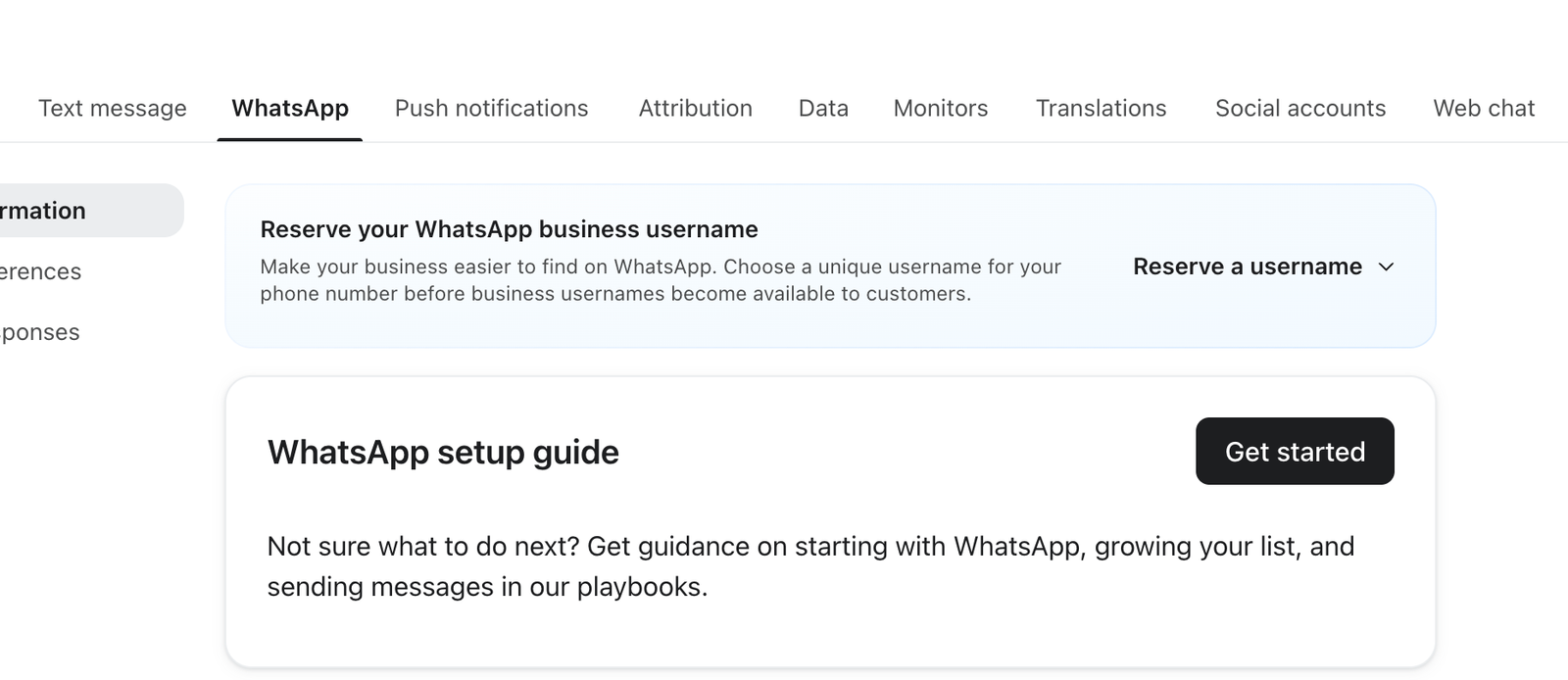
- In Klaviyo, go to Settings > WhatsApp, then select the Sender information tab.
- In the Reserve your WhatsApp business username banner, select Reserve a username.
- Choose the phone number you want to reserve a username for, if your business has more than one.
- Enter the username you want to reserve in Custom handle.
- Select Save changes.
Option 2: In Meta's WhatsApp Manager
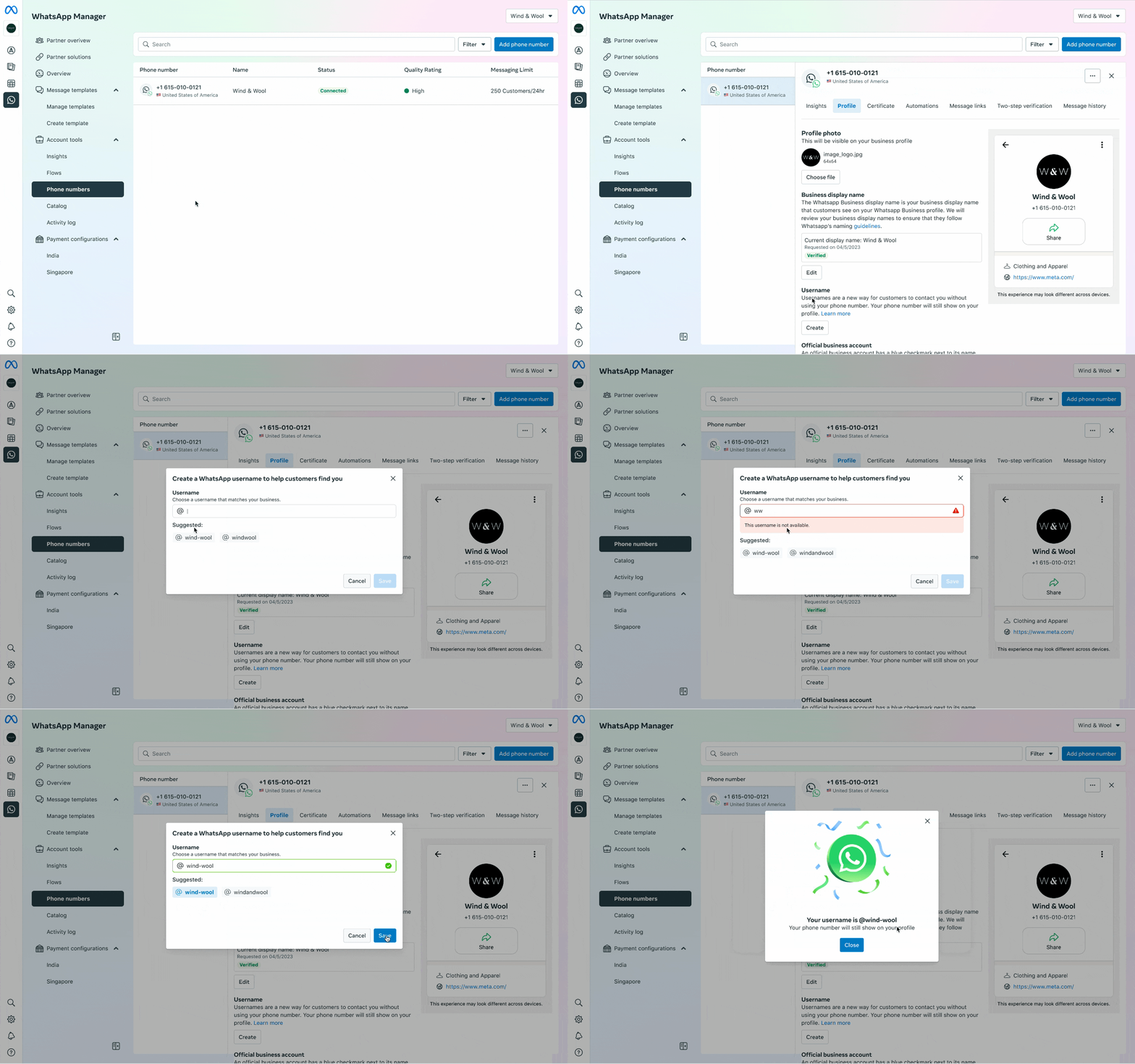
- Open WhatsApp Manager.
- Select Phone numbers.
- Select the phone number you want to reserve a username for.
- Select Profile.
- Scroll to Username, then click Create.
- Enter the username you want to reserve, or select one from the suggested usernames.
- Click Save.
What happens after you reserve a username?
After you reserve your username:
- Your username is held for your business, so another business can't claim it.
- Your username becomes available after Meta enables WhatsApp usernames in your country.
- Meta notifies you when your reserved username is ready to use.
Change your WhatsApp username in Klaviyo
Choose one of the following methods to change your username.
Option 1: In Klaviyo
- In Klaviyo, go to Settings > WhatsApp.
- Select the Sender information tab.
- Find the phone number you want to update, then select the ⋮ menu next to it.
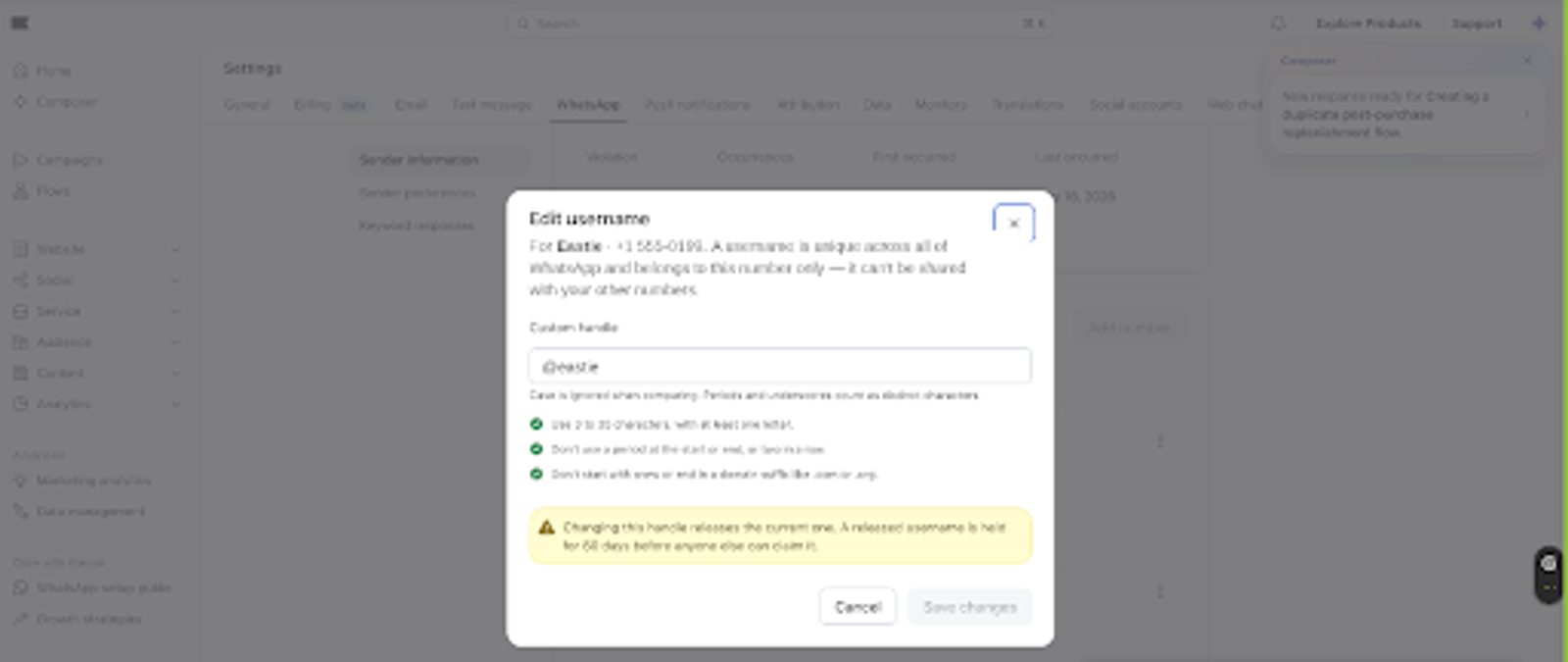
- Select Edit username.
- Enter your new username in Custom handle.
- Select Save changes.
Option 2: In Meta's WhatsApp Manager
- Open WhatsApp Manager.
- Select Phone numbers.
- Select the phone number you want to update.
- Select Profile.
- Scroll to Username, then click Edit.
- Enter your new username.
- Click Save.
Either way, after you change your username, your previous username is reserved for 60 days. During this time, only your business can reclaim it. Other businesses can't use your previous username until the 60-day hold ends.