Getting started with Canva for email
You will learn
Learn how to design an email in Canva, export it to Klaviyo as an HTML email template, and find it in Klaviyo to edit or use in a campaign or flow.
Note: This integration handles the export of HTML email templates from Canva to Klaviyo. It does not handle the importing or exporting of standalone images between the two platforms. For image syncing, see Getting started with Canva for images.
Before you begin
Before connecting Canva to Klaviyo for email:
- You must have an active Klaviyo account. If you don't have one yet, get started with Klaviyo.
- You must have a Canva account. The email export feature is available to both free and Pro Canva users.
Email designs must be created using Canva's Email template type. Standard presentation or social media designs cannot be exported as email templates.
How to connect your Klaviyo account in Canva
- Open a Canva email design, or create a new one by selecting Create a design > Email in Canva.
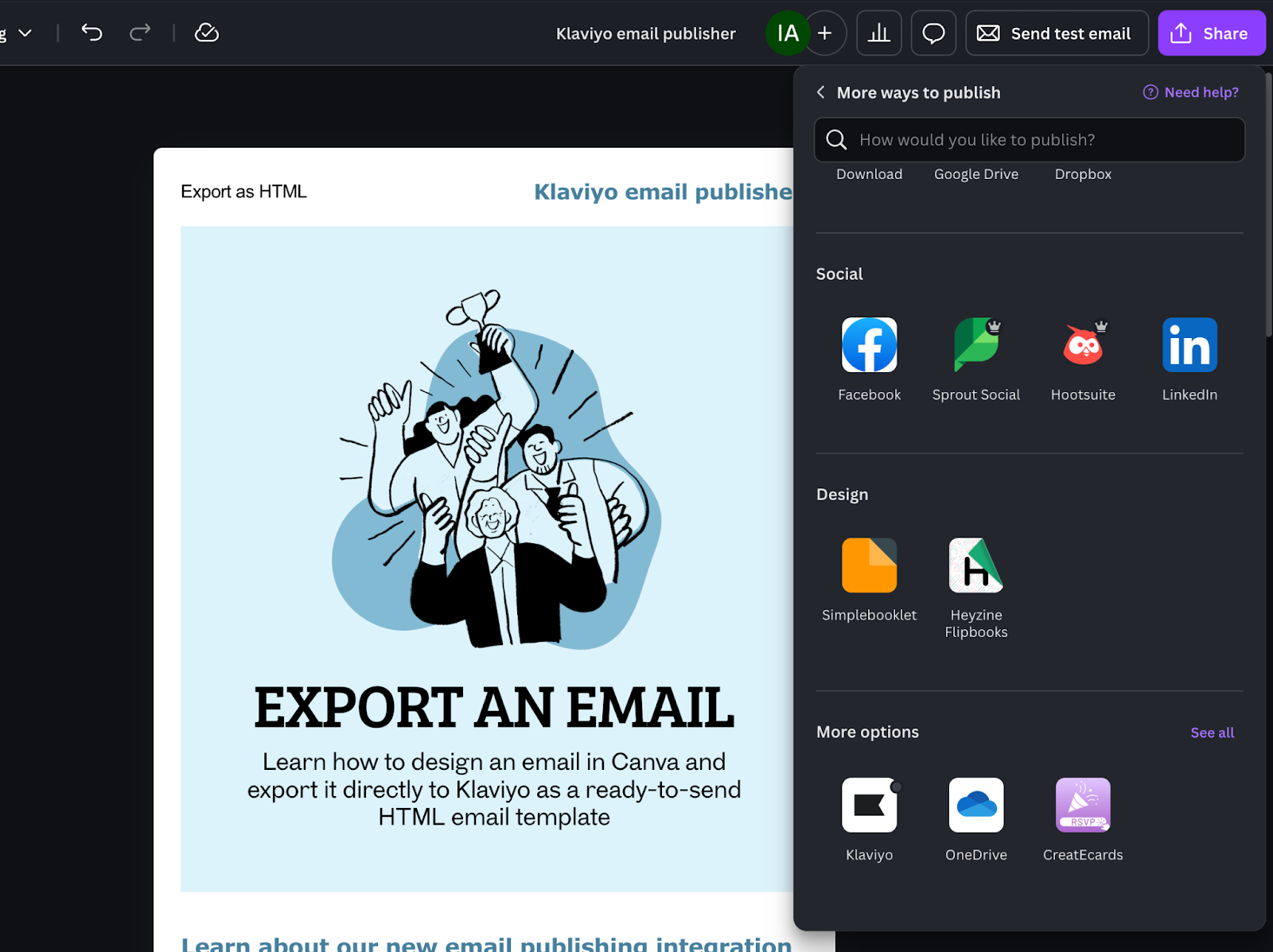
- In the top right corner, click the Share button. Then click the Klaviyo icon in the Share panel.
- In the Klaviyo panel, click Connect account.
- A login prompt will appear. Enter your Klaviyo account credentials and click Log in.
- If you are already logged in to Klaviyo in your browser, you may be asked to confirm which account to connect to.
- Review the requested permissions and click Allow to complete the connection.
Your Canva design environment is now connected to your Klaviyo account.
Note: Each Canva user can connect to 1 Klaviyo account at a time. You can connect 1 Canva team per Klaviyo account. If you manage multiple Klaviyo accounts, you will need to disconnect and reconnect each time you switch accounts.
Export a Canva email design to Klaviyo
Once your account is connected, you can export your Canva email design to Klaviyo as an HTML template.
- From within your Canva email design, click the Share button on the top right of the screen.
- Click the Klaviyo icon in the Share panel.
- Select which page you would like to send to Klaviyo via the dropdown menu. Any non-email pages will not be available for selection.
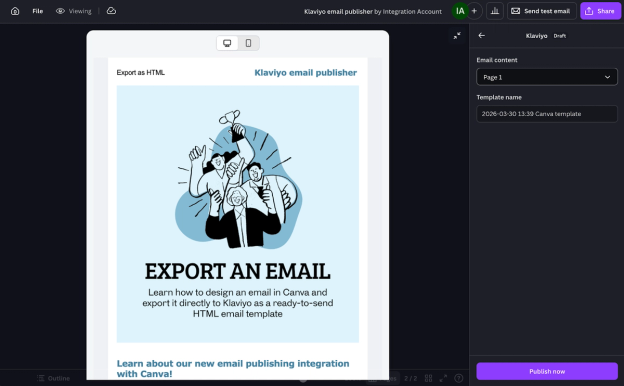
- Enter a name for your email template, or use the default name.
- Click Publish now. Canva will prepare your design as an HTML email template and send it to Klaviyo.
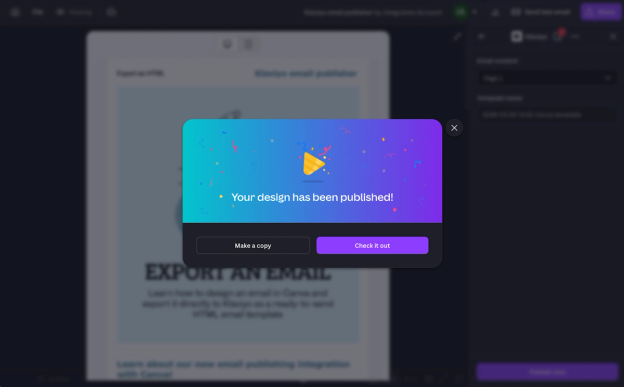
- When the export is complete, you'll see a success message with a link to view the template in your Klaviyo account.
To use your exported template in Klaviyo:
- Navigate to Content > Templates in Klaviyo.
- Select Email: saved, then find your template by name.
- Click the template, then click Edit template to open the HTML email editor.
- Make any final edits to the HTML code, then click Save.
To send the email, select your exported template when creating a campaign or flow. Exporting from Canva saves the template in Klaviyo; it does not send an email.
Tip: Canva email templates are exported as HTML. You can edit the code and add Klaviyo personalization tags in the HTML editor. Drag-and-drop features, such as product blocks, require a hybrid template. See How to create a hybrid email template.
Preview your email before and after exporting
Before exporting, you can preview how your design will look on desktop and mobile.
- Toggle between Desktop and Mobile views to review your layout at both screen sizes.
- Make any design adjustments in Canva, then proceed with the export steps above.
After exporting, click Preview Email in Klaviyo’s HTML editor to check the content and personalization. Send test emails to check rendering in the inboxes you use; the on-screen preview does not verify rendering across email clients. Learn how to preview and send test emails in Klaviyo.
Outcome
You've now connected Canva to Klaviyo for email, learned how to export a Canva email design as an HTML template, and know where to find and use your template inside Klaviyo.