Klaviyo Helpdesk: Shopify Order Editing
You will learn
Learn how to remove items, adjust quantities, change shipping addresses, or cancel a Shopify order without leaving Helpdesk. These options help you correct orders while assisting customers.
Before you begin
- You have integrated Shopify with Klaviyo.
- You can see the Orders section inside conversations.
- Your account has access to order editing in Helpdesk, and you have permission to edit tickets.
- Choose an order with an enabled Edit Order button. Shipped, canceled, and refunded orders cannot be edited here.
Overview
The Edit Order modal lets you change item quantities, remove items, and edit shipping addresses. Order cancellation is a separate option in the order’s menu. After saving, allow a few seconds for the order details to refresh.
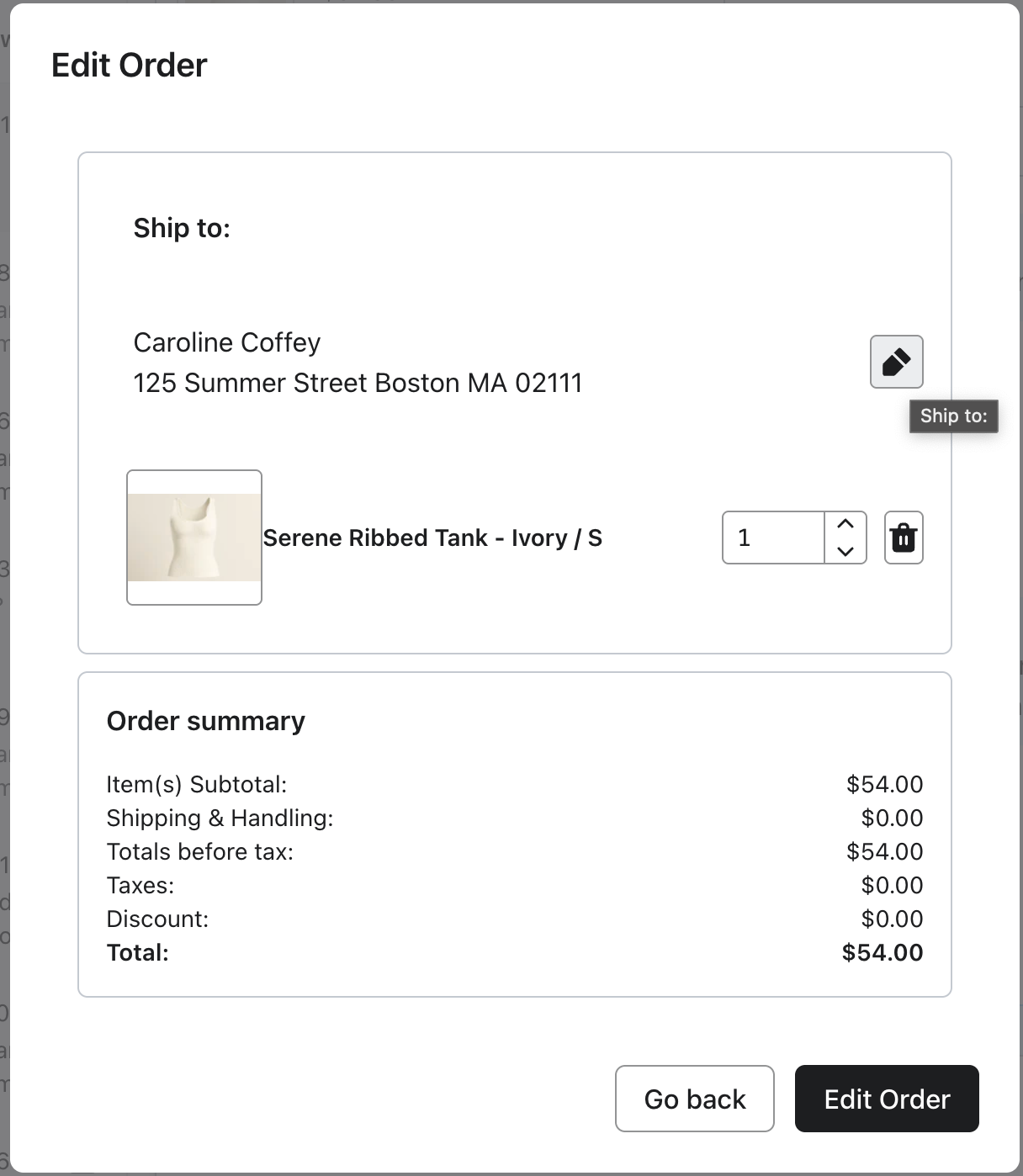
Edit items or the shipping address
- In Helpdesk, open the conversation for the customer whose Shopify order you need to change.
- In the Orders section, select the order to open Order details.
- Select Edit Order to open the editing modal.
- Make the changes you need:
- To change a quantity, enter a value in the quantity field or use its up and down arrows. The quantity must be greater than 0; use the trashcan icon to remove an item.
- To remove an item, click the trashcan icon. This marks the item for removal when you save.
- To change the shipping address, click the pencil icon beside Ship to:. Select the country and enter the complete street address, city, state or province, and ZIP code. Add an apartment or suite if needed. The address fields open blank, so enter the full address, not just the part you want to change.
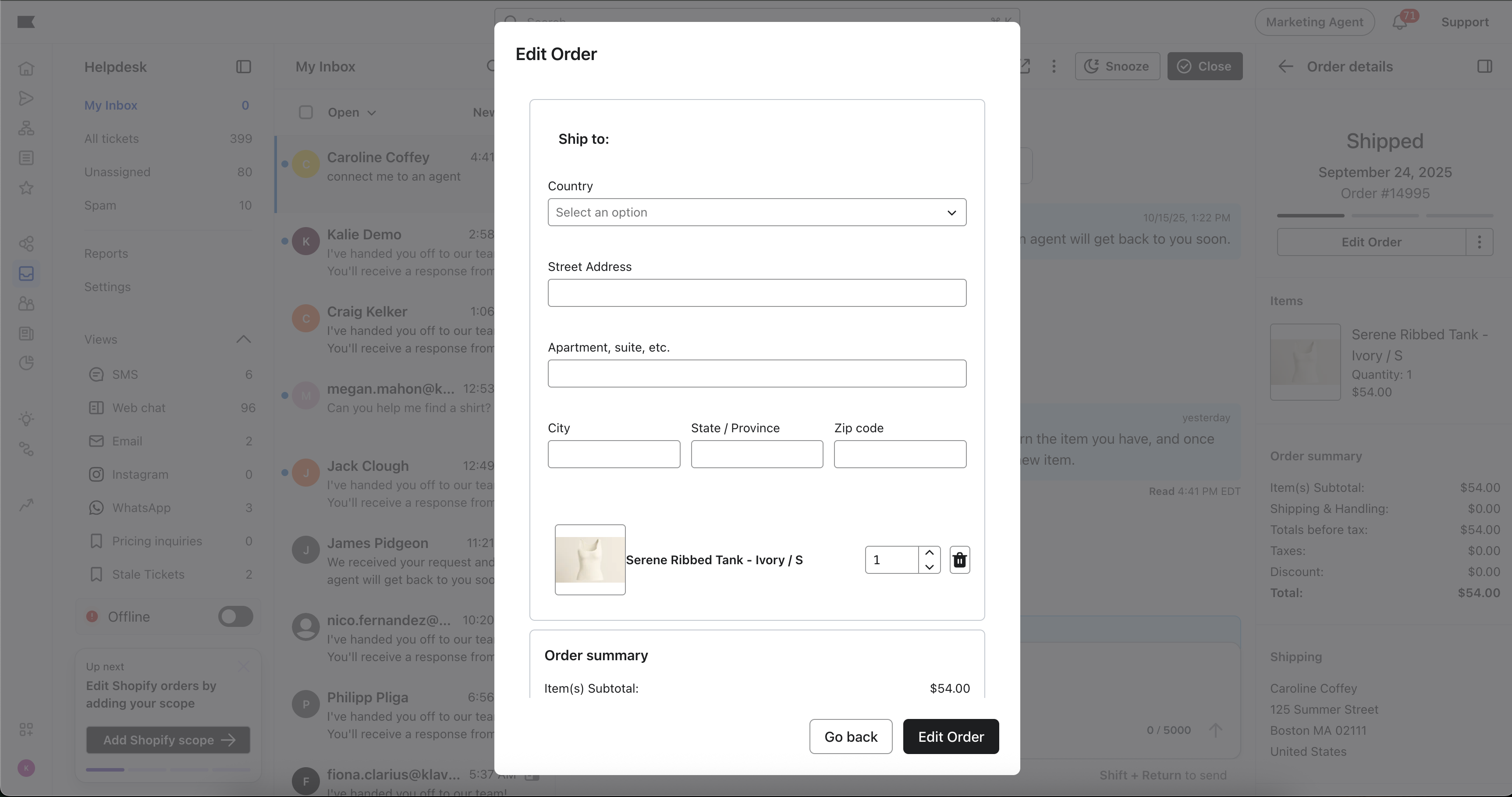
Note: Changing the shipping address on an unfulfilled order causes Shopify to recalculate tax. This can change the order’s tax lines, total tax, order total, outstanding balance, and payment status. The order summary in the editing modal shows the existing totals, not a preview of recalculated tax. Review the updated totals after saving, and confirm the new total with the customer if it changed. Partially fulfilled orders save the new address but do not recalculate tax.
- Review your changes, then select Edit Order to save. To leave the modal without submitting changes, select Go back.
- After saving, look for the “Order edits were saved.” confirmation. Allow a few seconds for the order details to refresh, then check that the items and shipping address match your changes. If you changed the address, review the updated total and any outstanding balance in Shopify.
Note: If prompted for additional Shopify scope settings, select Update settings to open your Shopify integration settings. Update the integration’s permissions before trying the change again.
Cancel an order
Canceling an order is irreversible. Confirm the customer wants to cancel before proceeding. You can cancel an order here when the More Options menu includes Cancel Order.
- Open the customer’s conversation, select the order in Orders, and open Order details.
- Select the three-dot More Options menu, then select Cancel Order.
- Review the order in the confirmation modal. Select Cancel Order to confirm, or Go back to leave the order unchanged.
- Look for the “Order cancelled successfully.” confirmation, then allow a few seconds for the order details to update.
Best practices
- Keep the customer informed — send a quick confirmation message right after saving.
- If the address change altered the order total, tell the customer the new total and any balance due in your confirmation message.
- Double-check the order, quantities, and complete shipping address before saving. There is no Undo option for saved edits.
FAQ
Can I issue a partial refund from the modal?
No. The Edit Order modal does not offer a refund option. Process partial refunds in Shopify.
Will changing the shipping address change the order total?
It can. Shopify recalculates tax when the address on an unfulfilled order changes, which may adjust the total and leave an outstanding balance. Partially fulfilled orders save the address but do not recalculate tax.