Setting up Autoresponders for Klaviyo Helpdesk
Learn how to set up auto-responders in Klaviyo Helpdesk to acknowledge customer inquiries during and outside your team's office hours. Use your messages to set expectations for response times and link to self-service resources.
These steps cover the channel-specific autoresponder settings shown below. You need access to Helpdesk ticketing features and permission to edit Helpdesk settings. The channel you want to configure must already be enabled. If the settings show an upgrade prompt, you need to upgrade before you can save office-hours responses.
Benefits of auto-responders
Auto-responders can help you:
- Acknowledge inquiries: Reassure customers that you received their message while they wait for your team to reply.
- Set response expectations: Let customers know when to expect a reply, especially when your team is offline.
- Encourage self-service: By including links to your Help Center or FAQ in your auto-reply, you can encourage customers to find their own answers, reducing the total volume for your agents.
- Maintain brand consistency: Use a consistent brand voice in the messages you configure for each channel, such as email, SMS, or web chat.
Step 1: Define your office hours
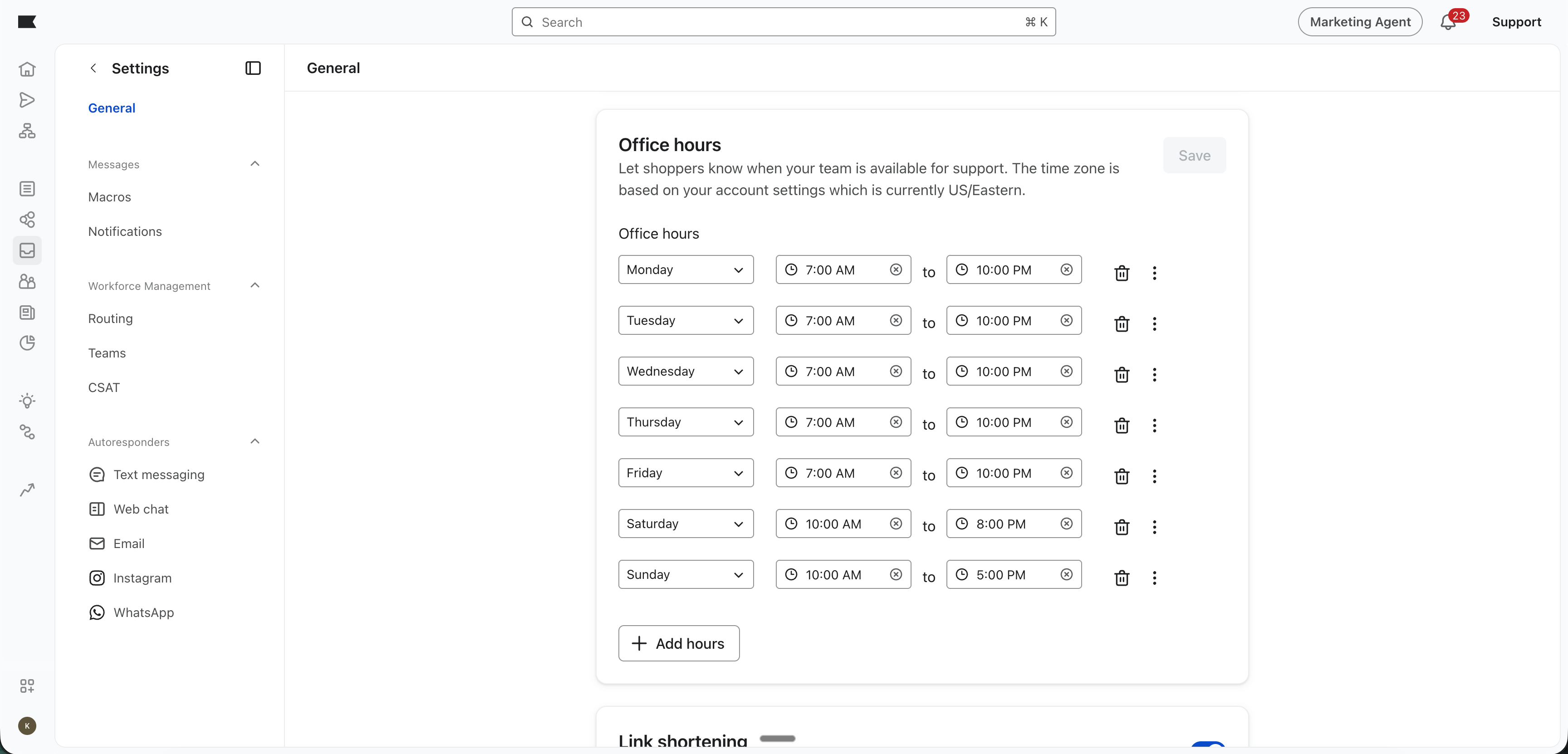
Configure your Office hours before setting up responses for during and outside those hours. Use the hours when your team is available to respond.
- Navigate to Helpdesk > Settings > General in your Klaviyo account.
- Review the account timezone shown in the Office hours section. Enter your team's working hours in that timezone; this section does not have a separate timezone selector.
- Click Add hours to add a row, then select the day, start time, and end time. Repeat for each day your team is available. Remove rows for days when your team is unavailable, and avoid overlapping time ranges.
- Click Save in the Office hours section and wait for the confirmation that your changes were saved.
Tip: If you have teams in different regions, convert their working hours to the account timezone when defining your support schedule.
Step 2: Set up responses for each channel
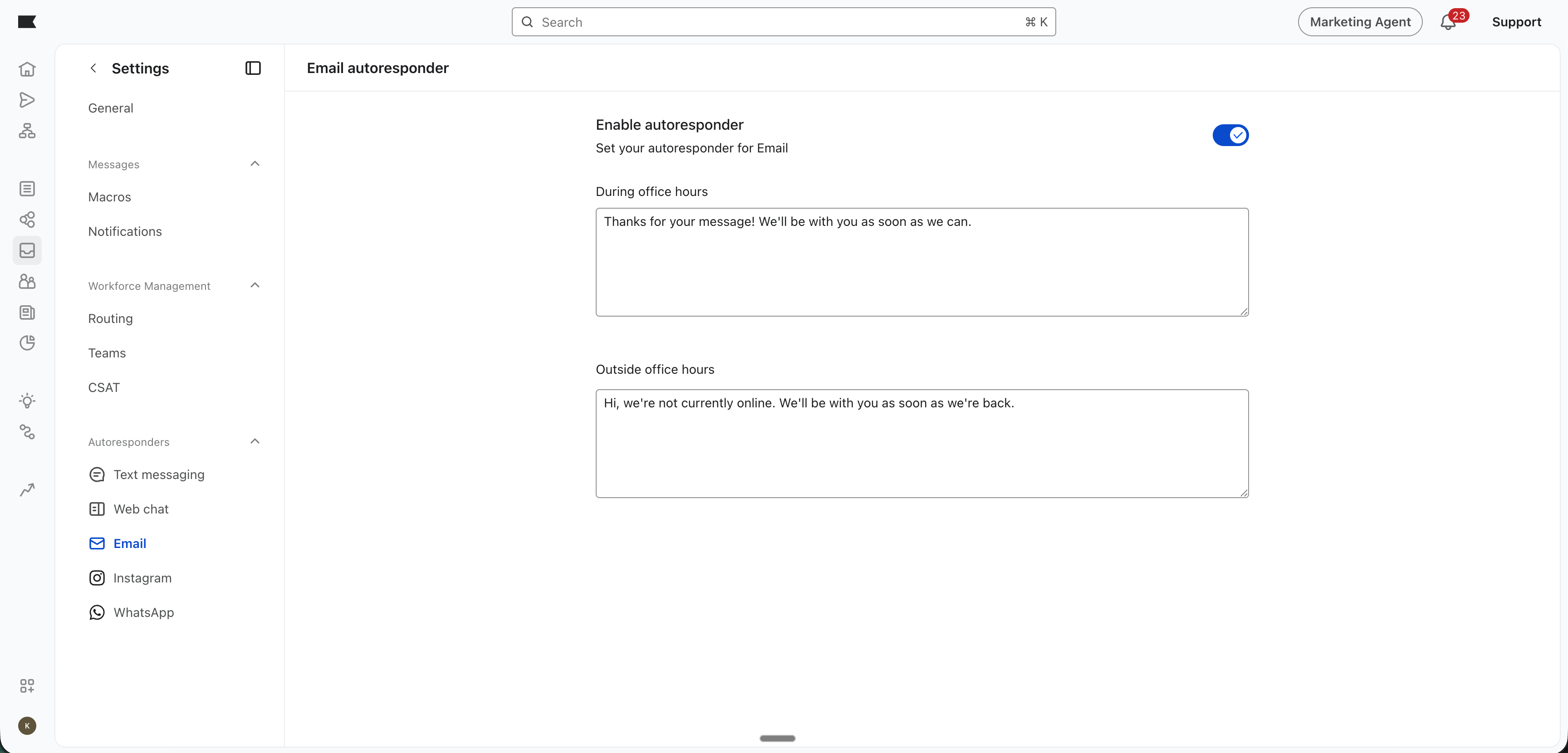
Use the "During office hours" message to acknowledge inquiries during your team's working hours. The goal here is acknowledgement and expectation setting.
Use the "Outside office hours" message to explain when your team will return and point customers to useful resources while they wait. Match it to the schedule you configured, including nights or weekends when your team is unavailable. Review your schedule and message before holiday closures. The goal here is transparency and redirection.
How to configure:
- Go to Helpdesk > Settings.
- Under Autoresponders, select the enabled channel you want to configure.
- Turn on Enable autoresponder.
- If you see an Autoresponder type choice, select Service related for responses based on office hours. Marketing related uses one response all day instead.
- For SMS office-hours responses, use Who should receive the autoresponse? to choose All profiles or Only non-consented profiles.
- Craft your messages: Enter a brief message in both During office hours and Outside office hours. Replace the placeholders in the examples below with your brand, response time, and links. Keep each message within the character limit shown for the channel.
- During office hours example: "Hi there! Thanks for reaching out. We’ve received your message and our team is currently processing inquiries. You can expect a human response within [X] hours."
- Outside office hours example: "Thanks for contacting [Brand Name]! Our team is currently offline. Our office hours are [days and hours, including timezone]. In the meantime, check out our Help Center [Link] for quick answers."
- Click Save in the save bar and wait for the confirmation that your settings were saved. Repeat these steps for each channel you want to configure.
Encourage self-service: Include a link to your Order Tracking page or your most-searched FAQ article to encourage self-service while they wait.
Set realistic expectations: If you are running a major sale or experiencing high seasonal volume, use this space to mention that response times may be longer than usual.
Best practices for auto-responders
To make the most of your auto-responders, keep these tips in mind:
- Be human, even when automated: Use your brand voice. If your brand is playful, your auto-responder should be too.
- Monitor and iterate: Review the questions customers ask after receiving your auto-response. If customers are still asking basic questions despite your auto-responder links, try changing the resources you link to.
- Keep SMS brief: Keep SMS auto-responders short to avoid unnecessary message segments and make them easy to read on mobile devices.
Summary
Save your office hours, then enable and save the responses for each channel you want to use. Keep your messages aligned with your team's availability and expected response times, and give customers useful resources to consult while they wait.