How to set up SMS in Klaviyo
Only Owners, Admins, and Managers can set up SMS.
Learn how to enable SMS in Klaviyo. These steps apply if you have already set up email in your Klaviyo account. If you are going through the setup wizard for both email and SMS, the steps may be different.
You must turn on SMS and have a sending number before you can do any of the following:
- Import or collect SMS subscribers
- Send SMS or MMS messages
Note that not all industries are eligible for SMS.
Before you begin
Number types
Depending on the country you’re sending to, you may have access to one or more different types of sending numbers.
Country | *Toll-free Number | *Branded SID | Long Code | Short Code | Short Code (Vanity) |
AT | ✖ | ✔ | ✔ | ✖ | ✖ |
AU | ✖ | ✔ | ✔ | ✖ | ✖ |
BE | ✖ | ✖ | ✔ | ✖ | ✖ |
CA | ✔ | ✖ | ✖ | ✖ | ✔ |
CH | ✖ | ✔ | ✔ | ✖ | ✖ |
DE | ✖ | ✔ | ✔ | ✖ | ✖ |
DK | ✖ | ✔ | ✔ | ✖ | ✖ |
ES | ✖ | ✔ | ✔ | ✖ | ✖ |
FI | ✖ | ✔ | ✔ | ✖ | ✖ |
FR | ✖ | ✔ | ✖ | ✖ | ✖ |
HU | ✖ | ✖ | ✔ | ✖ | ✖ |
IE | ✖ | ✔ | ✔ | ✖ | ✖ |
IT | ✖ | ✔ | ✔ | ✖ | ✖ |
LU | ✖ | ✔ | ✖ | ✖ | ✖ |
MX | ✖ | ✔ | ✖ | ✖ | ✖ |
NL | ✖ | ✔ | ✔ | ✖ | ✖ |
NO | ✖ | ✔ | ✔ | ✖ | ✖ |
NZ | ✖ | ✖ | ✖ | ✖ | ✔ |
PL | ✖ | ✔ | ✔ | ✖ | ✖ |
PT | ✖ | ✔ | ✔ | ✖ | ✖ |
SE | ✖ | ✔ | ✔ | ✖ | ✖ |
UK | ✖ | ✔ | ✔ | ✖ | ✔ |
US | ✔ | ✖ | ✖ | ✔ | ✔ |
An asterisk (*) indicates that this number type:
- Is a default sending number in Klaviyo and is available for free. For Mexico, see the registration eligibility requirement below.
- Can be used in more than 1 country where that number type is supported.
- For instance, the same branded sender ID can collect consent in the UK, Germany, and Australia once those countries are added. Complete any required registration before sending SMS.
Non-default sending numbers (i.e., long codes and short codes) require a paid SMS plan. This also applies to Belgium and Hungary, where long codes are the only sending number.
Default sending numbers
With both branded sender IDs and toll-free numbers, the same number can be used to collect consent and send to multiple countries. A toll-free number covers the US and Canada. A branded sender ID covers the countries you add. Complete any required registration before sending. To control where you collect consent and send messages, target your forms by country, create location-based segments, and split your flows.
For Mexico, registering a branded sender ID through Add country requires more than $250 USD in monthly recurring Klaviyo plan charges. Contract or manually billed accounts are exempt.
Separating by country is also key if you want to know where to use your Mobile Messages spend. Since rates vary by country, targeting based on location helps you track how much you spent, who engaged, and your ROI on a per-message basis. This way, you'll know where to send SMS messages and whom to send them to.
The table below lists the countries that support each default sending number type. Add the countries you want to use and complete any required registration before sending.
Branded sender ID | Toll-free number |
Australia | USA |
Austria | Canada |
Denmark | |
Finland | |
France | |
Germany | |
Ireland | |
Italy | |
Luxembourg | |
Mexico | |
Netherlands | |
Norway | |
Poland | |
Portugal | |
Spain | |
Sweden | |
Switzerland | |
UK |
Klaviyo provides a toll-free number or branded sender ID for the countries you select, where those number types are supported. If you want to use another number, finish this setup process first so you can start collecting consent where you have a sending number, and then request the other number.
Information for US and Canada setup
If you select the US or Canada, have your company contact details, legal business name, website, business type, registered address, and business registration details ready. US sole proprietors can continue without a business registration number. You’ll also need links to your published SMS privacy policy and mobile terms of service. See toll-free number verification for the requirements.
Turn on SMS
If you didn't set up SMS during the Klaviyo setup wizard, you can turn it on under Settings > Text message. Follow the steps below for first-time setup. If SMS is already set up, use the Add another country instructions below.
- Click on the name of your account in the lower left-hand corner.
- Navigate to Settings > Text message.
- Click Set up texting for free.
- Select the countries where you want to use SMS (check all that apply).
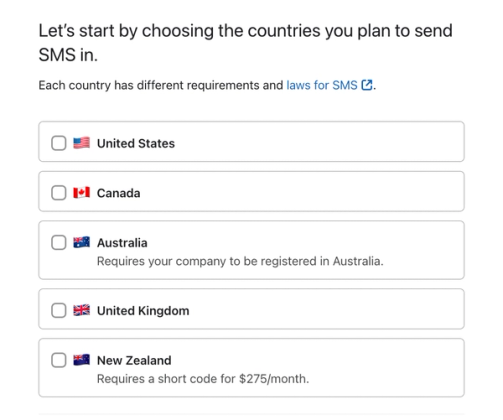
- Click Next.
- If you selected the US or Canada, enter your company contact details on Add a company contact, then click Next. Complete the following business and policy steps for those countries; otherwise, continue to the sending information step.
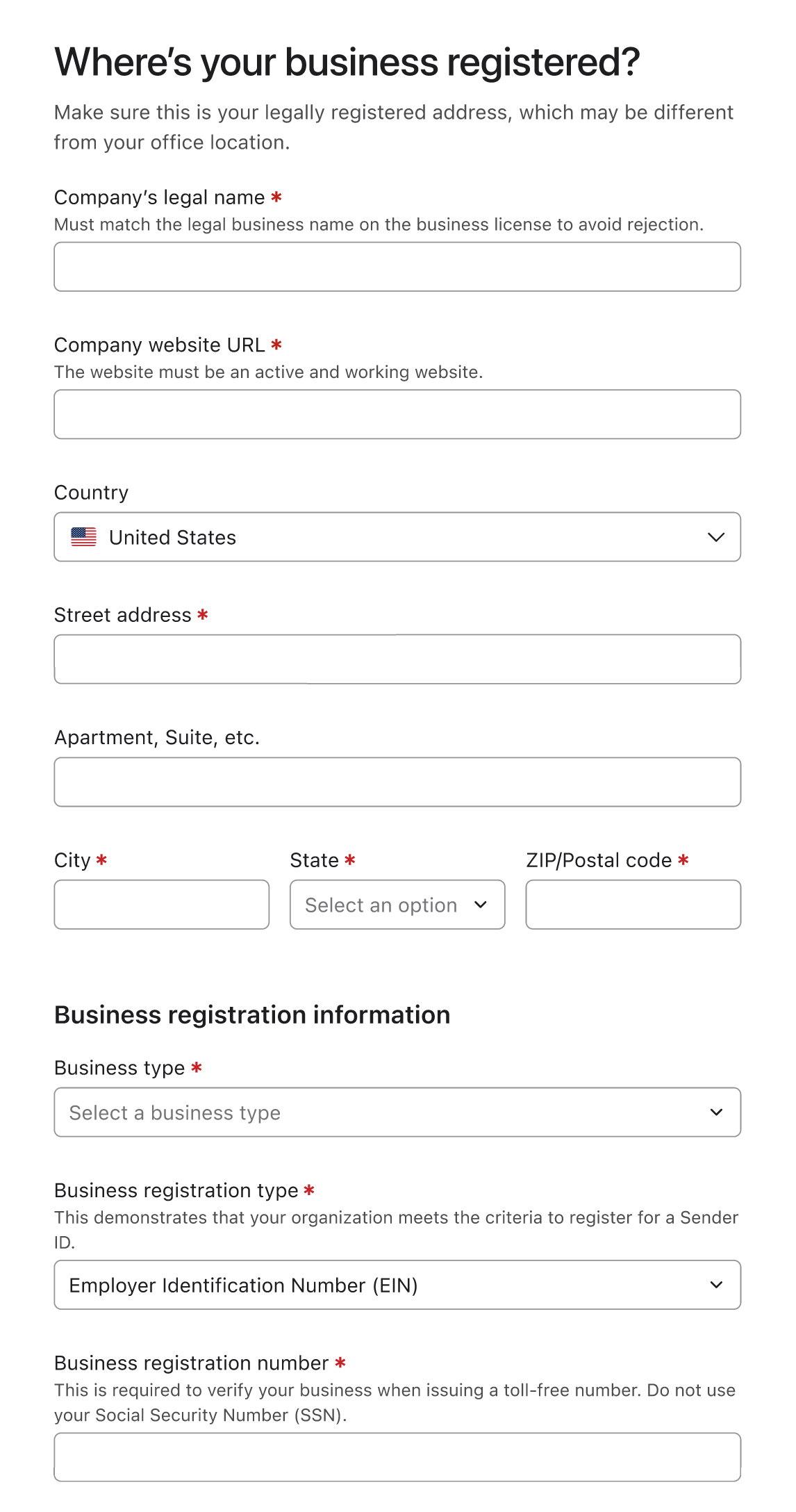
- On Where's your business registered?, enter your legal business name, website, business type, registration details, and address, then click Next.
- On Add your privacy policy, enter the URL of your published privacy policy, confirm that you’ve updated it for SMS, then click Next. See SMS privacy policy best practices for guidance.
- On Add your mobile terms of service, enter the URL of your published mobile terms, then click Next to submit your toll-free number for verification. If you need terms, see how to create mobile terms of service.
- On the sending information screen, review your sending numbers, enter your Company name, and confirm your Branded sender ID if shown. If you selected only Australia, continue to its registration step instead. For a full comparison of the numbers, see our article on SMS sending numbers, but key highlights include:
- Sometimes, the same sending number is used for multiple countries, unless you have another number that takes precedence.
- The same toll-free number is used in the US and Canada, except if you have a short code for one or both countries.
- The same branded sender ID can be used for the countries you add, after any required registration, except if you have a long or short code in a specific country.
- Short codes and long codes are always tied to a specific country.
- Some countries only offer 1 type of sending number:
- For Belgium, the only option is to request a long code.
- For New Zealand, the only option is to apply for a short code.
- Sometimes, the same sending number is used for multiple countries, unless you have another number that takes precedence.
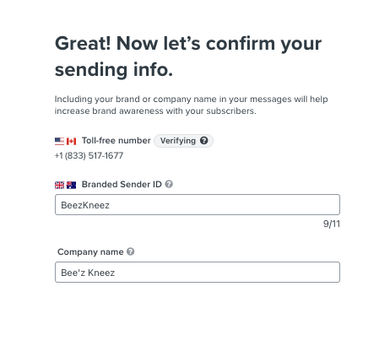
- If you’re on the sending information screen, click Next.
- Complete the registration steps shown for your selected countries. Certain sending numbers must be verified or registered before you can send messages. These include:
- All short codes (regardless of country).
- Toll-free numbers in the US or Canada.
- Klaviyo submits toll-free verification after you complete the required company, business, privacy policy, and mobile terms steps. Wait for approval before sending.
- Branded sender IDs in Australia, Finland, Ireland, Mexico, the Netherlands, and Spain.
- Note that Ireland requires that you register via their national registry, ComReg.
- Long codes in countries that require business documentation, including Australia, Belgium, Germany, Ireland, and Italy.
- If the subscriber collection screen appears, choose an option to start building your SMS list. Options include:
- Create a sign-up form (best for those who are new to SMS).
- Upload text message subscribers (best for those switching from another SMS provider).
- Click Done to finish setup.
After setup, go to Settings > Text message > Sender information to check your sending numbers and complete any outstanding registration actions. Wait for required approvals before sending.
Add another country
- If SMS is already set up, navigate to Settings > Text message > Sender information and click Add country.
- Select the country and an available sending number type, then click Next.
- Complete the setup and registration steps for that country and number type. Return to Sender information to check its status before sending.
Check UTM tracking
Note that if you're using UTM tracking in Klaviyo already, we also recommend navigating to Settings > Other > UTM tracking, adjusting the UTM medium to Message type, and clicking Save. Otherwise, SMS messages may not be tracked properly.
Outcome
Once you have a sending number, you can start collecting SMS subscribers. You can send text messages after any required verification or registration is approved. Before you do so, learn best practices for SMS compliance on the Academy.
Additional resources
- How to create a mobile terms of service in Klaviyo
Learn how to automatically generate your own mobile terms of service (TOS) in Klaviyo. In addition to generating a mobile TOS that you can customize to fit your needs, Klaviyo can also host the TOS for you, and you can add a link to your TOS anywhere (like forms where you collect SMS consent). Alternatively, you can copy the text in the TOS and paste into another page, like your existing TOS page.
- How to set up your SMS disclosure language
Learn how to create SMS disclosure language on the account-level, making it easy to add to your sign-up forms and subscribe pages.
- SMS marketing strategies for all levels [+12 Pro tips]