Klaviyo Helpdesk: Product Catalog Selector
You will learn
Learn how your support team can search for products and send linked recommendations directly from Helpdesk tickets on Email, SMS, WhatsApp, Webchat, and Instagram.
Use product recommendations to help customers find items without leaving the ticket to look up product links.
Before you begin
- Catalog Sync: A product catalog is synced to Klaviyo (via Shopify, BigCommerce, WooCommerce, or manual upload).
- Subscription: You have a paid Helpdesk subscription.
- Agent Role: Support agent or higher.
- Inventory: Products you plan to share are in stock.
- Time to complete: Instant.
Use an open ticket where customer replies are enabled. Product recommendations do not bypass channel consent requirements or restrictions on replying to closed or blocked tickets. You cannot combine products and uploaded attachments in the same reply.
Note: The customer experience varies by channel. Webchat displays product cards. Email, SMS, WhatsApp, and Instagram share a product image and link. See the channel experience section below.
Overview
The product picker lets you browse your synced catalog and attach products to a customer reply. You can include up to 10 products in a Webchat reply, or 1 product in an Email, SMS, WhatsApp, or Instagram reply. Product sharing is not available for form or manually logged tickets.
Sending a product recommendation
- Go to Helpdesk and open the customer ticket you want to reply to.
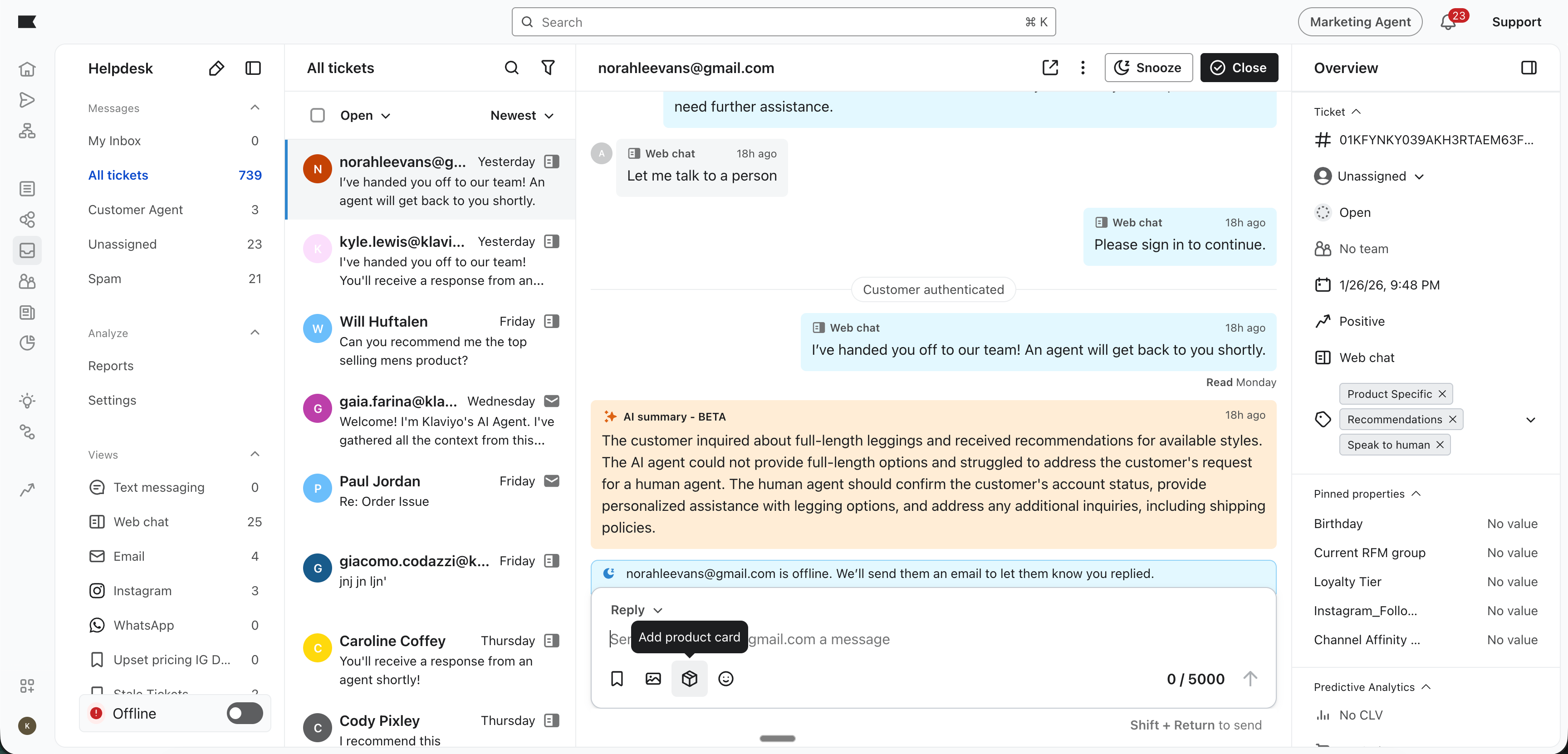
- In the reply composer, click the package icon (Add product card). If your draft already contains an uploaded attachment, remove it first.
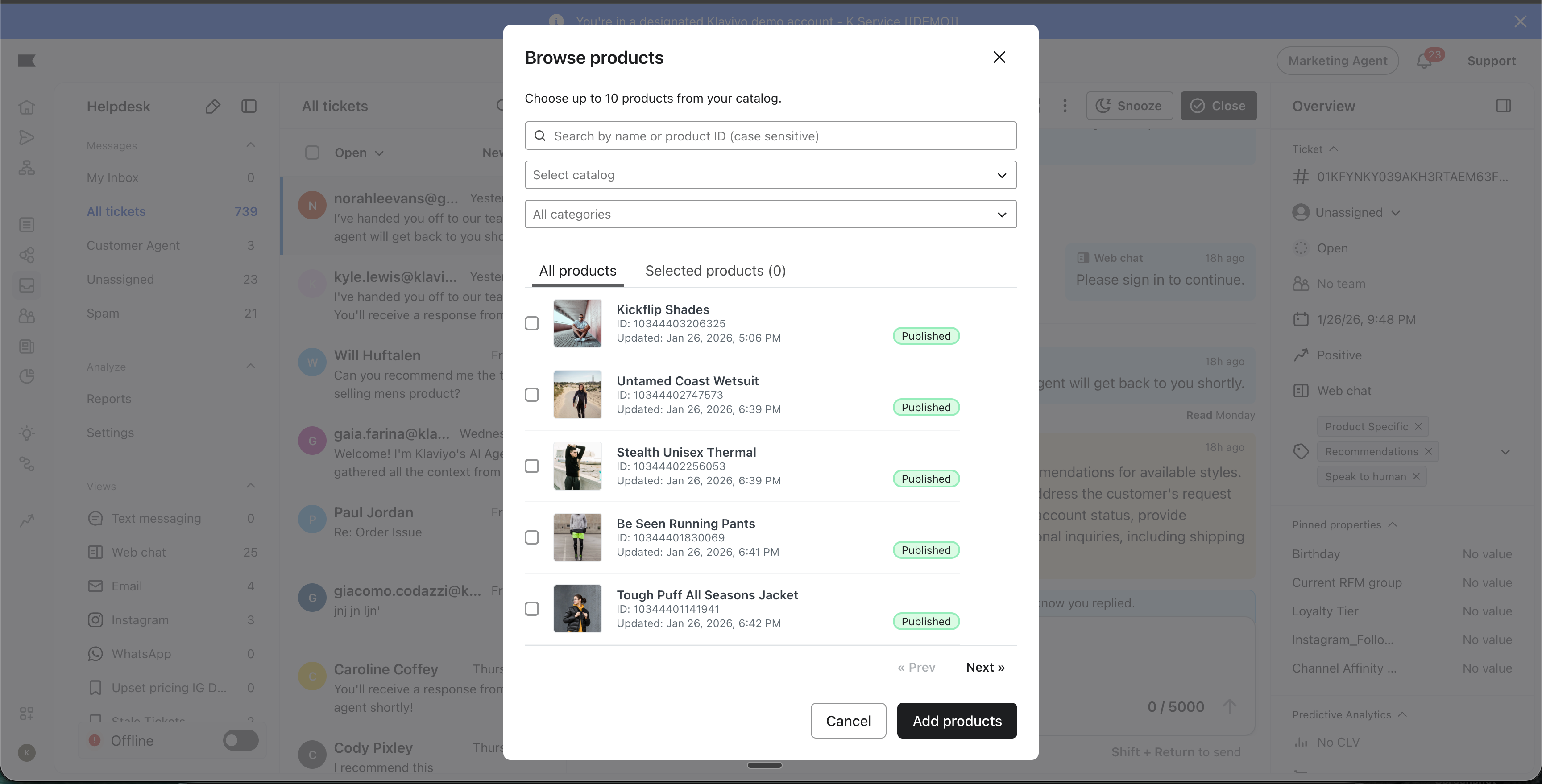
- In Browse products, choose a catalog if needed. Search by product name or ID (case sensitive), or filter by category. Select the product you want to share. For Webchat, you can select up to 10 products; for the other supported channels, select 1.
- Each tile displays the product image, title, and published status.
- Click Add products. A chip for each selected product appears in your reply draft.
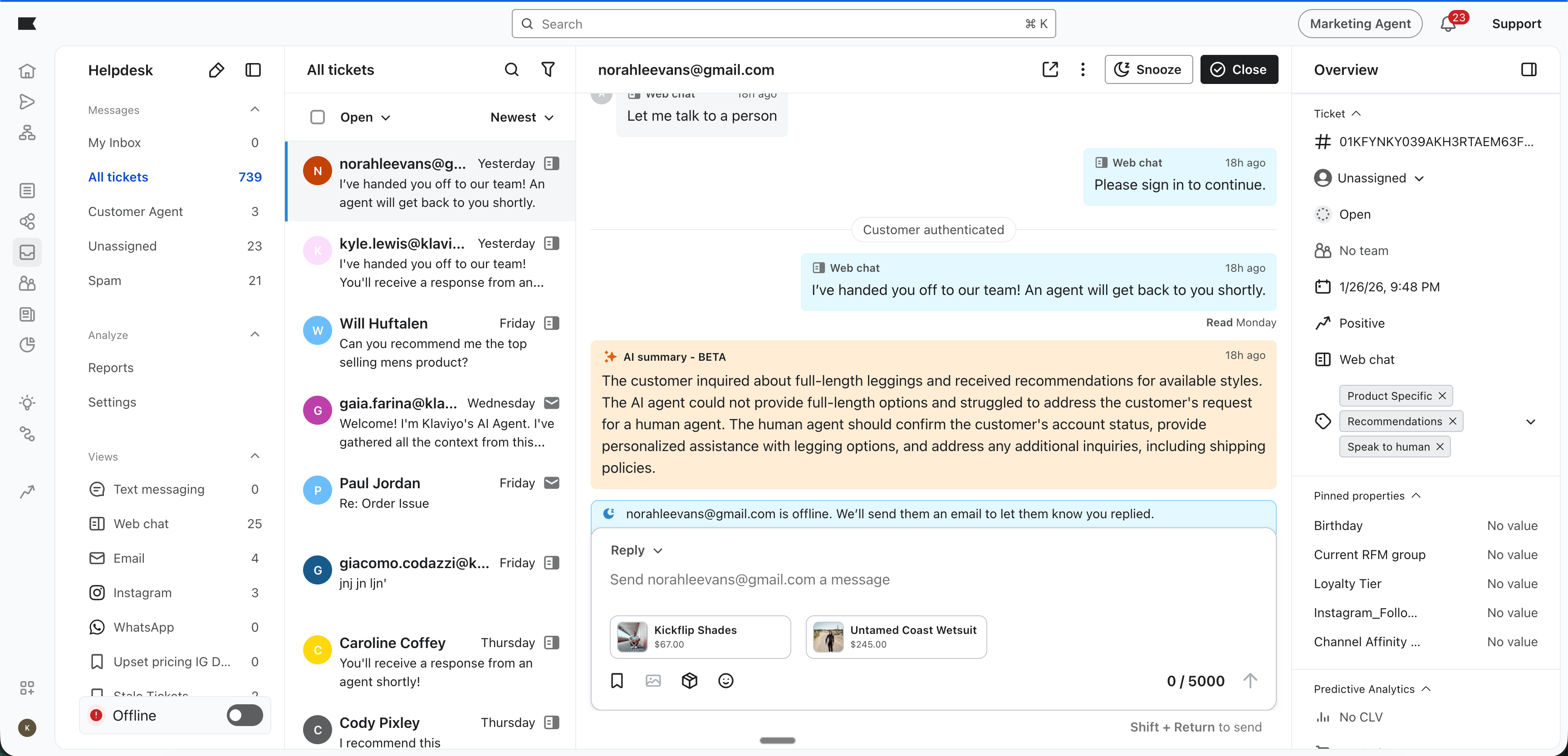
- Enter a message to accompany the recommendation. Reply text is required to enable sending; the product chips alone do not enable the Send button. To remove a product before sending, click its chip’s remove control.
- Review your reply, then click Send.
Channel experience
How the customer sees your recommendation depends on the channel:
Channel | Format | Customer Action |
|---|---|---|
Webchat | Interactive Card | Customers can click the product image or title to open the product page. Shopify stores and Salesforce Commerce Cloud stores using SFRA also support an Add to cart button. Multiple products appear in a carousel. |
Email / SMS / WhatsApp / Instagram | Image + Link | Displays the product image followed by a direct URL. |
FAQ
Can I change the price or title in the card?
No. The product picker uses details from your synced catalog. You cannot edit the product title or price in the reply composer. Keep your catalog up to date and review the selected product details before sending.
Do product cards cost extra credits?
No. They are treated as a standard message send within your Helpdesk subscription.
Is a multi-product carousel available?
Yes, for Webchat. Select up to 10 products in a single reply to display a carousel. Email, SMS, WhatsApp, and Instagram replies support 1 product each.
Which channels support the product picker?
You can use the product picker on Email, SMS, WhatsApp, Webchat, and Instagram. It is not available for form or manually logged tickets.