Klaviyo Helpdesk: CSAT
You will learn
Learn how to set up a customer satisfaction (CSAT) survey in the paid Helpdesk product and use responses to improve your support experience. Customers rate their experience from 1 to 5 and can leave optional feedback if you enable comments.
Before you begin
- You’re on a paid Helpdesk plan
- You have permission to edit Helpdesk settings.
- At least one channel is connected to Helpdesk — CSAT surveys now send on every Helpdesk channel
- Surveys are sent only when a human agent closes a ticket; AI-resolved tickets are skipped.
- One survey is sent per closed ticket; multiple tickets from the same customer each get a survey.
Time required: 5–10 minutes.
How CSAT works
- Once enabled, the survey is sent automatically after a ticket closes. Responses appear in Helpdesk reporting and as CSAT Submitted events on customer profiles, which you can use for flows and segmentation.
Use scores to:
- Identify issues and train your support team
- Create a flow to send an apology or coupon when someone rates their experience 2 or lower.
- Exclude low-CSAT shoppers from promotions for 7 days by creating a segment of customers who submitted a rating of 2 or lower in the last 7 days.
Set up your CSAT survey
Customize your survey, then save your settings to enable it.
- Go to Helpdesk > Settings, then select CSAT.
- Turn on Send rich format CSAT.
- Edit the Message to ask customers to rate their experience.
- Use up to 120 characters. Example: “How would you rate your experience?”
- Under Visual, select Emojis, Flat icons, or Stars for the rating display.
- To collect comments, select Add optional text input box. Customers can submit a rating without adding a comment.
- If you enable comments, edit the placeholder text in the field below the checkbox. Example: “Good? Bad? Terrible? We want to hear it”
- Under Agent controls, decide whether to select Let agents close a ticket without sending a survey. This adds a Close without survey option to the ticket actions menu.
- Under Survey send delay, choose whether to delay surveys for connected email or SMS channels. Turn on the channel’s delay toggle, then enter an amount and select seconds, minutes, hours, or days. Leave the toggle off to send without a delay. Web chat does not support a delay; Instagram and WhatsApp delay controls are marked Coming soon.
- Review the Customer Hub preview to check your question, rating display, and optional comment field.
- Click Save to apply your settings.
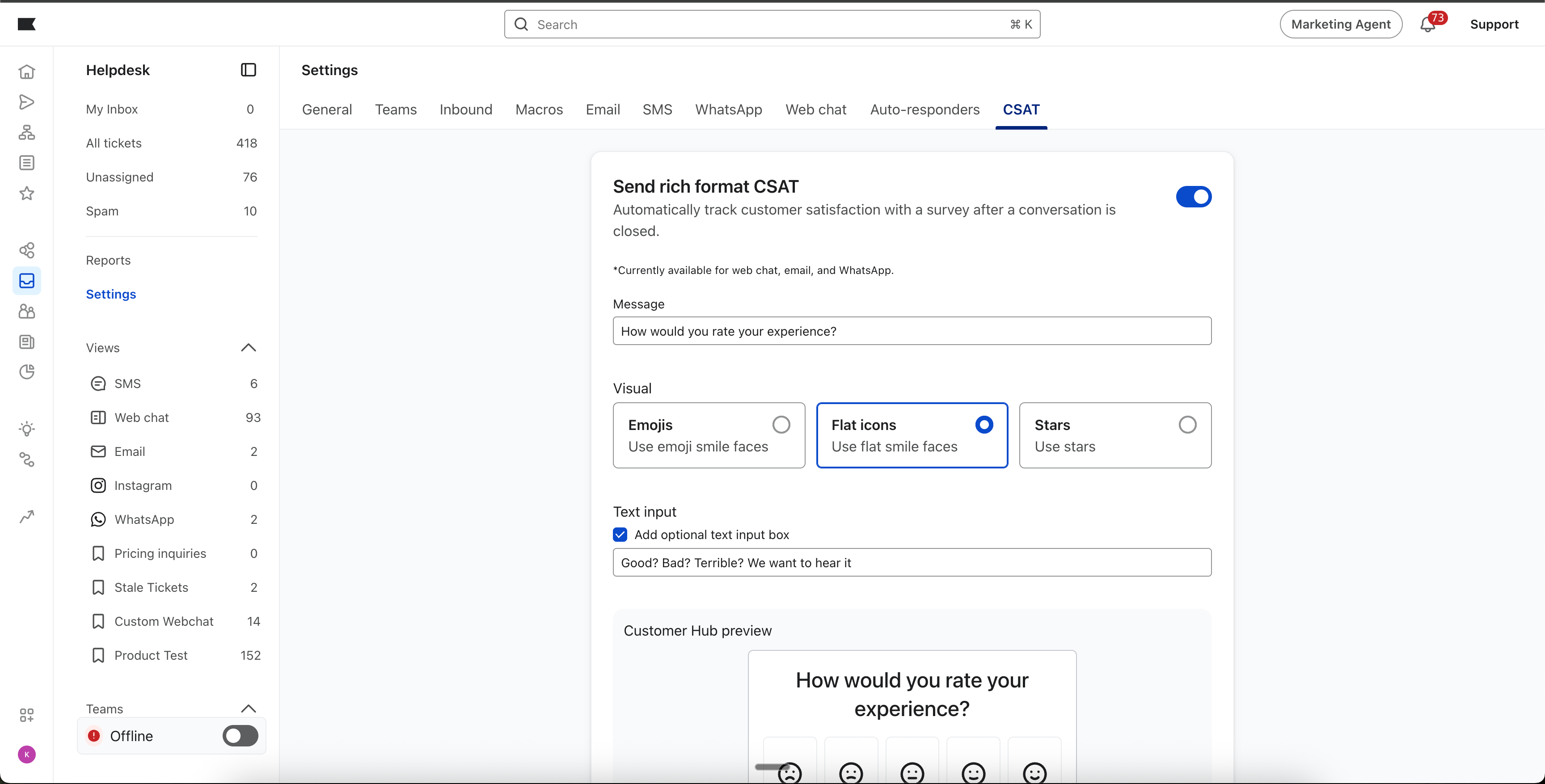
Your survey is now enabled. When a human agent closes a ticket, the survey requests feedback using your saved settings. If you allow agents to skip surveys, choosing Close without survey closes the ticket without sending one.
View CSAT results
- Open Helpdesk > Reports and click the CSAT card. The card appears when CSAT is enabled.
- Select a time frame and channel to review the average score and its trend over time.
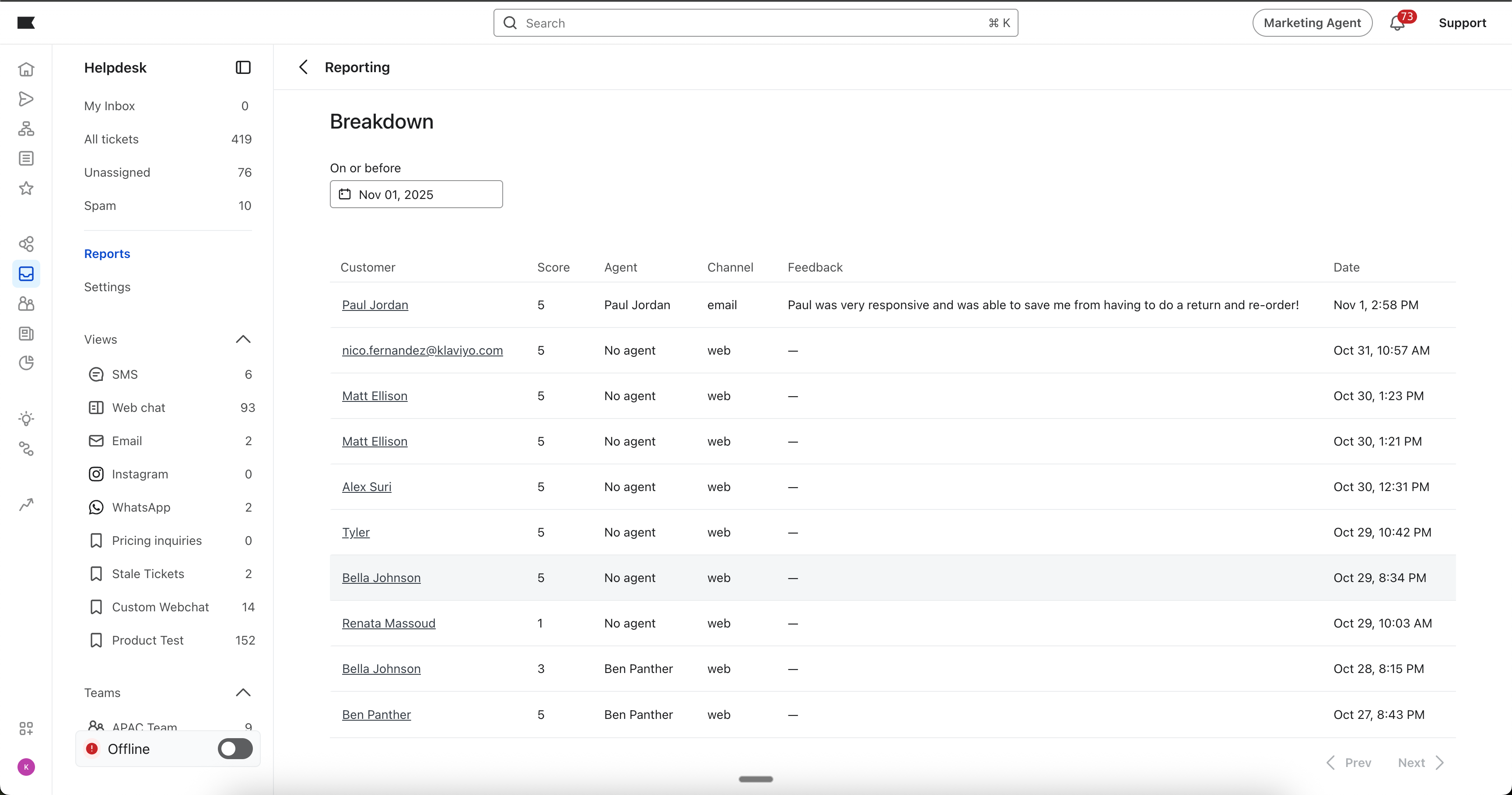
- Review the Breakdown table for each customer’s score, agent, channel, feedback, and submission date. Click a customer’s name to open their profile.
The average score and graph use the selected time frame. The Breakdown table uses the channel selection and its own On or before date to show submissions up to that date. Use Prev and Next to browse additional responses.
What to do with the data (quick wins)
Use the following examples as starting points for follow-up messages, audience targeting, and team coaching.
- Follow up on low scores
- Create a metric-triggered flow using CSAT Submitted. Add a trigger filter for a rating of 2 or lower.
- Action: Send an apology and, for example, a 15% off code.
- Goal: Address the customer’s concern and improve their experience.
- Target customers who gave high scores
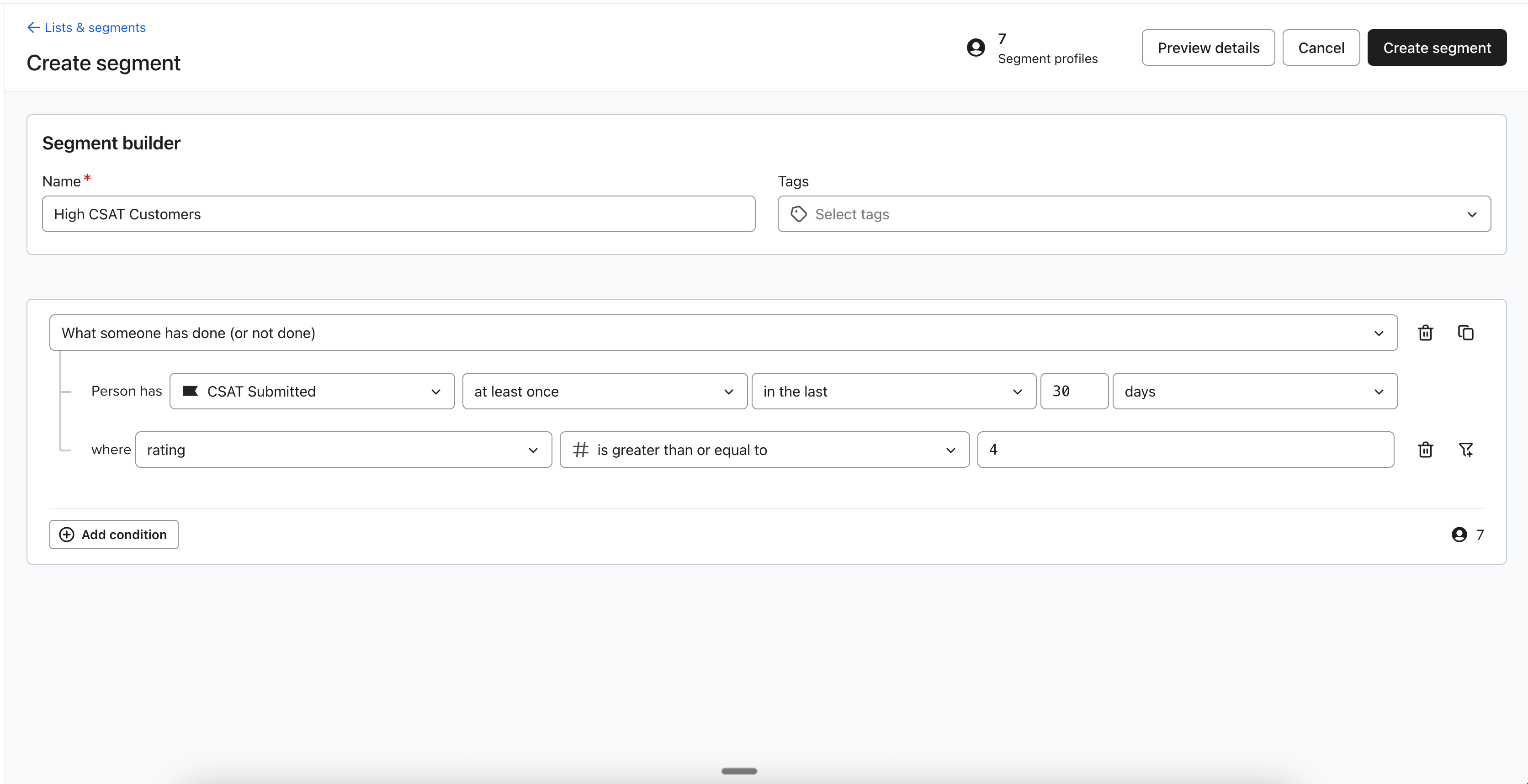
- Create a segment of customers who submitted CSAT Submitted at least once in the last 30 days, where rating is greater than or equal to 4.
- Create Customer Hub Content targeting that segment, send special promos via any channel
- Coach yourself or your agents
- Review low scores and written feedback in the CSAT Breakdown table, using the Agent column to identify coaching opportunities. Review the corresponding tickets with your team once a week to understand what went wrong and how to improve.
Troubleshooting
- No survey? Make sure a human—not AI—closed the ticket and CSAT is enabled and saved. Check the channel’s survey send delay and whether the agent selected Close without survey.
- Survey sent, but no replies? Customers are not required to submit a CSAT response.
- Dashboard still blank after 24 hours? Confirm that customers have submitted responses and that your selected time frame, channel, and Breakdown date include them. Check that you’re on a paid Helpdesk plan; CSAT requires a paid plan.
FAQ
Can I turn it off later? Yes. Turn off Send rich format CSAT on the same settings page and click Save. No data is lost.
Is the survey translated? No