How to create rich interactive RCS messages in Klaviyo
Klaviyo allows you to create rich RCS messages that include text, media, and interactive elements within both campaigns and flows. These richer messages help drive higher engagement and conversion rates by providing a more interactive customer experience.
Getting started
To send RCS messages, you need an approved, active RCS agent in the recipient’s country. You can prepare RCS content while your agent is awaiting approval.
When creating an RCS message in Klaviyo, you can choose between 2 message types:
- Text only – A simple text message similar to SMS, with the option to include up to 11 Quick Actions.
- Rich cards – A richer message format that supports images, videos, buttons, and up to 10 cards per message, plus up to 11 Quick Actions across the message.
Open the text message editor in your campaign or flow. Once you’ve applied for an RCS agent in any country the RCS message editor becomes the default. Under Message Type, choose Text only or Rich cards.
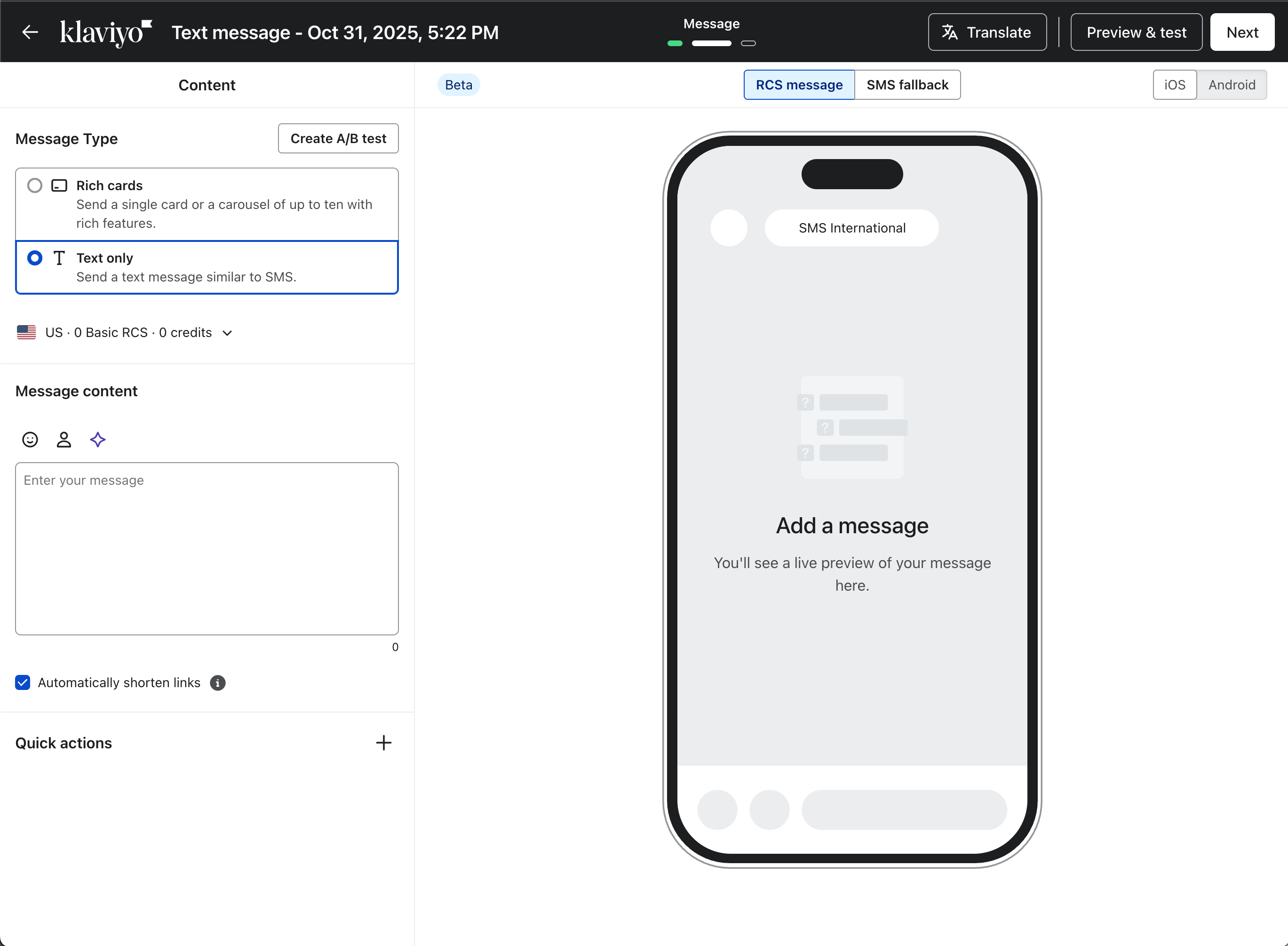
Text-only messages
Text-only RCS messages function like SMS but can include Quick Actions, which make your message interactive.
For a text-only message, enter your text under Message content. The message can contain up to 3,072 characters.
Quick Actions
Quick Actions appear as suggestion chips below the message. You can include up to 11 Quick Actions per message.
Quick actions support:
- Visit link - a URL attachment linking to an external webpage.
- Quick reply - allowing the recipient to send a predefined response back to you.
Quick Actions are only displayed on the most recent message in a conversation. When a new message is sent in the thread, the previous Quick Actions will disappear. They are designed to prompt an immediate response, not to persist permanently in the conversation like card buttons.
Quick Actions can be used to drive engagement, such as linking to a promotional page, or to capture feedback from customers and trigger automated conversations.
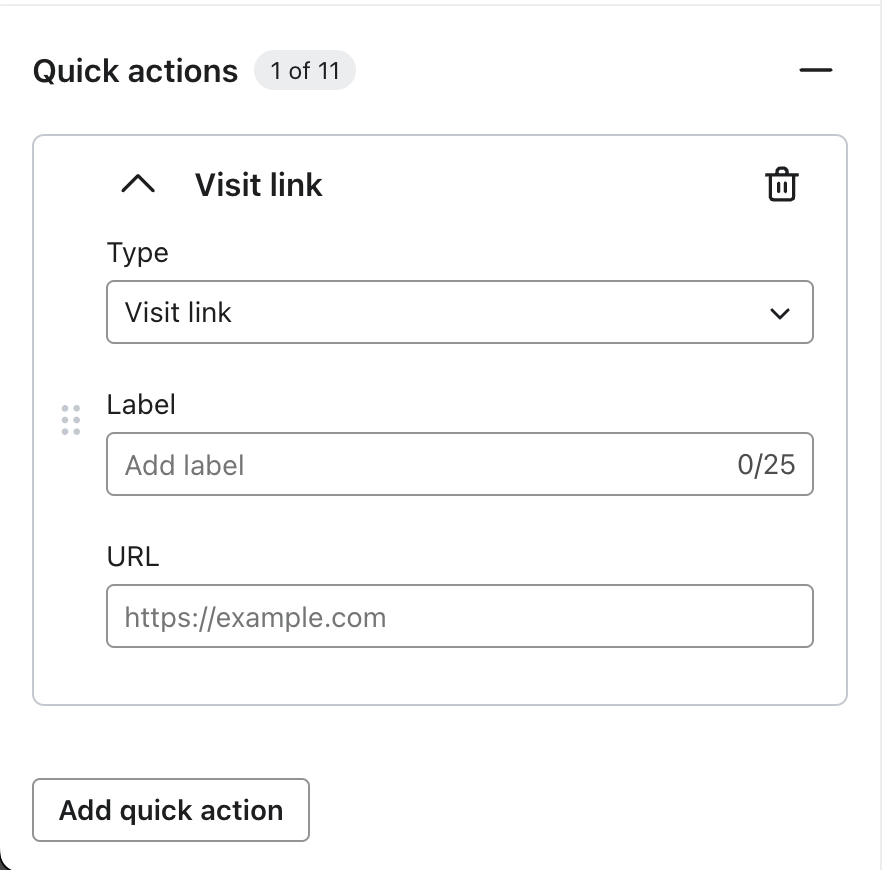
To add quick actions to either message type:
- Turn on Quick actions to add your first action.
- Choose Visit link or Quick reply under Type, then enter a Label of up to 25 characters. For Visit link, also enter the destination URL.
- Click Add quick action to add another action, then configure its type and label. You can add up to 11 actions.
Rich Cards
Rich cards let you create visually engaging, interactive messages that combine media, text, and buttons. You can send a single card or a carousel of up to 10 cards within one RCS message.
Card Components
Each card can contain the following elements:
- Media: An image or a video (up to 10 MB)
- Title: Up to 200 characters
- Description: Up to 2,000 characters
- Buttons: Up to 4 buttons per card, with 25 characters per label
Each card must include at least one of the following: media, title, or description. You can choose to include just one of these elements, or combine them depending on how you want your message to appear.
You can also add Quick Actions (up to 11 total) across the entire message. These are not tied to individual cards but appear as global suggestion chips at the bottom of the message.
Note: If you do not include a title in a card, iOS will display “One Message” as the message preview. If a title is included, that title will appear in the preview. For multi-card messages, the title from the first card will appear in the preview.
Create your cards
- Under Cards, click Edit card on the card you want to configure.
- Turn on the sections you want to use: Attachment, Title, Description, or Buttons. Add your content, including at least 1 of media, title, or description.
- If the Crop image panel opens after you select an image, adjust the crop and use the back arrow to save it and return to the card.
- For each button, choose Visit link or Quick reply under Type and enter a Label. For Visit link, enter a URL. Click Add in the Buttons section to add another button, up to 4 per card.
- Use the back arrow to return to the card list. To create a carousel, click Add card, then click Edit card on the new card and add its content. Repeat for up to 10 cards.
Media guidelines
Follow these recommendations to achieve the most consistent media display across devices. RCS media rendering differs between Android and iOS, so results may vary.
Images:
- Supported formats: PNG, JPG, JPEG, GIF, WebP (note: GIFs are not supported on iOS and will render as static images)
- Aspect ratio: 16:9
- Example resolution at 16:9: 1440 × 810 px
- Maximum file size:
- RCS: ≤2 MB
- MMS fallback: ≤600 KB (recommended)
- Klaviyo platform upload limit: 10 MB
These guidelines apply to RCS Rich Cards with a medium sized media asset displayed at the top of the card.
Video:
- Supported formats: MP4, MPEG
- There are no published Google guidelines for optimal video resolution, aspect ratio, or bitrate equivalent to image specs
- Rendering and playback behavior is device dependent
Button attachments
Similar to Quick Actions, each button supports:
- Visit link - a URL attachment linking to an external webpage.
- Quick reply - allowing the recipient to send a predefined response back to you.
Use a Visit link button for clickable links in a card. URLs in a card’s description are not clickable. If the editor offers Convert, click it to move those URLs into buttons, then enter a label for each new button.
You can use dynamic URL links and personalized button labels. The Label field accepts up to 25 characters, including any personalization tags you enter, and the personalized result must also be 25 characters or fewer. Preview personalized labels before sending.
Important considerations for iOS
iOS renders RCS cards differently to Android and does not follow Google’s layout rules. As a result, customers may see:
- More aggressive cropping than on Android
- Extra cropping when titles or descriptions are long
- Visible differences in image height between cards in the same carousel
- GIFs displayed as static images (GIFs do not animate on iOS)
To keep all images the same size in a carousel on iOS, you must keep the card titles and descriptions roughly the same length across every card. iOS dynamically adjusts image height based on the total text in each card, so inconsistent text lengths will lead to inconsistent image sizes.
To maximize consistency across Android and iOS:
- Keep important content away from the edges
- Use clean images with minimal embedded text
- Keep title and description lengths similar across all cards in a carousel
- Preview and test messages on both Android and iOS before sending
Apple is working to improve RCS rendering on iOS, but there is no confirmed timeline.
Review the fallback, test, and save
- Select SMS fallback and review the message for recipients who cannot receive RCS. To edit it separately, turn off Use the same content from RCS message and update the fallback content.
- Select RCS message and click Preview. Enter test phone numbers for Android and iOS devices, then click Send test. Check the text, media, links, and replies on each device.
- Close the preview and click Next to save your message and return to the campaign or flow setup.