How to create an SMS welcome flow
Learn how to create a welcome flow for your SMS subscribers.
As a best practice, your SMS welcome flow should be separate from your email welcome series.
What is a flow?
A flow is an automated series of actions or messages that sends after someone performs a specific action. For an SMS welcome flow (also called a welcome series), this means that after someone consents to SMS, they’ll automatically get messages welcoming them into your SMS program.
Why use a welcome series for SMS
In a welcome flow, SMS messages offer you a way to make a more immediate impact on new subscribers.
On average, most text messages (~98%) are looked at within 90 seconds. In comparison, only 20% of emails are viewed, and it typically takes between 90 minutes and 3 hours for customers to view said emails.
The shorter time frame means you can reach SMS subscribers when their interest in your business is at its peak. It is a great chance to encourage them to move further down the funnel — driving them from being a subscriber to a customer.
Before you begin
Before you send any messages from an SMS welcome series, you should have:
- Set up SMS in Klaviyo
- Optional: created a coupon
- Optional: set up virtual contact cards (US, Canada, and Australia only)
Why do I need to set up SMS?
You must have turned on SMS in Klaviyo before you can add SMS messages in your flows. Otherwise, you’ll be prompted to set up SMS while you’re trying to build your flow.
Why should I have a coupon and how do I create one?
When someone signs up for text messages, they are really giving you a direct line of communication. Quiet hours can delay welcome messages until an allowed sending time.
Due to how personal SMS is as a channel, it’s a best practice to reward anyone who subscribes to SMS. If you have not already created a coupon and want to know how to do so, click the name of your ecommerce platform from the list below:
What are virtual contact cards and why should I set them up?
Virtual contact cards allow recipients to save your contact information. This way, they’ll know when messages are coming from your brand and will recognize your SMS sending number.
These contact cards are particularly useful in welcome flows, as that’s the first text message someone will receive from your brand.
Note that these cards automatically turn your text into an MMS, and will count as more credits than an SMS. Virtual contact cards can be sent to subscribers in the US, Canada, and Australia using an MMS-capable sending number. In Canada, use a toll-free number; in Australia, use a long code. They are not supported in the UK.
Before you use virtual contact cards, review your contact-card information in your SMS settings.
Create an SMS welcome series
There are 2 ways you can build an SMS welcome series in Klaviyo:
- Use a pre-built template (recommended).
- Build it yourself without a template.
We go over both scenarios below.
Use a pre-built template to build your SMS welcome series
This is the easiest and fastest way to create an SMS welcome series. We recommend using this approach, as you’ll be ready to start sending in less than 5 minutes.
The templates include placeholders for a coupon. If you have not already created a coupon, we recommend doing that first.
To use a pre-built template for your welcome flow:
- Click Flows.
- Click Create flow in the upper right-hand corner.
- Search “welcome” and filter for Text Messaging flows.

- Pick an SMS welcome flow.
- Here, we chose the flow called “Unique Discount w/ Reminder.”
- Name the flow.
- Click Use template.
- Click the first SMS, then click Edit.
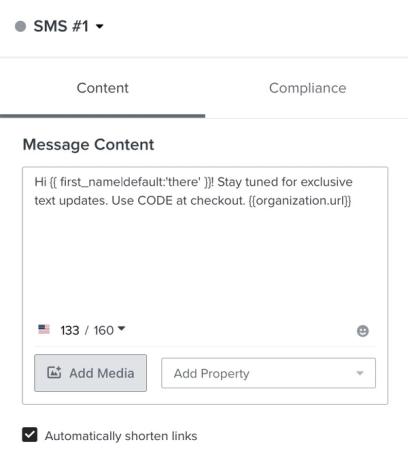
- Review the message text and replace any placeholder text (such as for a coupon code). Click Next to save the message and return to the flow.
- If the template includes another SMS, click it, then click Edit.
- Review the content and replace placeholder text with the coupon. Click Next to save. Repeat for any remaining SMS messages.
- Review each message’s Settings. To prevent the first welcome SMS from being skipped because of a recent text message, turn off Smart Sending for that message and click Save. Keep quiet hours on for messages that include marketing content, such as coupons.
- When you’re ready for the flow to be live, click Review and turn on, select Live under Flow status, and click Save.
Build an SMS welcome series without a template
We strongly recommend using a template rather than building an SMS welcome series without one.
However, if you do decide to build the series yourself, follow the steps below to create a 1-message SMS welcome flow:
How to build an SMS welcome flow without a template
- Click Flows.
- Click Create flow in the upper right-hand corner.
- Click Build your own.
- Name the flow (e.g., SMS-only welcome).
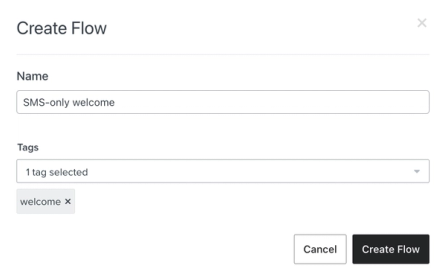
- Click Create manually. If you see a dialog with Name and Tags fields instead, click Create flow.
- Select All triggers, then choose Metric.
- In Search metrics, search for “Subscribed to Text Messaging Marketing.”
- Select Subscribed to Text Messaging Marketing.
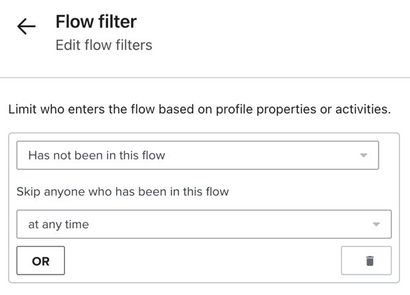
- Under Re-entry criteria, select No re-entry so each profile enters the welcome flow only once.
- Click Save.
- Review the trigger, then click Confirm and save.
- Drag a Text message action directly after the trigger.
- Click Edit in the details sidebar.
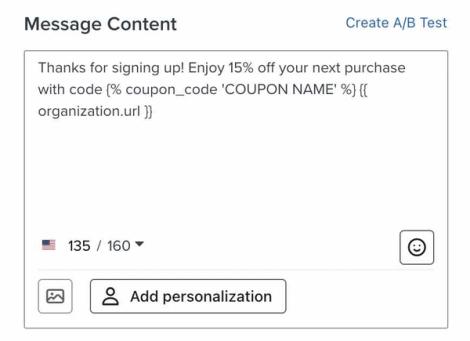
- Add your content.
- It’s best if the message is short and to the point.
- Example: Thanks for signing up! Enjoy 15% off your next purchase with code {% coupon_code 'COUPON NAME' %} {{ organization.url }}
- Example: Thanks for signing up! Enjoy 15% off your next purchase with code {% coupon_code 'COUPON NAME' %} {{ organization.url }}
- It’s best if the message is short and to the point.
- Click Next to save the message and return to the flow.
- Select the first SMS and review its Settings. To prevent it from being skipped because of a recent text message, turn off Smart Sending and click Save. Keep quiet hours on if the message includes marketing content, such as a coupon.
- Optional: add a virtual contact card.
- Notes:
- A virtual contact card turns the message into an MMS and counts as more credits in your billing plan.
- Virtual contact cards are available in the US, Canada, and Australia with an MMS-capable sending number. Use a toll-free number in Canada or a long code in Australia.
- On iOS, recipients must have texted your number for the contact card to appear as a card instead of a file. Double opt-in or custom keywords can provide this initial text.
- Instructions
- Add a conditional split after the first SMS and set the condition to:
Properties about someone > Country equals United States
Or
Properties about someone > Country equals Canada
Or
Properties about someone > Country equals Australia - Include only the countries where your sending number supports MMS, then click Save to save the split.
- Add a conditional split after the first SMS and set the condition to:
- Notes:
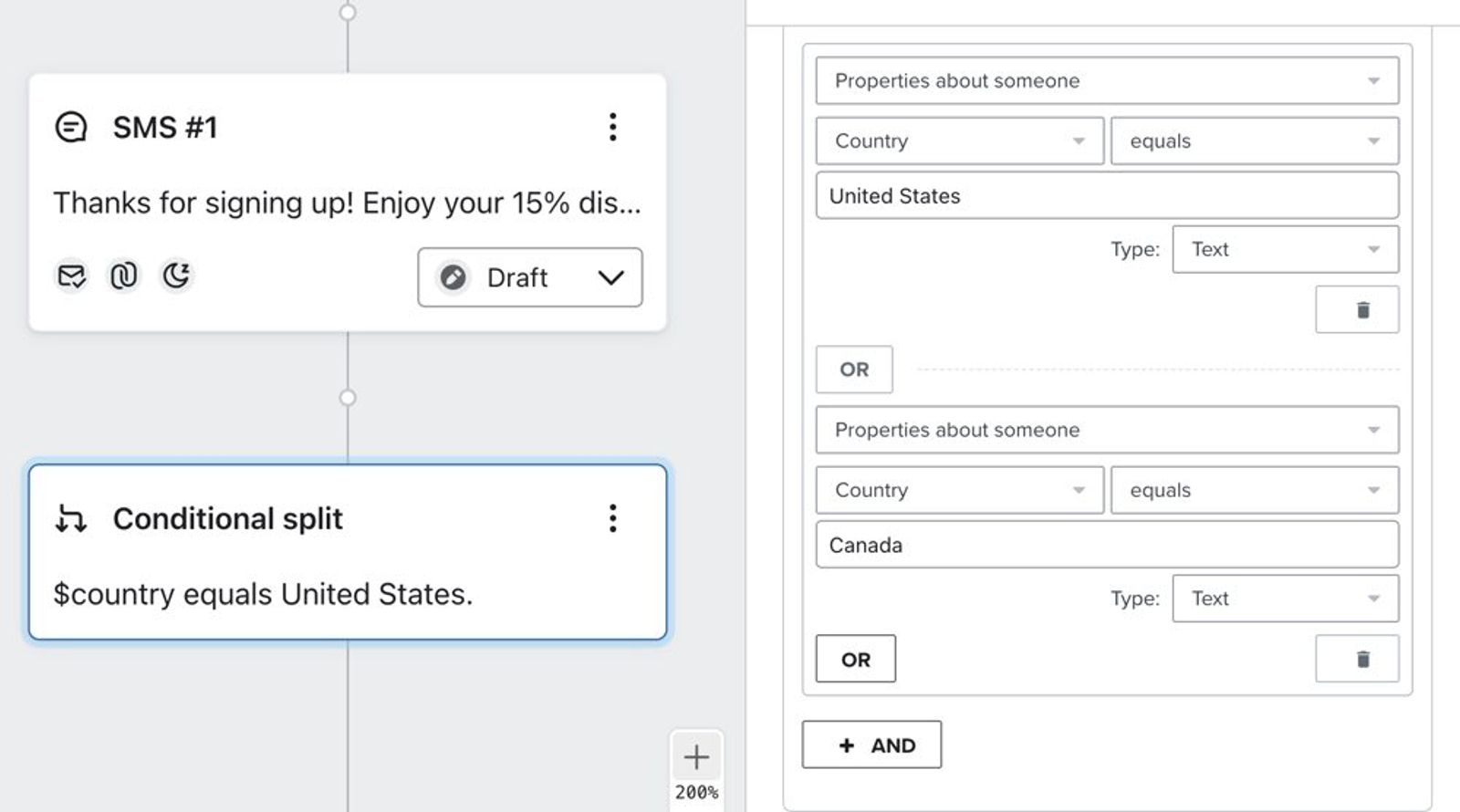
- Add a time delay on the YES path after the split.
- Set the time delay for 10 minutes, then click Save.
- Add a Text message action after the time delay.
- In the message’s Settings, turn off Smart Sending and click Save so the contact-card message is not skipped because of the first SMS.
- Click Edit.
- Add in a message to subscribers asking them to save your contact information.
- Example: "Make sure to save our contact card to be notified about our latest deals!"
- Turn on Attachment, select Image, and click Select image. If your editor shows Media instead, select it and click Select media.
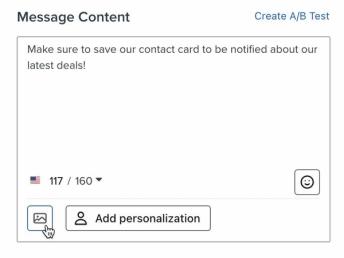
- Select the Virtual Contact Card option.
- Click the Add Contact Card button to add the card to the SMS message.
- Click Next to save the contact-card message and return to the flow.
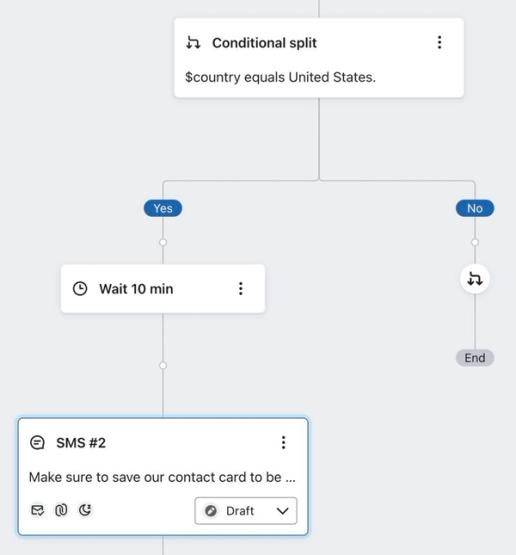
- Click Review and turn on, select Live under Flow status, and click Save.
Personalize your SMS welcome series
The steps above outline how to create a simple SMS welcome series. This is great when you’re first getting started with SMS, but once you get more SMS subscribers, you may want to make the flow more personalized.
Consider splitting your welcome series based on:
- Repeat vs. first-time buyers
- Purchase history
- Profile and custom properties
Repeat vs. first-time buyers
If you know someone has been on your email list for a certain amount of time but has never made a purchase, you may want to offer them a discount (or greater discount) in the second or third message of your SMS welcome series.
Keep in mind that you will need to create a new coupon code to include in the message with the higher discount.
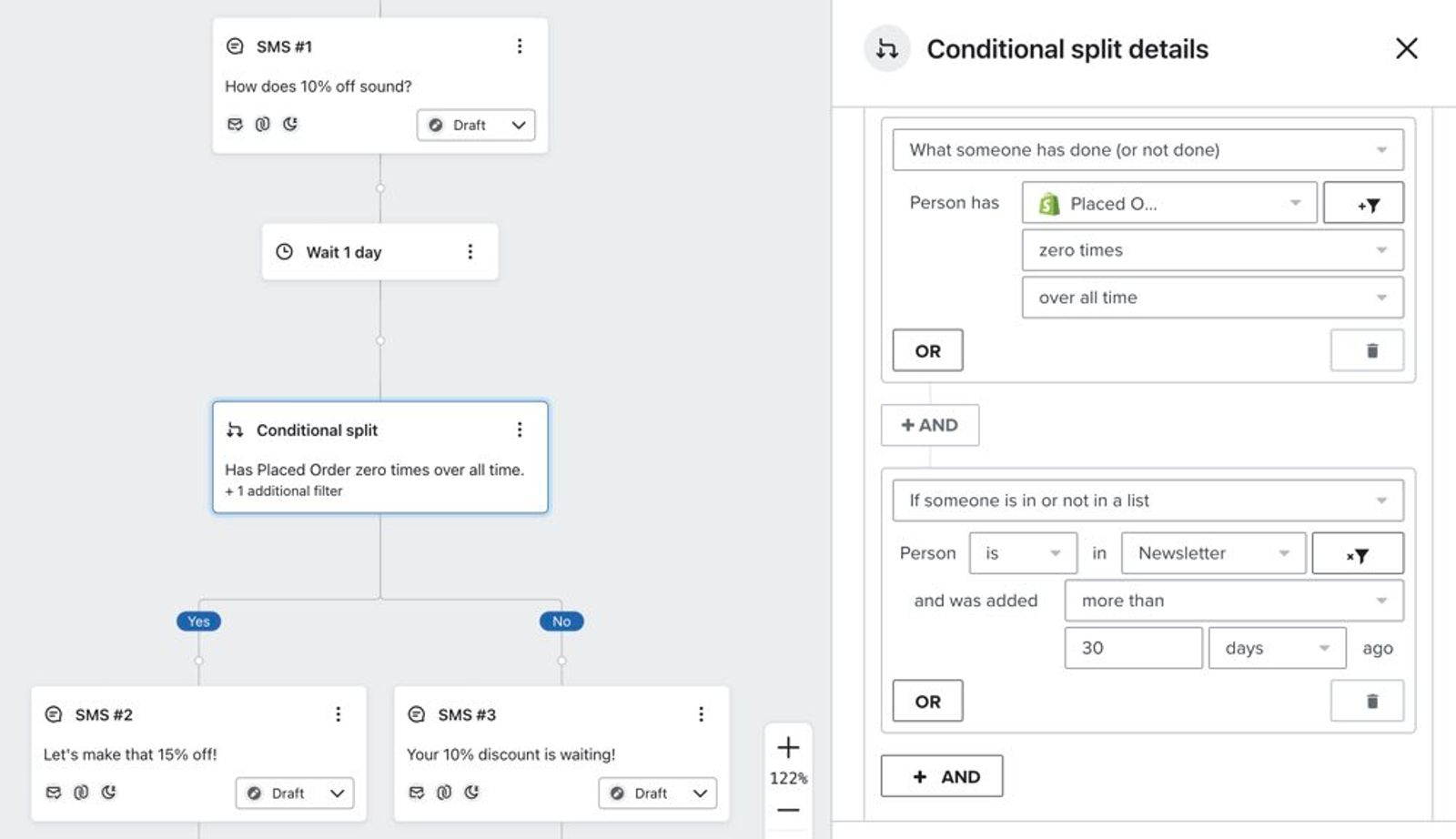
Purchase history
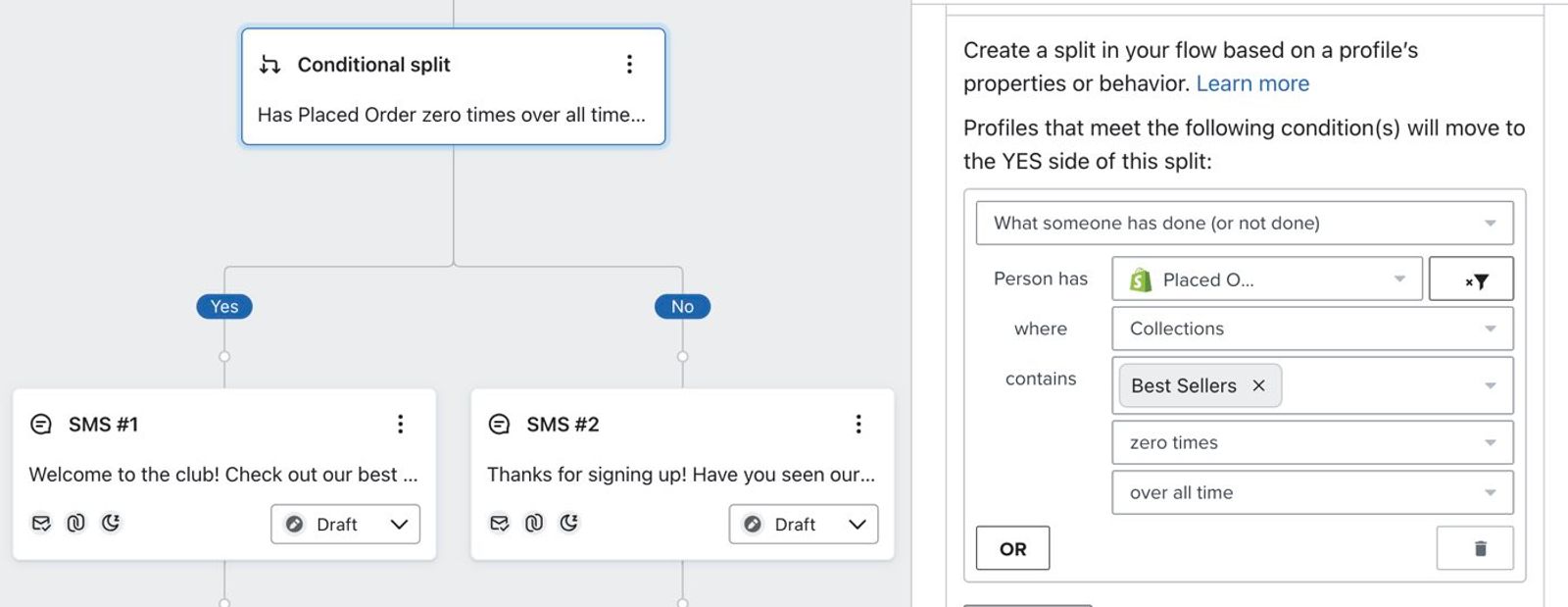
Splitting your flow based on purchase history is a great way to offer more targeted calls to action (CTAs). For example, if you know that someone has already bought from a certain collection, you can show them a CTA related to a different collection.
Profile and custom properties
You can leverage any information you learned about a subscriber when they initially signed up or through any subsequent emails they may have received.
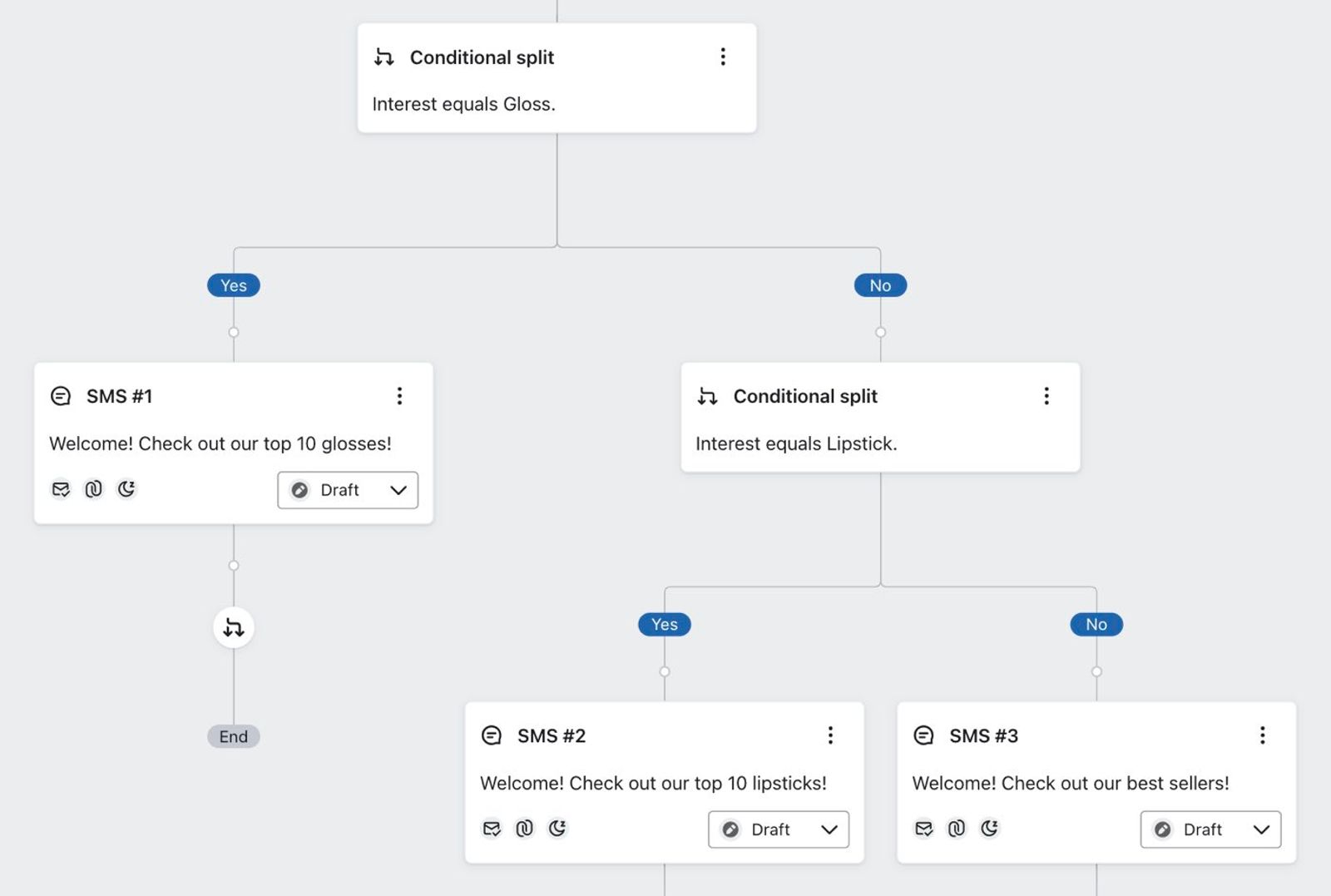
For example, let's say that in the first email of your email welcome series, you ask customers to select which category of products they're most interested in. You can then use this information to inform the CTA in your SMS welcome series.
It's important to have a default branch in case a subscriber has never indicated an interest in any of the options. In the example below, we're showing our best sellers to those who have never explicitly told us the types of items they're interested in.
SMS welcome series best practices
There are a couple best practices to keep in mind when creating an SMS welcome series:
- Keep the series between 1 to 3 messages to not overload your subscribers.
- Make your messages short and to the point.
- Set up a virtual contact card so your customers can add you as a trusted contact.
- Note: virtual contact cards are treated as MMS messages.
Keep quiet hours on for welcome messages that contain marketing content, including coupons. Only consider turning them off for the first message if it solely confirms the SMS subscription and contains no marketing content.
Additional resources
Now that you’ve set up your welcome series, take your next step:
- How to create a mobile terms of service in Klaviyo
Learn how to automatically generate your own mobile terms of service (TOS) in Klaviyo. In addition to generating a mobile TOS that you can customize to fit your needs, Klaviyo can also host the TOS for you, and you can add a link to your TOS anywhere (like forms where you collect SMS consent). Alternatively, you can copy the text in the TOS and paste into another page, like your existing TOS page.
- SMS privacy policy best practices
Learn best practices for SMS compliance in your privacy policy. Note that unlike with terms of service, Klaviyo cannot host privacy policies.
- Understanding SMS consent collection
Learn about SMS consent, including what counts as SMS consent, how you can collect it, and how resubscribes work. SMS consent refers to whether someone is opted in (i.e., if they have agreed to receive marketing text messages from your brand).