Migrating from another SMS provider to Klaviyo
You will learn
Learn the steps for migrating from another SMS provider to Klaviyo.
Why use Klaviyo for SMS?
There are a few key benefits of using Klaviyo for SMS compared to other platforms.
The first is that Klaviyo is an all-in-one platform to communicate with customers. Since both email and text messages are available in Klaviyo, you can send customers messages via the channel they prefer without over-messaging them. This is particularly true for flows, as they show SMS and email in the same view, making it easy to avoid sending a text and email at the same time.
Klaviyo’s segmentation capabilities also allow you to be more granular in grouping your SMS subscribers. This helps you build a personal connection with each individual, making your interactions feel like a conversation. Since data from your ecommerce platform syncs to Klaviyo, you can create segments based on any event passed to us as well as profile properties you collect.
Before you begin
Klaviyo SMS best practices
Dos | Don’ts |
Provide value in every message | Text anyone who has not opted into SMS |
Keep SMS messages short and concise | Use abbreviations or text-speak unless you know your audience will understand and appreciate them |
Send only between 9 a.m. and 8 p.m. in the recipient’s local timezone | Send too frequently (i.e., more than 6 times per month) |
Let recipients know who the messages are coming from (e.g., mention your brand name) | Send an SMS for everything — be strategic and intentional |
Include opt-out instructions in your messages | Include spam or content that violates the SMS and MMS prohibited content rules. Restrictions vary by industry and country and can include age-gating requirements. |
Include a link and use the Klaviyo link shortener | Neglect other channels, such as email, as it’s important to use SMS and email together for the best results |
US and Canada: do not collect consent or message anyone until you have a short code or verified toll-free number | |
*Use double opt-in for your lists | |
Preview personalized content and shortened links, then check the message count before sending. These can change the final message length. |
*Standard SMS double opt-in is skipped when your sending number for the subscriber’s country cannot receive replies, as with a branded sender ID. A two-way sending number can support double opt-in in the UK or Australia.
MMS is not available in all countries (e.g., the UK and Germany). If you send an MMS to a recipient in a country where MMS is not supported, the message text will send, but the image or GIF will not.
Klaviyo SMS migration steps
Below, we list out what to do when migrating as well as where these steps fall within the Getting Started with SMS course.
- In Orientation:
- Send a final message from your provider (2 minutes)
- Export data from previous SMS provider (11 minutes)
- Port phone number (optional) (2 minutes)
- In Add subscribers:
- Import SMS contacts (6 minutes)
- Create SMS subscribers segment (2 minutes)
- In Build relationships:
- Send a campaign from your new number (3 minutes)
Orientation
Send a final message from your previous provider
It's a best practice to tell subscribers when you're about to change your number, and this is required for US short codes and some US wireless carriers.
If you are not changing numbers (i.e., you're porting your number), skip to the section on exporting your data.
A week before changing numbers, send a final message from your previous SMS provider. Some carriers require this, and failure to comply may result in an audit or deliverability issues.
Include the following in the message:
- Your organization’s/brand’s name
- Your new phone number
- Key details about the transition, like support/contact care information (e.g., “Reply HELP for help”)
- Opt-out language (e.g., “Text STOP to unsubscribe”)
Export data from previous SMS provider
Next, export your existing data. The steps for migrating vary depending on your previous SMS provider. In general, though, you will need to:
- Export SMS contacts
- Export any additional data you want
If possible, when exporting contacts, we recommend separating subscribers by:
- Country (if you send to more than one country)
- Opt-in status
The first makes it easier when you’re importing consent, while the second ensures that you don’t accidentally send to non-consented subscribers and risk breaching compliance.
Migrating from Yotpo? Check out our Yotpo Email & SMS Migration integration.
Port phone number (optional)
When switching SMS providers, keeping the same number makes for a smoother transition for your subscribers. They’ll recognize the number as being from your brand, so you’ll be able to pick up exactly where you left off.
Note that porting a number results in the loss of any voice capabilities.
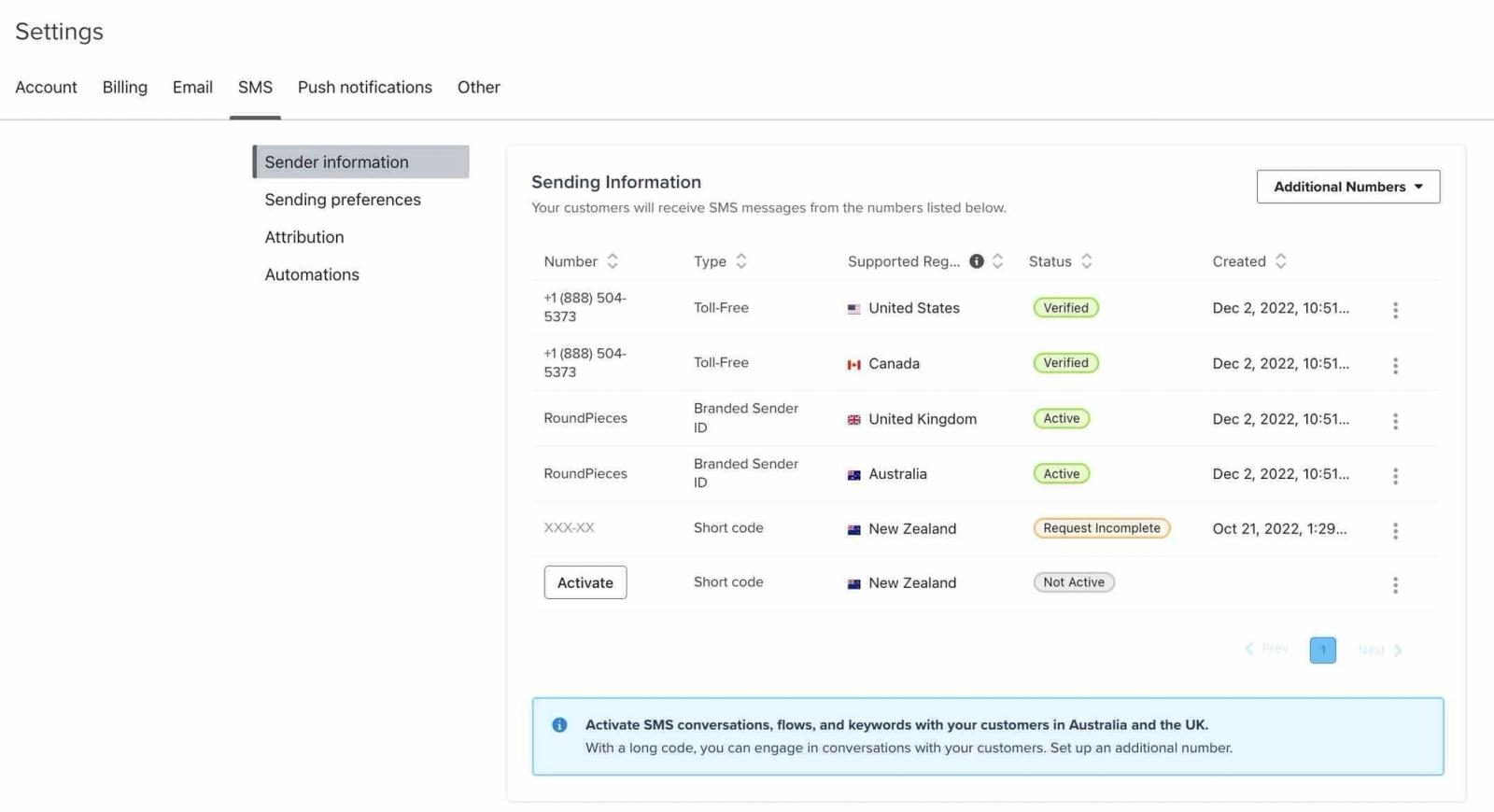
You can port toll-free numbers and short codes; however, porting is not available for shared short codes or branded sender IDs.
Allow 2–4 weeks to port a toll-free number or 8–12 weeks to port a short code into Klaviyo.
How to port a phone number | |
|  |
Add subscribers
Import SMS contacts (7 minutes)
1. Format your CSV
Before importing SMS subscribers, set up SMS in Klaviyo with a sending number for each country you plan to import. Only import SMS marketing consent for people who explicitly agreed to receive marketing texts from your brand. Check that your CSV is formatted correctly before uploading it.
In your CSV, you must include:
- Phone number
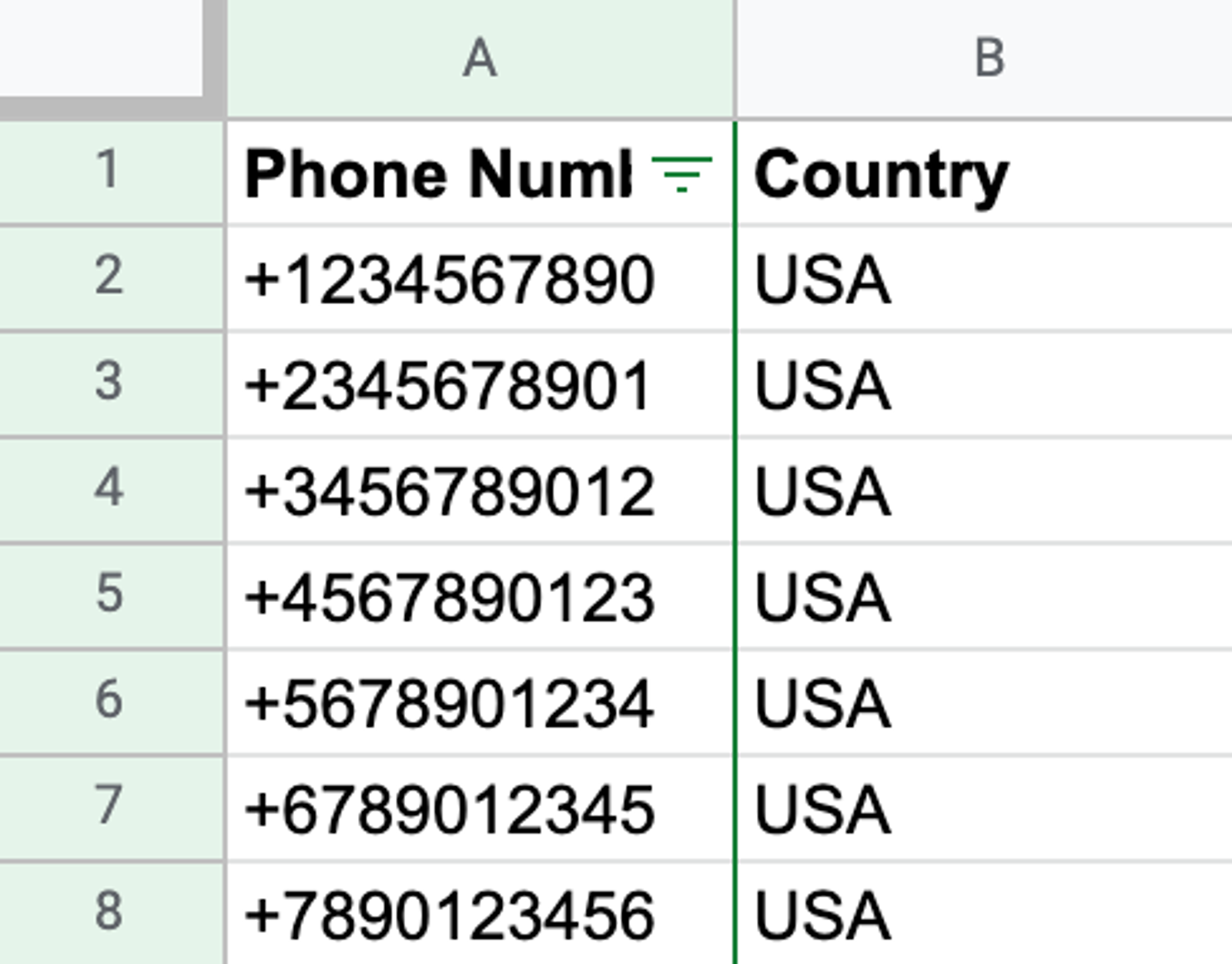
- Country (either through the country code or as a separate column)
Some providers put both opt-outs and opt-ins in the same CSV. Separate the unsubscribed contacts into another CSV before importing your subscribers, and keep it for the opted-out contact steps below. See how to upload SMS consent for the consent requirements.
 |  |
Recommended information
The following columns are recommended but not required:
- First name and last name
- Consent timestamp
If email is available, make this the first column in your CSV. If email is not available, make phone number the first column.
If you don’t have the consent timestamp, make sure you have explicit consent for all phone numbers in the list. When importing, you’ll need to verify that you have consent; if this isn’t true, you risk falling out of compliance.
2. Remove opted-out contacts
Before importing your SMS contacts, remove anyone who is no longer subscribed.
Filter your CSV to show only those who are opted out, copy them to a new spreadsheet, and then delete them from the original CSV. Keep the new spreadsheet for the opted-out contact steps below. For consent requirements, see how to upload SMS consent.
3. Upload a CSV of SMS contacts
1. Format and check your CSV. 2. Turn any list-triggered flows (e.g., your welcome series) to manual. 3. Navigate to Audience > Lists & segments. 4. Choose the list to import to (e.g., your main subscriber list). 5. Click the Manage list dropdown. 6. Choose Import contacts. 7. Upload your CSV and click Next. 8. Map your data to fields within Klaviyo.
9. If Next is shown, click it to confirm consent. Review the consent from your mapped columns and choose whether to apply bulk consent.
10. Review the mappings and consent selections, then click Import. 11. Wait for the import to finish and review any skipped records. Wait at least 4 hours after the import finishes before turning your list-triggered flows live again. |
Tip: Formatting phone numbers
Your phone number must be in one of the following formats:
- E.164
- +12345678900
- +12-345-678-900
- +12 345 678 900
- RFC3966
- tel: 12345678900
- E.123 national notation
- (1234) 567 8900
- 12345678900
- E.123 international notation
- +12 345 678 900
- +1 234 567 8900
Tip: Including the country
The best way to include the country varies depending on how many countries your SMS subscribers live in. Below are instructions for the most common use cases.
For more details, see How to indicate the country for an SMS import.
One country
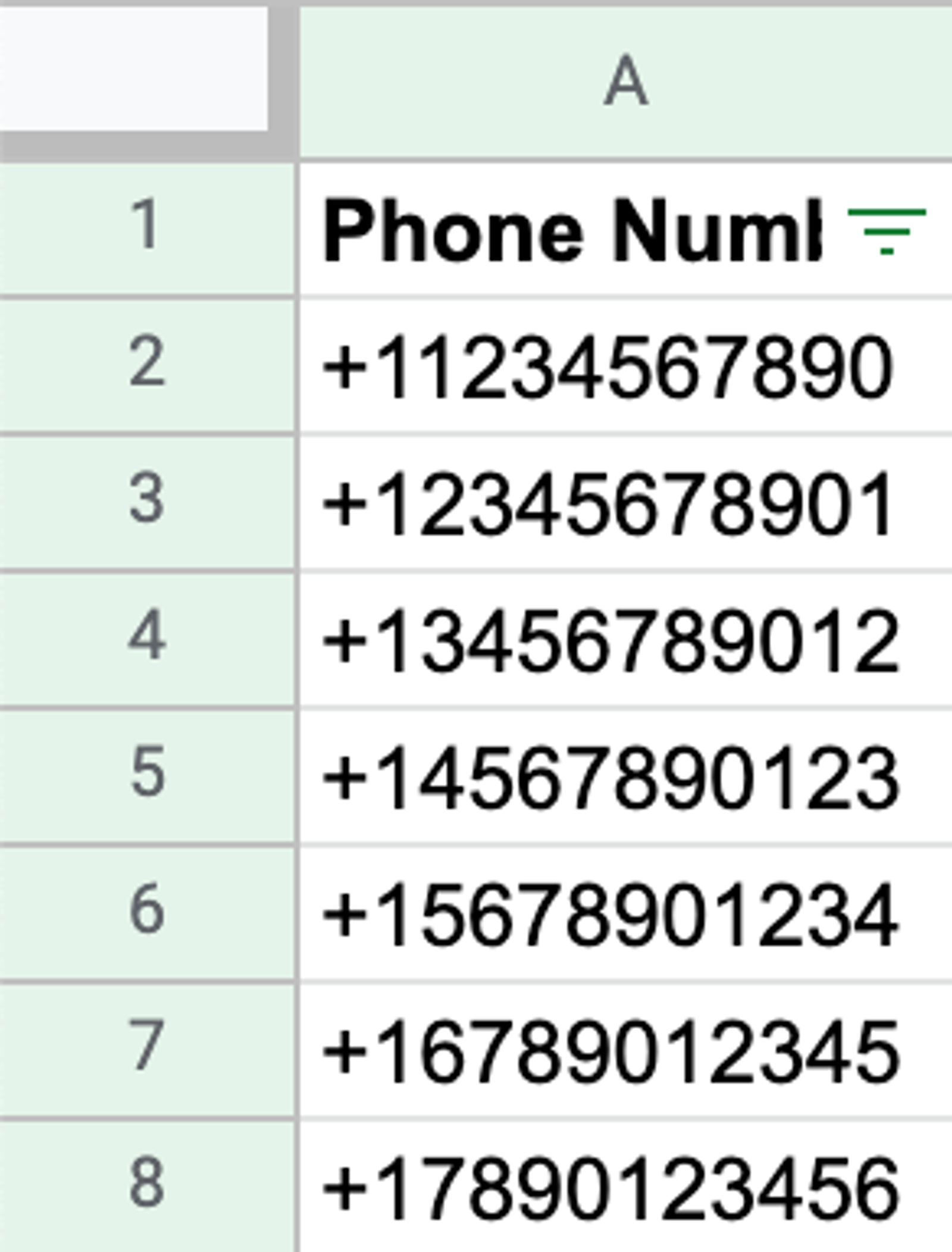
1. Make the first column in the CSV email (if available) or phone number. 2. Add in a column named Country. 3. Input the name of the country in the first cell in this column. 4. Copy and paste the country’s name into the rest of that column’s cells. |
Only the US and Canada
1. Make the first column in the CSV email (if available) or phone number. 2. Add a column to the left of your phone number column. 3. Insert ‘+1 in the first cell of the new column. 4. Copy the cell with ‘+1. 5. Highlight all blank cells in this column. 6. Paste the copied cell; this will populate the ‘+1 in every highlighted cell. 7. Add a column to the right of the phone number column. 8. Name the new column Phone Numbers. 9. Add the following in the first cell of the new column:
OR
10. Click either the bottom right corner or the bottom middle of the cell and hold. 11. Drag straight down that column to apply the formula to all cells. 12. Delete the name of the original phone numbers column so that only the column with the joined cells is labeled Phone Numbers |
Multiple countries
If your export includes a separate country column, map it to Country when importing. If the phone numbers already contain their international country calling codes but lack a leading +, use the US and Canada steps with a single quote followed by + instead of +1. Do not add the calling code twice.
If that’s not the case, the next best thing is to segment by country in your previous SMS provider, and then export the segment. If this is the case, follow the steps listed under One Country.
For other cases, you may need to manually identify the country and input it into your CSV before uploading.
Tip: Formatting the consent timestamp (optional)
If you have the consent timestamp, it must be in one of the accepted date/time formats. The following are examples of accepted formats:
- 2014-09-30 13:34:08
- 2014-09-30 13:34:08+00:00
- 09/30/2014 13:34:08
- 09/30/14 13:34:08
- 09/30/2014 13:34
- 09/30/14 13:34
- 2014-09-30T13:34:08
- 2014-09-30 13:34:08.000001
- 2014-09-30T13:34:08.000001
- 2014-09-30 13:34:08.000001-04:00
- 1412098448 (Unix)
4. Import opted-out contacts
If you want to add in the information for opted-out contacts, you can upload them into Klaviyo and mark them as unsubscribed. This way, you'll have the data you've already collected but won't risk texting them.
Prepare a separate CSV of opted-out contacts, as described above. Include their phone numbers and country. You will first import their profile information without subscribing them, then use the same file to mark their phone numbers as unsubscribed.
Once that's done, follow these steps:
- Format and check your CSV.
- Turn any list-triggered flows (e.g., your welcome series) to manual.
- Navigate to Audience > Lists & segments.
- Choose the list to import to (e.g., your main subscriber list).
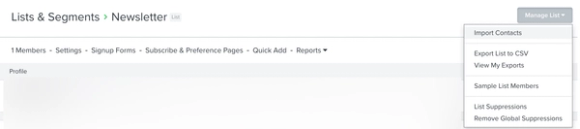
- Click the Manage list dropdown.
- Choose Import contacts.
- Upload your CSV and click Next.
- Map the profile fields you want to import. Do not map a historical SMS consent timestamp or a consent value that subscribes these contacts.
- Click Next if shown. If prompted to confirm consent, select Only import the consent in my file. Do not select Apply bulk consent for SMS.
- Review your mapped fields and consent choices.
- Click Import.
- Wait for the profile import to finish and review any skipped records before continuing.
- Open the dropdown under your account name.
- Click Settings > Other > Profile maintenance.
- Scroll to Import text message unsubscribes.
- Upload your opted-out contacts CSV. Name the phone number column Phone Numbers. Include either international calling codes in the numbers or a Country column.
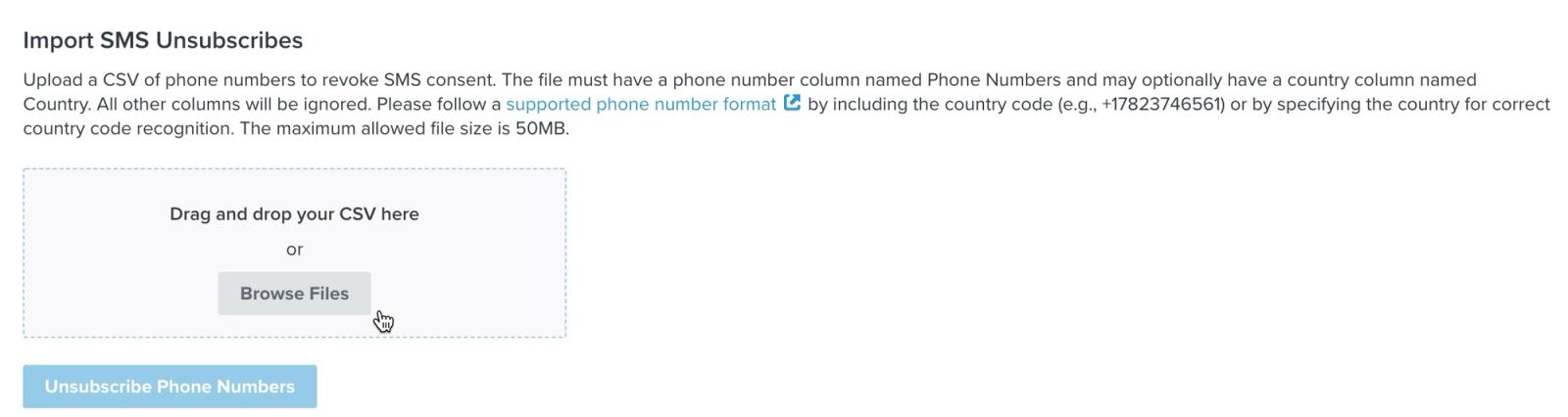
- Click Save.
- Click Unsubscribe Phone Numbers in the confirmation dialog.
The unsubscribe process may take a few minutes. Check its status and review any skipped records before sending to your migrated audience. If you set list-triggered flows to manual, restore them only after the imports are complete and the waiting period above has passed.
Create an SMS subscribers segment
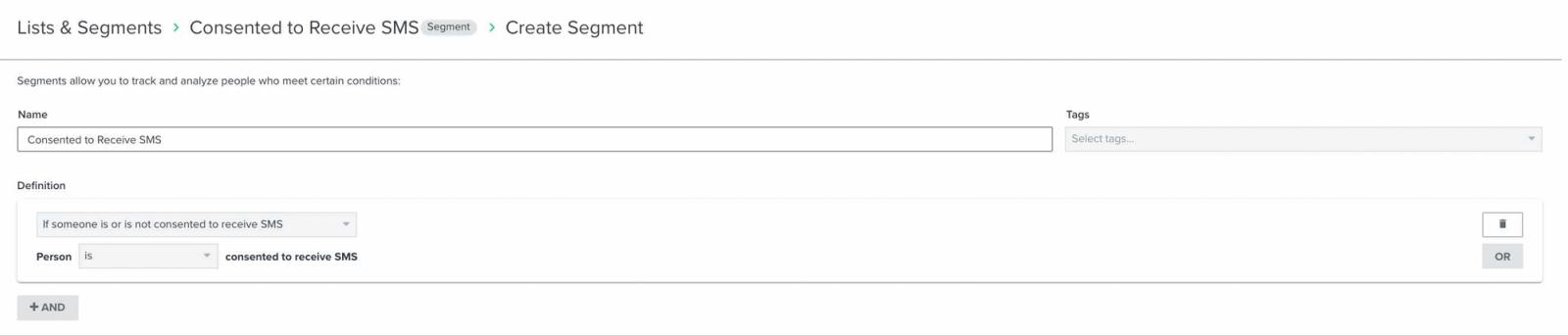
Segments update automatically; profiles will enter or leave the segment when they meet or fail to meet the segment’s conditions. This is different from lists, which are static.
Without a segment, it can also be difficult to know how many SMS subscribers you have, as subscribers may be spread throughout different lists or you may have a list that shows both your email and SMS subscribers together. An SMS segment will show you everyone who is consented to your SMS marketing, letting you see all of your subscribers at once.
Keep a list titled “SMS Subscribers” in your account, as it’s beneficial to have in certain use cases (e.g., consent at checkout and signup forms). However, we recommend only sending to your SMS segment.
How to create an SMS subscribers segment | |
|  |
Build relationships
Send an SMS campaign
What you want to send depends on your audience as well as if you kept the same number when you migrated to Klaviyo.
Journey Check: Click the link that best fits your situation:
- I changed my sending number
- I ported a toll-free number
- I ported a short code
- I previously only used a branded sender ID
If you switched numbers or ported a short code
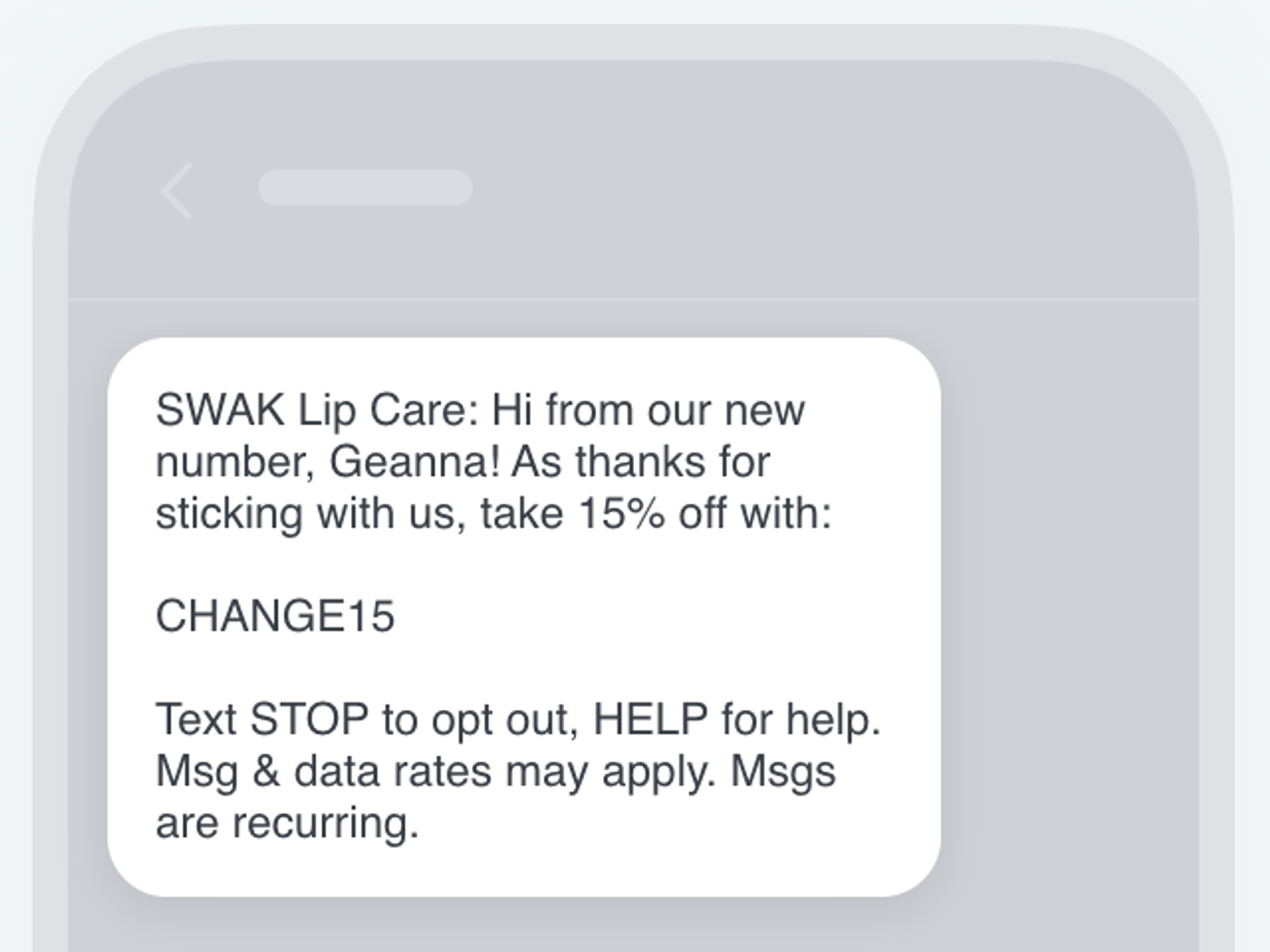
If you ported a short code or switched SMS sending numbers, your first campaign from your new number should act as a follow-up to your last message from your old number, informing subscribers about the change and how you’ll be texting them going forward.
In the text, you’ll want to let subscribers know certain information, including:
- Your brand’s name
- The recurring-SMS program’s name or product description
- Support/customer care information (e.g., “Reply HELP for help”)
- Opt-out instructions (e.g., “Text END to unsubscribe”)
- Disclosure that message and data rates may apply
- Disclosure for message frequency
Example text: "[Organization Name]: Hi from our new number! Thanks for sticking with us.[Add offer, if desired]. Text STOP to opt out, HELP for help. Msg & data rates may apply. Msgs are recurring."
How to send an SMS campaign (number change) | |
|  |
If you kept the same number
If you kept the same number (and it’s not a short code) or previously only used a branded sender ID, you’ll want to continue your previous SMS strategy. Were you sending out text alerts every Thursday? If so, keep the same cadence and content. In the first message, though, we recommend including a reminder about who you are and how to opt out.
For future sends, think about how you can use your data in Klaviyo to better target your audience, such as personalizing your messages and creating segments around location, purchase history, gender, etc.
Tips: Message content
Keep these best practices in mind when creating an SMS or MMS campaign:
- Reference your brand name
- Make the message as short as possible
- Only send between 9 a.m. and 8 p.m. in the recipient’s local timezone
- Include a link and use the Klaviyo link shortener
- Preview personalized content and shortened links, then check the message count before sending.
Note that if you're sending to a country where MMS is not available, the message will send, but the image or GIF attached won't.
Tips: Message count
When creating messages, keep in mind how long the message is:
- MMS messages can be up to 1,600 characters.
- A single SMS can contain up to 160 standard characters, or 70 when it includes emojis or certain special characters. Longer texts count as multiple SMS messages.
Check the message count and the credits or estimated cost shown in the editor for each recipient country. For example, a text that counts as 2 SMS uses twice the per-message amount for that destination. The amount depends on the destination and your plan.
Note that even if a message counts as multiple messages, due to the way text messages are displayed, it will show as a single message both in the Klaviyo preview and on the recipient’s phone.
Additional resources
- Understanding SMS consent collection
Learn about SMS consent, including what counts as SMS consent, how you can collect it, and how resubscribes work. SMS consent refers to whether someone is opted in (i.e., if they have agreed to receive marketing text messages from your brand).
- Understanding and reviewing your SMS deliverability
Learn the important aspects of SMS deliverability, including how to evaluate it and best practices.
- Getting Started with SMS