Getting started with sign-up forms
You will learn
Learn how to create and customize sign-up forms in Klaviyo to publish on your website so you can engage shoppers, collect emails and phone numbers, and build long-lasting customer relationships.
Follow these steps to create and publish a sign-up form on your website:
- Confirm that Klaviyo sign-up forms are enabled on your website. You can verify this in the Before you begin section below.
- Brainstorm a goal for your form.
- Create the form and customize its design to meet your goal.
- Apply targeting settings so the form appears for your desired audience.
- Preview your form on your website and phone.
- Publish your form, then test its targeting and display behavior.
Before you begin
Before you can publish a sign-up form on your website, integrate your website with Klaviyo. Once your integration is live, you'll need to verify that sign-up forms are enabled on your website to see the form display as intended on your site.
Best practices for sign-up forms
Unsure of what sign-up forms to create and publish? Consider this recommendation for a basic form that will help grow your audience and convert site visitors into paying customers:
- Publish a popup form on your site that's triggered to appear when a shopper is exiting the page.
- After you've followed the instructions outlined in this guide to build and design your form, see the Target your form section for instructions on how to trigger this form so that it only appears for visitors unknown to Klaviyo.
- After you've followed the instructions outlined in this guide to build and design your form, see the Target your form section for instructions on how to trigger this form so that it only appears for visitors unknown to Klaviyo.
If you plan to collect both email and SMS consent in this form, use a multi-step form to collect this information on separate steps as it's best practice for list growth. Adding a coupon block to the success step of the form to offer a promotional discount can also further incentivize visitors to opt in and encourage them to make a purchase.
Set a goal for your sign-up form
Before you start building your sign-up form, consider your goals. A form can help you connect with potential customers, learn more about your audience, convert email subscribers to SMS subscribers, and more. A simple popup that collects contact information from those who have visited your site, but never subscribed is a great place to start.
Following these 3 principles will help you design a successful sign-up form:
- Keep your style simple
When you pack too much into a single form, you distract from your form’s main goal and make it harder for a site visitor to say “yes.” Keep it simple so it’s as easy as possible for your visitors to understand and fill out your form. - Design for the total experience
It’s easy to get lost trying to find the perfect color or layout. Successful sign-up forms are about more than just a first impression. When designing your next form, consider your subscribers’ experiences before, during, and after they encounter your form. - Collect the right data
Most sign-up forms ask for your email address or phone number, but more data can help you build powerful connections with subscribers. You can also use a sign-up form to target certain audiences with an announcement or offer. In general, knowing when to ask for more, and what to ask for, will help make it a no-brainer for subscribers to tell you more about themselves.- While multi-step forms are best practice for collecting information from new subscribers, single-step forms (e.g., a form asking only for a phone number) are effective for cross-channel audience acquisition.
Once you’ve decided on a goal for your form, select Website > Sign-up forms from Klaviyo's left navigation to start creating.
Create a basic sign-up form
This guide will give an overview of each step. Once the form is created, designed, and targeted, you can publish it to your website with just a few clicks.
To create a new sign-up form, you have 2 options:
- Build off of a form template from Klaviyo’s form library.
- Create a new sign-up form.
Build a form from the form library
The forms found in the form library are designed with best practices in mind. You can filter the options by form type or goal to find the right template, then easily edit the default designs to match your brand. Before selecting a template, create any subscriber lists you need.
- From Klaviyo's main navigation, select Website > Sign-up forms.
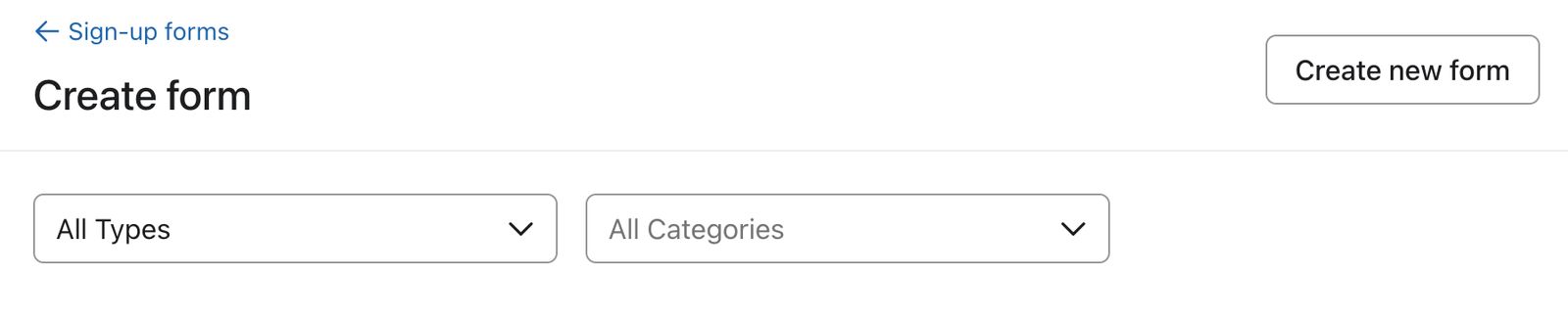
- Select Create form in the top right corner.
- If prompted to choose a channel, enter a form name, select Web, and click Create form.
- Browse the library of pre-built website form templates. Use the Form style and Template type filters to narrow the options by form type, steps, consent channel, or goal.
- Select your form template.
- On the preview modal that appears:
- Name your form
- Choose the list that your form will submit to (this is the list that shoppers who fill out this form will collect on).
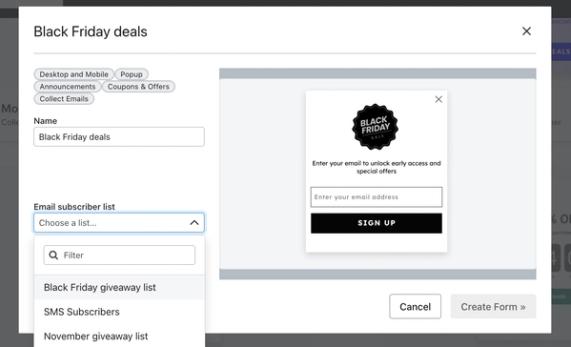
If you are using a multi-step form that collects email and phone number, you can select 2 different lists. Choose an existing list for each channel.
- Select Create form to enter the form editor where you can edit the content and design to fit your brand.
Create a blank sign-up form
If you would prefer to start with a blank form template to customize, create a new sign-up form.
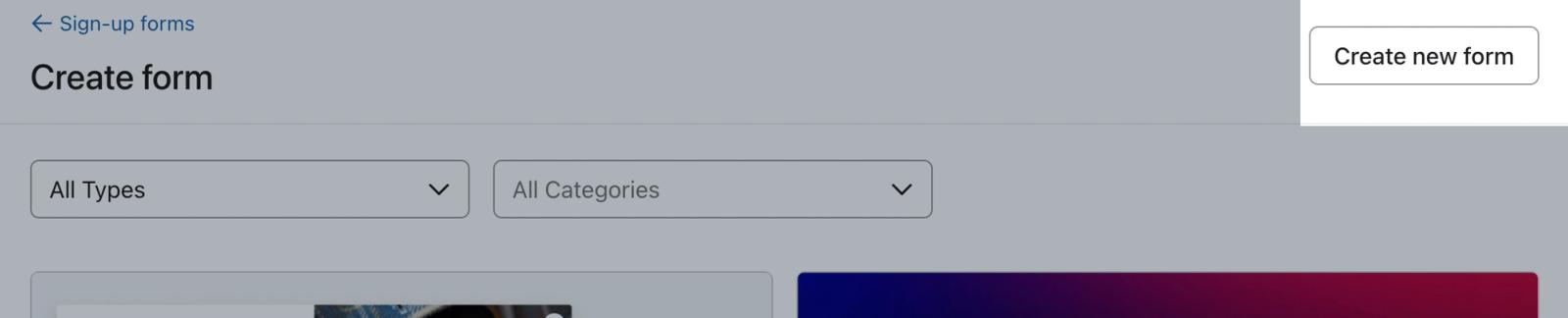
- Navigate to Website > Sign-up forms, then click Create form. If prompted, enter a form name, select Web, and click Create form again.
- Click Create blank form in the upper right corner.
- On the details modal that appears, choose the following:
- A name for your sign-up form
- The list that new subscribers will add to
Note that you can change the list that the form submits to later by clicking on the form's submit button in the editor and selecting a different list, if you would like.
- The type of sign-up form that you'd like to use
- Option to enable data protection fields
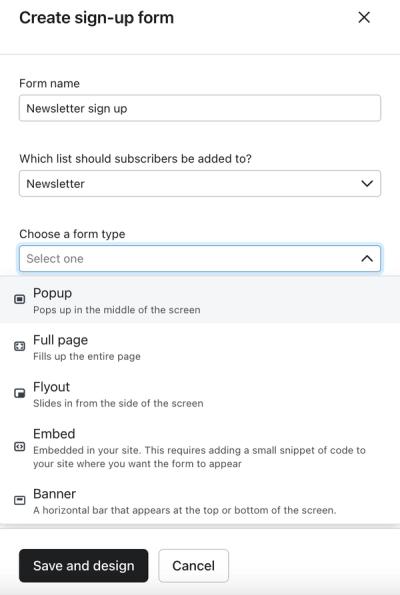
- Click Save and design to enter the form editor where you can customize your form's content and design.
Design your form
Once you've created your form, you can use the Add content and Edit styles sections in the editor to customize the design and content of your form.
If you see a "301 Moved Permanently" error in the form editor canvas behind the preview, this typically means your website is returning an invalid domain. We suggest verifying that your domain is valid, but common reasons for this can include password protection or redirects set up for an outdated domain. This error does not indicate a problem between Klaviyo and your website and will not affect your ability to publish your form.
Style your sign-up form
In the form editor, select the Edit styles section. Here, you can edit:
- Form type
- Popup
Appear in the middle of the browser window. Popups are eye-catching and high converting, but potentially disruptive to a visitor's experience. - Flyout
Appear to "fly out" from the edge of the page. Flyouts are still noticeable, but they generally allow a visitor to keep browsing without having to interact with the form. - Full page
Display over the entire browser window, capturing your shoppers' full attention. These are high-converting forms since they cannot be easily overlooked; however, this also makes them more intrusive since shoppers must interact with the form to close it. Consider using a full page form as a landing page if you want a designated opt-in page on your site. - Embed form
Embedded on a specific page or section of your site, like your footer. Embeds are helpful and easy to find for visitors who come to your site with the intention of subscribing. Add an embed form in your footer, in addition to any other popups you publish, to optimize list growth opportunities on your site. Given the placement of a footer embed form, we suggest asking for email consent only to improve the volume of opt-ins. - Banner form
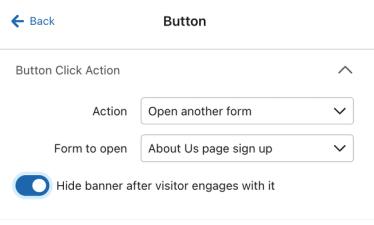
Banners appear as a horizontal bar at the top or bottom of a webpage to subtly integrate with your website’s design. They’re less intrusive than pop-ups and full-page forms, providing continuous visibility without interrupting the browsing experience. You can set the banner to scroll with the page or remain fixed, making it a more user-friendly and mobile-optimized option. With banner forms, you can either:- Add content blocks and input fields directly to the banner form, such as an email input field.
- Configure the banner so that when a user clicks on it, it opens another one of your live forms. To do so, set the button in your banner's Action to Open another form, then choose which form you want to appear when a shopper clicks on the banner. Note that this functionality is not available for embedded forms.
- Popup
- Form size
- Image content
- Background colors
- Form, text and input field styles
For a deep dive into designing sign-up forms, head to our guide on how to choose styles for a sign-up form. If you're building a sign-up form to display on mobile devices only, read our guide on mobile form design basics.
Add blocks to your sign-up form
The types of content blocks that you add to your sign-up form will be determined by the goal that you set and the information you want to collect from site visitors. To add or edit the content in a sign-up form, select the Add content control in the form editor.
There are a variety of content blocks that you can drag and drop to add to your form. These include:
Elements:
- Text block
- Button block
- Image block
- Coupon block
- SMS disclosure language block
- Countdown timer block
- Sign-up counter block
- Review quote block
Input fields:
- Email input
- Phone number input
- Radio button
- Multi checkbox
- Date input
- Dropdown
- Age gate, if you're an alcohol-related brand looking to use SMS
When you add an input field to your form, add Placeholder text to give visitors a helpful hint as to what information you're looking for. If you mark an input field as Required, the corresponding Required text and Invalid text are also fully customizable, so you can translate these to the language of your choice, along with any other text in your sign-up form.
To learn more about each type of content block you can add to a form, see understanding form blocks and fields.
If you plan on asking shoppers for multiple bits of information (e.g., email, phone number, birthday, etc.) create a multi-step form by clicking + Step in the top menu bar and specifying the type of step you want to add. Multi-step forms allow you to add additional pages to your sign-up form, so visitors are not overwhelmed by too many fields on 1 step. If you are collecting emails and phone numbers, we suggest using a multi-step form as it's best practice for list growth and maintaining compliance. Disclosure language must also be present anywhere you collect SMS consent.
Adding a phone number input field will, by default, collect promotional SMS consent, allowing you to send any SMS messages. You can adjust this to collect transactional SMS consent, or both separately, but the appropriate disclosure language must be present. Learn more about SMS consent types.
Configure dynamic blocks for distinct desktop and mobile views
If your sign-up form is set to display on all devices (desktop and mobile), and you would like it to look different depending on which device someone is browsing on, you do not need to create 2 different forms. Dynamic blocks can be configured to show on some devices, but not others. This allows you to add any of the blocks listed above to your form, and specify which device the block is shown on so that you can create a distinct look for mobile shoppers compared to desktop shoppers.
For more information on using dynamic blocks to tailor your form by device type, head to our guide on using dynamic blocks in forms.
Add a form teaser
Add a teaser to your popup, flyout or full page sign-up form so visitors who close the form can reopen it if they please.
Click Teaser in the menu bar to create one for your form. From here, you'll be able to configure the teaser's style and behavior so it matches with your form. Learn more about form teasers.
Teasers are not available for banner forms.
Customize your form's success message
After you've finished designing your form's main steps, click Success in the top menu bar to view and edit the form’s success message. This message should match your form's design and branding. To show it after the last main step, select that step’s submit button, set Action to Submit form, and set After Submit to Show next step. Choosing Close form or Go to URL under After Submit skips the success message.
Target your form
Select the Targeting & behavior control in the form editor to configure when your form appears on your site and who it appears for. Based on your goals for your sign-up form, you can adjust the following settings:
- Display priority
- Display timing
- Display frequency
- Devices that your form will display on (mobile and/or desktop)
- Dismissal settings
- Targeting settings
- You can target a form based on a visitor’s location, device type, list membership, URL, UTM parameters, cart contents, etc.
Head to understanding targeting and behavior settings for a sign-up form to learn more about adjusting your form's display functionality.
For a popup that triggers when a shopper is exiting the page, the following behavior settings are a good place to start:
- Click Targeting & behavior, then select the Display tab.
- Under Timing, set Show form to Based on rules, then select When visitor is exiting the page.
- Under Frequency, set If visitor closes form, show again after to 5 days, then select Don’t show again if form was submitted or if go to URL button was clicked.
- Under Devices, click All devices.
- At the top, switch to the Targeting tab.
- Under Audience, select Don't show to existing Klaviyo profiles.
Based on your Customer Privacy settings in Shopify, Klaviyo may not track onsite events (and thus, not apply certain types of form targeting) for visitors to your Shopify store in the EU, EEA, UK and Switzerland, unless they have provided consent.
If a visitor hasn’t consented to tracking and cannot be identified, whether they see the form depends on your audience settings. The following examples assume the visitor meets the form’s other targeting and display rules:
- If you select “Don’t show to existing Klaviyo profiles,” the visitor will still see the form because they won’t be identified as an existing profile.
- If you select Show to all audience members, the visitor will see it.
- If you select Show to any existing profile, Show to email only subscribers, or Show to text messaging only subscribers, the visitor will not see the form because they will not be identified as an existing profile or subscriber.
- If you select Show to specific profiles in a list or segment and use Include certain lists and segments, the visitor will not see the form because their membership cannot be identified. If you only use Exclude certain lists and segments, unidentified visitors can still see the form.
- Certain custom triggers based on cookie information and user properties will not trigger due to a lack of identification.
- Targeting by location is not affected.
- Targeting to show on device type (desktop, mobile) is not affected.
Preview your form on your website
Before publishing, preview your draft form on your website to check its appearance and interactions alongside your site’s content. You can also preview it on your phone without making the draft live for visitors.
By previewing a form, you can mimic the journey of a potential profile, allowing you to not only test the quality of the form, but the experience of your flows as well.
Your account’s website URL must be set to a page with Klaviyo’s onsite JavaScript installed for the preview to display. For an embed form, the page must also contain that form’s embed code, available under Targeting & behavior > Display > Embed code.
Use test contact information if you submit the form during preview. Submissions can update profiles and subscribe contacts. Preview views and submissions are excluded from live form analytics.
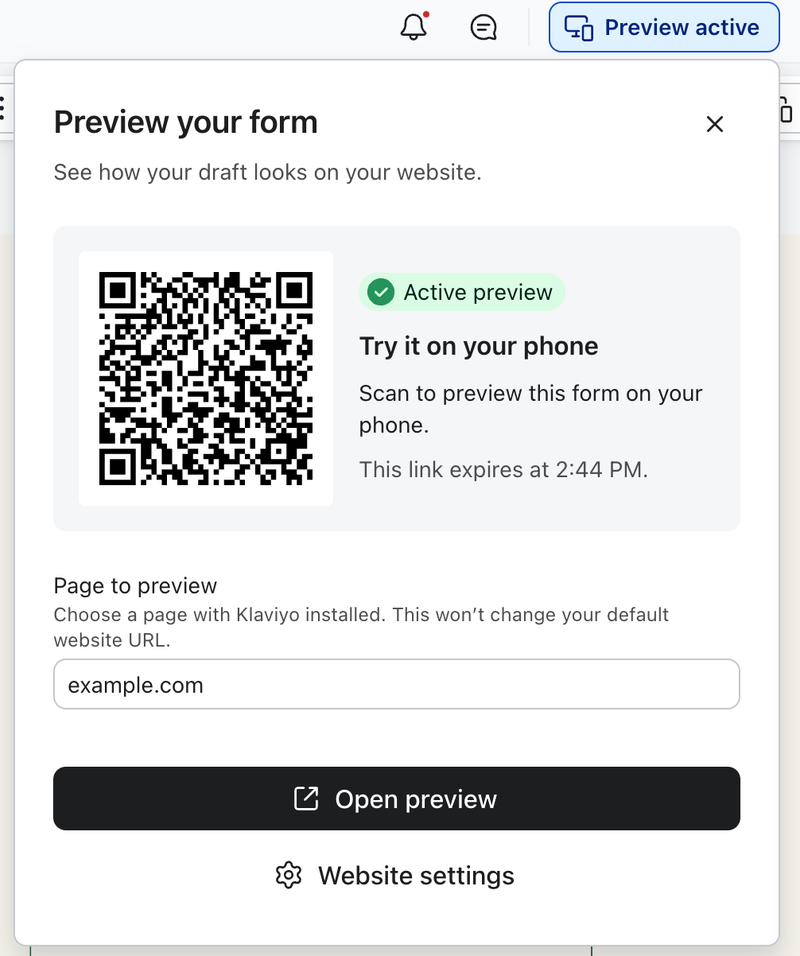
- Open your sign-up form in the editor and select Preview on website to open the preview panel.
- To preview a specific page, enter its URL in the Page to preview field, then select Open preview to open it in a new tab. Choose a page with Klaviyo installed. Changing this field does not change your account’s default website URL.
- To check the mobile experience, scan the QR code with your phone’s camera.
- Review your form’s layout, content, and steps. Make any changes in the editor. Saved changes update in the preview automatically.
- When you’re finished, select Exit preview on your website.
The preview link and QR code expire after 30 minutes. To continue, return to the preview panel and select Create new preview.
Preview mode bypasses targeting and display rules so you can inspect your form. After publishing, test the form outside preview mode to confirm that it appears for the intended visitors and at the right time.
Publish your form to your website
As you build your sign-up form, select Alerts in the editor header to review identified issues (e.g., Add text to a button) and follow the prompts to fix them. If you dismiss an alert, it moves to Dismissed alerts so you can return to it later. Resolve errors that block publishing before continuing.
- Click Publish to open the publishing options.
- If scheduling options appear, select Publish now. Click the Publish now button. With onsite JavaScript installed, your published form can appear on your site according to its targeting and display settings.
If you’re publishing an embed form, there are just 2 final steps: copy the form's embed code from the publish modal, then paste the code onto your site.
Test your published sign-up form
After publishing, visit your website outside preview mode to verify your form’s targeting and display behavior.
- Exit any active preview session.
- Open your website in a new incognito or private browsing window with ad blockers disabled.
- Make sure you meet your form’s targeting conditions and display rules. For example, if the form requires both a time delay and exit intent, both conditions must be met before it appears.
- Submit the form using test contact information. Check that the expected success message or redirect appears and that the submission reaches the intended list, completing double opt-in if required.
Once visitors begin interacting with your published form, review its performance in form analytics.
Bot protection for forms
Klaviyo automatically enables bot prevention measures, including CAPTCHA, on sign-up forms that collect email addresses, phone numbers, or feature coupon codes.
CAPTCHA requires form submitters to complete a brief task to verify that they are human and not a bot. If Klaviyo detects suspicious behavior or previous bot activity from a user's IP address, the user will be prompted to solve a CAPTCHA before submitting the form. Only users exhibiting suspicious, bot-like activity will encounter the CAPTCHA.
Forms not working due to ad blockers
If you or your site visitors are using ad blockers (such as AdGuard), Klaviyo forms may not function properly. Ad blockers stop Klaviyo.js from being loaded, which powers core form functionality such as form triggering. When blocked, forms that collect personal information (like email or phone number) will not display or submit successfully.
Test your forms in an incognito/private browsing window without ad blockers enabled to confirm they work correctly.
Next steps
If your sign-up form includes an incentive for signing up (like free shipping or a discount on an order), new subscribers will expect to be able to use the offer right away. Use a welcome flow to deliver on your offer and start to build brand awareness and loyalty.
Your welcome flow should use your sign-up form’s list as the trigger, and the first email should be sent right away. You can add additional messages or reminders to use their coupon a few days later.
If you want to experiment and identify the best incentive for your audience, consider A/B testing your sign-up form offer.