How to view sign-up form responses
You will learn
Learn how sign-up form responses are stored in Klaviyo, where to access a person’s form responses, and how to export a CSV of their current values from a group of profiles.
Using sign-up forms on your website helps you learn more about your audience, and you can use the information you collect to send highly targeted, personalized marketing.
Before you begin
In order to see form responses, you must have a Klaviyo form that at least one person has submitted. All input fields in your form must be properly formatted, including both:
- The profile property name, which represents the question
- The property value, which is the person’s response
For open-input fields (e.g., Text input or Phone number), the property value is whatever the site visitor types into the field.
For Multi checkbox, Radio button, and Dropdown fields, each option has a Label and Value. The labels are the options a visitor sees in the form, and the values are the responses saved on the back end after someone completes the form.
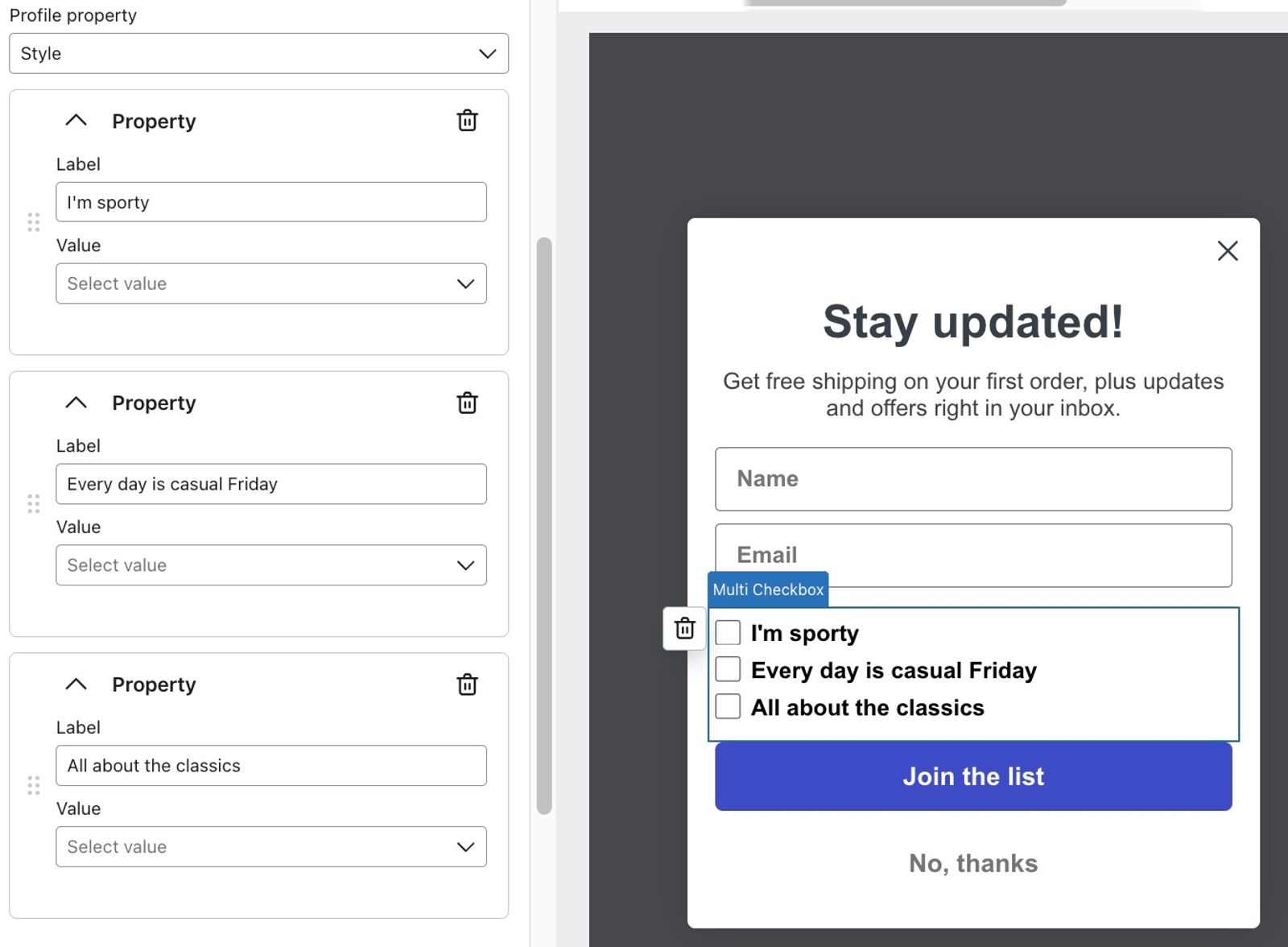
If you want to include multiple input fields on your form, consider using a multi-step form to collect the information in smaller steps.
Where form responses are stored
When someone submits your Klaviyo sign-up form, answers to custom fields are stored in the custom properties section of their profile page. Built-in fields, such as email, name, and phone number, update the corresponding fields elsewhere on the profile. To save answers for new visitors, collect an email address or phone number. If Klaviyo already recognizes the visitor, the form can update their existing profile without asking for those details again.
If the visitor is not recognized and never provides an email address or phone number, their answers will not be saved to a profile, even if a submission is counted on the form’s Overview page.
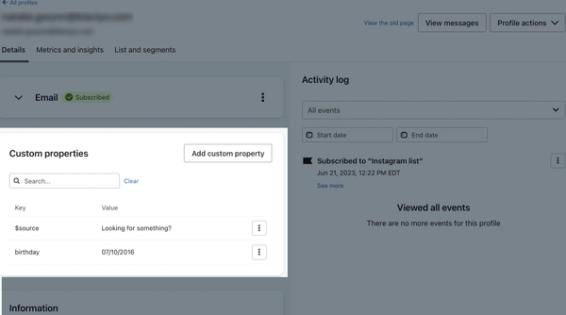
Each profile property shows its current value. If someone answers the same question again, the new value replaces the previous value for that property. The same can happen when another form, an integration, or a CSV import updates that property. To keep answers from different forms separate, use unique property names and avoid using Klaviyo properties (e.g., $consent_method, City, or Region) for most form fields.
There are a few exceptions. Use Klaviyo properties for the following fields:
- First Name
- Last Name
- Phone Number
- Organization
- Title
- Consent (e.g., if your form contains GDPR consent fields)
View an individual's form response
To see a single person’s form responses:
- Navigate to Audience > Profiles. Enter the person’s name, email address, or exact phone number in the profile search bar, then press Enter.
- Select their profile to open the unique profile page.
- Locate the Custom properties area of their profile.
Answers saved as custom properties appear here. For built-in fields, such as email, name, and phone number, check the corresponding fields elsewhere on the profile.
View a group of form responses
To review form answers from a group of profiles, create a segment using the form ID or a hidden field, then export their current profile property values to a CSV.
Create a segment using the form ID
Use this method for forms that collect email or phone subscriptions. The $consent_form_id property is saved as part of a subscription submission. Forms that only update profile properties do not set it, so use a hidden field to track those submissions.
- Navigate to Sign-up forms, open your form, and copy the form ID from its URL.
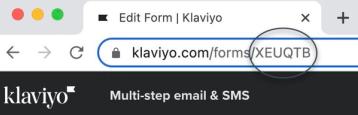
The form ID appears immediately after /forms/ in the form’s URL and can contain letters and numbers.
- Navigate to Audience > Lists & segments, then click Create.
- Select Segment. If prompted, enter a name and click Create segment to open the segment builder.
- In the segment builder, enter a name if it is not already set and add this definition:
Properties about someone > $consent_form_id > equals > Form_ID
Set the data type to Text.
Replace Form_ID with the form ID that you just copied.
This segment includes profiles whose current $consent_form_id matches your form. If someone later subscribes through another form, that form replaces the property value and the profile leaves this segment. To track future submissions independently of later subscriptions, add a hidden field to your form using the steps below.
- Click Create segment to finish. If the builder shows Save at the bottom, click that instead.
Note that it may take a few minutes or more for the segment to populate, depending on its size.
Track future submissions with a hidden field
Use a hidden field to mark future submissions with a property unique to this form. This lets you find those profiles even if they later subscribe through another form. It works for subscription forms and forms that only update profile properties, as long as Klaviyo can identify the visitor. Adding it does not mark past submissions.
- Open your form in the editor and select the button that submits the answers you want to track.
- Under Submit hidden fields, click Add a property.
- In the Profile property dropdown, enter a name used only by this form, such as Submitted preference form, then select the option to create it. Set its Value to Submitted.
- Click Publish or schedule, choose Publish now if scheduling options appear, and click Publish now to publish your changes.
- Once the marker appears on a profile, navigate to Audience > Lists & segments and select Create > Segment. Enter a name. If a naming drawer opens, click Create segment to open the builder.
- Add this definition:
Properties about someone > Submitted preference form > equals > Submitted
Set the data type to Text. - Click Create segment to finish. If the builder shows Save at the bottom, click that instead.
Export the segment’s current form answers
Your user role must have permission to export profiles. If Export to CSV is disabled, ask a teammate with export permission to export the segment.
- Navigate to Audience > Lists & segments.
- Open the segment you created using the form ID or hidden field.
- Click Manage segment > Export to CSV.
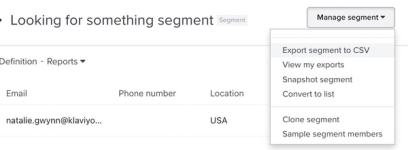
- On the Export Review page, check all the properties from your form. You can search for property names if needed.
- Select Start Export. When the export finishes, your browser downloads the CSV.
The CSV contains 1 row per profile in the segment and the current values of the properties you selected. If an answer has been replaced by another form submission, an integration, or a CSV import, the export contains the updated value. It does not include a separate row for each form submission or a history of previous answers. Responses that were never saved to an identified profile are not included.
Next steps
Now that you can segment based on form responses, you can use data in your emails and SMS. Head to our guide on advanced segmentation to learn more.