How to segment for form results
You will learn
Learn how to create segments to see which subscribers signed up through a specific Klaviyo form and how people responded to questions on your forms. These segments help you understand the audience each form attracts and analyze customer behavior and preferences over time.
Segment by subscription form
The most important forms to enable on your site are ones that link to and fuel your general list of customers, such as a newsletter list. To find current subscribers whose consent was recorded through a specific form, use the subscribe method filter:
- Click Audience in the Klaviyo sidebar.
- Choose Lists & segments.
- Click Create.
- Select Segment.
- Enter a name for your segment. If you are in the Create segment panel, click Create segment to continue to the builder.
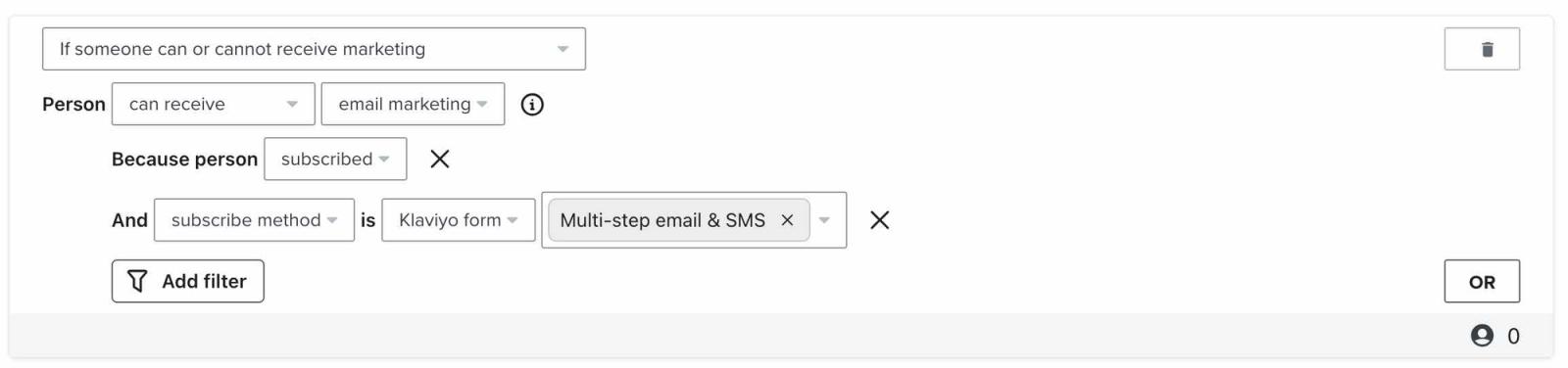
- Select If someone can or cannot receive marketing, then choose can receive and the marketing channel collected by your form, such as email marketing or text message marketing.
- Click Add filter and choose Subscribed under because person.
- Click Add filter again. Choose subscribe method, select Klaviyo form, and choose your form from the form picker.
- In this example, the selected form is Multi-step email & SMS. If you have multiple forms leading to a single list (such as a popup and an embed), select both forms in the form picker to include subscribers from either form.
- Click Create segment to save the definition and generate the segment.
Segment for form results with profile properties
You can likewise create segments to view form results that have several response options if, for example, you have a form that collects survey responses. To do this, segment using profile properties that are attributed to these results. Profile properties are bits of information about the profiles in your account, and are categorized in two ways:
- Klaviyo properties
Properties that are pre-constructed in Klaviyo (e.g., Email, Address, First Name, etc.) - Custom properties
Properties that you customize yourself
Hidden fields are properties that you add to a Klaviyo form that customers do not see. They are attached to the submit button and typically collect information on form content or its location on your site. Use a property name and value to identify these characteristics. By default, form submit buttons include the $source hidden field with the form name as its value.
For example, say you run a bakery and want to target customers with content that specifically appeals to them. You can set up a form asking customers if they like chocolate, vanilla, or both.
Make sure the form field is connected to the profile property you want to use, such as Favorite flavor, and that its response values are configured. When someone submits the form, their response is saved to that property. To create a segment for customers who prefer chocolate:
- Create and name a new segment using Audience > Lists & segments > Create > Segment, as described above.
- Select Properties about someone, then choose the property used by your form, such as Favorite flavor.
- For a single response saved as text, select Text as the type, choose equals, and enter the saved value, such as chocolate.
- If your form saves multiple checkbox selections as a list, use List > contains > chocolate instead. This also includes people whose list contains both chocolate and vanilla. If your form saves a separate text response such as both, use Text > is in and select chocolate and both to include either response.
- To use the segment for marketing, add an AND condition for If someone can or cannot receive marketing > can receive and the channel you plan to use. Click Add filter and choose Subscribed under because person to limit the audience to people who opted in.
- Click Create segment to save the definition and generate the segment.

Profile-property segments reflect the values currently saved on a profile. If a response changes, the profile can move into or out of the segment.
Use this segment to analyze your customer preferences, and then send them content that directly applies to them. This allows you to fully own your marketing and connect with your customers.
Additional resources
- Profile properties reference
Learn about the difference between custom and Klaviyo properties, how to use them to track information about your subscribers, how to remove them, best practices, and more.
- Advanced segmentation reference
Learn effective advanced segmentation strategies that provide insights into your customer base and create highly personalized experiences for your subscribers.
- Getting started with sign-up forms
Learn how to create and customize sign-up forms in Klaviyo to publish on your website so you can engage shoppers, collect emails and phone numbers, and build long-lasting customer relationships.