Understanding cohort analysis in Advanced KDP and Marketing Analytics
You will learn
Learn about Klaviyo’s cohort analysis, including how to define a cohort and understand the data presented. The cohort analysis allows you to analyze the behavior of groups of profiles over time.
Before you begin
Advanced KDP and Personalization are not included in Klaviyo’s standard marketing application, and a subscription is required to access the associated functionality. Head to our billing guide to learn about how to purchase these plans.
What is a cohort report?
A cohort report is a type of analysis that allows you to take a group of profiles with common characteristics (i.e., a cohort) and analyze their behavior over time. This allows you to identify trends and patterns in engagement, conversions, and other key metrics across their lifecycle.
Create a cohort report
Take the following navigation steps to access the cohort report:
- Select Personalization on the left-hand navigation in Klaviyo.
- Select the Customer insights group.
- On the Customer insights page, select the Cohort analysis tab.
- Select an existing cohort analysis, or click Create cohort report to create your first analysis.
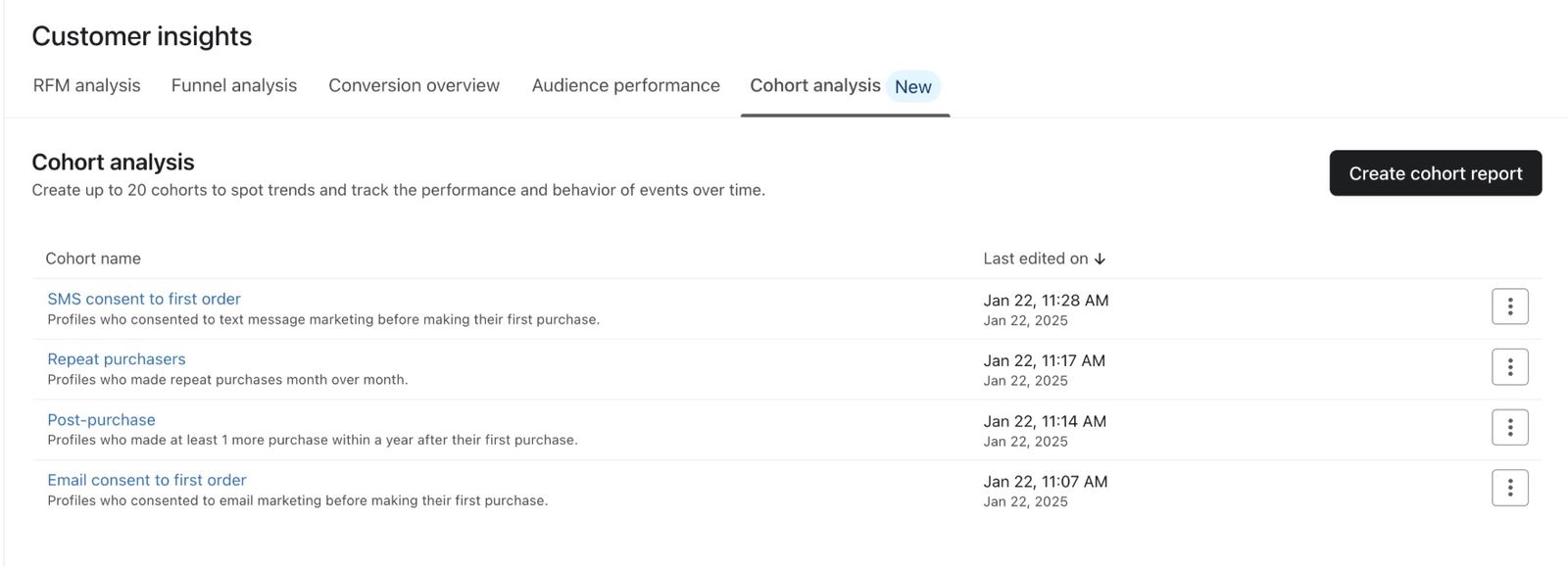
Cohort analysis includes up to 4 pre-built reports you can use to quickly start analyzing cohort performance. The available reports depend on your order and consent events. The SMS report also requires SMS to be set up. These reports include:
- SMS consent to first order
Groups profiles by their first SMS marketing consent and tracks how many place orders afterward. - Repeat purchasers
Groups profiles by their first purchase within the selected date range and tracks how many make additional purchases each month. - Post-purchase
Groups profiles by their first-ever purchase and tracks how many make additional purchases each month. - Email consent to first order
Groups profiles by their first email marketing consent and tracks how many place orders afterward.
You can save up to 20 cohort reports. To create a report from scratch, first define the cohort you want to analyze and the behavior you want to measure. After selecting Create cohort report, set the following information:
- Report name
Create a name for your cohort report. - Description
An optional field to add a description for your cohort report. - Cohorting event (rows)
This event defines what causes a profile to enter the cohort and acts as a starting point for tracking their behavior over time. For example, setting Placed Order as the cohorting event with Instance set to First in all event history causes profiles to enter the cohort when they place their first order. The report tracks their behavior from that point. - Instance
This field defines which instance of the cohorting event should cause a profile to first enter the cohort being analyzed. The values for this field can be:- First in all event history
The first occurrence of this event over all time - First within the time period
The first occurrence of this event within the report’s selected date range.
- First in all event history
- Cohorting event filters
To limit the cohorting event to specific cases, click Add property below the event. You can add 1 property filter for this event.- Property
The event data you can use to filter the cohorting event to specific events. For example, if you set Placed Order as the cohorting event, you can use this field to filter the event so only purchases of specific products cause a profile to enter the cohort. - Relationship
The operator that defines the relationship between the cohorting event property and the value you define (e.g., equals, does not equal, starts with, etc.). - Value
Enter or select the value to match, when the selected relationship requires one.
- Property
- Reporting event (columns)
This event defines the performance metric that will be measured over time for the cohort. For example, setting Placed Order as the reporting event will cause the report to track placed orders over time for the cohort. - Reporting event filters
To limit the reporting event to specific cases, click Add property below the event. You can add 1 property filter for this event.- Property
The event data you can use to filter the reporting event to specific events. For example, if you set Placed Order as the reporting event, you can use this field to filter the event so only purchases of specific products are measured over time. - Relationship
The operator that defines the relationship between the reporting event property and the value you define (e.g., equals, does not equal, starts with, etc.). - Value
Enter or select the value to match, when the selected relationship requires one.
- Property
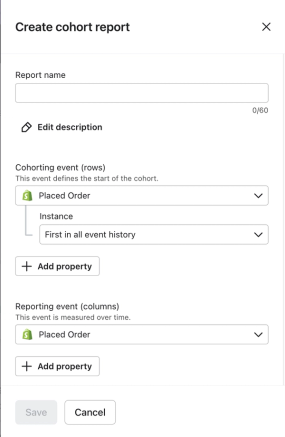
Click Save to create the report and open its analysis.
Using Klaviyo’s cohort report
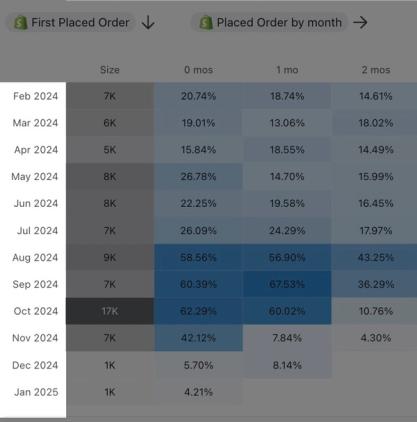
The first column of your report shows the dates for each cohort. New reports default to the last 12 complete calendar months. You can change the date range and use monthly or weekly intervals. The example below shows February 2024–January 2025.
The second column, titled Size, displays the number of profiles that entered each cohort by performing the cohorting event in that row’s month or week. In the example above, the cohorting event is Placed Order. You’ll notice that the report has blue highlights. The higher the value of each cohort, the darker the color will be. This helps you quickly identify the strongest and weakest performance of these cohorts over time for your given metric.
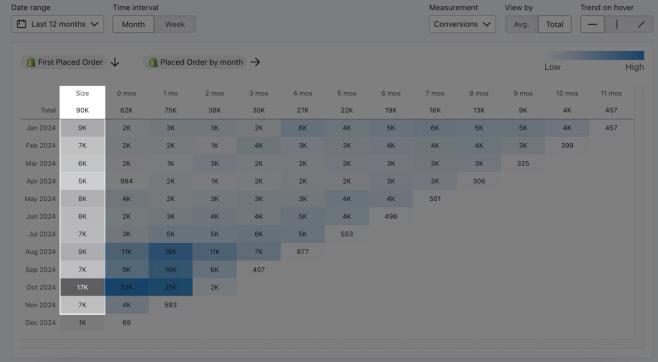
For monthly reports, the first numbered column, 0 mos, shows the measure of the reporting event for the same month as the cohorting event. The subsequent numbered columns (e.g., 1 mo through 11 mos in a 12-month report) show the measure of the reporting event for each subsequent month. Weekly reports follow the same pattern in weeks.
Additionally, you have access to the following settings to adjust the analysis.

- Date range
The date range used to form cohorts and measure reporting events. Monthly reports support the last 1, 3, 6, 12, or 24 complete months. Weekly reports support the last 4, 13, 26, or 52 complete weeks. - Time interval
The time interval between columns and rows in the cohort report (i.e., month or week). - Measurement
The measurement for the reporting event being measured over time. This can be:- Conversions
The count of conversions based on the reporting event. You can view this as an average per profile, or as a total count. - Profiles
The number of profiles that performed the reporting event. You can view this number as a count, or as a percent of the original cohort. - Conversion value
The value of the reporting events. This option is available when the reporting event has a monetary value. You can view it as the average value per profile or as the total value of all conversions.
- Conversions
For Conversions, the average is the total event count divided by the cohort size. For Conversion value, the average is the total conversion value divided by the cohort size.
- View by
Define whether you’d like to see averages, totals, or percent represented in the cohort report. The available options vary based on the selected measurement. If using Total, there will be an additional row at the top of the cohort report that shows the sum of the values in the columns below. - Trend on hover
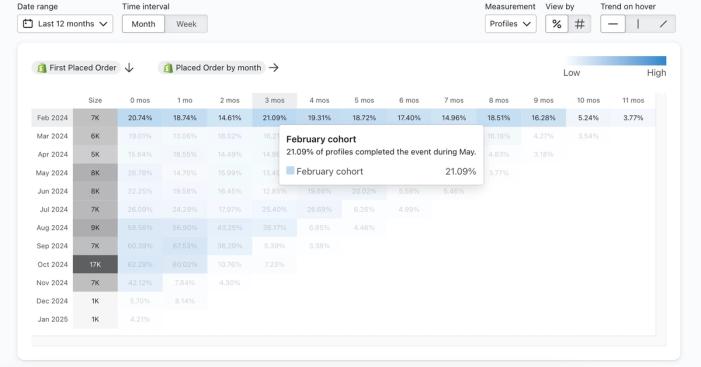
Define the data that you’d like to see when hovering over a cell in the report. This can help you understand the value of a particular axis. Based on your selection, the axis in focus can be:- Horizontal
Hovering over a cell in the cohort report will highlight the row and show information about the reporting event analytics for the specific cohort in the row.
- Horizontal
- Vertical
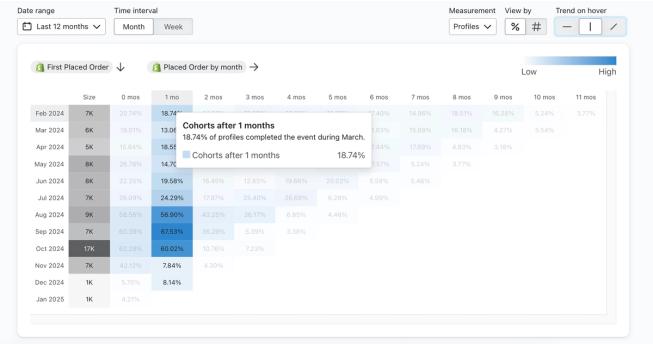
Hovering over a cell in the cohort report will highlight the column and show information about the reporting event analytics after the same number of months or weeks since each cohort formed.
- Diagonal
Hovering over a cell in the cohort report will highlight the diagonal path and show information about the reporting event analytics for a specific calendar month or week.
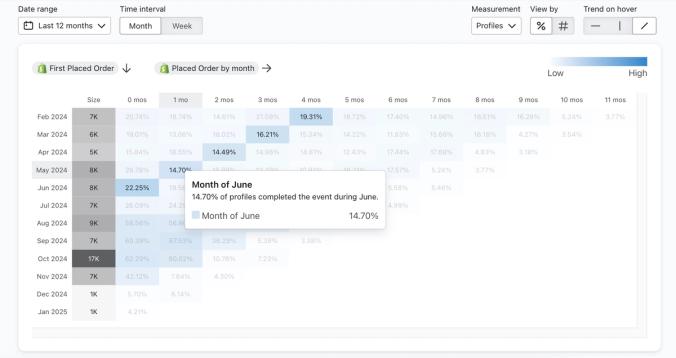
Klaviyo also uses color to represent the value of the measurement. Higher values have darker colors, while smaller values have lighter colors. This helps to make trends and changes in measured values easily identifiable.
Understanding cohort report data
A cohort report can provide a number of different insights based on how you read it.
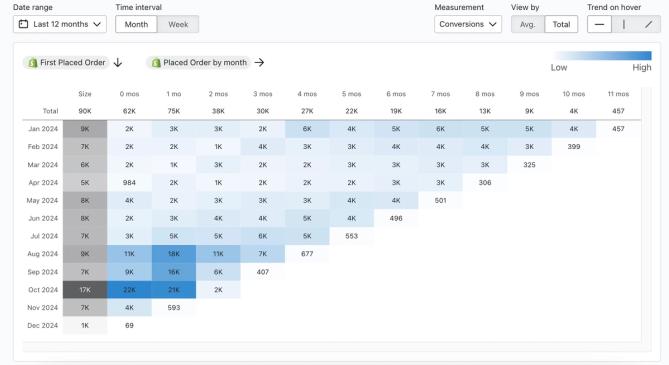
To demonstrate how to read the data in a cohort report, we’ll use the following report as an example:
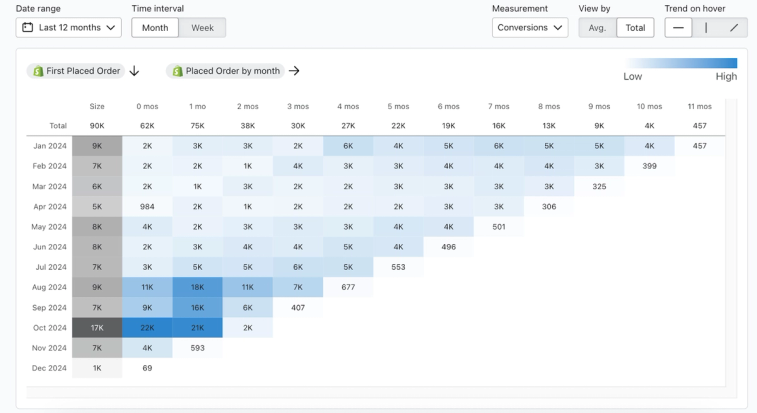
This cohort report requires customers to make a purchase to enter a cohort (i.e., the cohorting event) and tracks Placed Order events over time (i.e., the reporting event). It measures the count of conversions each month over the last 12 months.
The cohorting event itself is excluded from the month/week 0 column. To see its value, select Conversion value. If the cohorting event also has a monetary value, it appears in an additional gray column next to Size.
Reading the cohort report horizontally
By reading a cohort report horizontally, you can gain insights about behavior patterns over time for specific cohorts.
In the example, the Size column shows how many customers made their first purchase in each cohort’s month. Each numbered column shows the additional purchases made by that cohort in the corresponding month since its first purchase. Read a row horizontally to see how repeat purchase activity changes over time.
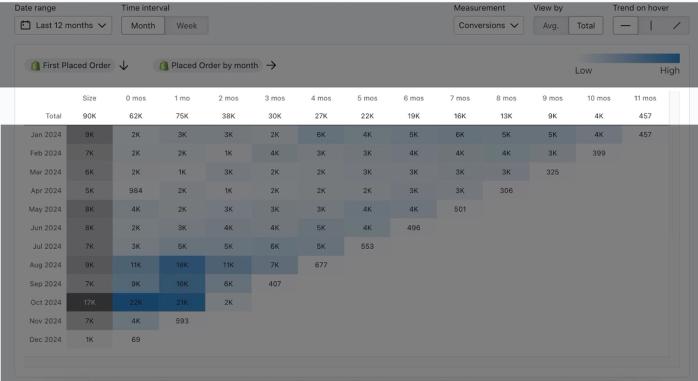
The Total row in this example shows 90,000 profiles across all cohorts in 2024. The 0-month column shows 62,000 additional conversions during the same calendar month as each cohort’s first purchase. The 1-month column shows 75,000 conversions during the following month for the cohorts with data in that column. These are separate monthly counts, not cumulative totals.
These totals show more repeat orders in month 1 than in month 0 across the included cohorts. They do not show when most customers make their next purchase, because a customer can place more than 1 order in a month.
Note that when reading the Total row for a cohort report, the number of cohorts included in the sum decreases with each column.
Reading the cohort report vertically
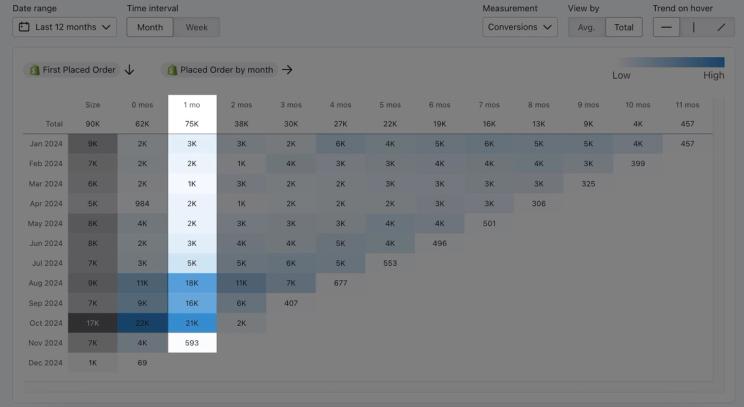
By reading a cohort report vertically, you can learn how different cohorts perform at the same relative point in time (e.g., the number of repeat purchases 3 months after a first purchase for each cohort). This allows you to learn whether profile behavior changes over time across different cohorts.
In the example cohort report, you can see that as you go down the column, conversions increase. Looking at the 1 month column, you can see that the number of conversions increases for newer cohorts. This may indicate that towards the end of 2024, there may have been an event (e.g., new product launch or a marketing campaign) that drove this increase. Specifically, the August 2024 cohort saw a spike in the number of conversions (i.e., 18,000 conversions from 11,000 the previous month) compared to the July 2024 cohort at the same time (i.e., 5,000 conversions from 3,000 the previous month).
Cohort size can also affect conversion counts. To compare the share of each cohort that purchased again, select Profiles under Measurement and choose Percent under View by.
Reading the cohort report diagonally
By reading a cohort report diagonally, you can track performance across cohorts at the same calendar point in time while they are at different lifecycle stages (e.g., the number of repeat purchases in a specific month).
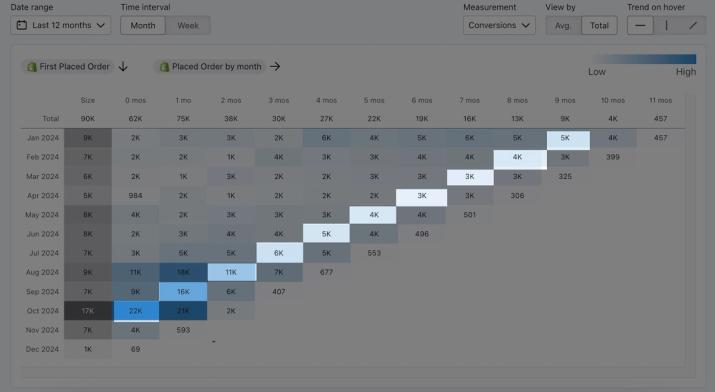
Look at the example cohort report starting from the 0 month column for the October 2024 cohort. As you go up-right diagonally from this starting point, you can see the number of conversions in October 2024 for each cohort. During this time, each of the cohorts is at a different point in their lifecycle.
In this case, there is an increase in conversions for most cohorts compared to the previous month. This indicates that there may have been an event in October 2024 that caused an increase in conversions for most cohorts. Perhaps October is when customers begin their holiday shopping. Conversely, if there was a consistent decrease in conversions for most cohorts compared to the previous month, this may indicate there are external factors (e.g., a downturn in the economy) that affected all profiles at the same time.
Additional resources
- Getting started with Advanced KDP
Learn more about using Advanced KDP (Klaviyo data platform) to gather robust customer insights across all your marketing initiatives. Advanced KDP enables more advanced data management, manipulation, and analysis. It also provides actionable strategies to employ across each of your individual audiences and your business as a whole.
- How Klaviyo billing works
Learn how Klaviyo bills customers for Profiles and Emails, Mobile Messaging, Reviews, Advanced Klaviyo Data Platform (formerly “CDP”), Marketing Analytics, Customer Hub, Helpdesk, and Customer Agent.