How to strengthen your sender reputation for a specific inbox provider or email domain
Learn best practices to strengthen your sender reputation if you are seeing deliverability issues with specific inbox providers or email domains. If your deliverability issues are not limited to specific inbox providers or domains, see our guide on repairing your sender reputation.
Before you begin
If you're a brand new sender, it is important to establish a good reputation upfront before diagnosing any issues related to sending to specific domains. This will allow you to gradually send to a broader audience while maintaining a good reputation and high open rates. However, if you've damaged your sender reputation, these best practices will help you get back on track and rebuild engagement.
If you notice a sender reputation issue with 1 inbox provider, review engagement and deliverability across your audience and clean your lists for all providers. Follow our guide, How to clean your email list to maintain good deliverability, to identify unengaged profiles, exclude them from sends, and suppress never-engaged profiles as directed in the guide.
Strengthening your sender reputation for an inbox provider or email domain
Most major email clients (e.g., Gmail and Yahoo) track how recipients interact with emails from your domain.
Specifically, they look at positive and negative engagement, including but not limited to:
- Open rates
- Click rates
- Bounce rates
- Spam complaint rates
- Unsubscribe rates
Inbox providers use this information to determine where your emails will be placed. This means that low performance in these areas increases the likelihood of your next campaign landing in the spam folder.
Creating segments in Klaviyo makes it easy to isolate engaged and unengaged profiles so that you know which audience to target with email content.
If you notice that your open rates only suffer for customers using a specific inbox provider or email domain, you can take steps to improve your sender reputation for this group.
Note that you can filter customers based on both inbox provider and email domain when segmenting and analyzing data in Klaviyo. The domain of an email address is what comes after the @ (i.e., "yourname@domain.com"). Klaviyo recommends using the inbox provider when troubleshooting deliverability issues, as multiple email domains can rely on the sorting performed by a single inbox provider.
Use the following approach for your next 3–5 campaigns, and follow the engagement schedule below while you repair your sender reputation:
- Exclude the low-performing inbox provider or domain from your regular campaign audience using the segments below. You do not need to remove these profiles from your list.
- Create a separate segment of engaged profiles from the affected inbox provider or domain, and send a separate campaign to that segment.
How to exclude low-performing email addresses from regular campaigns
If you have a main list that you are planning to email, create a segment based on that list using the conditions below. For the inbox-provider option, the segment excludes profiles with a matching Received Email event. Send to this segment in place of the main list.
To do this, create a segment with 2 conditions:
- If someone is in or not in a list > Person is in [insert list name],
AND - What someone has done (or not done) > Received Email zero times over all time,
WHERE Inbox Provider equals [inbox provider]
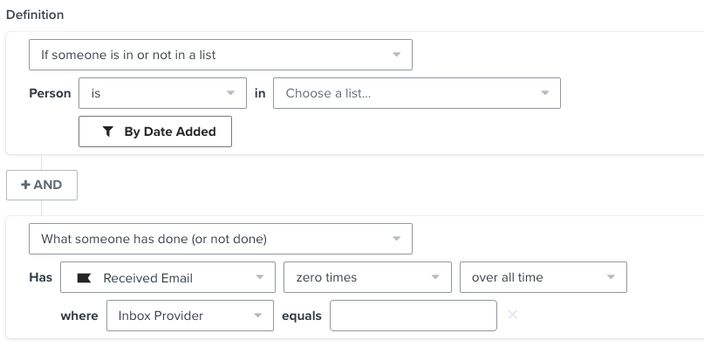
The Inbox Provider filter uses information from past Received Email events. It does not directly check the provider of a profile’s current email address. To filter a specific email domain using the current address, use the Email property as shown below.
If you are filtering based on the current email domain, use these 2 conditions. Enter the domain with the @ symbol, such as @gmail.com:
- If someone is in or not in a list > Person is in [insert list name],
AND - Properties about someone > Email does not end with @[email domain]
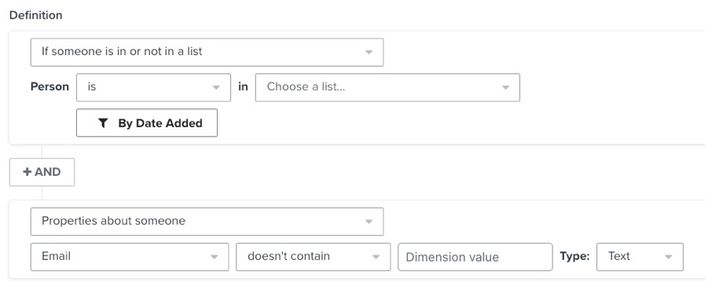
If you normally send to a segment, use its original definition to create 2 separate segments: one for regular sends that excludes the affected provider or domain, and one for engaged profiles from that provider or domain. For the regular-send segment, combine the original definition with the following exclusion condition using AND:
- AND
What someone has done (or not done) > Received Email zero times over all time,
WHERE Inbox Provider equals [inbox provider]
For email domain, this would be:
- AND
Properties about someone > Email does not end with @[email domain]
Click Create segment for a new segment, or Update segment if you edited an existing one. Allow the segment to populate before scheduling your campaign. In the campaign’s Send to field, select this segment in place of your original list or segment.
Wait until you have sent to engaged audiences for at least 3 weeks and performance has improved before attempting to re-engage inactive profiles. Sending to unengaged profiles while repairing your reputation can work against your recovery. Keep lower-engagement flows, such as winback flows, paused during reputation repair. Once your reputation has recovered, consider creating a winback flow to reach lapsed customers who previously engaged with your brand.
How to isolate engaged subscribers from a low-performing inbox provider or email domain
After excluding the affected inbox provider or domain from your regular sends, create a separate segment of its engaged profiles for a separate campaign.
Use the appropriate list or your original segment definition as the starting audience, then add the provider or domain condition and the engagement condition below.
Choose the open count and lookback period below based on your normal campaign sending frequency. Replace X in the segment conditions with the values for the appropriate week of the schedule. This frequency does not include flows sent in response to a subscriber’s action.
- If someone is in or not in a list > Person is in [insert list name],
AND - What someone has done (or not done) > Received Email at least once over all time,
WHERE Inbox Provider equals [inbox provider]
AND - What someone has done (or not done) > Opened Email at least X times in the last X days
WHERE Apple Privacy Open is false
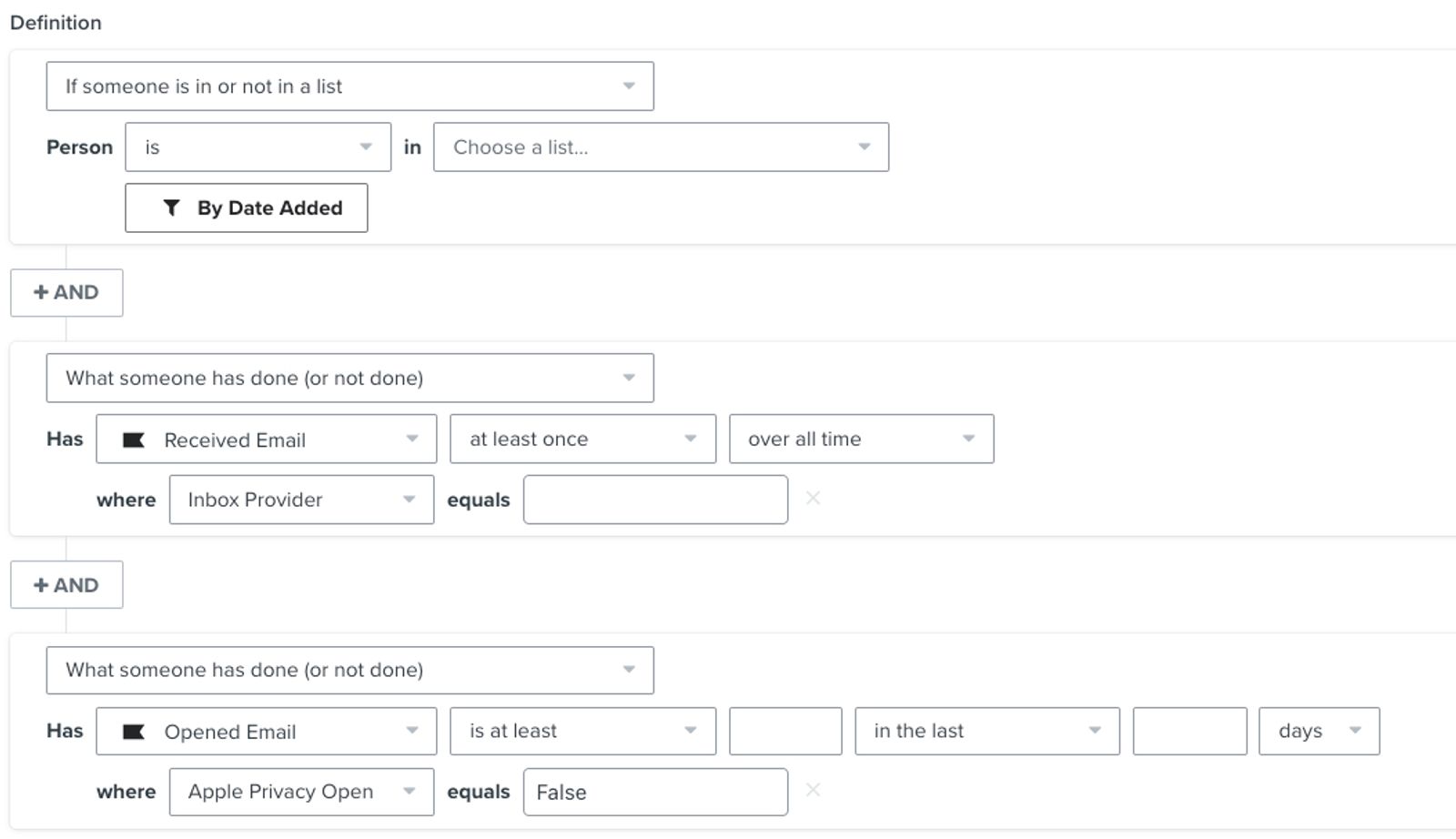
For email domains, this segment would use the following conditions:
- If someone is in or not in a list > Person is in [insert list name],
AND - Properties about someone > Email ends with @[email domain]
AND - What someone has done (or not done) > Opened Email at least X times in the last X days
WHERE Apple Privacy Open is false
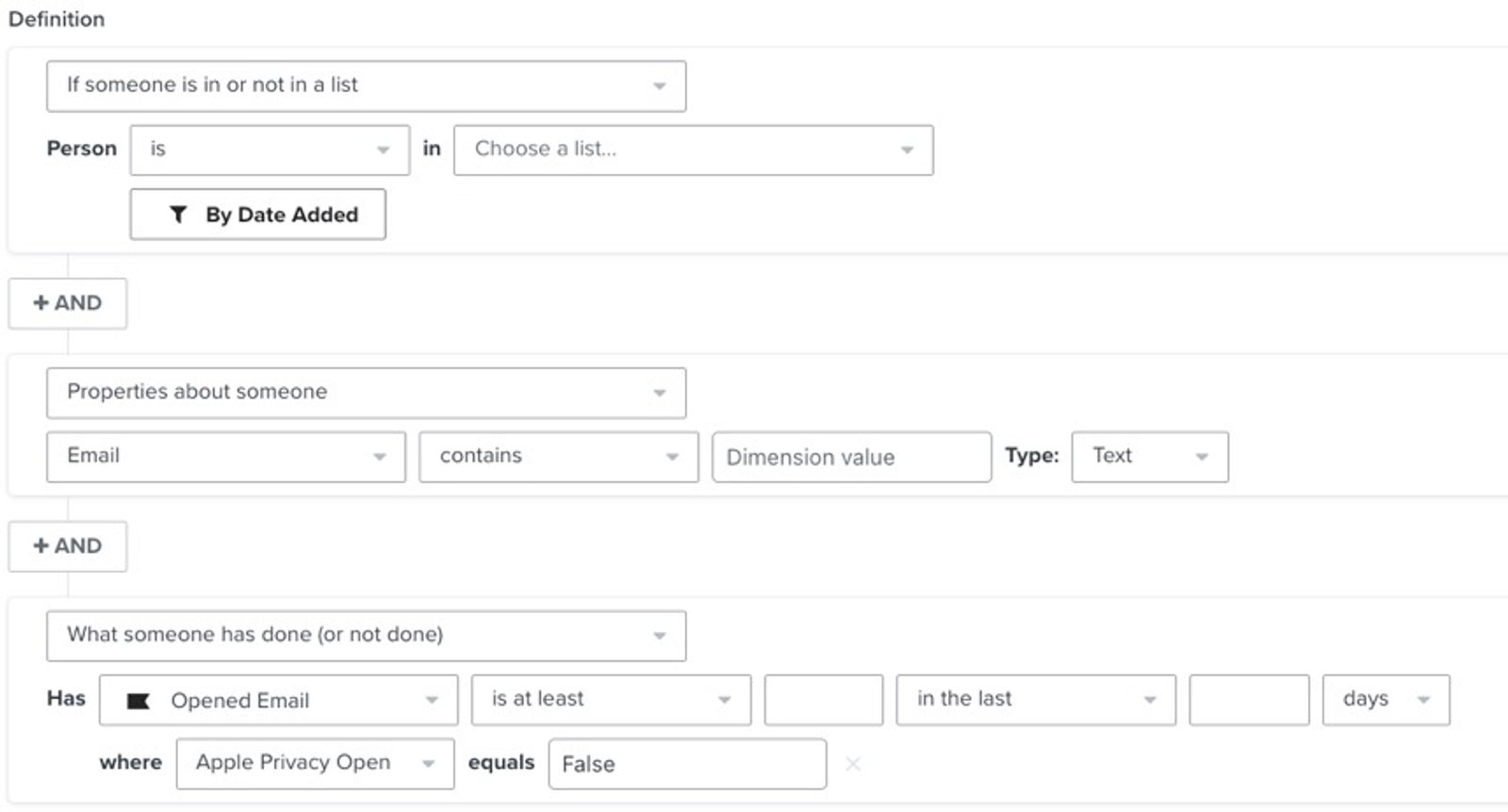
If you send daily
- Week 1: Send to Very Highly Engaged audience with 5 or more opens in the last 30 days
- Week 2: Send to Highly Engaged audience with 3 or more opens in the last 30 days
- Week 3+: Send to Engaged audience with 1 or more opens in the last 30 days
If you see a drop in performance, you can go back to Highly or Very Highly to repair your reputation again.
If you send 3 times per week
- Week 1: Send to Very Highly Engaged audience with 5 or more opens in the last 60 days
- Week 2: Send to Highly Engaged audience with 3 or more opens in the last 60 days
- Week 3+: Send to Engaged audience with 1 or more opens in the last 60 days
If you see a drop in performance, you can go back to Highly or Very Highly to repair your reputation again.
If you send 2 times per week
- Week 1: Send to Very Highly Engaged audience with 5 or more opens in the last 90 days
- Week 2: Send to Highly Engaged audience with 3 or more opens in the last 90 days
- Week 3+: Send to Engaged audience with 1 or more opens in the last 90 days
If you see a drop in performance, you can go back to Highly or Very Highly to repair your reputation again.
If you send weekly
- Week 1: Send to Very Highly Engaged audience with 5 or more opens in the last 180 days
- Week 2: Send to Highly Engaged audience with 3 or more opens in the last 180 days
- Week 3+: Send to Engaged audience with 1 or more opens in the last 180 days
If you see a drop in performance, you can go back to Highly or Very Highly to repair your reputation again.
If you send monthly
- Week 1: Send to Very Highly Engaged audience with 5 or more opens in the last 275 days
- Week 2: Send to Highly Engaged audience with 3 or more opens in the last 275 days
- Week 3+: Send to Engaged audience with 1 or more opens in the last 275 days
If you see a drop in performance, you can go back to Highly or Very Highly to repair your reputation again.
If you normally send to a segment, start with its original definition before the provider or domain exclusion was added. Create a separate engaged-audience segment by combining that definition with both conditions below using AND:
- What someone has done (or not done) > Received Email at least once over all time,
WHERE Inbox Provider equals [inbox provider]
AND - What someone has done (or not done) > Opened Email at least X times in the last X days
WHERE Apple Privacy Open is false
For email domain, add the conditions:
- Properties about someone > Email ends with @[email domain]
AND - What someone has done (or not done) > Opened Email at least X times in the last X days
WHERE Apple Privacy Open is false
Click Create segment and allow the engaged segment to populate. For the separate campaign to the affected provider or domain, select only this engaged segment in Send to. Follow the schedule for your sending frequency, and review performance before expanding to the next engagement tier.
Apple Mail Privacy Protection (MPP) can load your email’s tracking pixel before a recipient opens the message. These automatic opens can inflate open rates, so use the Apple Privacy Open filter in the segment conditions above to exclude them from the engagement count.
The filter applies to open events, so a profile with an MPP open can still qualify if they have enough non-MPP opens. Learn how to identify these opens in your subscriber segments.
For complete information on MPP opens, visit our iOS 15: How to Prepare for Apple’s Changes guide.
If you attempt to re-engage unengaged subscribers and are unsuccessful, we recommend suppressing them or otherwise ensuring they remain isolated from your main sending list moving forward.
Additional resources
- Understanding which warming process to use in Klaviyo
Learn how to choose the right warming process in Klaviyo, so you can establish a strong initial sender reputation and be viewed favorably by inbox providers.
- How to set up a branded sending domain
Learn how to set up a branded sending domain (also known as a dedicated sending domain) so that when emails reach inbox providers, they will appear to come from your brand instead of Klaviyo.
- Getting started with segments
Learn how to create and use segments in Klaviyo, which are a powerful tool for understanding your audience and sending targeted messages.