How to customize content based on language
You will learn
Learn how to collect someone's preferred language and then target them in that language.
For email, SMS, and mobile push sends, Klaviyo's Smart Translations feature is available on paid accounts to translate content into multiple languages based on a customer's location or a collected language property.
For SMS, you can segment customers based on location or preferred language and send campaigns accordingly.
Target based on language
There are 2 options for targeting people by language:
- Segment by a profile's location to estimate their language
- Use someone's preferred language
- Collect preferred language via a form
- Create segments for manual language targeting
Klaviyo does not automatically detect language preference based on the language a customer was using on your website. Some integrations, such as Shopify, can separately sync a customer's language to the Locale profile property.
Use location to estimate language
Klaviyo can estimate a profile's location from an IP address when one is available. Profiles can also have location information supplied by an integration or entered directly. Some profiles have no location information, and an IP-based estimate may be inaccurate.
Create a segment using profile location to estimate someone's language.
For example, you could use the countries below to estimate which profiles speak English. This segment can include people who prefer another language and miss English-speakers in other countries. Collect someone's preferred language directly when you need a more reliable way to target them.
- Properties about someone > Country equals United States
OR - Properties about someone > Country equals Canada
OR - Properties about someone > Country equals United Kingdom
OR - Properties about someone > Country equals Ireland
OR - Properties about someone > Country equals Australia
OR - Properties about someone > Country equals New Zealand
Use someone's preferred language
Collect someone's preferred language
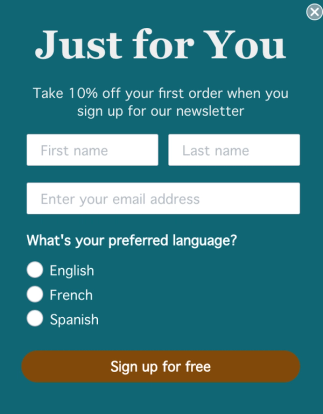
The simplest way to collect someone's preferred language is to use a form. In particular, it's best to ask people their preferred language when they first sign up for emails or SMS.
The steps below explain how to do this when you have an existing signup form.
- Navigate to the Sign-up forms tab.
- Find the form where you want to collect someone's language preference.
- Click the form name. If the form's analytics page opens, select Edit form.
- Choose Add blocks.
- Drag in a Radio buttons block.
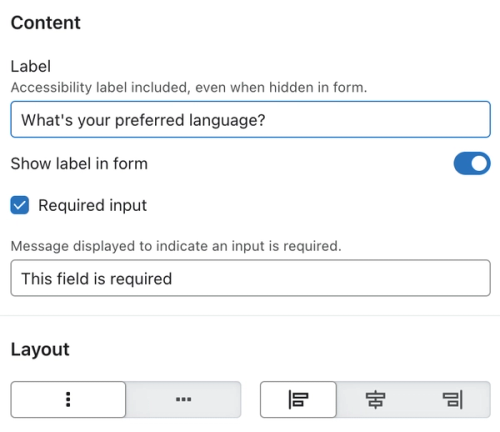
- In the left sidebar, toggle on Show label in form.
- Add a label (e.g., "What's your preferred language").
- Check the Required input box.
- Under Profile property, select an existing language property, or type Language and select Create Language to create one.
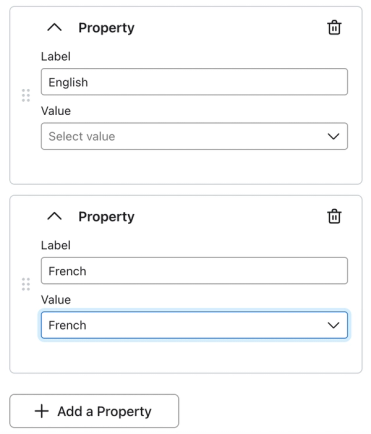
- Add in the languages you want as the option labels (e.g., English, French, Spanish).
- For each option, add a value.
- Example: For an option labeled "English" the value is also "English."
- Example: For an option labeled "English" the value is also "English."
- When you're ready, click Publish or schedule, select Publish now, and click Publish now to make your changes live.
Segment by language preference
After you collect language preferences, you can create a segment based on this profile property.
Note that at least 1 profile must have the property listed on their profile in order for you to use it in a segment (or in a flow filter or conditional split).
For example, to create a segment of French-speaking profiles based on the signup form above, we would use the following condition:
- Properties about someone > Language equals French
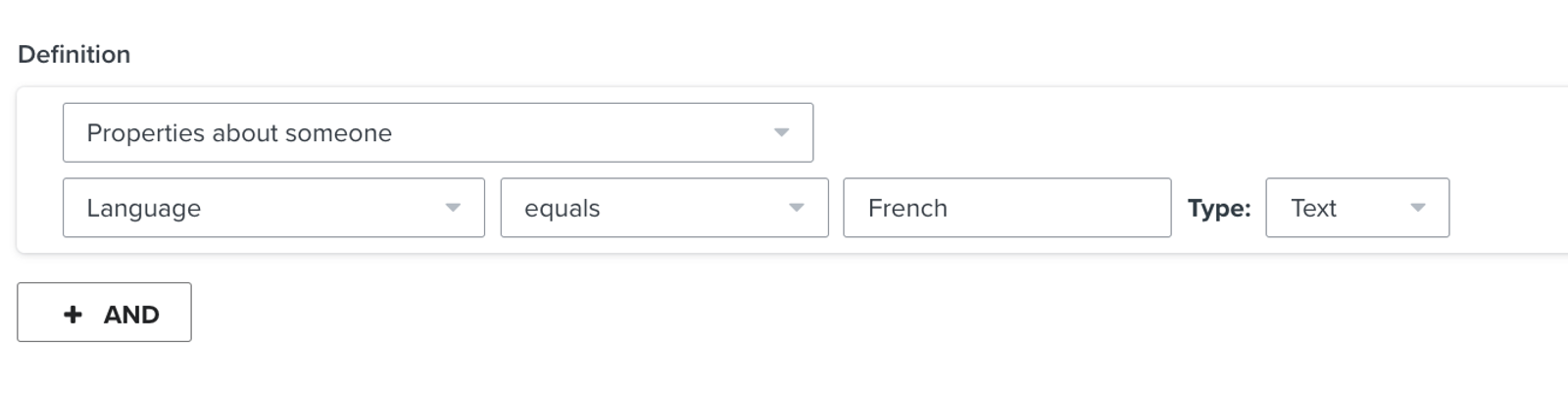
To send separate campaigns by language, create a similar segment for Spanish, English, and any other language you asked about in your form.
Customize content based on language
To translate messages automatically, you need a paid Klaviyo account. Configure Smart Translations to use the Language property collected above. Learn how to enable Smart Translations.
- Navigate to Settings > Translations > Enable translations.
- Switch on Turn on Smart Translation.
- Under How to determine preferred language, select Language (or the property name you used in your form), then click Save.
For each email, choose the languages you want to translate into and a Default language for recipients whose preferred language is unknown or unavailable. Review the translations before sending. Follow the instructions for your message type:
- How to create a multilingual email campaign using Smart Translations
- How to create a multilingual email flow using Smart Translations
Alternatively, you can create a campaign and target it to one of your segments, cloning and editing it for each language. For flows, you can do the same with conditional splits.
SMS and mobile push
With Smart Translations enabled, you can send a single SMS campaign in multiple languages. Learn how to create a multilingual SMS campaign using Smart Translations. For mobile push, use Translate in the message editor to choose languages and review translations before sending.
Alternatively, target separate SMS or mobile push campaigns to your language segments and write each campaign in that language. You can also use your language property in conditional splits for flows or target forms to your language segments.
Additional resources
- How to create a location-based segment
Learn how to use location-based segments to send campaigns by region, target forms to customers in a particular area, or better understand a subset of your customers. Note that Klaviyo determines a profile's location when syncing a billing address for that contact or, if they have not yet purchased, by tracking their IP geolocation. Learn more about how location is set on Klaviyo profiles.
- Advanced segmentation reference
Learn effective advanced segmentation strategies that provide insights into your customer base and create highly personalized experiences for your subscribers.
- Basics: multinational SMS sending with Klaviyo
Learn tips for using Klaviyo to send SMS in multiple different countries.