How to customize content based on language
You will learn
Learn how to collect someone's preferred language and then target them in that language.
For email sends, Klaviyo's Smart Translations feature is available to translate content into multiple languages based on a customer's location or a collected language property.
For SMS, you can segment customers based on location or preferred language and send campaigns accordingly.
Target based on language
There are 2 options for targeting people by language:
- Segment by the estimated location, which Klaviyo provides based on a profile's IP location
- Use someone's preferred language
- Collect preferred language via a form
- Create segments for each language
Klaviyo does not automatically detect language preference based on the language a customer was using on your website.
Use the estimated location
Klaviyo automatically assigns all contacts in your account an estimated location based on IP geolocation. Note that this is not a perfect science, although it is an industry standard.
In this case, you need to create a segment using the estimated location to assume someone's language.
Specifically, let's say we want to create a segment of all English-speakers based on a profile's location. In this case, the segment might appear similar to the one below.
- Properties about someone > Country equals United States
OR - Properties about someone > Country equals Canada
OR - Properties about someone > Country equals United Kingdom
OR - Properties about someone > Country equals Ireland
OR - Properties about someone > Country equals Australia
OR - Properties about someone > Country equals New Zealand
Use someone's preferred language
Collect someone's preferred language
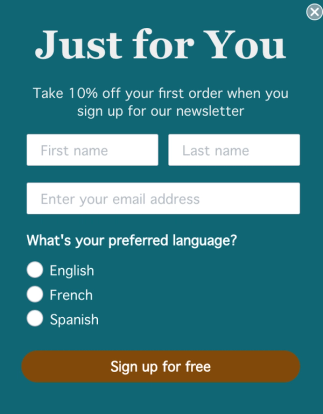
The simplest way to collect someone's preferred language is to use a form. In particular, it's best to ask people their preferred language when they first sign up for emails or SMS.
The steps below explain how to do this when you have an existing signup form.
- Navigate to the Sign-up forms tab.
- Find the form where you want to collect someone's language preference.
- Click into the form name and then select Edit Form.
- Choose Add blocks.
- Drag in a radio button option.
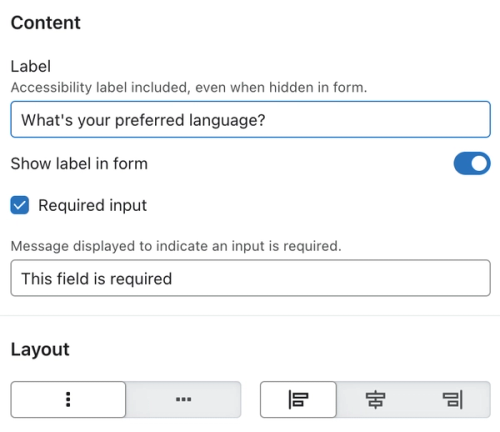
- In the left sidebard, toggle on Show label in form.
- Add a label (e.g., "What's your preferred language").
- Check the Required input box.
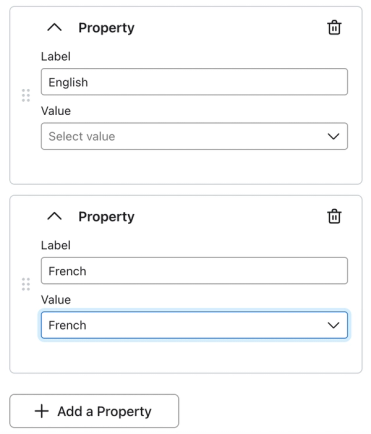
- Create a new profile property (e.g., Language).
- Add in the languages you want as the option labels (e.g., English, French, Spanish).
- For each option, add a value.
- Example: For an option labeled "English" the value is also "English."
- Example: For an option labeled "English" the value is also "English."
- When you're ready, click Publish.
Segment by language preference
After you collect language preferences, you can create a segment based on this profile property.
Note that at least 1 profile must have the property listed on their profile in order for you to use in a segment (or in a flow filter or conditional split).
For example, to create a segment of French-speaking profiles based on the signup form above, we would use the following condition:
- Properties about someone > Language equals French
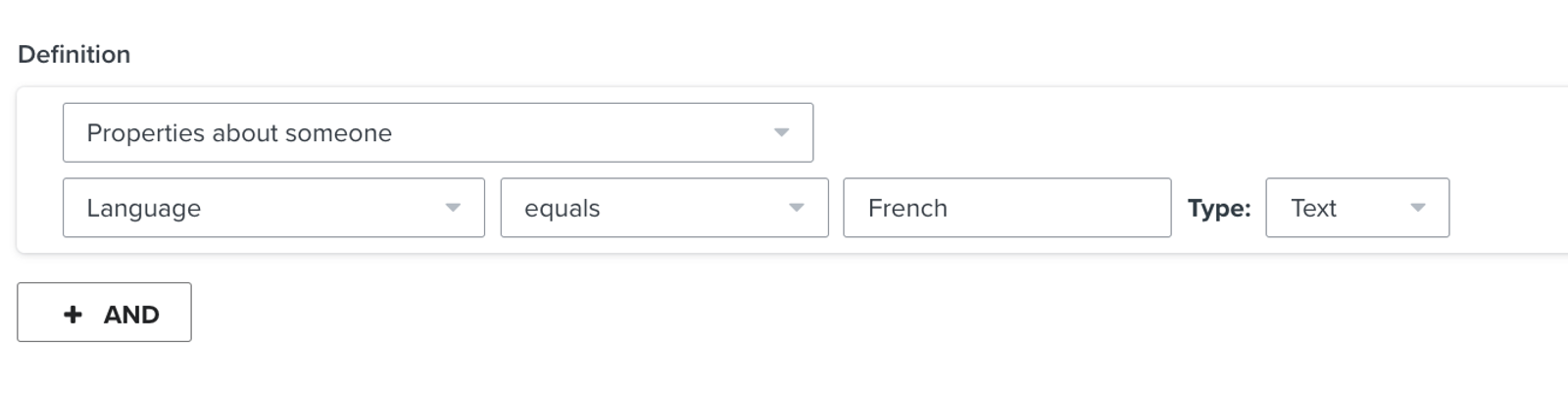
You would then need to recreate a similar segment for both Spanish, English, and any other language you asked about in your form.
Customize content based on language
Once you've collected preferred languages, you can then use the Language property to automatically translate emails to a customer's preferred language or a default language. Learn how to enable email translation.
- How to create a multilingual email campaign using Smart Translations
- How to create a multilingual email flow Smart Translations
Alternatively, you can create a campaign and target it to one of your segments, cloning and editing it for each language. For flows, you can do the same with conditional splits.
SMS and mobile push
For SMS and push, you can target your campaigns, forms, flows, etc. by your preferred language segments. Currently, there's no way to send a single SMS campaign and include multiple languages, but by dividing up your send into several campaigns, you can achieve the same result.
Additional resources
- How to create a location-based segment
Learn how to use location-based segments to send campaigns by region, target forms to customers in a particular area, or better understand a subset of your customers. Note that Klaviyo determines a profile's location when syncing a billing address for that contact or, if they have not yet purchased, by tracking their IP geolocation. Learn more about how location is set on Klaviyo profiles.
- Advanced segmentation reference
Learn effective advanced segmentation strategies that provide insights into your customer base and create highly personalized experiences for your subscribers.
- Basics: multinational SMS sending with Klaviyo
Learn tips for using Klaviyo to send SMS in multiple different countries.