Getting started with coupon codes in Klaviyo
You will learn
Learn how to use static coupon codes, upload unique codes, and add coupons to your Klaviyo messages. You can also set up coupon reminders and see who redeemed a specific code.
This guide covers using static coupons created in your store and uploading unique coupon codes to Klaviyo. If you have a Shopify, WooCommerce, PrestaShop, Magento 1.x, or Magento 2 store, you can also generate new unique coupon codes in Klaviyo (and do not need to upload them).
Before you begin
There are multiple ways to use coupon codes in Klaviyo. This guide covers:
- Creating and using static coupon codes.
- Uploading unique coupon codes.
- Adding coupons to your emails, SMS messages, push notifications, and sign-up form success messages.
- Displaying your coupons as barcodes for your brick-and-mortar stores.
- Setting up coupon reminders for customers that haven't used a coupon code.
- Seeing who used specific discount codes (Shopify, Magento 1.x, and Magento 2 stores).
Unique vs. static coupon codes
There are 2 types of coupon codes that you can use: static and unique.
- A static coupon code is a single phrase or alphanumeric string that unlocks a specific discount (e.g., Welcome20). Every person will receive the same code to use on your site so they can be widely shared; however, they are easier to remember and use.
- Unique, also called "dynamic," coupon codes are a series of numbers or letters assigned to individual recipients. Each recipient receives their own code for a coupon. Unique codes are typically longer and more complicated than static codes, but they can limit oversharing of discounts. For uploaded codes, set redemption limits in your ecommerce or point of sale system if you want each code to be used only 1 time.
Create and use static coupons
Static codes are quick to generate, and you can add them into any Klaviyo email, SMS message, or sign-up form success message once the coupon is created. To create and use a static coupon:
- Create the coupon in your ecommerce store.
- Add your static coupon code directly in your message.
- For email templates, drag and drop a text block wherever you want to display the coupon in the template editor. Then, type your static code in the text block, making sure it's large and easy to see.
- For email templates, drag and drop a text block wherever you want to display the coupon in the template editor. Then, type your static code in the text block, making sure it's large and easy to see.
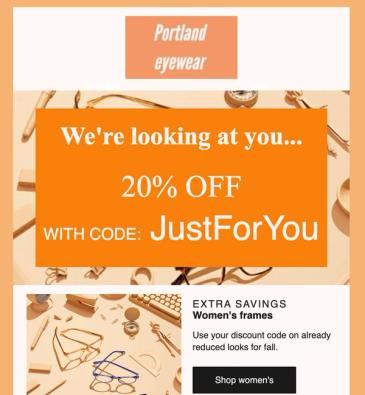
- For SMS messages, type the static code directly into the message editor.
- For sign-up forms, we suggest adding the coupon in the success message (the last step of the form) to incentivize site visitors to fill out the form. See how to add coupon codes to sign-up forms for more details.
Static codes are the same for everyone, so you do not need to take any other steps in Klaviyo.
Upload unique coupons into Klaviyo
Unique coupons work well when you're rewarding a recipient for taking a specific action (e.g., signing up for your email newsletter). To upload unique coupons into Klaviyo to use in your email and SMS messages, you'll need to
- Prepare a list of unique codes
- Upload the unique coupon codes into Klaviyo
The following sections will walk you through each of these processes, or you can follow the video below.
Klaviyo sends low coupon notifications for uploaded coupons. If a coupon was sent in the last 24 hours and the number of available codes falls below its Minimum coupon count, the account owner is notified by email. The default minimum is 500 codes.
Prepare your list of coupon codes
First, create a list of unique coupon codes in your ecommerce or point of sale system, or use a third-party tool that creates valid coupons for that system. Save the codes as a .csv file. Uploading a list to Klaviyo does not create the discounts in your store.
Verify that:
- Each code is unique.
- You've generated enough codes for all of the subscribers who will receive the message.
- The list of codes is saved as a CSV file no larger than 50 MB.
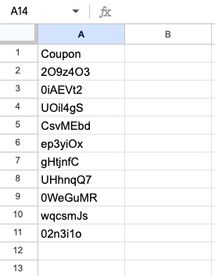
- The file has exactly 1 column, with
CouponorCoupon Codeas the header.
Below is an example of what a list of coupon codes looks like in a spreadsheet.
Upload the unique codes into Klaviyo
- Navigate to Coupons.
- Toggle to Uploaded Coupons.
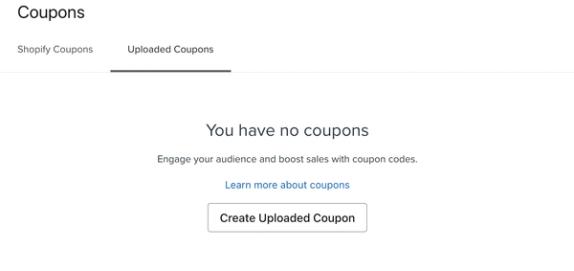
- Click Create Uploaded Coupon to add a new coupon code. If you've uploaded coupons in the past, this button will be in the top right corner.
- Choose a name, minimum coupon count, and an expiration date for your coupon (e.g., After 1 year or On a specific date and specify the date).
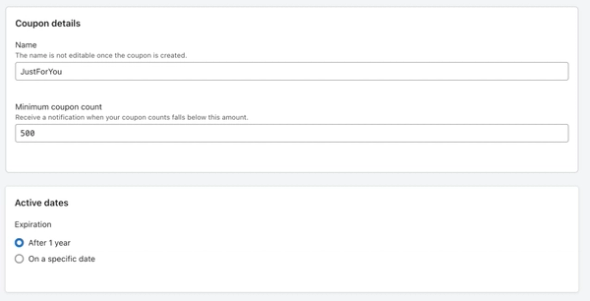
The Minimum coupon count must be between 100 and 5,000, inclusive. The field starts at 500. Choose the count below which you want to receive a low coupon notification.
- Click Create coupon to save your coupon.
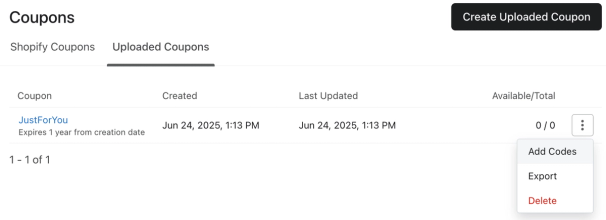
- On the Uploaded Coupons tab, select the 3 dots > Add Codes next to your coupon.
- Upload your list of coupon codes either by dragging and dropping your file or selecting it from your computer.
- Review the first few rows of your CSV file to confirm you've chosen the right coupons.
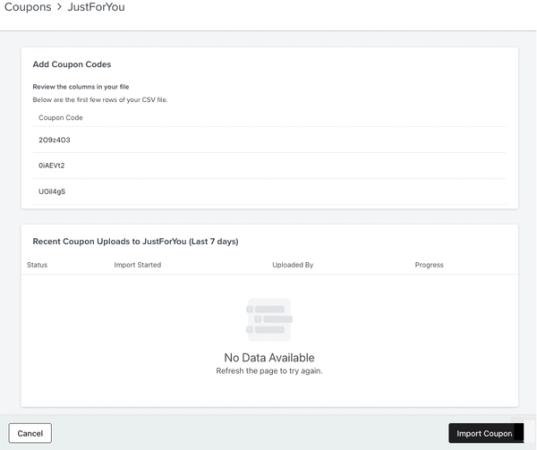
- Click Import Coupons.
- After your coupons finish importing, you can see how many coupon codes uploaded successfully and how many were skipped because of duplicates or a lack of data.
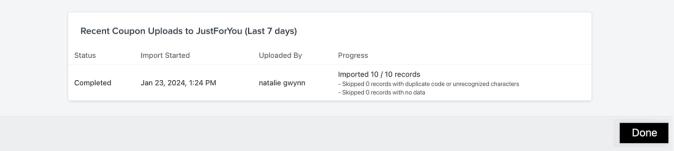
- Click Done.
Keep enough uploaded codes available for recipients who need a new code. If a campaign or flow message cannot assign a code to a recipient, that recipient's message is skipped. Check your available codes and upload more before they run out.
Tips on uploading unique coupon codes
You can generate your own set of unique coupon codes outside of Klaviyo, upload them to your Klaviyo account, and reference them in your campaign or flow messages. This is a useful method if you're using point of sale software that can generate and manage coupon codes. There are some important things to note when uploading coupons using this method.
- Klaviyo does not import the discount value, redemption restrictions, or store expiration date with your uploaded codes. Manage those settings in your ecommerce or point of sale system.
- You are responsible for ensuring that the codes are valid and have the correct expiration dates in your point of sale system.
- You can set an expiration date when adding coupon codes, but this date only applies to how long the coupon codes are available in your Klaviyo account. Please note that dates are in the UTC time zone.
- By default, uploaded coupon codes will be stored in Klaviyo for 1 year. After that year, unsent codes will expire automatically, and you will need to upload new codes. To extend the expiration date beyond 1 year, select your preferred expiration date.
Use coupons in messages
To add a unique coupon code in any message:
- Open the personalization menu from a text field. This may look like a small person icon, or a button labeled Personalization.
- From the All types menu, select Coupons.
- Select your coupon.
- The coupon will be inserted into the text field. If you'd like to use a coupon in a text field that doesn't show the personalization menu (e.g., a button block), you can insert the tag into a text block, then copy and paste it elsewhere.
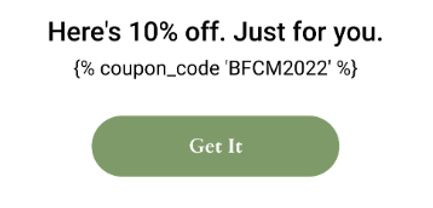
If a coupon is included in a block that is hidden with show/hide logic, codes can still be assigned.
You can include multiple codes per email (but only 1 dynamic coupon per SMS). If you use multiple coupons in a message, make sure you have enough codes for every recipient to receive 1 from each coupon. With email, you also have the option to use hidden blocks to send different coupons based on where someone lives or what they've done. We recommend exercising caution with this feature, because codes may be assigned to all recipients (even if they end up hidden in your message) and recipients may be skipped if there aren't enough codes.
After sending your email, you can check the total coupon codes by clicking into the Coupons tab and checking the Available/Total column.
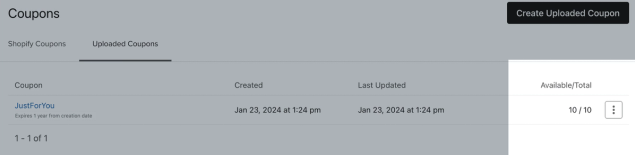
When sending uploaded coupon codes in emails, check the available codes before sending and replenish them as needed. Recipients who need a new code are skipped if no code is available.
- If the code is used in a campaign message, Klaviyo will compare the number of expected recipients to the number of available codes for the coupon used. A warning is displayed if there aren't enough codes available. Upload more codes to avoid skipping recipients who need a new code. When A/B testing, you will need enough available codes to cover the full send, even if your code is only being sent to a part of the list or segment you are sending to.
- If the code is used in a flow message (e.g., a welcome series or abandoned cart flow) you will need to upload more unique codes on a regular basis. Since flows are sent on a recipient-by-recipient basis, Klaviyo cannot check to make sure that enough codes are available. Flow emails that contain coupon codes with 0 available cannot be turned live. At send time, if a recipient needs a new code and none is available, their email will be skipped. You can see who was skipped by clicking into the analytics of the flow email and clicking Recipient Activity > Other.
Coupon block
Use a Coupon block to display a Shopify or uploaded coupon with built-in styling options. Create the coupon in your account before adding the block.
- Drag a Coupon block into your email template.
- Select a coupon from the recent coupons in the sidebar. To choose another coupon, click View all, then Select next to the coupon you want.
- Adjust the coupon block's styling as needed.
When the email sends, Klaviyo displays the recipient's code. If they do not already have a valid code for that coupon, Klaviyo assigns one from the available codes.
Personalization menu
You can also add a coupon code to any text field using the personalization menu. With this method, you can insert a coupon into text blocks, button blocks, or any other block that supports personalization tags.
SMS or MMS
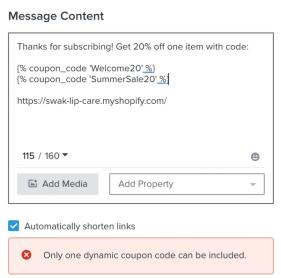
Mobile messages may only contain 1 dynamic coupon. Any SMS/MMS containing multiple dynamic coupons will display an error message and will not send.
You can also add a unique coupon code to the success step of a sign-up form to encourage viewers to opt in to your messaging.
Push notifications
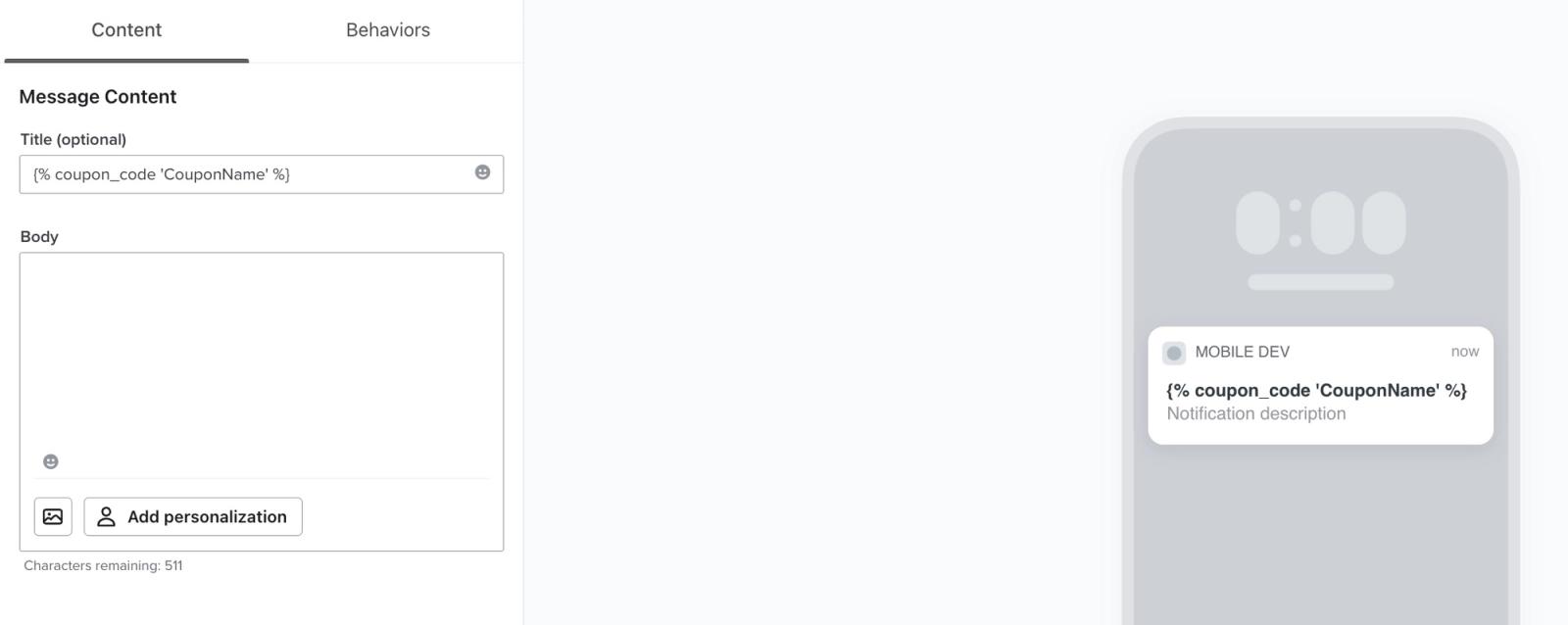
Coupons can be added to both the title and body of a push notification.
Send coupons as barcodes (email only)
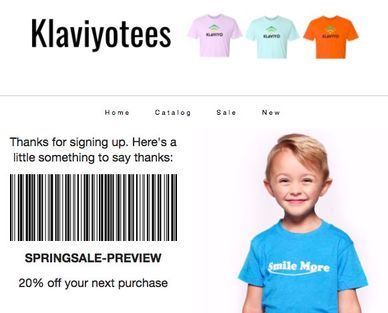
If you also have brick-and-mortar stores, you can save your customers (and your cashiers) time by providing a barcode coupon that can quickly be scanned at your point of sale system.
To display a barcode in an email template, insert the following tag into a text block. Replace CouponName with the name of your coupon in Klaviyo:
{% barcode_code 'CouponName' height=100 width=200 %}
The height is measured in pixels and can be adjusted to serve the design requirements for your template.
Below is a preview of the email with this barcode.
Some point-of-sale systems require you to add special characters to your coupon code before it is rendered into a barcode. If you need more control over the code before being rendered, adding the cut parameter to your coupon template tag removes a specific character or characters from all locations in the code displayed.
For example, let's say your point of sale system requires that you render your barcodes from coupon codes that begin with a hashtag. For your site, you need to remove this hashtag. You can use the cut parameter to pass one version of this code as a barcode, and a separate version that does not include the hashtag for your other code. For the code #GREATdoggo12345, the following tags display these values for a user:
{% coupon_code 'CouponName' cut=# %} == GREATdoggo12345
{% coupon_code 'CouponName' cut=G %} == #REATdoggo12345
{% coupon_code 'CouponName' cut=g %} == #GREATdoo12345
{% coupon_code 'CouponName' cut=5 %} == #GREATdoggo1234
{% coupon_code 'CouponName' cut=#Gg5 %} == REATdoo1234
The cut parameter has the following limitations:
- This is case sensitive. For example, using
cut=iwill removeibut notI. - Multiple items can be combined with a single
cutparameter tag.
If you're using the cut parameter, ensure that you fully understand how characters are removed from your rendered code so that customers do not receive corrupted codes.
Previewing coupon codes in messages
If you send a preview to your email address or phone number and codes are available, Klaviyo uses 1 of your generated coupon codes. If no code is available, the preview shows a placeholder instead.
For a coupon to preview with a real code in an inbox, you must have coupon codes available. The same preview code will be shown across inboxes for 1 minute, after which sending another preview will show a new code.
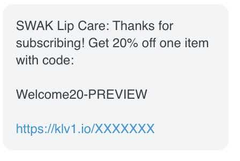
However, if you preview the coupon within Klaviyo (i.e., looking at it in-app), the preview will show the coupon name followed by "-PREVIEW." In this case, the preview does not show an actual coupon code or use one of your available codes. Flow messages previewed within Klaviyo also show the PREVIEW text.
Set up coupon / discount code reminders
Use an automated flow to remind customers about a coupon. Choose whether to exclude everyone who has ordered since entering the flow or only those who redeemed a specific static code.
Add an additional email or SMS to the same flow that was triggered to give out the initial coupon, but set this additional message to go out a few days later.
For unique coupons, including uploaded codes, use a conditional split or an additional message filter to send the reminder only to people who have placed an order 0 times since starting the flow. This excludes anyone who has ordered, whether or not they used the coupon.
For a static coupon, if your integration sends coupon details with orders, you can instead use an additional filter for this new message set to Placed Order 0 times since starting the flow, filtered to the exact discount code. This allows the reminder to reach someone who ordered without using that code. Use the coupon property for your integration, listed in the redemption section below.
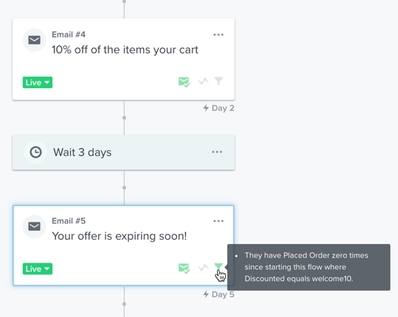
Use the same coupon in the reminder email or SMS. The recipient receives the same unique code as long as it has not expired.
See who used discount codes in Shopify and Magento
For Shopify and Magento stores, Klaviyo receives coupon information with order events. The steps below find purchases using an exact code, such as a static code or the unique code assigned to a recipient. Enter the redeemable code, rather than the name you gave an uploaded coupon in Klaviyo.
You can create a dynamic segment of everyone who used a particular coupon code.
- Navigate to Lists & segments and select Create > Segment. Name the segment "Used a coupon." If the name field opens in a panel, click Create segment to continue to the segment builder.
- Select What someone has done (or not done) from the dropdown.
- Select your store integration's Placed Order event and set it to at least once over all time. Click Add filter to choose the coupon property.
- Select the property and enter the exact code you want to track:
- Shopify: Discount Codes includes any of your code, such as
Welcome20. - Magento 1.x: Coupon equals your code.
- Magento 2: CouponCode equals your code. If an order contains multiple codes, the property may contain a comma-separated value; an exact match to 1 code will not match that combined value.
- Shopify: Discount Codes includes any of your code, such as
- Click Create segment to save the segment.
The segment contains profiles whose synced orders used that code. Compare these profiles with the people who originally received the code to investigate sharing; the segment alone does not show how someone obtained it.
If you are using a custom platform or a platform like Volusion, BigCommerce, Symphony, or others, you may also be able to pull coupon information. Use the Add filter option to see if a "Coupon" or "Discount Codes" option appears.
Additional resources
- How to create unique coupon codes for Shopify
Learn how to create single-use coupon codes for your Shopify store so that each customer receives their own unique coupon code for a given promotion on your site. This feature provides an alternative to creating a generic, also known as a static, coupon code, so you don't have to worry about codes being shared.
- How to create unique coupons for Woocommerce
Learn how to create unique, single-use coupons for your WooCommerce store and use them in flows to incentivize subscribers to make a purchase. To do this, you’ll first create your coupon in WooCommerce, then configure settings for the linked coupon in Klaviyo.
- How to create unique coupons for PrestaShop
Learn how to create unique, single-use coupons for your PrestaShop store and use them in flows to incentivize subscribers to make a purchase. To do this, you’ll first create your coupon in PrestaShop, then configure settings for the linked coupon in Klaviyo.
- How to set up coupons (for Magento 1.x)
Magento supports Shopping Cart Price Rules that can be used to apply a discount to a customer's order. Coupon codes can be created for existing price rules, so that shoppers can easily leverage a given code to apply a discount during the checkout process.
- How to set up coupons for Magento 2
Learn how to set up a price rule in Magento 2 and create the coupons in Klaviyo so that your shoppers can easily apply a discount during the checkout process. Magento supports shopping cart price rules.