Getting started with Lightspeed POS
You will learn
Learn how to integrate Lightspeed Point of Sale with Klaviyo, and what data syncs through the integration. After integrating, you'll be able to personalize and target emails based on each customer's offline purchases and activity. The Lightspeed integration syncs with Klaviyo every hour. The data synced from Lightspeed includes:
- Sales and order data including which products were purchased, the categories they are in, and any discounts applied
- Customer information including First Name, Last Name, and location information
- Refunded order data
Before you begin
This integration is for Lightspeed POS R-Series only. Using Lightspeed Retail X-Series? Please refer to Connecting Klaviyo to Retail POS X-Series.
Table of contents
- How to integrate with Lightspeed POS
- Verify your synced data
- Types of data synced from Lightspeed
- Outcome
- Additional resources
How to integrate with Lightspeed POS
- In Klaviyo, select the Integrations tab, then click Explore apps.
- Search for Lightspeed and click the card, then click Install.
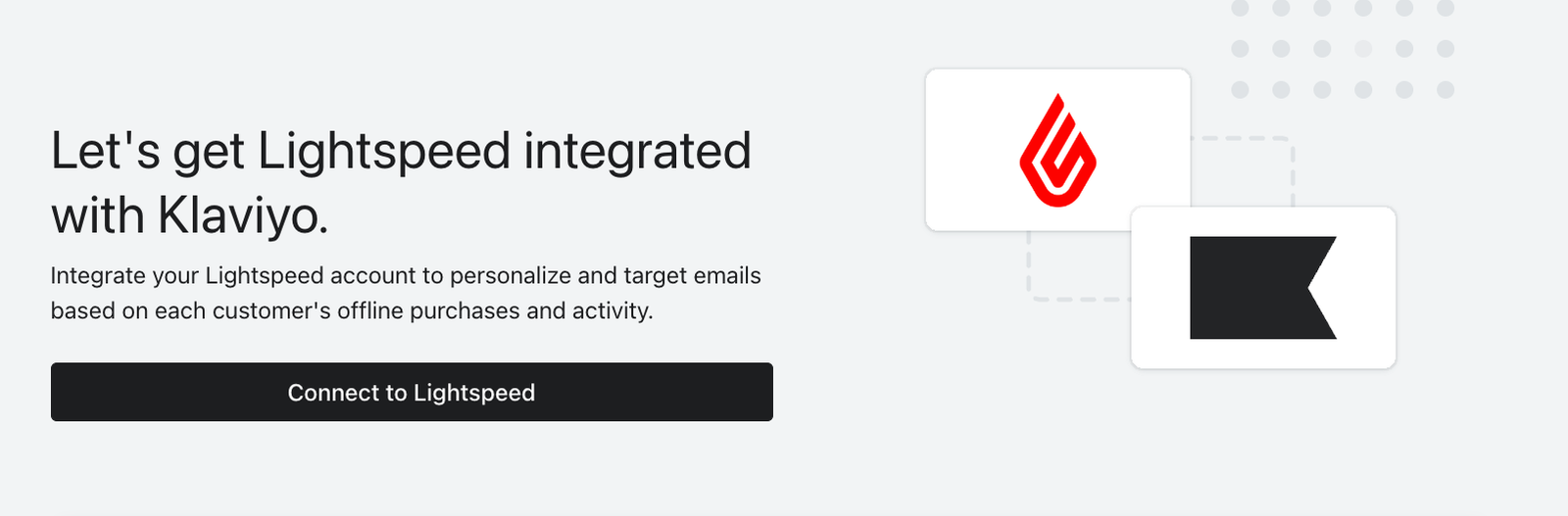
- Click Connect to Lightspeed.
- Log in to Lightspeed if needed, then click Authorize Application.
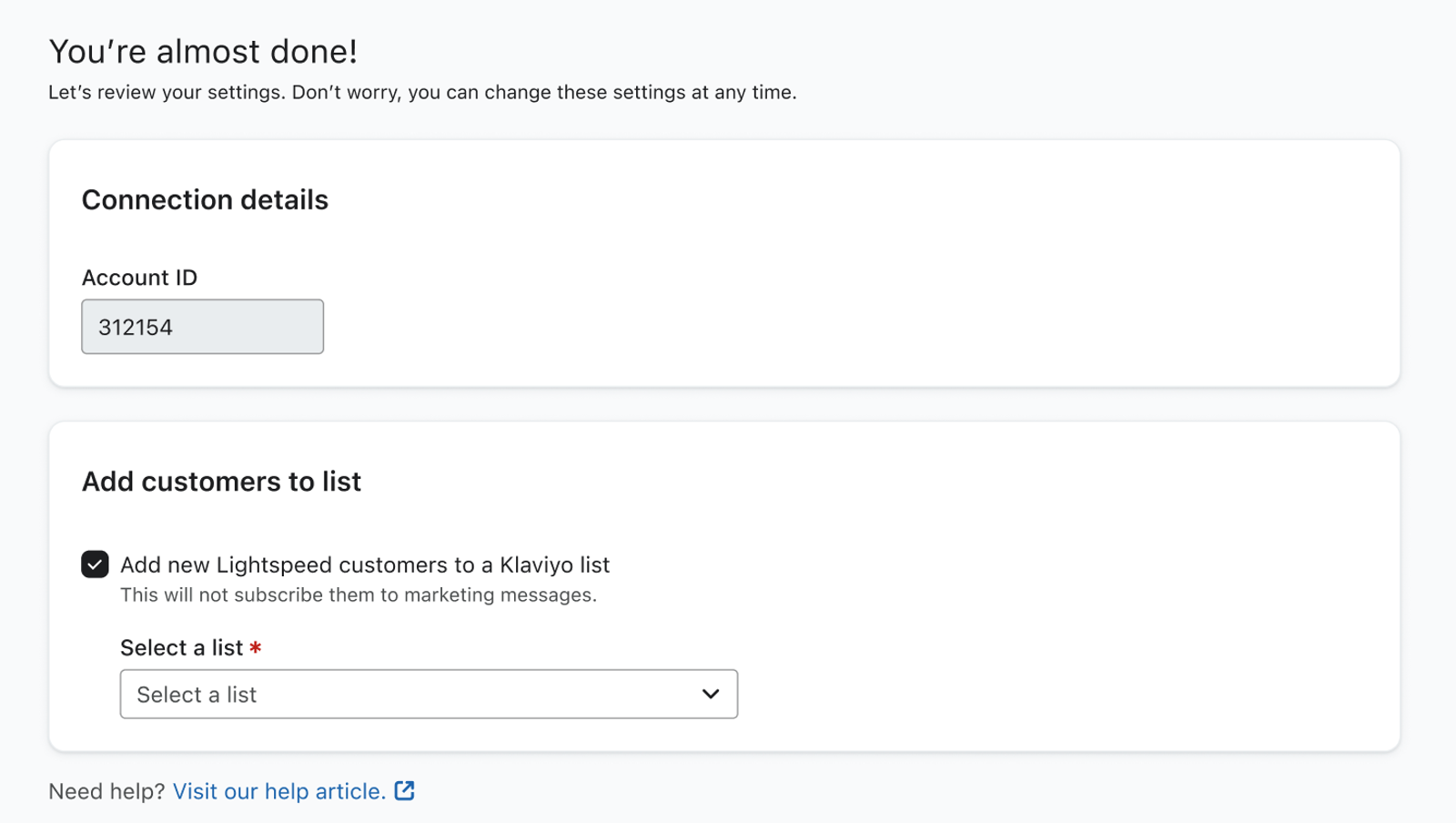
- Back in Klaviyo, confirm that your Account ID is correct.
- To add customers to a list, select Add new Lightspeed customers to a Klaviyo list and choose a list under Select a list. Leave this option unchecked if you do not want to add customers to a list. Adding customers to a list does not subscribe them to marketing messages.
- When you're done, click Complete setup. You should receive a success message.
Verify your synced data
To check on your Lightspeed integration:
- Click the Analytics dropdown in Klaviyo and select Metrics.
- Select Lightspeed in the Integration filter, then click Placed Order to review the data. Wait for the initial sync to finish before comparing totals; the time needed depends on how much data is in your account.
- Klaviyo imports Lightspeed data from the last 5 years. To check your order data, compare a day within that period in Klaviyo and Lightspeed. In the Placed Order chart, set View by to Daily and Measurement to Total. For example, hover over yesterday's data point or use the table below the chart to see the number of events recorded yesterday. Compare completed sales tied to customers with valid email addresses, and account for refund transactions, which also create Placed Order events.
- If the counts differ, check that the sync has finished and that you're comparing eligible sales for the same date and time zone. To check your time zone setting in Klaviyo:
- Click your account name in the lower left.
- Select Settings > General > Account.
- Scroll down to Time zone and compare it with the time zone used in Lightspeed. If you change the setting, click Save.
- If the counts differ, check that the sync has finished and that you're comparing eligible sales for the same date and time zone. To check your time zone setting in Klaviyo:
Types of data synced from Lightspeed
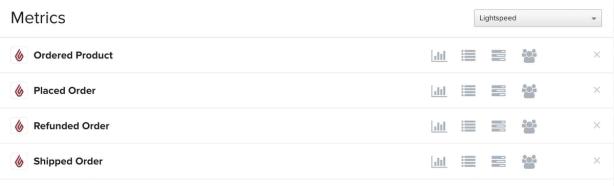
Navigate to Analytics > Metrics. The metrics with a Lightspeed icon come from the Lightspeed integration. Select Lightspeed in the Integration filter to view them.
Metrics and profile properties sync every hour.
Below are the Lightspeed metrics, the data they include, and the limitation for Shipped Order.
Keep the following in mind when checking order events:
- Orders with a value of $0 can sync to Klaviyo when they meet the requirements below.
- Orders must be completed, contain sale line items, and be tied to a customer with a valid email address to sync to Klaviyo.
Placed Order
This event is tracked when a customer completes the checkout process and creates an order in your physical store. The event Klaviyo tracks includes key product information regarding the items included in the order (such as product names and images) so you can use that information in purchase follow-up emails. You can filter and target Placed Order events based on the following criteria:
- Categories
The names of all categories each product is in, e.g., t-shirts, mens, pants and sale - Discount Codes
The names of discounts applied to the order in Lightspeed, e.g., SPRING2015 - Email Domain
The email domain of the person placing the order, e.g., gmail.com or yahoo.com - Is Discounted
This will be TRUE or FALSE - Items
The names of the products in someone's order, e.g., t-shirt or pants - Item Count
The number of product line items in the order, not the total number of units purchased, e.g., 2 - Shop
The name of the store where the order was placed, e.g., Klaviyo-Boston or Klaviyo-New York - ShopID
The ID of the store where the order was placed - Total Discounts
The total amount of any applied coupons or discounts, e.g., 10.00
Ordered Product
This event is tracked when a customer places an order. Unlike the Placed Order event, 1 Ordered Product event is tracked for each unit purchased, up to 100 events per product line item. For example, if someone buys a t-shirt and a pair of pants, 1 Placed Order event and 2 Ordered Product events are tracked: 1 event for the t-shirt and 1 event for the pants.
The Ordered Product event Klaviyo tracks includes detailed information about each purchased item. This data is useful for creating behavioral segments based on the product's name, ID, or category. You can filter and target Ordered Product events based on the following criteria:
- Category
The name of the category the product is in, e.g., sale - Email Domain
The email domain of the person placing the order, e.g., gmail.com or yahoo.com - Name
The name or title of the product, e.g., The Jungle Book DVD - Product ID
The Product ID of the item, e.g., 2222 - Quantity
Each Ordered Product event represents 1 unit, so this value is 1
Refunded Order
This event is tracked for a completed refund transaction with a negative total in Lightspeed. The same transaction also creates Placed Order and Ordered Product events. The Refunded Order event includes product names, images, and discount information. You can filter and target Refunded Order events based on the following criteria:
- Categories
The names of all categories each product is in, e.g., t-shirts, mens, pants and sale - Discount Codes
The names of discounts applied to the order in Lightspeed, e.g., SPRING2015 - Email Domain
The email domain of the person placing the order, e.g., gmail.com or yahoo.com - Is Discounted
This will be TRUE or FALSE - Items
The names of the products in someone's order, e.g., t-shirt or pants - Item Count
The number of product line items in the order, not the total number of units purchased, e.g., 2 - Total Discounts
The total amount of any applied coupons or discounts, e.g., 10.00
Shipped Order
The scheduled Lightspeed sync does not currently create Shipped Order events. Do not rely on this metric to confirm that an order has shipped. Use Placed Order and Ordered Product for purchase details such as product names, images, and discounts.
Customer data
In addition to the metrics above, there are also properties from Lightspeed that are added to each Klaviyo profile. You can use these properties in segments and flows. Here are the Klaviyo properties that are automatically synced from Lightspeed:
- First and Last Name
- Company and Title
- City
- State/Region
- Zip Code
- Country
Customers added to your selected list through the Lightspeed integration do not trigger list-triggered welcome flows by default. This prevents returning customers from receiving a welcome email as if they were first-time customers. To request a change to this behavior, reach out to Klaviyo support.
Outcome
You've integrated with Lightspeed POS and reviewed your synced data. You can now personalize and target emails based on each customer's offline purchases and activity.
Additional resources
- Frequently asked questions about integrations
Learn the answers to some commonly-asked questions regarding integrations. If your question is not answered here, please reach out on our Community forum.
- How to integrate a platform without a pre-built Klaviyo integration