How to use the Klaviyo setup wizard
You will learn
Learn how to configure your account using the Klaviyo setup wizard. This guide summarizes each step and assists you through the quick setup process.
Complete each required step in the setup wizard to configure your account. If you cannot finish in 1 session, the information you save as you continue through the steps is retained.
When you return, resume from your saved setup step.
Describe your business
When the wizard asks about your business, complete the following steps. If Klaviyo detects your Shopify store, you may be asked for your business details after connecting it.
- On the How would you describe your business? screen, select your business type. If What does your business primarily do? appears, select the option that describes what you sell or offer. Click Continue.
- If asked about your business’s main focus, select 1–3 options and click Continue.
Connect your ecommerce platform
Whether you are coming from an ecommerce app store (i.e., Shopify or BigCommerce) or directly signing up with Klaviyo, we will first try to detect your particular ecommerce platform.
Follow the steps below to connect Shopify or finish an app-store signup. If you signed up directly with Klaviyo and use BigCommerce or another platform, go to Select another business platform.
Connect Shopify or finish an app-store signup
If you started from the Shopify or BigCommerce app store, complete the installation and authorization prompts there, then return to Klaviyo to finish setup. For Shopify, review the data-sharing settings below before continuing with your business details and sender information.
If you are redirected back to Shopify or BigCommerce and we cannot connect your integration, this may be because your store is not live yet. We suggest reviewing Shopify’s guide or BigCommerce’s guide to set your store live first.
Connect Shopify after signing up directly with Klaviyo
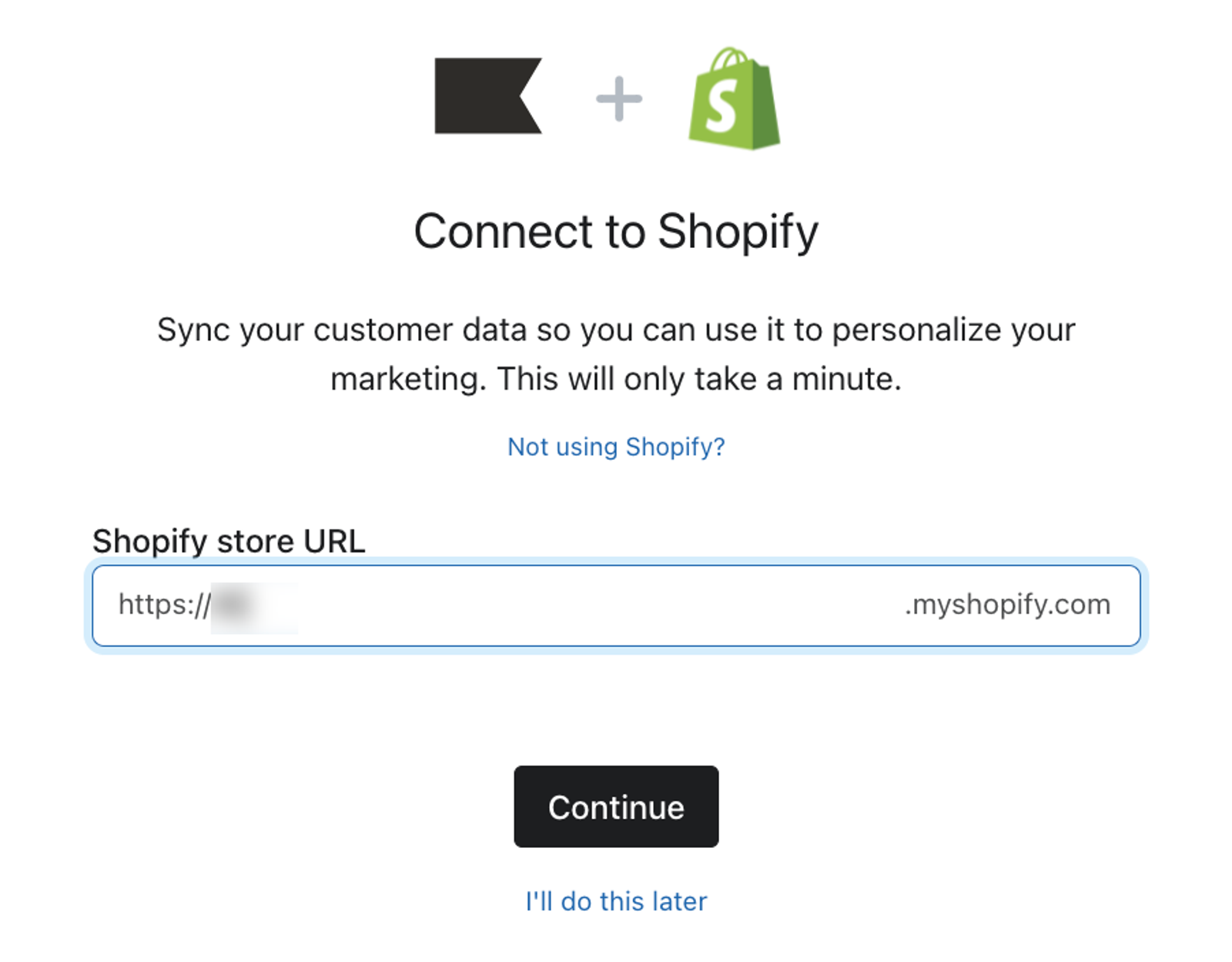
If Shopify was not detected, select Shopify on the Next, select your primary business platform screen and click Continue to open the store URL field.
If the detected platform is incorrect, click Not using Shopify? above the URL field to select your business platform.
If you do not want to connect your ecommerce platform at this time, click the I’ll do this later link to be taken to the next step. Note that you can connect your Shopify or BigCommerce integration later on.
- Enter your Shopify store URL in the format mystore.myshopify.com.
- Click Continue, then follow Shopify’s prompts to authorize the connection and return to Klaviyo.
If you receive an error about your store URL, check that you entered your myshopify.com address correctly. Remove spaces and any extra URL text, such as a path after the domain.
Review Shopify data sharing
- Review Sync your Shopify subscribers to Klaviyo and choose whether to add Shopify email subscribers to the Klaviyo list shown.
- Review Sync your Klaviyo profiles to Shopify. If you keep it selected, open Sync settings and choose which profiles and profile data to sync.
- Click Continue to save your choices. Complete the business details and address fields if prompted.
After you save the Shopify data-sharing settings, a Connected to Shopify confirmation appears.
Select another business platform
Selecting BigCommerce or another platform here records your choice; it does not connect the store. After setup, follow the integration guide for your platform to connect it.
- On the Next, select your primary business platform screen, select your platform. If it is not listed, select Other platform, then search for and select it.
- Click Continue to save your selection and go to the list-size question.
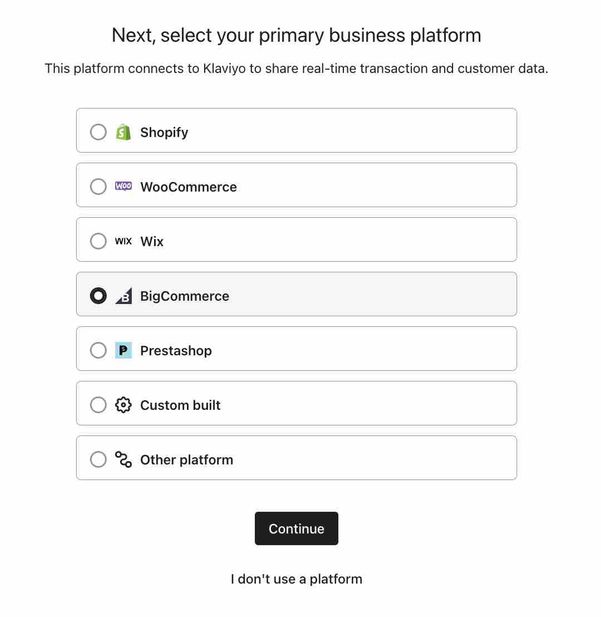
If you do not use a platform, click I don’t use a platform. You can connect your ecommerce store later. For BigCommerce, follow Getting started with BigCommerce after completing account setup.
Once your ecommerce store is connected or we know the URL of your store, Klaviyo will attempt to extract your branding information including logos, colors, fonts, and social links. These elements will be automatically saved in your Klaviyo account, and allow you to efficiently build email templates later. If you would like to review or adjust these after the setup wizard process, head to your brand library or learn more in our guide about changing your brand styles.
Provide your list size
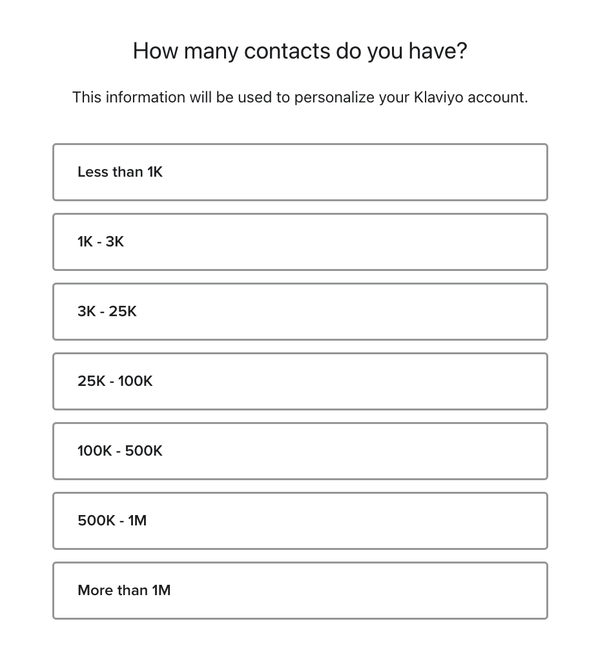
On the How many contacts do you have? screen, select the range that matches your list size. If you are unsure, check your ecommerce platform or previous email platform. Selecting a range saves your choice and takes you to the business-address step. This question is skipped when Klaviyo gets your contact count through the Shopify connection.
Add your business address
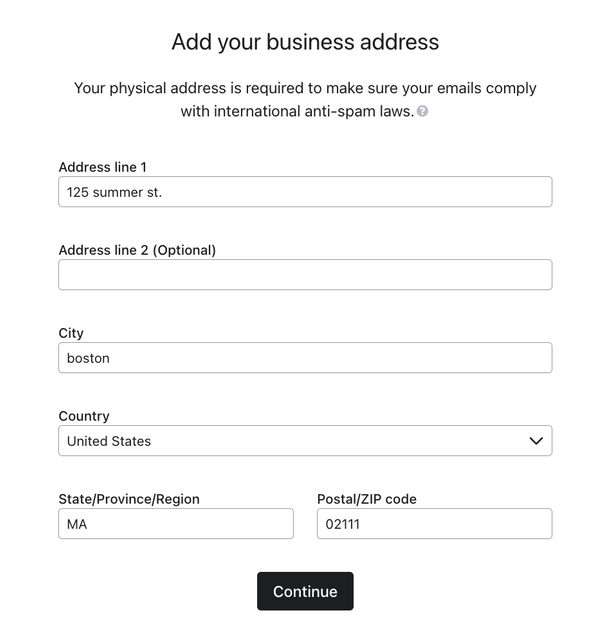
If the wizard asks for your business address, complete all required fields and click Continue. For Shopify, this step is skipped when Klaviyo can use a valid address from your store.
If you receive an error, review the highlighted fields and correct any missing or invalid information before continuing.
Add your sending information
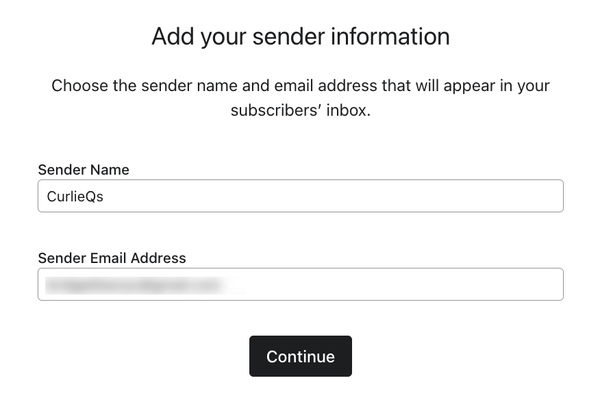
Your sender information is the name and email address that appear in your subscribers’ inboxes. It helps subscribers and inbox providers, such as Gmail and Yahoo, recognize your brand.
- Review or enter your Sender Name and Sender Email Address.
- Click Continue to save your sender information.
Choose how you want to use Klaviyo
If you see Add your company website, enter your website URL and click Continue. This step appears if your account does not yet have a website URL.
- On the How do you want to use Klaviyo? screen, review the selected options and select the channels you want to use. Choose at least 1 option.
- Click Continue to finish account setup.
Confirm your email address
If you see Check your email, open the inbox for the email address you used to sign up for Klaviyo. This is your account email address, which can be different from your sender email address.
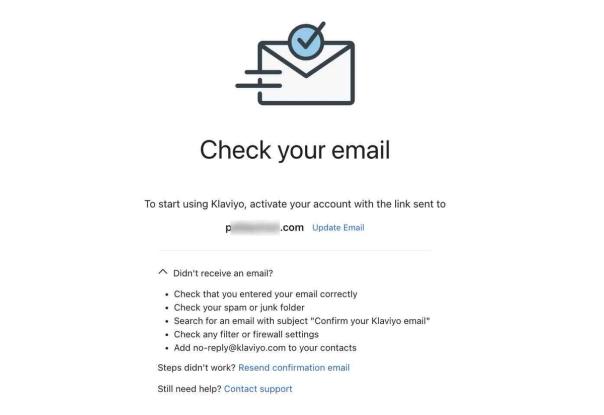
Open the email with the subject Confirm your Klaviyo email and click Confirm Email to verify your address. If you are prompted to log in, log in to Klaviyo to continue.
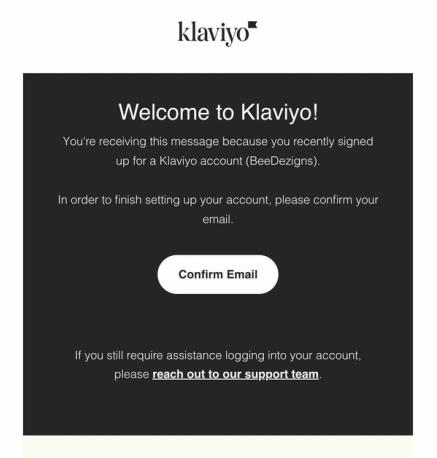
The verification link expires after 3 hours. If you open an expired link, Klaviyo shows the email-confirmation page and attempts to send a new confirmation email. Check your inbox for the new message. If it does not arrive, follow the resend steps below.
Edit or resend the email address verification message
If the confirmation email has not arrived, check that the address on Check your email is correct, then check your spam and promotions folders.
Correct your email address
- Click Update Email beside the displayed email address.
- Enter the correct address in New Email, then click Update and Resend.
Use a valid email address that is not already associated with another Klaviyo login.
Resend to the same email address
Expand Didn’t receive an email?, then click Resend confirmation email.
After updating or resending, open the new email and click Confirm Email. If you still cannot confirm your address, contact our Support Team for help.
Add onsite and viewed product tracking
Some integrations require additional code snippets to track activity on your website. These snippets include an ID unique to your Klaviyo account. Follow the instructions for your platform in Getting started with Klaviyo onsite tracking.
Onsite tracking and forms
Klaviyo’s onsite JavaScript, Klaviyo.js, supports Active on Site tracking and Klaviyo sign-up forms. Active on Site records visits from identifiable browsers. Shopify, BigCommerce, WooCommerce, and Magento have platform-specific installation instructions in the linked guide. You do not need to paste the snippet separately if your integration has already installed it.
Viewed Product tracking
Viewed Product tracks which products identifiable visitors view on your site. Magento 1, Magento 2, and WooCommerce install this tracking through their integrations. For Shopify, enable the Klaviyo app embed in your theme and save the change. For BigCommerce, add the Viewed Product snippet using the BigCommerce integration guide.
For other platforms or a custom site, follow the installation and testing instructions in Getting started with Klaviyo onsite tracking.
Outcome
You have completed account setup and confirmed your email address. If you postponed connecting your ecommerce platform, complete that integration next, then set up onsite tracking for your store.
Additional resources
- Understanding which warming process to use in Klaviyo
Learn how to choose the right warming process in Klaviyo, so you can establish a strong initial sender reputation and be viewed favorably by inbox providers.
- Getting started with Klaviyo onsite tracking
Learn about the different ways that Klaviyo can support onsite tracking on your ecommerce site. There are 2 key types of onsite tracking:
- Getting started with Klaviyo