How to insert personalization into text blocks
Learn how to add personalization to email templates by including things like a recipient’s first name, custom properties, an unsubscribe link, and more.
You can add these tags to your templates by typing them directly into a text field, by copying them from the email preview modal, or by using the personalization menu in a text block.
Before you begin
Before you get started, it’s helpful to understand how personalization works within Klaviyo. The tags available in your account are different from the tags in anyone else’s Klaviyo account, and are dependent on the data you store in Klaviyo.
You can store and use a small handful of default Klaviyo properties (like first and last name), along with an unlimited number of custom profile properties and dynamic event data. To see all of the tags available in your own account, follow the steps for adding them through the personalization menu or the preview modal below.
Add tags using the personalization menu
To add a tag using the personalization menu:
- Select a text block that you would like to add personalization to.
- Double-click the text to edit it, then place your cursor where you want the tag to appear.
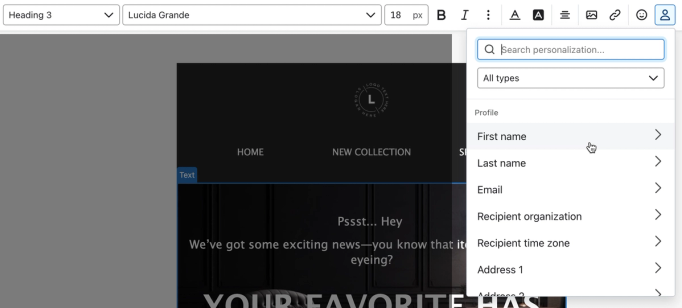
- Click the Personalization icon in the text formatting toolbar. A searchable menu opens with profile properties, custom properties, and other tags. To find event variables, use the preview modal as described below.
- Scroll through the tags or search to find the one you’d like to add, then select it.
- If customization options appear, choose the options you want, then click Insert. For profile properties, you can enter Default text to use when a recipient’s value is missing.
Add personalization from the preview modal
You can add profile property and event data by copying them from the preview modal and pasting them into your message. Learn more about using the preview panel for message personalization.
Adding profile properties
To add profile personalization from the preview modal:
- Click Preview from the template editor.
- For event-triggered flow emails, use the arrows to navigate between the 10 most recent events. For other messages, search for a profile that includes the tag you’d like to add. Note that you’ll only copy the tag name from the sample user’s profile, and each recipient of the email will see information from their own profile.
- Expand All properties if it is collapsed, then scroll to find the property you’d like to use.
- Hover over the property’s name to see its personalization tag, then click to copy it.
- Click Done.
- Paste the variable into a block in your template.
Adding event variables
Use event variables in a flow triggered by the event whose data you want to display. You can preview event data in a saved template, but those variables will not populate with that event’s data if you send the template in a campaign or a flow with a different trigger.
To add an event variable from the preview modal:
- Click Preview from the template editor.
- If available, under Preview data source, click Event and select an event from the dropdown. Note that this option is only available under Content > Templates; the correct event is automatically selected for event-triggered flow emails.
- Expand All properties if it is collapsed, then scroll through Event properties until you find the variable you’d like to use. If you don’t see the variable you need, use the arrows to select a different instance of the event.
- Hover over the variable’s name to see its personalization tag, then click to copy it.
- Click Done.
- Paste the variable into a block in your template.
You can also paste in variables from other areas (e.g., other templates or a Klaviyo Help Center article). If you paste a variable from elsewhere, make sure to paste it as plain text using Command+Shift+V or Control+Shift+V. This will ensure no formatting is pasted along with your text, which can introduce code errors and increase the size of your message.
Manually adding personalization
If you know a variable’s name, you can add it by typing it into a text field directly. Klaviyo variables use the following structures:
Property names are case sensitive. Replace variable_name or variable name in the examples below with the exact property name. If you need a nested event property, copy its full tag from the preview modal.
Variable type | Sample Format |
Profile properties (no spaces or special characters) | {{ person.variable_name }} |
Profile properties (any) | {{ person|lookup:'variable name' }} |
Event properties (no spaces or special characters) | {{ event.variable_name }} |
Event properties (any) | {{ event|lookup:'variable name' }} |
Setting a default value
You may not always have complete information for every email recipient you contact. For example, you might have some subscribers’ first names, but not others. To avoid blank spaces in your emails for those recipients with incomplete data, use the default filter to set a backup.
To add the default filter:
- If the tag does not already include a default filter, add
|default:''after the variable name, inside the closing braces. Tags copied from the preview modal already include this filter. - Enter your default text between the single quotes. In an email, this might look like:
Hey {{ first_name|default:'friend' }}! |
When the message is sent, any recipients whose names are not stored in your database will see this message:
Hey friend! |
Before sending, click Preview and select a profile or event with the data you want to display. Check that the tags show the expected values. For profile personalization, also check a profile without the property to confirm your default text appears.
Additional resources
- Using filters to customize your variables
- Message personalization reference
- Guide to the email template editor