How to use Shopify Markets with Klaviyo
You will learn
Learn how to integrate Shopify Markets with Klaviyo to sync customer and product information, currency, and pricing for the regions and languages you sell in.
Requirements
- You must have the latest version of Shopify Markets configured for your Shopify store.
- Your Klaviyo account must be integrated with Shopify.
Overview
If you use Shopify Markets to sell in multiple regions, you can use Klaviyo to message your customers in their preferred language and region, including pricing, currency, and URLs to the appropriate market.
Use Klaviyo to personalize across borders, sending the right language, currency, and product recommendations for each recipient with 1 template.
How to enable Shopify Markets
- In Klaviyo, select the Integrations tab.
- Click Shopify to access the integration settings page.
- In the Sync data from Shopify section, check Sync Shopify Markets to Klaviyo to sync catalog data for your active region markets. The initial sync takes time.
- Click Update Settings.
- If prompted, sign in to Shopify using the account you integrated with Klaviyo, and approve new access to sync market data.
- After approving access, return to Klaviyo and click Update Integration if the confirmation appears.
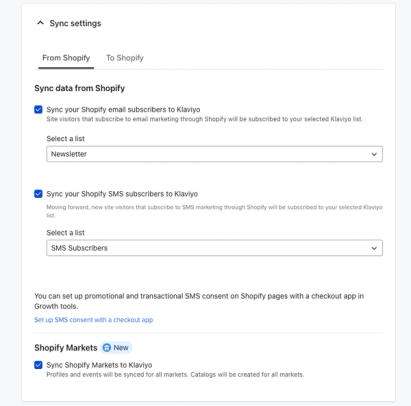
What is synced
Klaviyo will sync locale information from Shopify profiles, events, and catalog data. Locale is a combination of language and region information. An English speaker located in the USA would have a locale of 'en-US' and a Spanish speaker in the USA would have a locale of ‘es-US’.
Profiles
- Locale
- The Locale property includes the profile’s locale synced from Shopify (e.g., “en-US”).
- A Shopify synced profile may not always include language or region locale information if it is unknown by Shopify.
Events
- Customer Locale
- Order-related events from Shopify include Customer Locale when Shopify provides locale information. Details on each event with locale information can be found in the Shopify data reference.
Catalog
- Locale
- Klaviyo syncs localized product and variant data for the regions and languages in your active region markets. This includes localized versions of the product and variant title, price, compare at price, status, currency, and URL.
How to use locale aware Shopify Markets in Klaviyo
Once synced, locale data can be used across Klaviyo to power more personalized experiences for your customers.
Smart Translations
Before using this option, enable Smart Translations and create translations for your email.
With Shopify Markets in Klaviyo, dynamic product blocks used in Smart Translations match your customers' language and country with localized product information, currency, and pricing. Products unavailable in the selected catalog locale are excluded from those recommendations. If no recommended products are available for that locale, Klaviyo tries the fallback catalog locale, then the default catalog.
- Within the Smart Translations editor, select a Fallback catalog locale. Klaviyo uses it when the customer's country is unknown or the customer's locale has no available recommendations.
- You can configure a default for each language in Catalog locale mapping in your translation settings. Click Add mapping, choose the language and catalog locale, then click Save.
- If you selected multiple languages to translate into, click the arrows at the top or use the dropdown to switch between languages.

- Preview the email with profiles from different locales to check the product information, pricing, and currency they will see.
- When you have finished reviewing the translations, click Done.
Static Product Blocks
View the full guide for using Static Product Blocks
For automatic localization, check the Localize for recipient checkbox in the block settings.
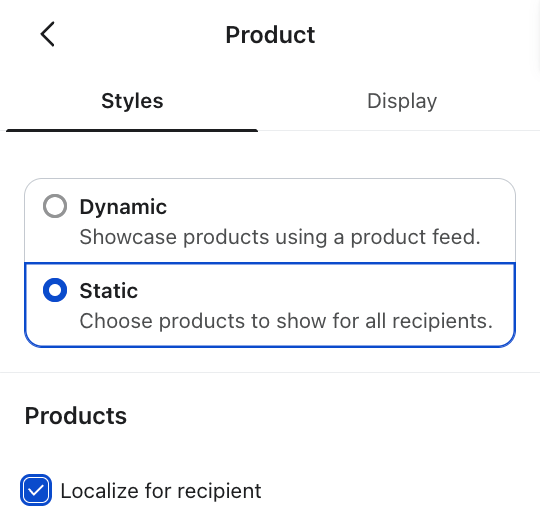
When enabled, static product blocks automatically display localized product pricing, currency, and information based on the recipient's language and region at send time. If the language is known but the country is missing, Klaviyo uses a matching Catalog locale mapping to supply the country.
If the recipient's locale is missing or has no matching product data, Klaviyo tries the language and region selected for the block. Missing block settings use the Klaviyo account locale, then en-US as a final default. If no localized product data is found, Klaviyo uses the base product information. Preview with profiles that have complete, partial, and missing locale data before sending.
This eliminates the need to create separate Static Product Blocks for each region or rely on Smart Translations to handle pricing differences between regions that share a language (e.g., English-speaking customers in the US, UK, and Australia).
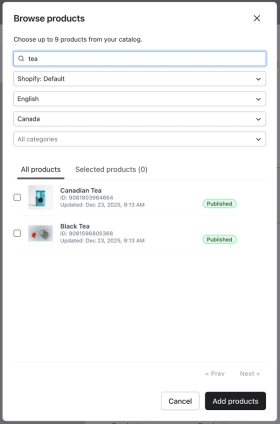
To choose a fixed language and region for a static product block, uncheck Localize for recipient and manually select localized products:
- In the static product block settings, click Add products. In the product selector, choose Shopify: Default.
- A language and region input will appear. Select the language and region of the products you’d like to include.
- Select the products you want to include, then click Add products.
Catalog lookup tags
View the full guide for using catalog lookup tags
Filter by locale
Use the language and region arguments in the catalog tag to look up localized product data. For example, use 'fr' for French and 'CA' for Canada, following ISO 639 language codes and ISO 3166 country codes. The localized product includes values such as title, price, and URL. This example shows a French Canadian version of a Shopify product.
{% catalog "SAMPLE_ITEM" integration='shopify' language='fr' region='CA' %}
{{ catalog_item.title }}
{% endcatalog %}
If a localized product cannot be found, the default product information will be used.
Currency template tags
The code and symbol for a localized product can be referenced with template tags. This example shows a reference to a currency symbol and currency code.
- currency_symbol
- The graphic symbol used to denote a currency unit
- currency_code
- The alphabetic code used to denote currency
{% catalog "SAMPLE_ITEM" integration='shopify' language='fr' region='CA' %}
{{ catalog_item.title }}
<a href="{{ catalog_item.url }}">
<img alt="Image of {{ catalog_item.title }}" src="{{ catalog_item.featured_image.full.src }}">
</a>
{{ catalog_item.currency_symbol }}
{{ catalog_item.price }}
{{ catalog_item.currency_code }}
{% endcatalog %}
Segmentation with locale and Shopify Markets
With the Locale, Locale: Language, and Locale: Country properties, you can segment customers by the language and country stored in their profile locale. These properties describe the profile’s locale, not its purchase history.
Use Case
I want to segment my customers by those who speak Spanish, regardless of what country they are in
Solution
Segment using Locale: Language = 'es'.
Use Case
I want to segment customers whose profile locale is in the UK, regardless of their language.
Solution
Segment using Locale: Country = 'GB'.
Use Case
I want to segment customers whose profile locale is French in Belgium.
Solution
Segment using Locale = 'fr-BE'.
To segment by the locale used for a past purchase, use a Placed Order event condition filtered by Customer Locale. For example, 'fr-BE' identifies orders placed with a French Belgian locale. A profile locale condition alone does not check whether someone placed an order.
Flows with locale and Shopify Markets
You can use locale information to personalize the content in your flows. Shopify order-related events can include Customer Locale and localized product information when Shopify provides it. Smart Translations can also be used to localize messages with product data.
Klaviyo has a set of prebuilt flow templates which will automatically reference the relevant currency and translated product information.
- Add a localized Abandoned Checkout Flow
- Add a localized Order Confirmation Flow
Troubleshooting
Why can I not enable Shopify Markets?
- Shopify Markets can only be enabled once per Shopify account. If your Shopify account is already enabled with Shopify markets on a separate Klaviyo account, you may turn off Shopify Markets on that account, then enable it on the Klaviyo account you’d like.
- Your Shopify account may be on an older version of Shopify Markets. You may enable the new version of Shopify Markets using Shopify Test drive. Klaviyo recommends you reach out to Shopify before enabling the Shopify test drive.
Why do I not see my Shopify B2B or Retail Markets?
- Klaviyo supports Shopify region markets and does not currently sync B2B or Retail Markets.
I don’t see my localized products in Klaviyo
- Depending on your catalog size, it may take multiple days for the initial sync of localized product data.