Getting started with the hotel business review dashboard
The hotel dashboard gives hotels, resorts, vacation rentals, and other travel and hospitality businesses an out-of-the-box view of room revenue, bookings, cancellations, and rate performance without building a single custom report. This article explains how to access the dashboard, customize what you see, and understand each metric.
You will learn
- How to access your hotel dashboard
- How to filter and customize the dashboard
- What each section and metric measures, and how Klaviyo calculates it
- What to do when a section is empty or still loading
Common use cases
The hotel dashboard helps you answer questions like:
- How much room revenue am I generating, and how is it trending over time?
- What's my average daily rate (ADR), and how is it changing?
- How many reservations and room nights am I booking, and how many are being cancelled?
- What's the average value of a booking?
- How does performance break down by booking source or room type, or across my properties?
Before you begin
- The hotel dashboard appears automatically once your account has at least one travel integration installed. Supported integrations include Mews, Cloudbeds, and Guesty.
- You need a role with permission to view reporting (the same permission required to view other dashboards in Analytics).
The dashboard is built entirely from data your installed integrations send to Klaviyo. Available sections and metrics vary by integration. Mews and Cloudbeds report detailed room-night data (revenue, ADR, nights booked), while Guesty reports reservation-level data. Sections that require room-night data won't appear for Guesty-only accounts.
Accessing the dashboard
- Navigate to Analytics > Dashboards in your Klaviyo account.
- Find and click Hotel business review in your list of dashboards.
Note: Once the dashboard has been created for your account, it stays available even if you later remove the integration that triggered it. Your historical data remains so you don't lose access to your reporting.

Customizing the dashboard
A toolbar sits at the top of the dashboard with controls that apply across the whole page.
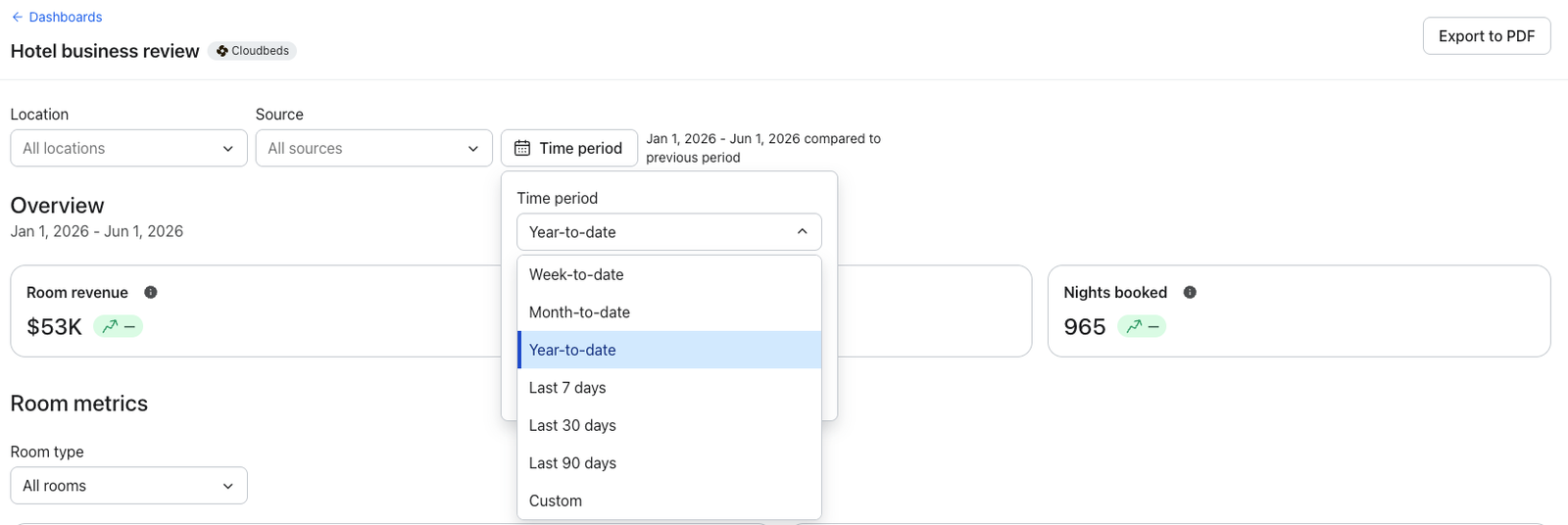
Set your time period
- Click the time period selector in the toolbar.
- Choose a preset — This week, This month, This year, Last 7 days, Last 30 days, or Last 90 days — or select Custom to set your own date range.
- Optionally set a comparison period to see how the current period stacks up against the previous one.
Filter by location, source, and room type
The hotel dashboard includes dashboard-wide filters in the toolbar, next to the time period selector:
- Location: Focus on one or more of your properties. Multi-select and searchable, which is helpful if you manage many properties. Defaults to All locations.
- Source: Focus on one or more booking channels (for example, direct, OTA, or website). Multi-select. Defaults to All sources.
- Room type: Focus on a specific room type. Single-select. Defaults to All rooms.
These filters apply across the whole dashboard. The exact names of your locations, sources, and room types come from your integration, so they'll match the terminology you already use in Mews, Cloudbeds, or Guesty. For Cloudbeds accounts, the Room type filter appears inside the Room metrics section instead of the toolbar, and scopes only that section.
Export to PDF
Click Export to PDF in the toolbar to download a snapshot of the dashboard. This is useful for sharing performance with stakeholders or saving a point-in-time record.
Note: The Export to PDF option is unavailable if you have read-only permissions.
Dashboard sections
The dashboard is organized into sections. You'll only see the sections and metrics that apply to the integrations you have installed. If you have more than one applicable integration, Klaviyo uses the first one you installed in the travel category as the source for the dashboard's data.
Overview
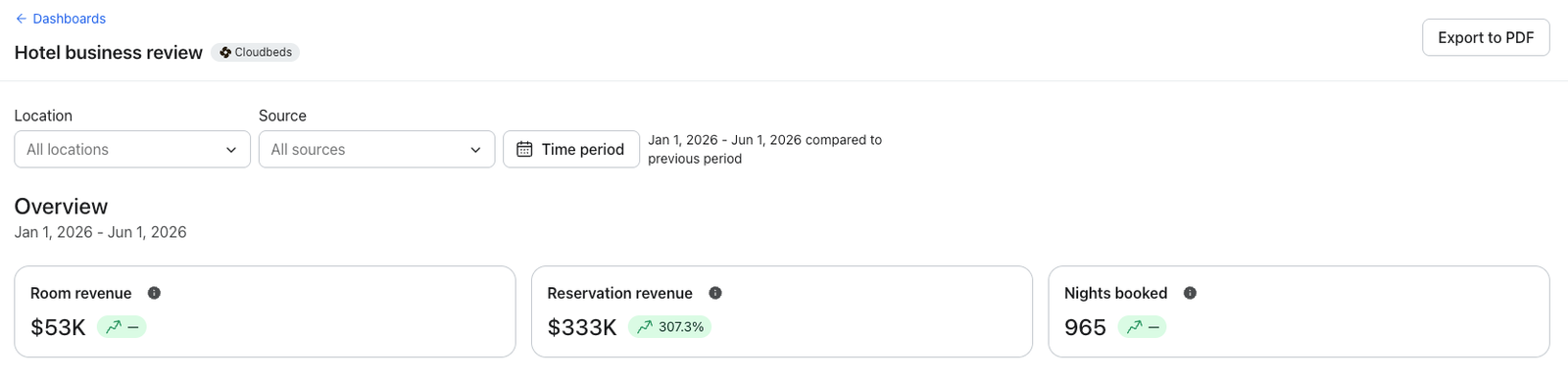
The Overview section is a quick, at-a-glance summary of your most important hotel metrics for the selected time period. It displays as a strip of KPI tiles with the current date range shown above them.
How we calculate your data
- Room revenue: The total revenue from Completed Room Night events.
- Reservation revenue: The total revenue from Confirmed Reservation events.
- Nights booked: The total number of Confirmed Room Night events.
Note: Tiles that rely on room-night data (Room revenue and Nights booked) appear for Mews and Cloudbeds. Guesty accounts will see reservation-based metrics.
Room metrics
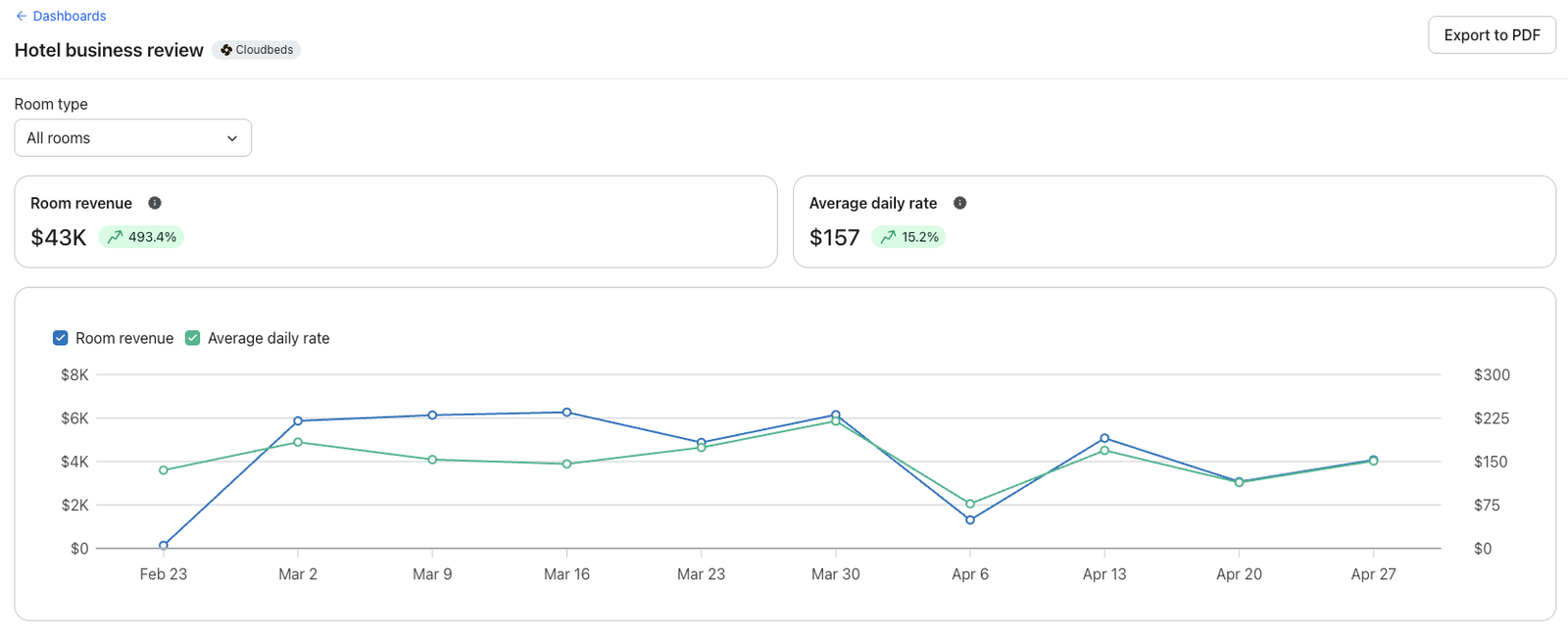
The Room metrics section focuses on the revenue and rate performance of your rooms. It includes KPI tiles and a Room performance chart that plots these metrics over time on a dual axis.
How we calculate your data
- Room revenue: The total revenue from Completed Room Night events.
- Average daily rate (ADR): The average room revenue per occupied room per day, calculated from your Completed Room Night events (room revenue divided by occupied room nights).
Note: This section appears for Mews and Cloudbeds accounts only, because it relies on room-night data. Guesty accounts won't see it.
Reservation metrics
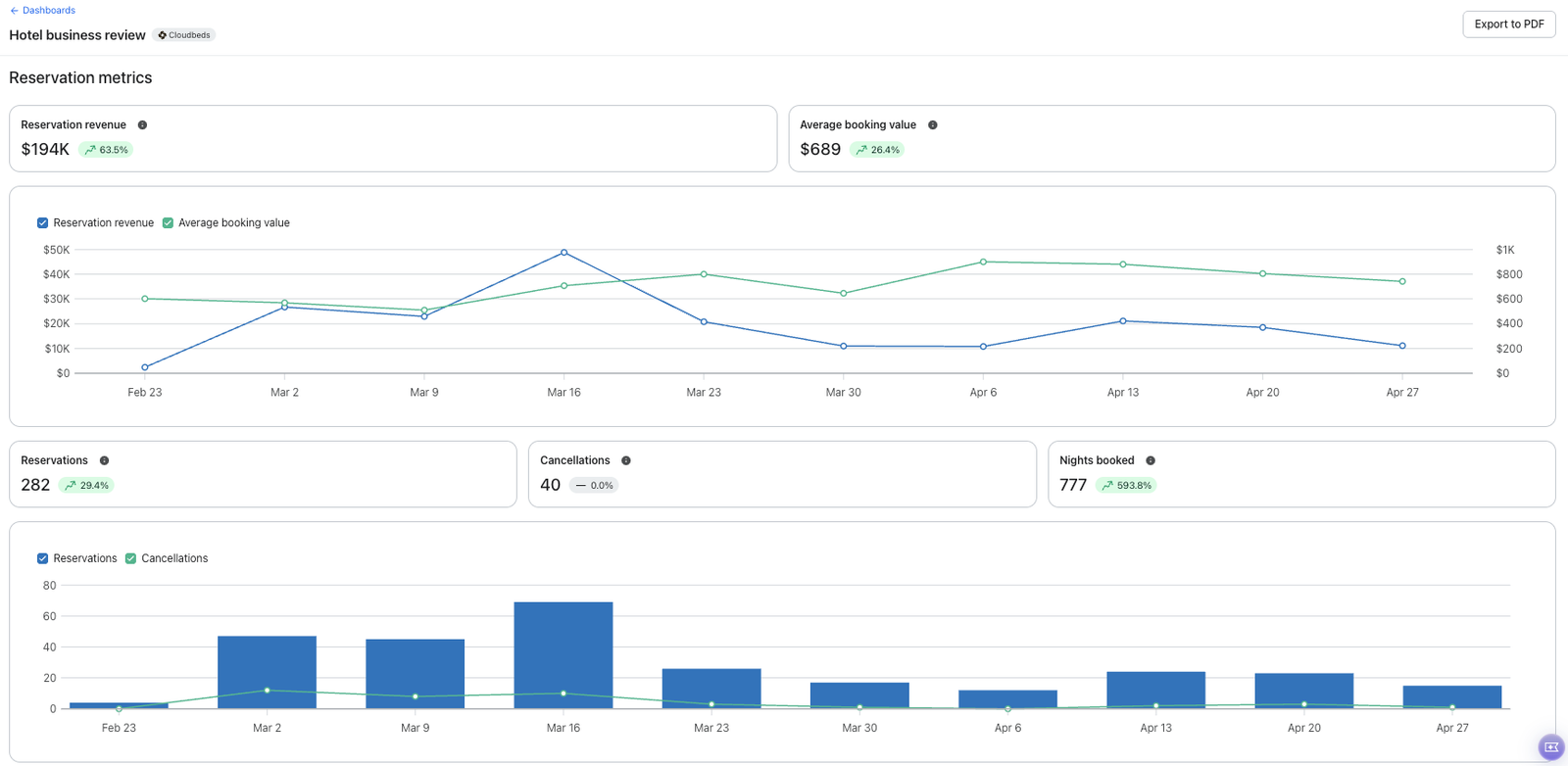
The Reservation metrics section breaks down your booking activity. It contains two groups stacked under one heading.
Revenue
- KPI tiles for revenue performance
- A Reservation revenue and Average booking value chart
Volume
- KPI tiles for booking and cancellation counts
- A Reservations and Cancellations chart
How we calculate your data
- Reservation revenue: The total revenue from Confirmed Reservation events.
- Average booking value: The average revenue per Confirmed Reservation.
- Reservations: The total number of Confirmed Reservation events.
- Cancellations: The total number of Cancelled Reservation events.
- Nights booked: The total number of Confirmed Room Night events.
Note: The Nights booked tile relies on room-night data, so it appears for Mews and Cloudbeds but not for Guesty.
When a section is empty
If you've connected an integration but data hasn't arrived yet, you'll see a No data yet card with the message "Data will appear once it becomes available." This is expected right after connecting — data populates as your integration syncs events into Klaviyo.
Frequently asked questions
Why don't I see the hotel dashboard?
The dashboard only appears once your account has a supported travel integration installed (Mews, Cloudbeds, or Guesty). If you've just connected one, give it some time to sync and refresh the Dashboards page.
Why do I see different sections than another hotel?
Available sections depend on your integration. Mews and Cloudbeds report detailed room-night data, so they show Room metrics and room-night tiles such as ADR and Nights booked. Guesty reports reservation-level data, so room-night sections and tiles don't appear for Guesty-only accounts.
What's the difference between a reservation and a room night?
A reservation is a single booking, which may span multiple nights. A room night represents one room occupied for one night. Revenue and rate metrics like Room revenue and ADR are based on room nights, while Reservations and Average booking value are based on individual bookings.
What does "Source" mean?
Source is the booking channel a reservation came through. For example, a direct booking, an OTA like Booking.com or Expedia, or your website. The available sources come straight from your integration.
Do the toolbar filters affect every section?
Yes. The Location, Source, and Room type filters in the toolbar apply across the whole dashboard. The one exception is Cloudbeds, where the Room type filter lives in the Room metrics section and scopes only that section.
Will my data disappear if I remove an integration?
No. Once your dashboard is created, it stays available and your historical data is retained, even if you uninstall the integration that originally enabled it.
Additional resources
- Getting started with analytics or overview dashboards
Learn how to use analytics dashboards (also referred to as overview dashboards) and understand how each data card can measure performance. Once you send messages from Klaviyo, this dashboard is a place to visualize the data points and trends that matter most to your business.
- Getting started with the food and beverage business review dashboard
The food and beverage dashboard gives restaurants, cafes, and other food and beverage businesses an out-of-the-box view of how guests order, spend, reserve, and engage with your loyalty program without building a single custom report. This article explains how to access the dashboard, customize what you see, and understand each metric.
- Getting started with reporting
Learn about the different robust Klaviyo reporting tools available in your account. Klaviyo is built to help your business grow and strengthen your relationships with your audience by putting data to work. Segmentation and automation tools allow you to personalize and target your communication efforts across channels to boost engagement and drive business growth. However, in order to understand how well your business strategies and marketing efforts are working, you need proper reporting to measure and analyze performance trends over time.