How to create multiple RFM models for different customer cohorts
Klaviyo's RFM analysis scores your customers on how recently they bought, how often they buy, and how much they spend. With multiple models, you can run additional, independent RFM models, each over a distinct part of your business, such as subscription orders, retail orders, or one product line.
Each model has its own conversion metric and its own thresholds. A customer can be Champions in one model and At risk in another.
Requirements
- A Personalization or Advanced KDP subscription with RFM analysis enabled
- Permission to create and edit RFM models
- At least 500 customers with orders counted by each model's conversion metric within its selected time frame
- At least 180 days of order history and an order within the last 30 days for each model's conversion metric, within its selected time frame
- At least 1 customer with 3 or more orders counted by each model's conversion metric within its selected time frame
- An ecommerce integration, or conversion events sent through the Klaviyo API
- A value-based custom metric built ahead of time, if you want the model to count only some (or a combination) of your orders
How multiple models work
Your existing RFM model becomes your first model, named Default. Its data, thresholds, and profile properties stay exactly as they are. You can rename it at any time.
You can create up to 4 models per account. A profile can belong to multiple models, with a separate RFM group in each. A profile with no qualifying events for a model's conversion metric within its selected time frame gets no RFM properties for that model.
You choose which orders count for a model through its conversion metric. To score a subset of orders, build a custom metric first, then select it as the model's conversion metric. For example, create a custom metric for "Placed Order" filtered to your point of sale channel, then use it as the conversion metric for a model named Retail orders.
Create a model
You can't delete or deactivate a model, so check which orders you want it to score before creating it.
- Navigate to Personalization > Customer insights > RFM analysis.
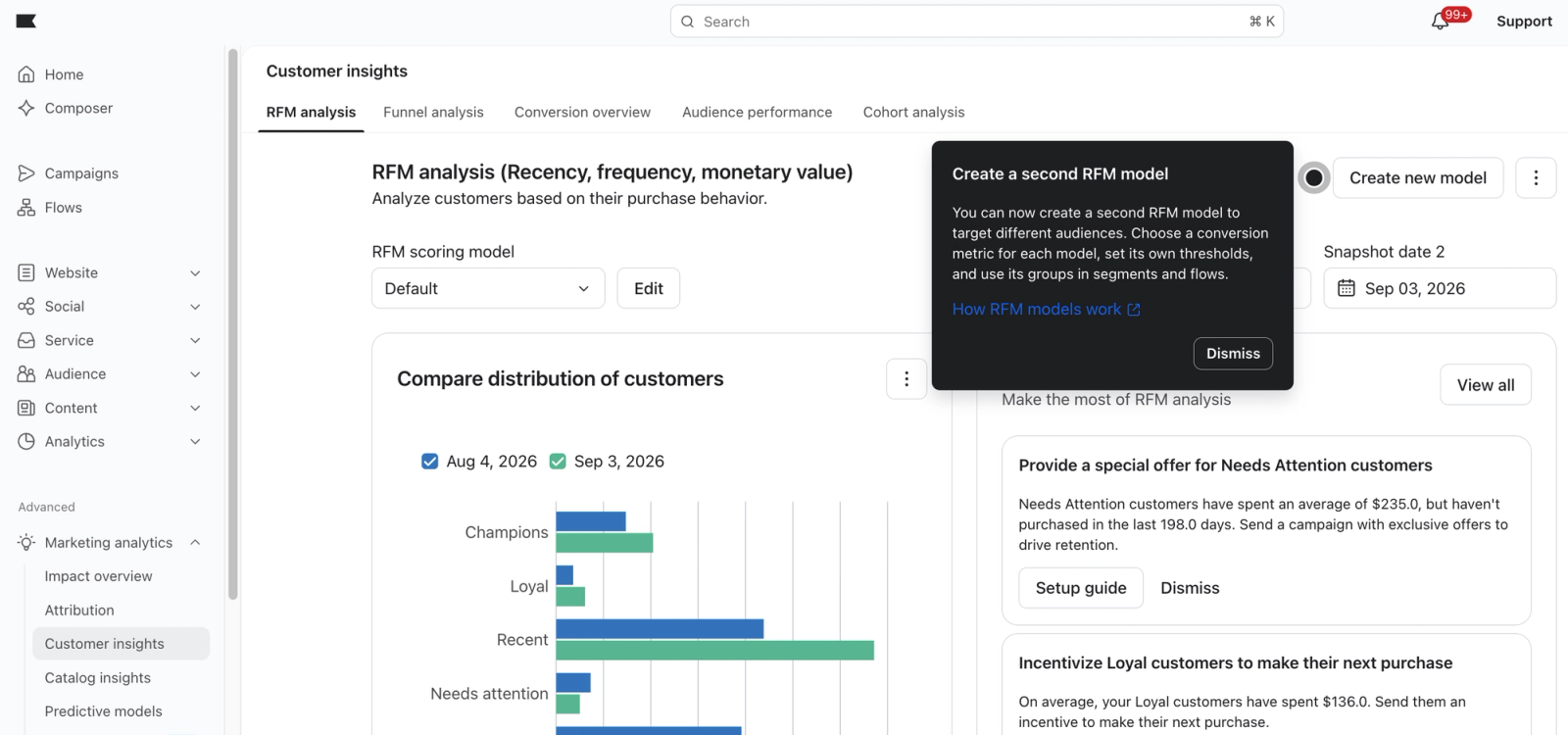
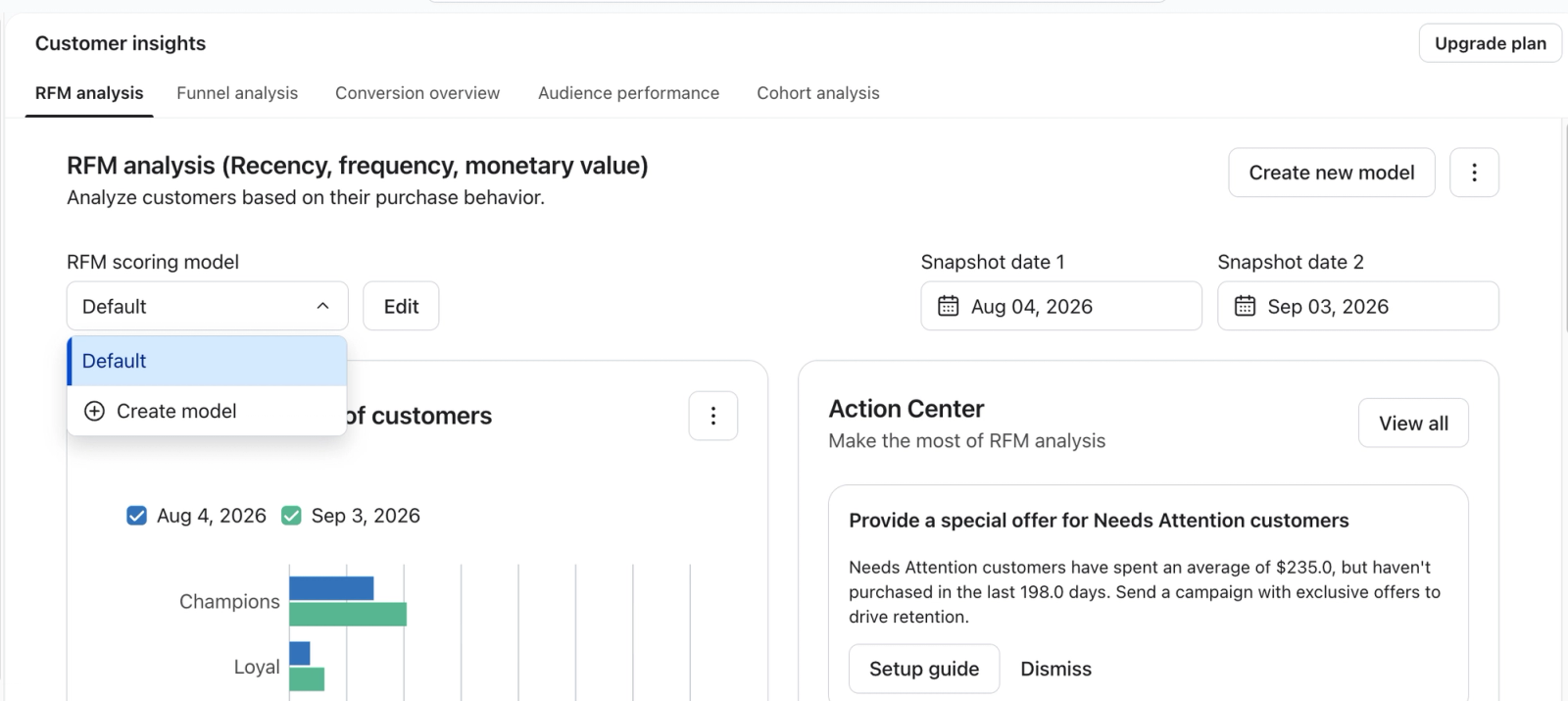
- Click Create new model.
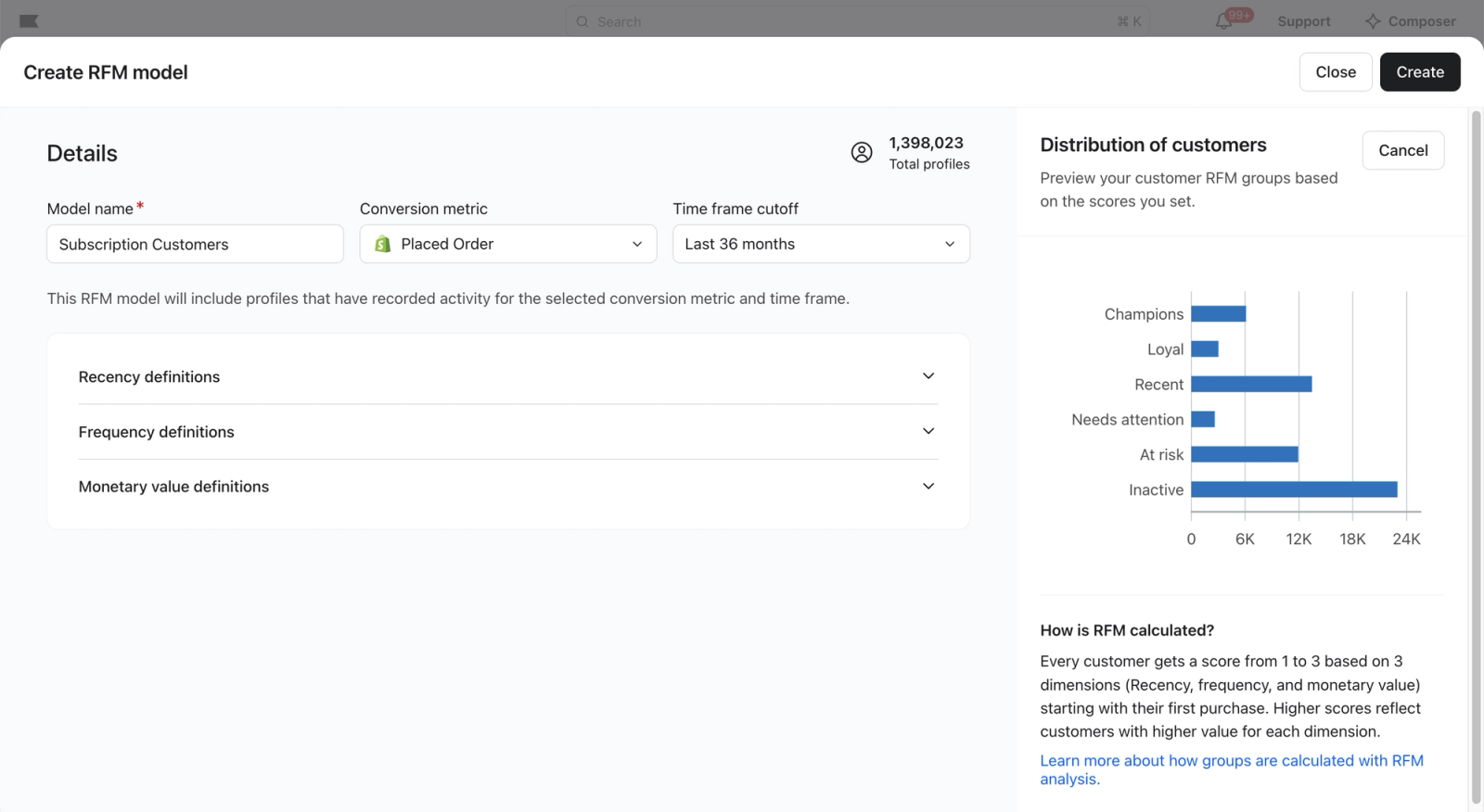
- Enter a Model name. Each name must be unique in your account. Name the model after the population it covers, such as Subscription orders or Wholesale.
- Choose a Conversion metric. This drives the recency, frequency, and monetary calculations for this model. Select a custom metric here to scope the model to a subset of orders.
- Set the Time frame cutoff to limit how far back the model looks.
- Expand the recency, frequency, and monetary value cards and set your thresholds for this model.
Setting | What it does | Default |
|---|---|---|
Recency | Sets how many days since the last conversion counts as a high or average score | 365 and 180 days |
Frequency | Sets the conversion count that counts as a high or average score, by value or percentile | 33rd and 66th percentile |
Monetary value | Sets the spend that counts as a high or average score, by value or percentile | 33rd and 66th percentile |
- Review the preview to see how your thresholds distribute customers across the 6 RFM groups. After changing the conversion metric, time frame, or thresholds, click Preview to refresh it. Adjust and preview again until the distribution looks right for this population.
- Click Create, then confirm in the modal.
Charts on the RFM analysis page populate right away. The model's profile properties take up to 2 hours to appear in profiles, segments, and flows. New or edited custom metrics must also finish processing historical order data before their latest results can appear in RFM profile properties.
Switch between models
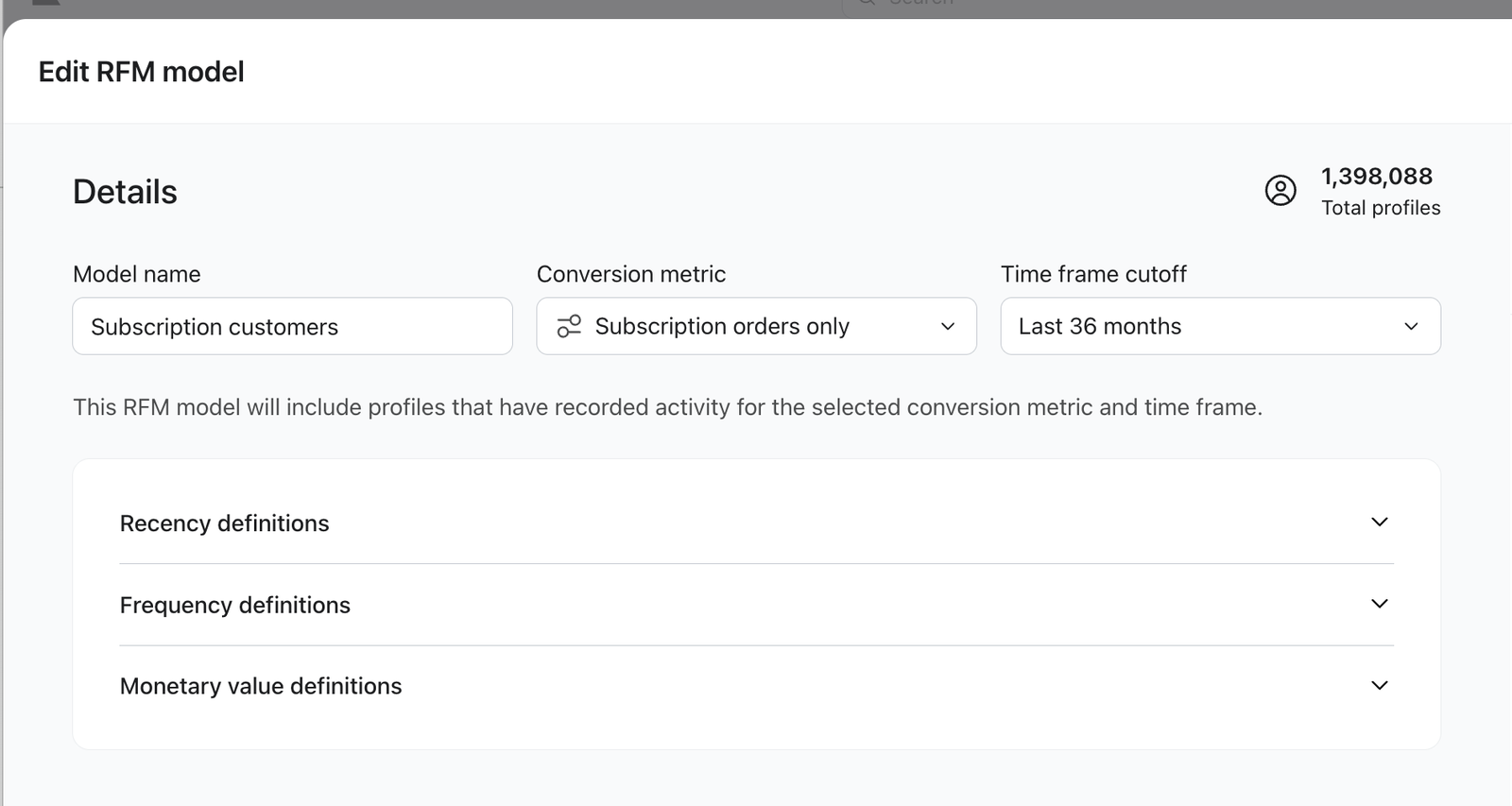
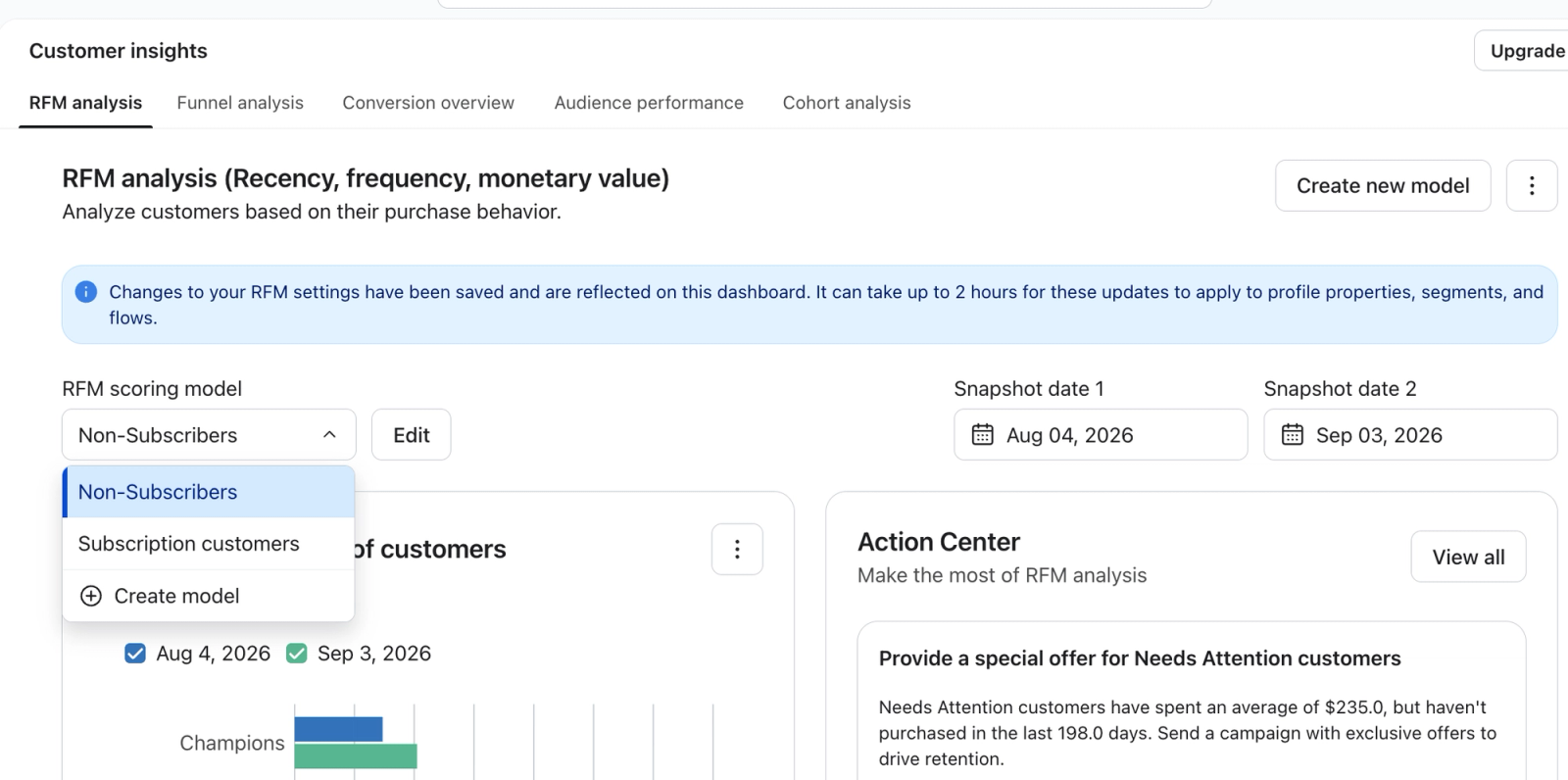
Use the RFM scoring model selector at the top of the RFM analysis page. The customer distribution chart, group change over time, median performance, and RFM segments card update to show that model. Click Edit to open that model's settings. Action Center continues to use your first model.
Use a model in segments and flows
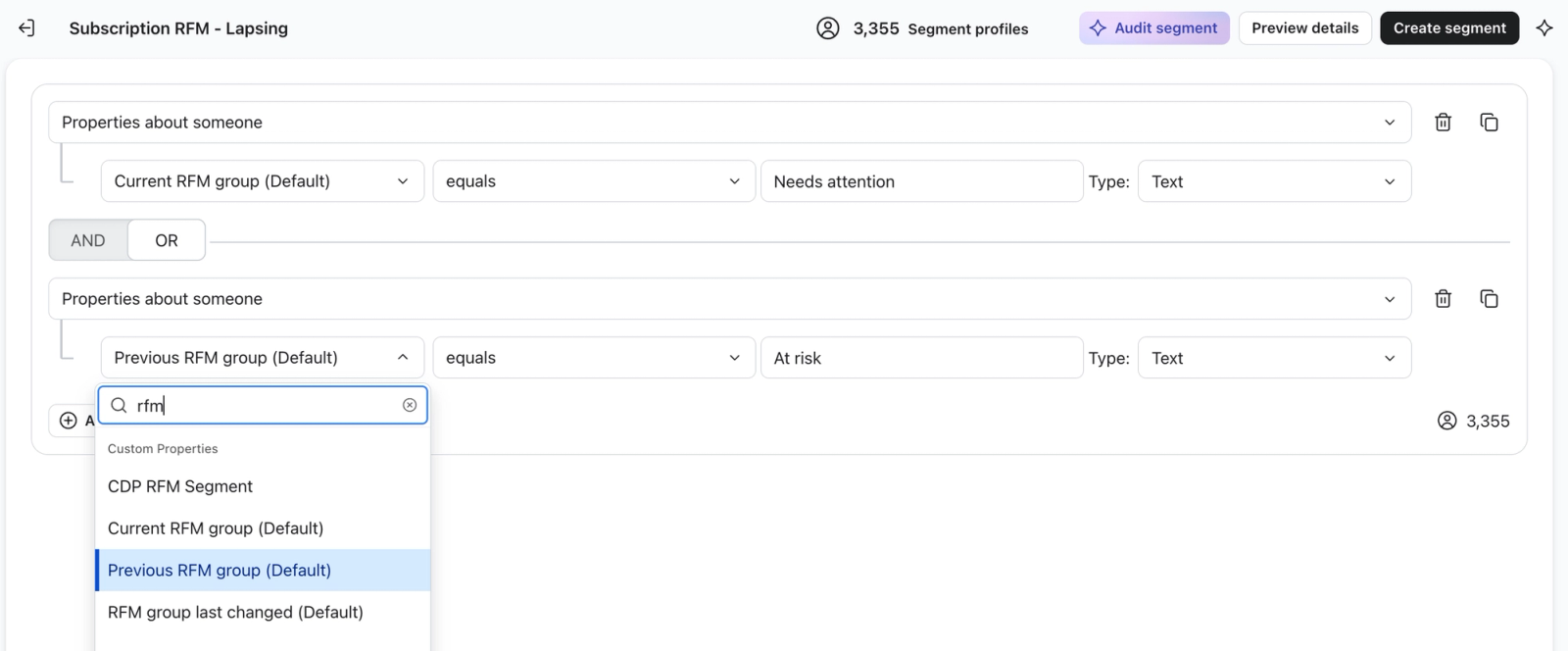
Every model's RFM properties are available as segment conditions and in conditional splits within flows. Each property is labeled with its model name in parentheses, so you can tell them apart.
- Navigate to Audience > Lists & segments and click Create new > Segment.
- Enter a name for your segment. If you're in a separate setup panel, click Create segment to continue to the segment builder.
- Set the condition to Properties about someone, then search for RFM in the property picker.
- Choose the property for the model you want, for example Current RFM group (Subscription orders).
- Set the operator to equals, select an RFM group as the value, and keep the data type as Text. Then click Create segment.
To start a flow when profiles enter an RFM group for one model, create a segment using that model's Current RFM group property, then use that segment as the flow trigger. To branch within an existing flow, use the property in a conditional split. A profile's status in other models won't affect these conditions unless you include those models' properties.
Rename a model
Select the model in RFM scoring model, then click Edit. Change the Model name, click Save, and click Save again in the confirmation window. Renaming updates the display name in Klaviyo. Your segments, flows, and API integrations keep working, because the underlying property keys don't change.
When to create another model
Another RFM model may be warranted when part of your customer base buys on a different rhythm or at a different scale than the rest. If two groups buy at a similar cadence and similar order values, a segment based on your existing model may give you the view you want.
Create another model when:
- You sell subscriptions alongside one-time purchases. Subscription orders arrive on a fixed cadence and can push frequency thresholds up when you use percentiles, making one-time buyers look less frequent by comparison.
- In-store or wholesale orders sit alongside your online orders. These customers often buy less often at a higher order value, which a single model can score as low frequency even when those customers spend the most.
- You run distinct product lines. Someone who buys skincare every 6 weeks and fragrance twice a year looks inconsistent in one model. Separate models turn that gap into a cross-sell signal.
- Discounted or trade accounts skew your consumer scoring. If accounts on a standing discount have different total spending patterns, a separate model lets you set monetary thresholds for that population.
Wait on another model when:
- The two groups buy the same way. Build a segment on your existing model.
- The population is small. Each model needs at least 500 customers with qualifying orders. Even above that minimum, check that the groups are large enough for your planned campaigns or flows.
Best practices
- Build the custom metric first. A model is only as accurate as the metric behind it. Decide which orders belong in the population, build that custom metric, then create the model.
- Set recency to that population's purchase cycle. If your subscription or consumable buyers repurchase monthly, a 180-day recency threshold may flag them too late, while jewelry and high-ticket buyers might need a wider threshold.
- Preview before you save. If Champions, Loyal, and Needs attention all come back tiny, compare your recency, frequency, and monetary thresholds with this population's purchase patterns before adjusting them.
- Name models after the population, not the purpose. Retail orders stays accurate as your strategy changes. Winback model doesn't.
- Give each model a real population. Use at least 500 customers with qualifying orders, then check that the groups are large enough for the campaigns or flows you plan to run.
Things to know
- Models refresh daily, along with the rest of your RFM data.
- You can create up to 4 models per account.
- You can't delete or deactivate a model yet (coming soon).
- Klaviyo creates the prebuilt RFM segments for your first model only. Build segments for additional models manually.
- The action center on the RFM analysis page creates segments and flows using your first model's properties only.
- The API and third-party integrations see the raw property keys. Your first model keeps its original keys, such as Current RFM group. Additional models use keys with a model index rather than the model name.
- You can't scope a model by list, segment, or profile property. Choose which orders the model scores through its conversion metric. Use exclusion conditions in the segment builder to narrow whom you target; these do not change the model's scoring population.