Ticket History: View and Manage Past Interactions
The Ticket history sidebar provides an overview of the support tickets associated with a customer’s Klaviyo profile. Use it to review previous interactions with your brand without leaving Helpdesk.
By reviewing past tickets, agents can identify recurring issues, see previous resolutions, and understand the customer’s journey over time.
Open ticket history
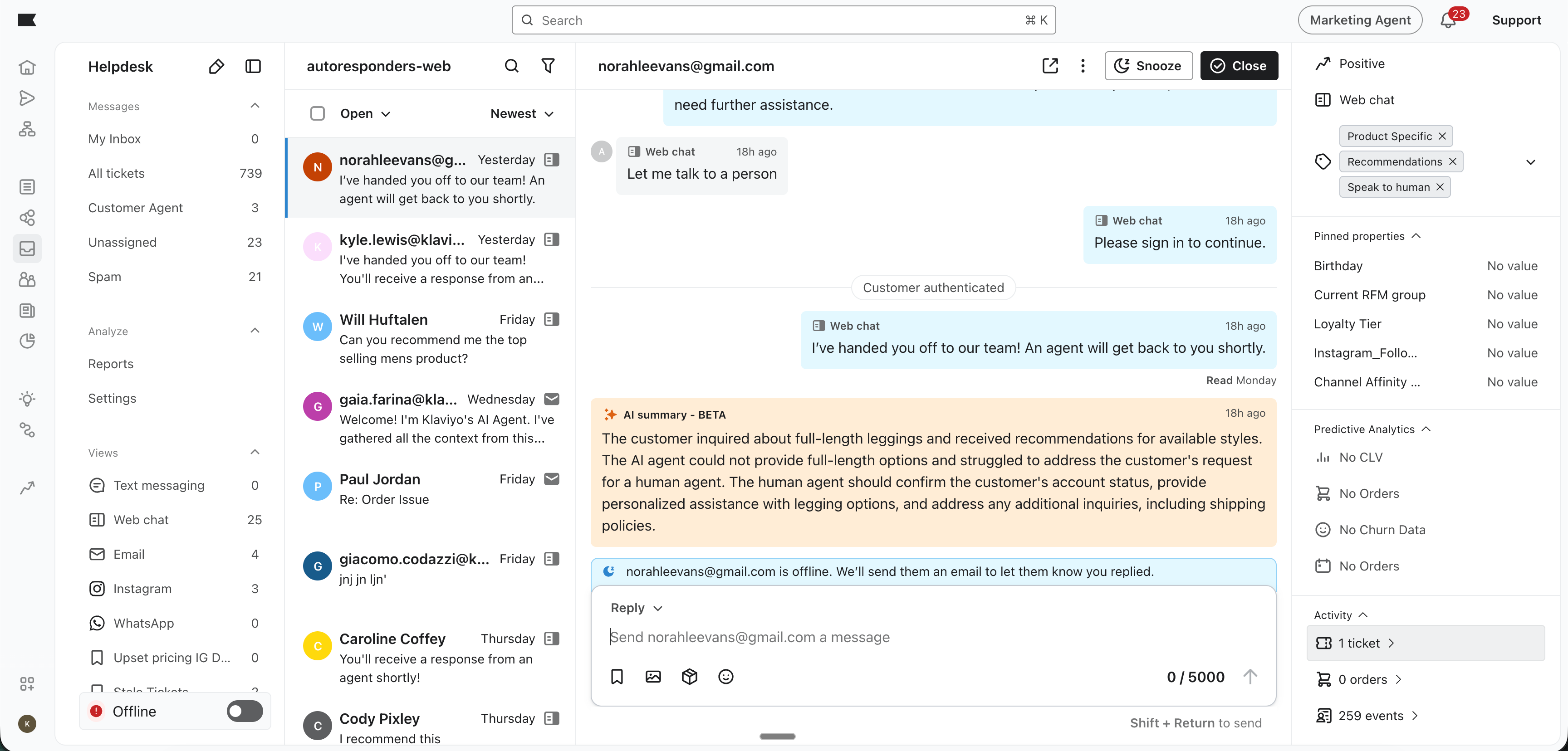
Open ticket history from the right-hand sidebar of a customer’s ticket:
- In Helpdesk, open a ticket linked to the customer’s Klaviyo profile.
- In the right-hand Overview panel, expand Activity and click the ticket count (e.g., 1 ticket) to open Ticket history.
Understand ticket previews
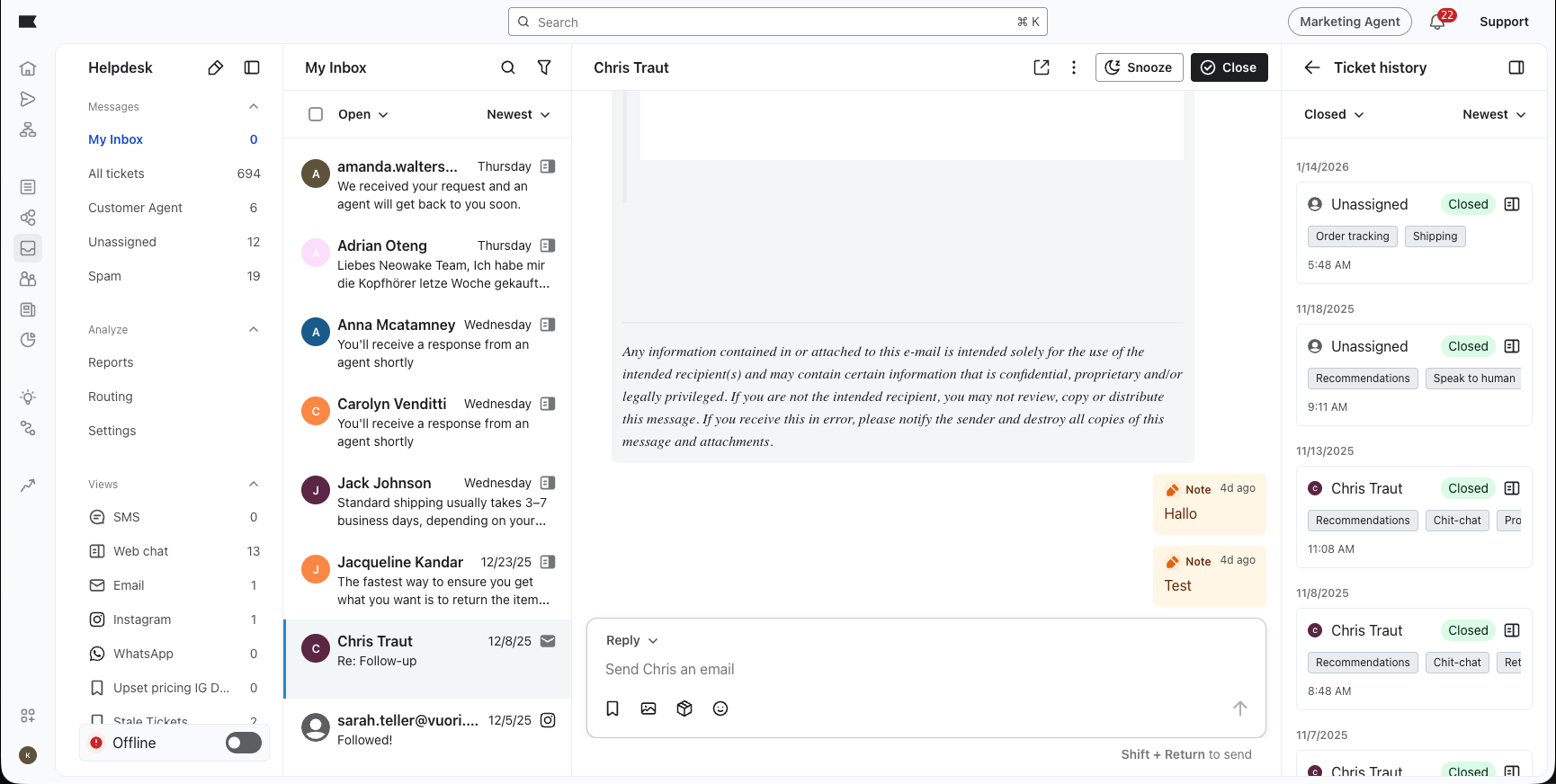
Each entry in ticket history provides a high-level summary of a ticket:
- Assigned agent: See the team member currently assigned to the ticket. If no agent is assigned, the preview shows "Unassigned." This does not identify everyone who handled the ticket or who resolved it; open the ticket to review that context.
- Channel: Each history entry displays an icon representing the ticket’s channel (e.g., email, web chat, SMS, or Instagram), helping you understand how the customer has communicated with your brand.
- Tags: Review the tags applied to a ticket, including tags added manually. Tags such as Shipping, Order tracking, Recommendations, or Returns help you see what a ticket was about at a glance without reading through old threads.
- Status and timestamp: See the ticket’s current status and the time of its latest message. Tickets are grouped by the date of that message. For a ticket with no messages, the preview uses its creation date and time. These timestamps do not show when the ticket was closed.
Review and filter ticket history
Use ticket history to scan a customer’s interactions or open a ticket for more detail:
- Quick review: Use the tags, assigned agents, and statuses to scan the customer’s history. Scroll down in the history panel to load more tickets.
- Full context: If you need more detail on a specific issue, click the ticket preview in the history panel. This switches the main conversation to that ticket so you can review its messages and internal notes, while keeping ticket history open. Clicking an unread ticket also marks it as read.
- Sorting and filtering: At the top of the history panel, select Newest or Oldest to change the order. Use the status dropdown to select All, Open, Closed, or Snoozed. If no tickets match the selected status, select All to see tickets across statuses.
Why context matters
Reviewing ticket history helps prevent customers from having to repeat information they’ve already provided. It also helps you provide proactive support. For example, if your team added a custom tag for Shipping Delay to a previous ticket, you can acknowledge that frustration while handling their current inquiry.
Need more help? Check out our guide to Klaviyo Helpdesk or learn how to use ticket tagging in Helpdesk.