How to create outbound tickets and log Phone Calls in Helpdesk
In this article, you will learn how to manually create tickets in Klaviyo Helpdesk. This feature allows you to log offline interactions (such as phone calls) to keep your customer records complete, or to proactively reach out to customers via Email or SMS.
Overview
Klaviyo Helpdesk allows you to centralize all customer interactions. While most tickets are created automatically when a customer contacts you, there are two common scenarios where you need to create a ticket manually:
- Logging a closed ticket: Documenting a conversation that happened outside of Klaviyo (e.g., a phone call or in-store visit).
- Creating an open ticket: initiating a new outbound conversation with a customer (e.g., sending a proactive update about an order).
Log a closed ticket (Phone or Offline)
Use this workflow to record interactions that have already been resolved on another channel, such as a phone call. This ensures your customer profiles in Klaviyo contain a complete history of support interactions
- In Helpdesk, select the option to create a new ticket.
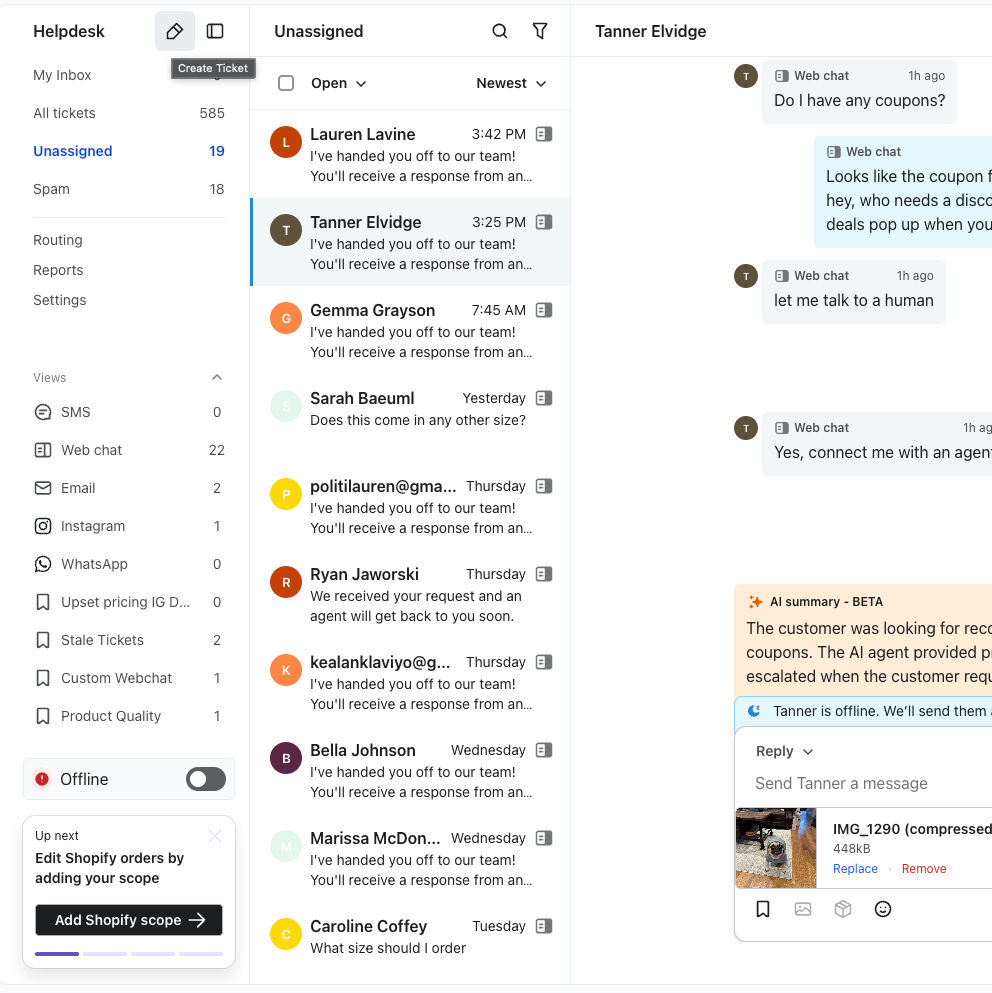
- Search for the customer: In the profile search modal, enter the customer's name, email, or phone number to identify the correct profile.
- Note: You must select an existing profile. If the customer does not exist in Klaviyo, you must create their profile first.
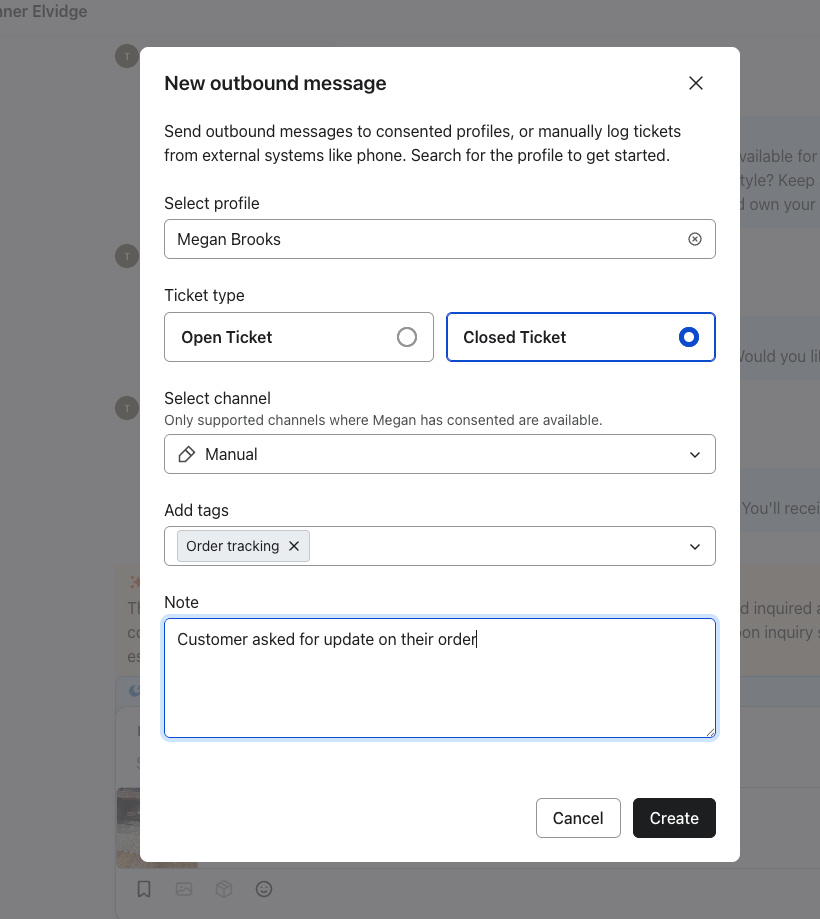
- Select Ticket Type: Choose Closed Ticket.
- This indicates the interaction occurred outside of the native Helpdesk channels (e.g., Phone).
- Select Channel: Choose Manual
- Add Details:
- Note: Enter a summary of the conversation.
- Tags: Add relevant tags (e.g.,
Phone Support,Resolved) to help with reporting later.
- Click Log Ticket to save the record to the customer's timeline.
Create a new outbound ticket (Email or SMS)
Use this workflow to start a new conversation with a customer via Email or SMS.1
- In Helpdesk, select the option to create a new ticket.
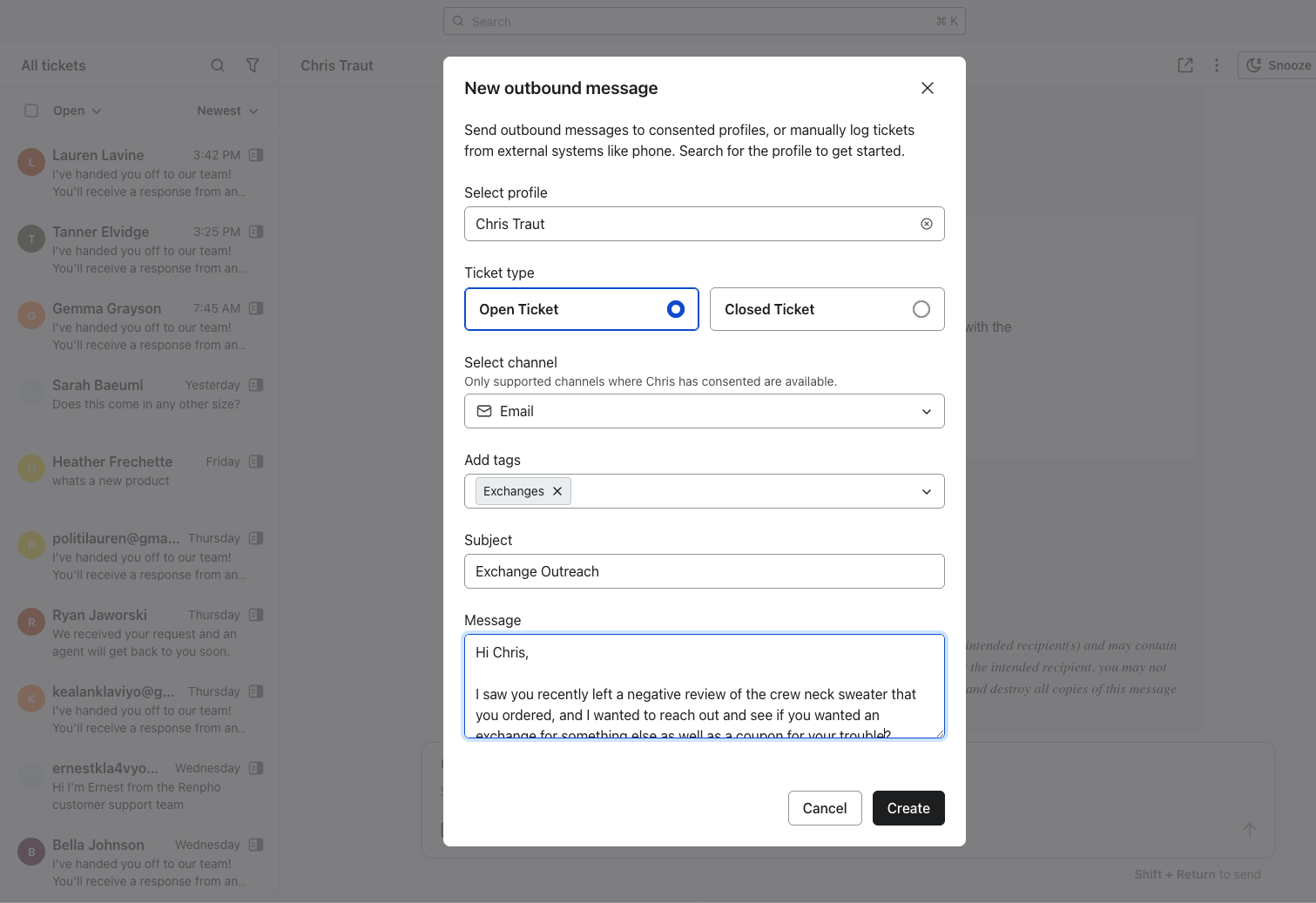
- Search for the customer: Select the customer you wish to contact.
- Select Channel: Choose Email or SMS.
- Compliance Check: If an option is grayed out, it means you cannot contact the customer on that channel at this time.
- Consent: You cannot select SMS if the customer has not consented to receive text messages.
- Select Ticket Type: Choose Open Ticket.
- Enter Tags, Subject Line, and message.
- Click Create.
Limitations
- Social Channels: Currently, you cannot manually create outbound tickets for WhatsApp or Instagram due to platform restrictions regarding 24-hour messaging windows.1
Best Practices
- Tagging: Always tag your manually logged tickets. Since these don't come in with standard metadata, tags like
Channel: Phoneare essential for accurate reporting in the future.