How to collect SMS and/or WhatsApp consent at checkout on Magento 2
You will learn
Learn how to collect SMS and/or WhatsApp consent at checkout for Magento 2.
Consent will be synced to Klaviyo once someone provides their phone number, opts in to SMS/WhatsApp marketing, and then places an order.
Before you begin
Note the following about collecting SMS/WhatsApp consent at checkout:
- You must have
- Have Klaviyo SMS and/or Klaviyo WhatsApp enabled.
- Created a mobile terms of service
- Followed best practices for your privacy policy
- Have integrated your Magento 2 store with Klaviyo and are using plugin version 2.1.0 or higher to collect SMS consent at checkout, or version 5.0.0 or higher to collect WhatsApp Consent at checkout.
- It is not available for Magento 1 stores
- You can only collect SMS consent in countries where Klaviyo SMS is available
Also, if you’re syncing customers to a list with double opt-in, customers will get a text confirming their subscription before they are added to that list.
Set up SMS and/or WhatsApp consent at checkout
- Navigate to your Magento 2 store.
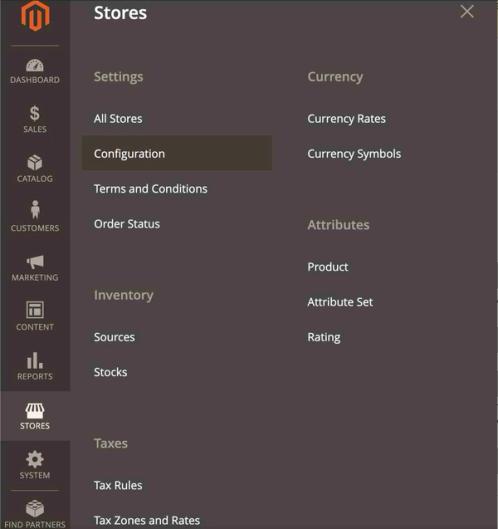
- From the left-hand sidebar, navigate to Stores > Configuration.
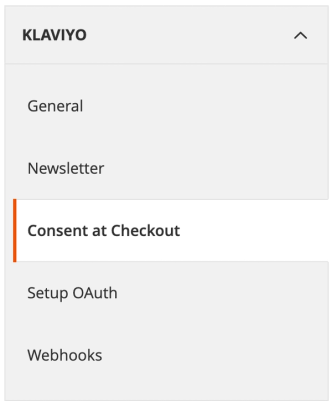
- Once you’re on the Configuration page, navigate to Klaviyo > Consent at Checkout.
- Expand the Mobile section.
- This is a separate section than the one for collecting email consent.
- Under Mobile, select Yes for Collect text message & WhatsApp subscribers.
- For Select channels for consent collection, choose whether you want to collect consent at checkout for SMS only, WhatsApp only, or both SMS and WhatsApp.
- Choose the list you want your SMS and/or WhatsApp contacts to sync to (e.g., SMS Subscribers).
- If you also gather email subscribers, choose a different list for SMS and/or WhatsApp than the one you use for email.
- Under Consent checkbox label, include the text you wish to appear next to the checkbox on your checkout page.
- Next, add Consent disclosure text, which is required for TCPA compliance. Use the default Klaviyo disclosure language or add your own.
- In the default Klaviyo disclosure language, replace the [link] placeholders to include direct links to your privacy policy and terms of service pages.
- Example:
View our Privacy Policy (https://www.klaviyo.com/legal/privacy-policy) and Terms of Service (https://www.klaviyo.com/legal/terms-of-service)
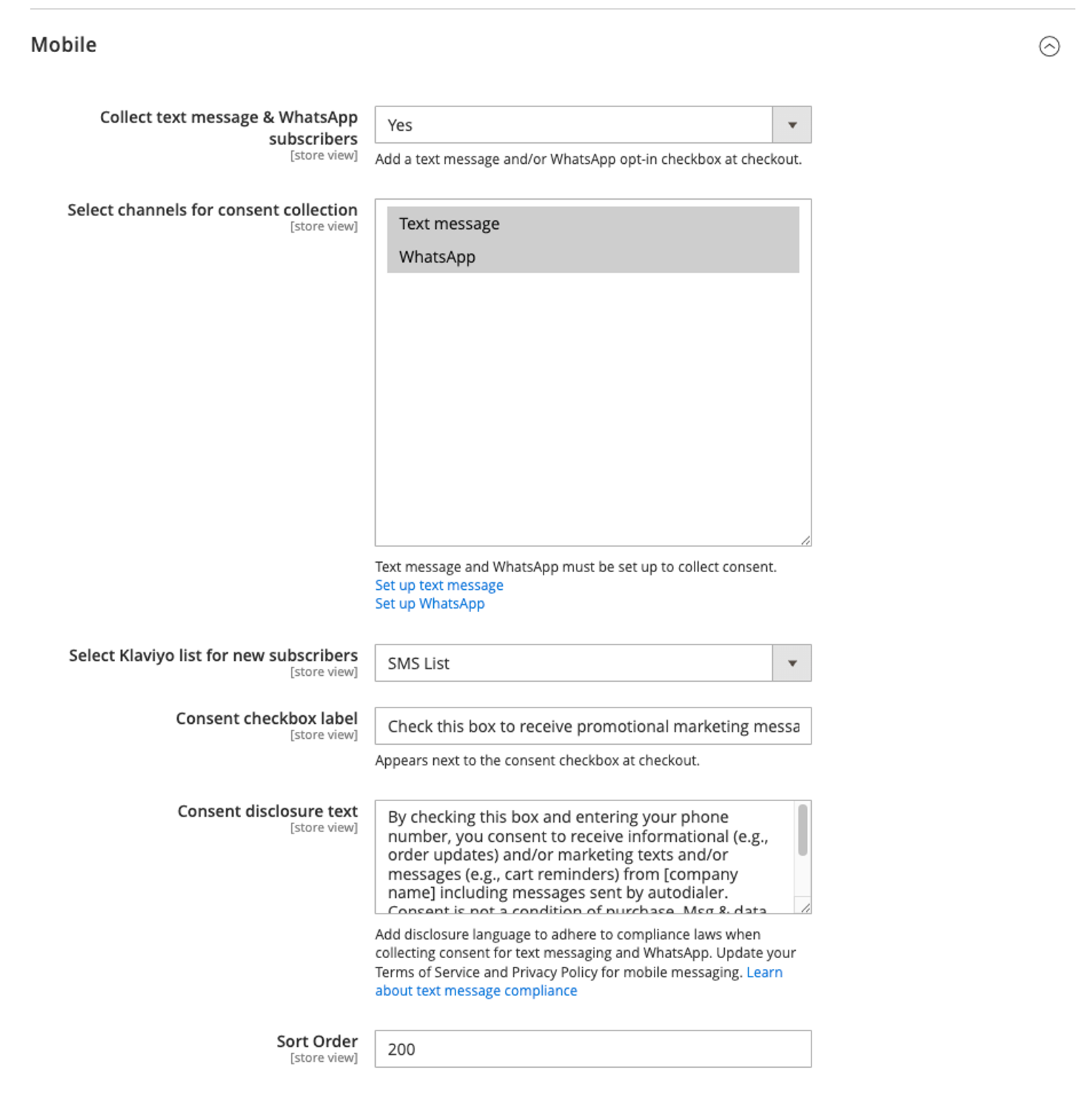
- Optional: Edit the sort order to change the placement of the email and SMS/WhatsApp consent boxes.
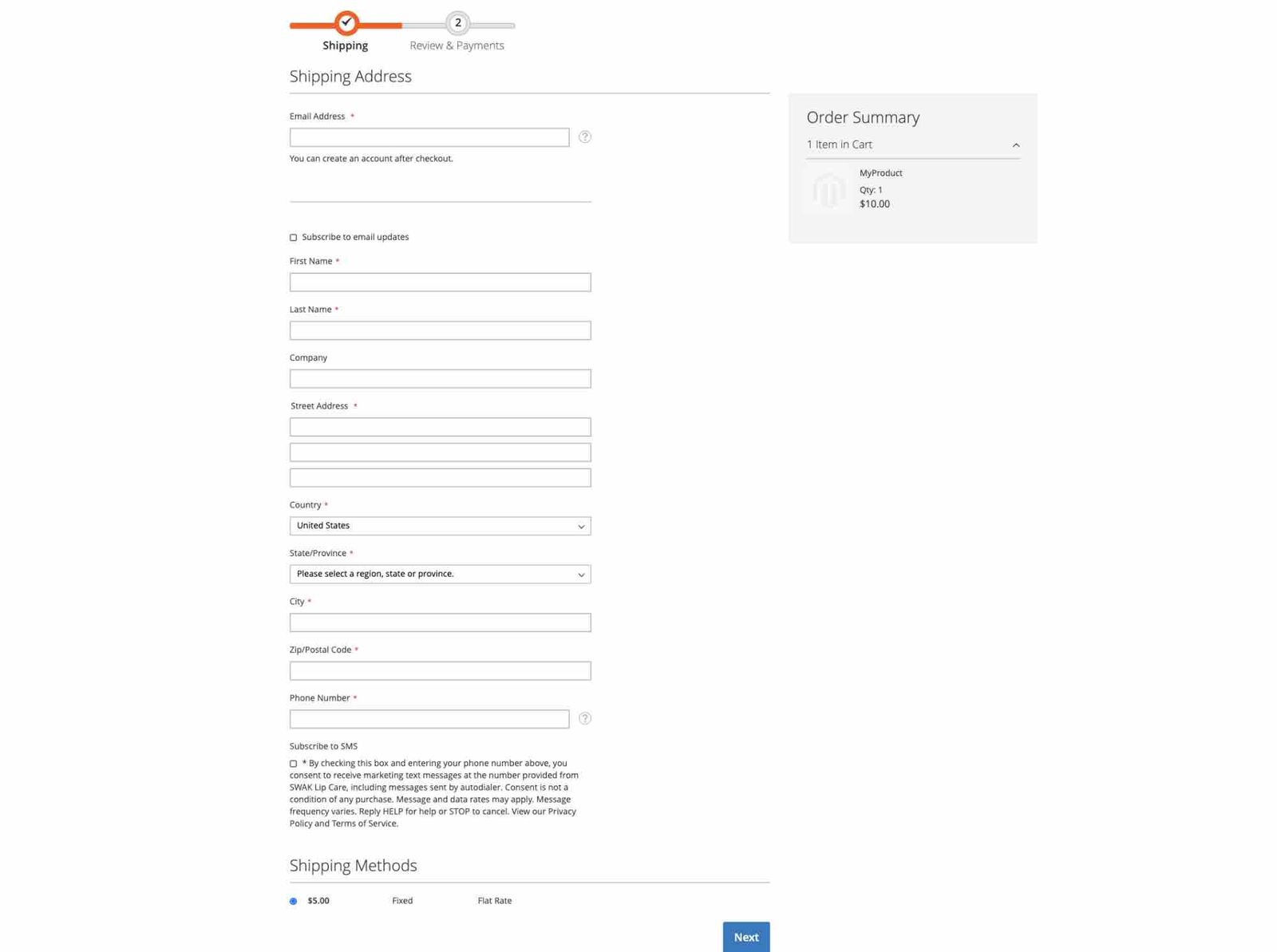
- By default, these boxes appear under the first email input and shipping phone number field, respectively.
- If you haven’t rearranged the checkout page, you do not need to change the sort order. If you have changed the layout, adjust the sort order accordingly.
- When you're done, click Save Config in the upper right.
Outcome
Now, when someone adds their phone number, clicks the SMS/WhatsApp opt-in checkbox, and places their order, their consent will sync to Klaviyo. This allows you to more quickly and easily grow your SMS/WhatsApp list and reach more customers via those channels.
Note that consent will not sync until they finish placing the order and, if applicable, confirm their subscription due to double opt-in.
Additional resources
- How to use Klaviyo email and SMS together
Learn the pros and cons of SMS and email, strategies for using both channels in a flow or campaign, and tips for how to implement these strategies.
- write impactful SMS copy