Understanding tags in Klaviyo
You will learn
Learn how to use tags to streamline your workflow and make it easier for different teams to work together in Klaviyo.
What are tags?
In Klaviyo, tags function as labels for organizing and managing items within your account. Similar to virtual sticky notes, you can create and attach tags to items such as lists, segments, campaigns, and flows. You can apply the same tag to related items to categorize and filter them. Tags do not label individual customer profiles or track their interactions with your website and products.
For example, you can use tags to differentiate between segments for existing customers and new prospects, or to organize segments for customers who viewed products or abandoned carts. By applying relevant tags, you can easily sort and access segments, campaigns, or flows that align with specific groups, making it easier to target your communications and streamline marketing strategies in Klaviyo.
Common use cases for tags
The following are common use cases for tags:
- Indicating where a list/segment or message falls in the marketing funnel (for example, one flow might be aimed at 1-time purchasers, while another might be aimed at repeat customers).
- Organizing your holiday marketing campaigns, lists, and segments so that you don't have to search through pages of segments to find groups you only message during holidays.
- Delineating team and individual responsibilities when you have multiple departments or users within your organization using Klaviyo.
- Grouping different types of campaigns, such as product releases, sales, and announcements.
In Klaviyo, tags cannot be used to group profiles. To accomplish this, you can add custom properties to profiles and then create a segment to group these profiles.
Find your tags
To create, edit, or delete tags and tag groups, your user role needs permission to manage tags.
To view a list of your existing tags or to create a new tag or tag group:
- Click your organization name in the bottom left corner.
- Click Settings.
- Click Tags.
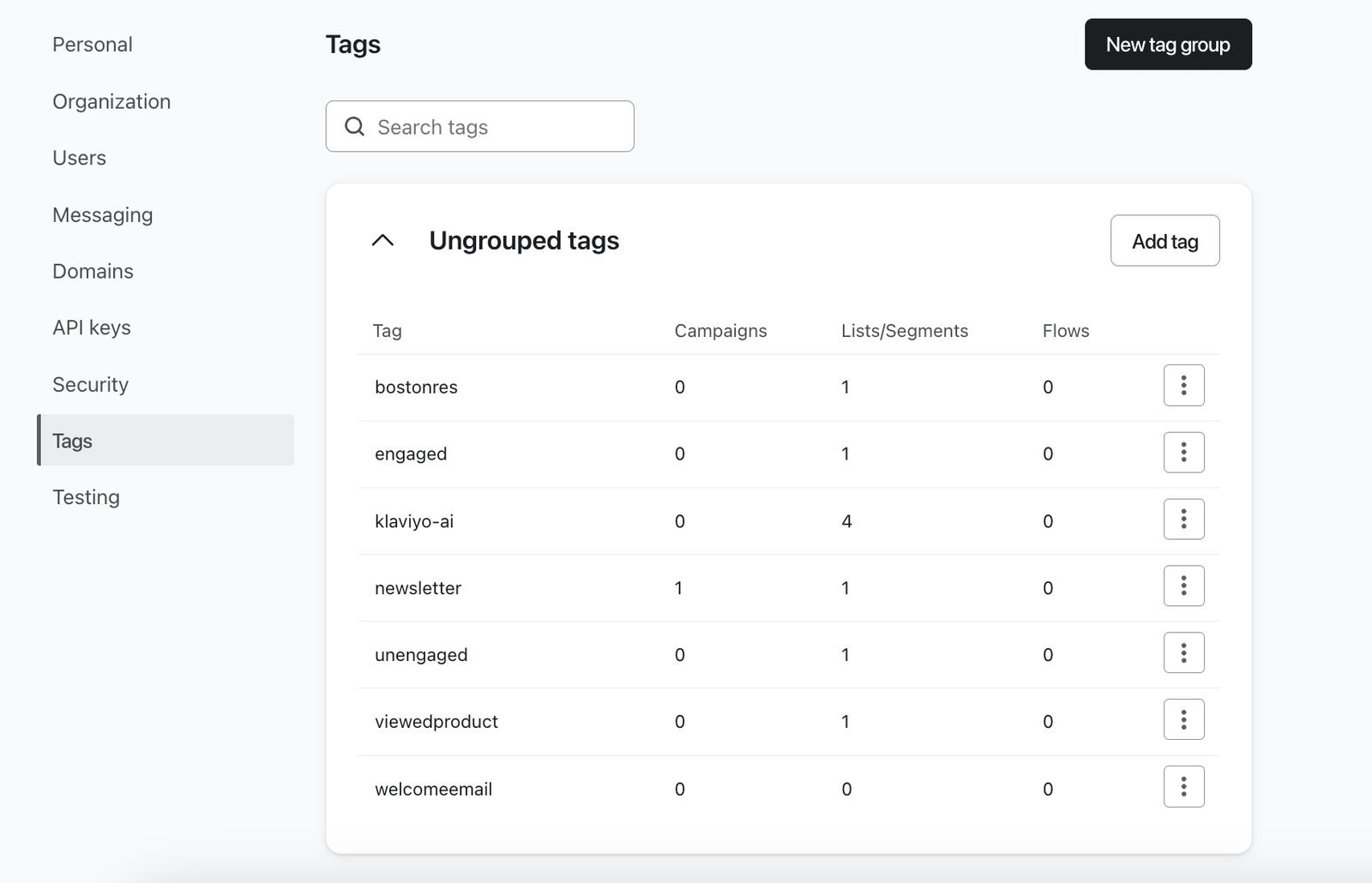
If you haven't created any tag groups, all of your tags will be listed together under Ungrouped tags.
Manage your tags
Tags created without a custom tag group are stored under Ungrouped tags.
Please note that ungrouped tags can't be added to a tag group retroactively, so if you would like a tag to be stored in a tag group, you must create the group first.
Tags can be shared across items, meaning a flow, campaign, and segment could all have the same tag. Additionally, items can have multiple tags.
Create a tag
There are 3 ways to create a new tag:
- Navigate to Tags and select Add tag in Ungrouped tags or the custom tag group where you want to store the tag. Enter a name in Tag name and click Add tag.
- When tagging an item (campaign, flow, list, or segment), you can create a new tag by typing in the name and selecting Create new tag. A tag created this way will be ungrouped.
- For information on creating tags for campaigns and flows, read this article.
- For information on creating tags for lists and segments, read this article.
- When creating a tag group, you will be prompted to create tags within this group. For this process, see below.
You can have up to 500 unique tags per account in Klaviyo.
Edit or delete a tag
Deleting a tag removes it from all associated items.
- Navigate to the Tags tab.
- Find the tag that you want to change.
- Open the tag’s 3-dot menu and choose an option:
- To rename the tag, select Edit, enter the new name, and click Update tag.
- To delete the tag, select Delete, then click Delete tag in the confirmation dialog.
Manage tag groups
Your account has a default group called Ungrouped tags for tags that do not belong to a custom group. It appears on the Tags page even before you create a custom tag group. You cannot rename or delete this default group.
If the Personalization tag group appears in your account, Klaviyo manages it. You cannot add tags to it, rename it, or delete it from the Tags page. Its Funnel analysis tag also cannot be renamed or deleted.
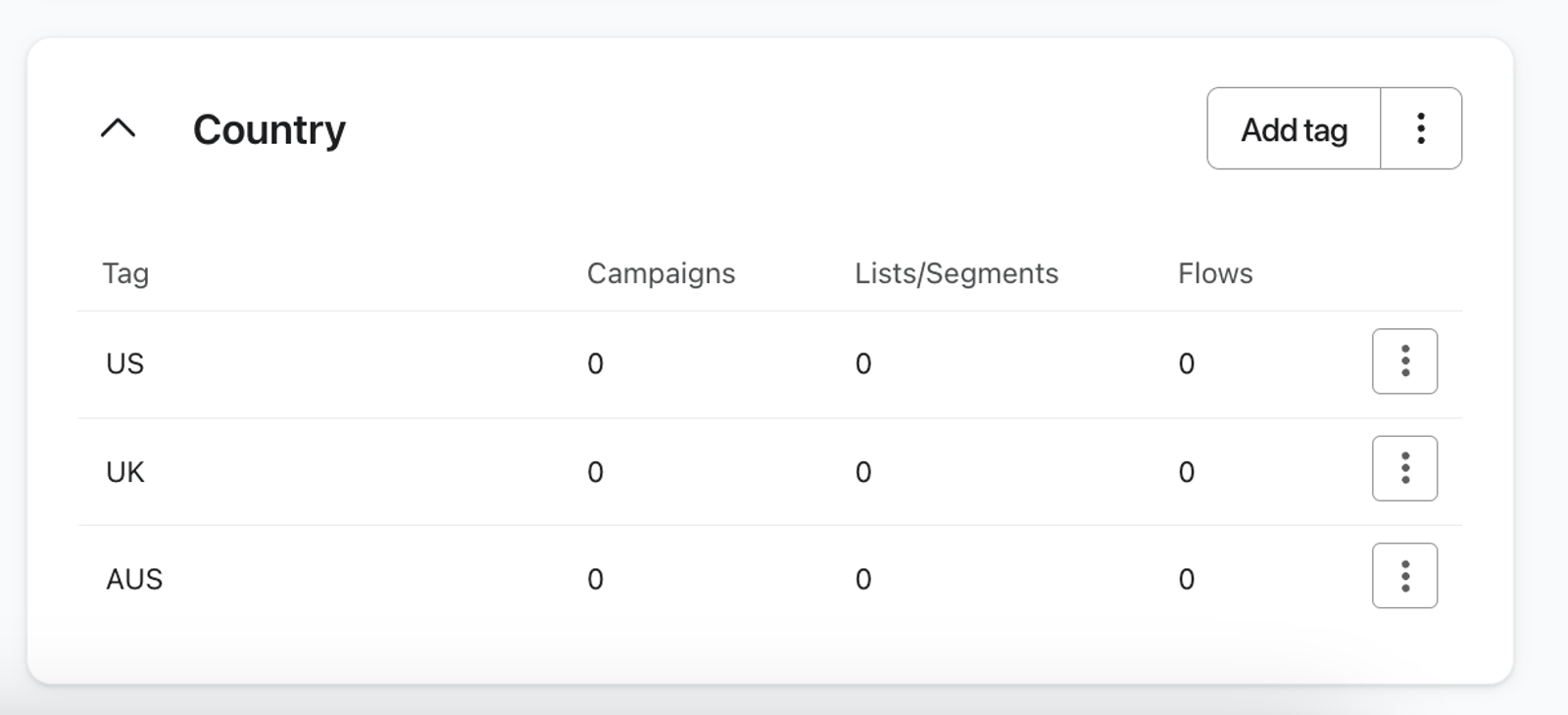
Create a tag group
To create a new tag group:
- Navigate to Tags.
- Select New tag group.
Here, you can do the following:
- Name the tag group. Please note that tag group names cannot contain the ":" character.
- To create tags within the group, enter a name under Tags and click Add tag for each tag. You can only create new tags here. Existing ungrouped tags cannot be moved into the group.
- Select Only allow one tag from this group to be assigned to an item if you want all tags within the group to be mutually exclusive. For example, if you have a tag group called Country that contains different countries, and you have this option selected, you won’t be able to add multiple Country tags (US, CA, etc.) to the same item. Once you create the group, you cannot change this setting, and tags within an exclusive tag group cannot be moved to other tag groups.
Click Create tag group to save the group and its new tags.
Edit or delete a tag group
Please note that deleting a tag group will also delete all of the tags within the group.
To edit or delete a tag group:
- Navigate to the Tags tab and find the tag group that you want to change.
- Open the tag group’s 3-dot menu and choose an option:
- To rename the group, select Edit tag group, enter the new name, and click Update tag group.
- To delete the group, select Delete tag group, then click Delete tag group in the confirmation dialog.
Additional resources
- How to add a tag to a list or segment
Learn how to add a tag to a list or segment in Klaviyo.
- How to add a tag to a campaign or flow
Learn how to add tags to campaigns and flows.