How to set up coupons for BigCommerce
You will learn
Learn how to set up BigCommerce coupon codes to use in Klaviyo emails and SMS. This guide covers 2 methods:
- Create a static code in BigCommerce to add in your Klaviyo messaging.
- Use a third-party app to create unique coupon codes in bulk, and upload them into Klaviyo to use in your messaging.
Before you begin
- Static coupons
Static coupon codes mean that there's a single code for all customers to use (e.g., Welcome20). Every person will receive the same code and be able to use it on your website. Static codes are easier to remember and use; however, they can be shared out, which can dampen exclusivity. - Unique coupons
Unique, also sometimes called "dynamic," coupon codes give each recipient their own code. No 2 recipients are assigned the same code from a coupon in Klaviyo. These codes are typically longer and more complicated than static codes. Set the usage limits in BigCommerce if each code should only be redeemed once.
The second method utilizes a third-party app to help you create coupons in bulk. You can then upload those bulk codes into both your Klaviyo account and your BigCommerce store, and send unique codes to each of your subscribers.
Create and use a static coupon code
To create a static code in your BigCommerce account:
- Navigate to your BigCommerce admin.
- Click on Marketing > Coupon Codes.
- Click Create a Coupon Code.
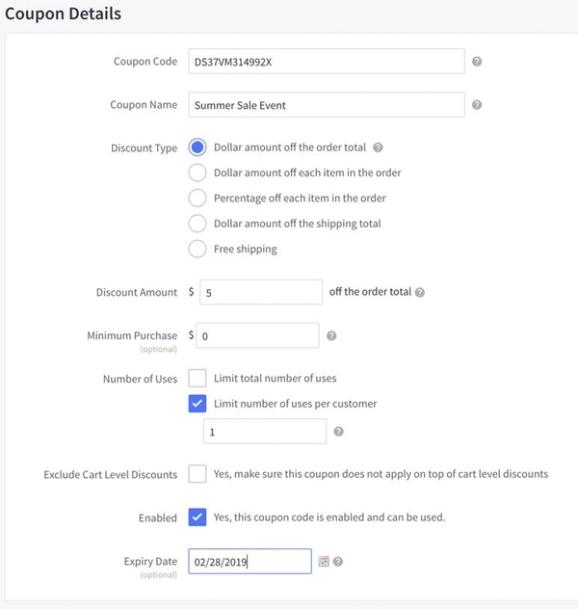
- Enter your coupon code details. In the example below, take note of:
- Number of Uses
We set this to "1 per customer" to ensure that each customer only uses this coupon code once. - Expiry Date
We set the expiry date to the end of the month (in this case February), because we want to ensure our code isn't used beyond that date.
- Number of Uses
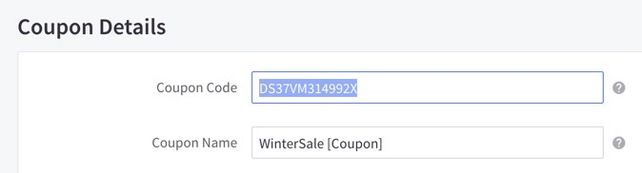
- Save your coupon in BigCommerce, then copy the Coupon Code from BigCommerce.
- Paste the coupon code wherever you want it to appear in your Klaviyo email template or SMS message.
- For email, you can also display the coupon in a button by pasting the code into the button text box.
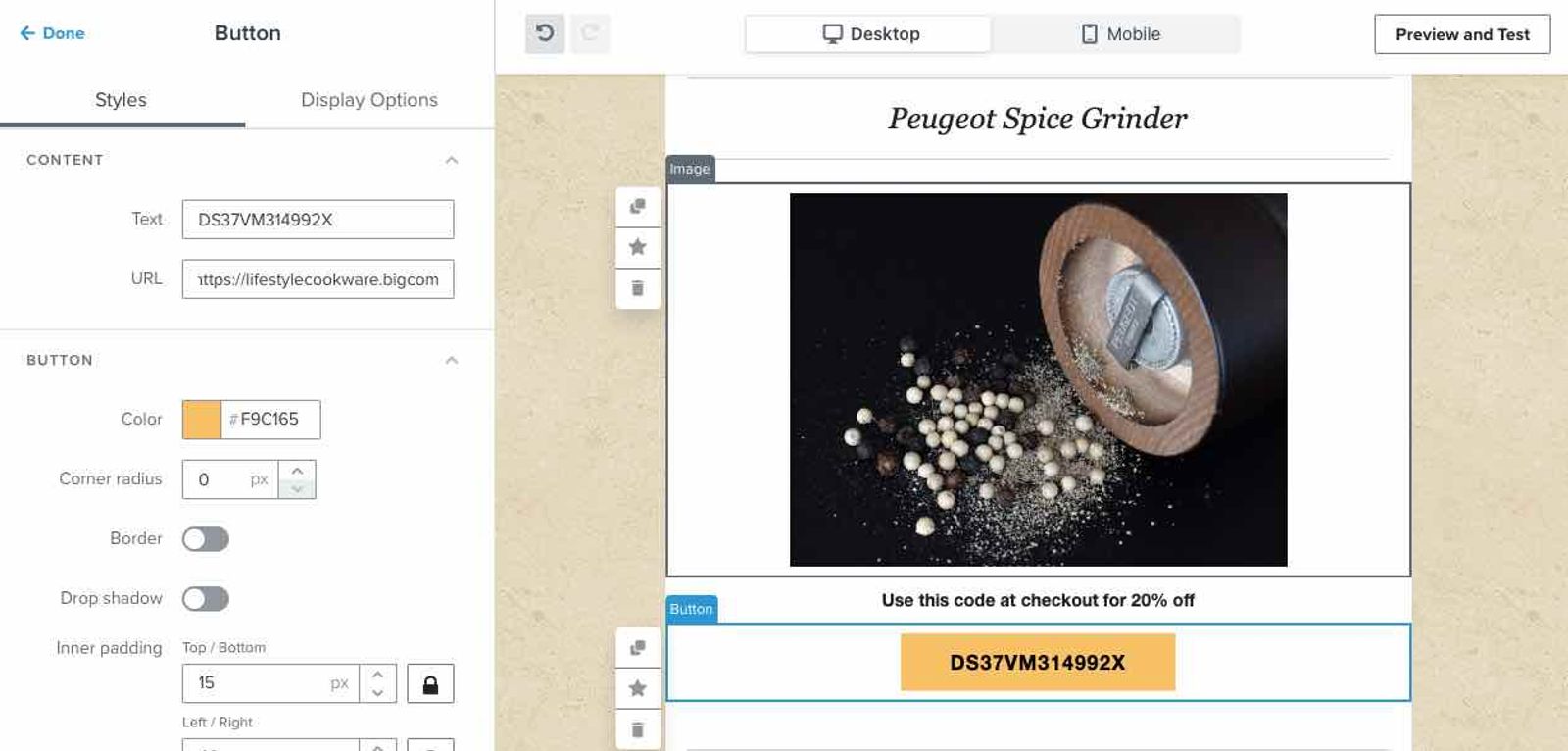
In an email, use a large font and a color that stands out. Include a text block above or below the coupon to explain what the code offers and how to use it.
There are a few things to keep in mind when using static coupons:
- If you're worried about your coupon spreading to too many customers, you can limit its use by setting an expiry date and changing the code every few weeks. Make the expiration date clear to your customers so they know how long their coupon is valid.
- Klaviyo doesn't manage any of the metadata about your coupons, including the code, expiration date, discount amount, etc. All of this information is managed inside of your BigCommerce store.
- If you're offering a coupon to a specific product, include a link to the product so your customers can easily click through your email to make a purchase.
Create and upload unique coupons using a bulk upload
Using unique coupons is a great way to offer a personalized discount code to all of your individual customers. You can use a third-party app to help you create unique codes in bulk and then upload those bulk coupons into BigCommerce and then Klaviyo, so you can send unique codes to each of your subscribers.
Please keep in mind that this method requires a third party app to upload your bulk coupon codes into BigCommerce. There is no built-in method to create bulk coupon codes within BigCommerce, but you can ask for help in this thread.
First, you'll need to create some unique coupon codes. There are a number of ways you can do this. For this example, we are going to use the website mockaroo.com to create 1000 coupon codes.
- Navigate to mockaroo.com and delete the default fields.
- Add a new field named
Couponand set the type to Character Sequence, then enter a series of asterisks. In the example below, the coupon code is 10 characters long, so there are 10 asterisks.
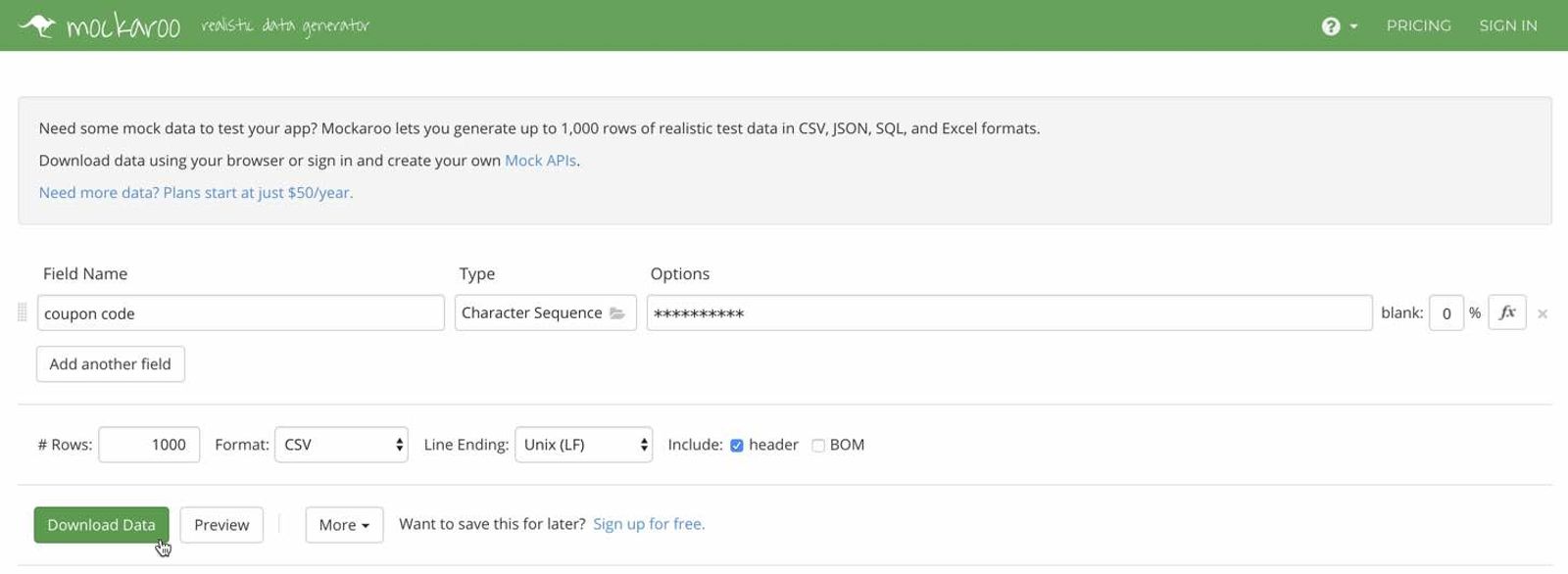
- Set # Rows to 1000 and Format to CSV, and include the header. Click Generate Data to download the file. Check that each code is unique. You will use these codes in both BigCommerce and Klaviyo.
- To upload the coupons to your BigCommerce store you'll need to use a third-party app, such as Coupon Buster.
- Once you've installed an app that uploads coupons, import the CSV file containing your coupon codes into BigCommerce. You can monitor the progress of your upload on the Imports tab.
Now that your coupon codes have been added to your BigCommerce store, it's time to add them to your Klaviyo account.
- Navigate to Content > Coupons in Klaviyo, select Uploaded Coupons, and click Create Uploaded Coupon.
- Enter a Name for the coupon. Set the Minimum coupon count for low-code notifications to a value from 100–5,000. The default is 500.
- Under Expiration, choose After 1 year or On a specific date. For a specific date, match the date set in BigCommerce. This setting controls how long Klaviyo can send the uploaded codes; it does not change their expiration or discount rules in BigCommerce. Specific dates use UTC.
- Click Create coupon to save the coupon.
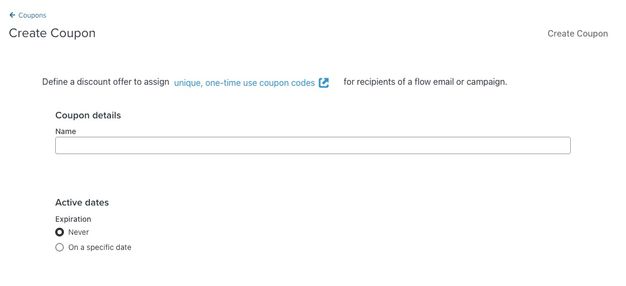
- On the Uploaded Coupons tab, click the 3-dot menu for your coupon and select Add Codes. Use the CSV file containing the codes you added to BigCommerce.

- Upload the CSV file containing your codes. It must contain 1 column with the header
CouponorCoupon Code, with 1 code per row. - Review the first few rows to confirm you selected the correct file, then click Import Coupons.
- Wait for the import to finish, review the imported and skipped counts, then click Done. On the Uploaded Coupons tab, check Available/Total to confirm how many codes are ready to send.
Keep enough unexpired codes available for recipients who have not already received a code from this coupon. Check the following before sending emails:
- For an email campaign, Klaviyo compares the expected recipients with the available codes and displays a warning if more codes are needed. Upload enough codes before sending. Recipients with an existing unexpired code can receive that code again; new recipients are skipped if no code is available for them.
- For a flow email, replenish codes regularly as recipients move through the flow. Flow emails that contain coupon codes with 0 available cannot be turned live. At send time, if Klaviyo cannot assign or reuse an unexpired code for a recipient, the email will be skipped. You can see who was skipped by clicking into the analytics of the flow email and clicking Recipient Activity > Other.
Before your supply runs out, create and upload more unique codes to both your BigCommerce store and the same coupon in Klaviyo.
Use your unique coupon in a flow
Once you’ve created and configured your coupon, insert it into a flow message.
- Navigate to the Flows tab in Klaviyo’s left-hand navigation.
- Open an existing flow or create a new one.
- Select a flow message inside your flow.
- Open the message editor for the selected flow message.
- Click in the text field where you want the coupon to appear, then open the personalization menu. Depending on your editor, you may see a person icon, a button labeled Add personalization, or a button labeled Personalization.
- From the All types menu, select Coupons.
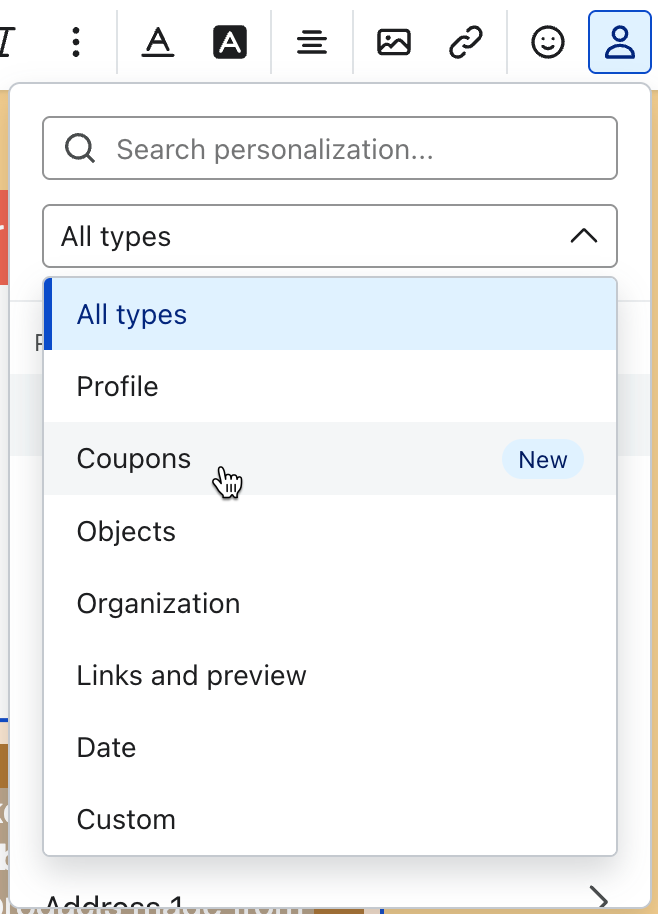
- Select the coupon you'd like to add. Klaviyo inserts a coupon tag using the name you entered when you created the coupon.
- In the drag-and-drop email editor, click Exit to save your content and return to the flow. If you are using a different editor, save your content and return to the flow.
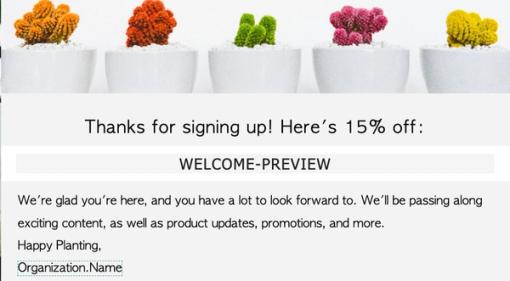
- Optional: Select the 3 dots on your flow email, then click Preview. When you preview your email directly in Klaviyo, you will see the coupon name followed by "-PREVIEW" instead of a redeemable code. When the message sends, Klaviyo uses a code from the batch you uploaded.
- Confirm that you have uploaded enough codes. When the message is ready to send automatically, select it in the flow, set its status to Live, and click Save.
When a message sends, a code from your uploaded batch replaces the coupon tag for each recipient. Its format matches the code you uploaded. If you include the same coupon tag in multiple flow messages, the recipient receives the same unique code while it remains unexpired in Klaviyo.