How to export coupon information
You will learn
Learn how to export information about Klaviyo-generated and uploaded coupons, so that you can report on your coupons with the data directly from Klaviyo.
- For Klaviyo-generated coupons, you can determine which customer a code was assigned to, coupon name, assigned date, and more.
- For uploaded coupons, the export includes details about which codes are assigned versus unassigned.
Your user role must allow coupon exports. For Klaviyo-generated coupons, it must also allow coupon editing. If Export is unavailable, ask someone with the required permissions to export the file.
Export Klaviyo-generated coupon (integration-specific) information
For Klaviyo-generated (integration-specific) coupons you can only export information for previously assigned coupon codes that may be active or expired. Unassigned coupons cannot be exported.
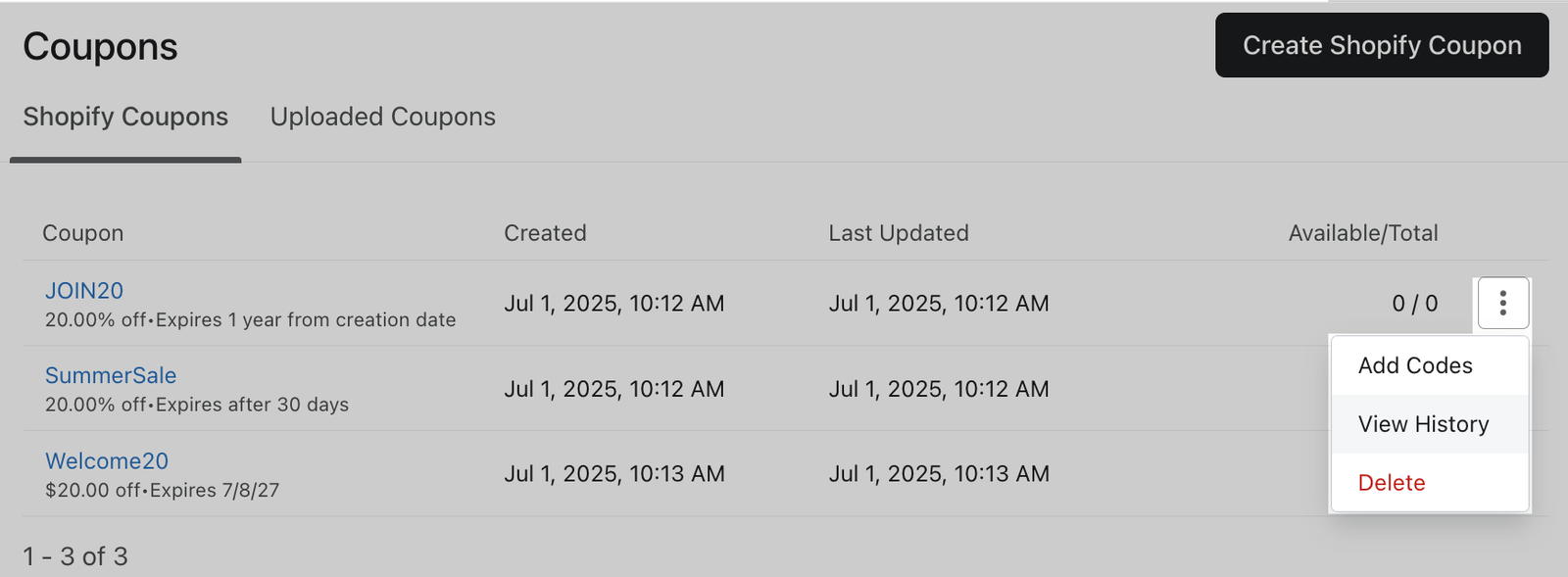
- Navigate to Content > Coupons in Klaviyo's left-hand navigation.
- Select the tab for your integration, then find your coupon and click the 3 dots next to it.
- From the dropdown, select View History.
- On the coupons history page, select which versions of the coupon definitions you'd like to export.
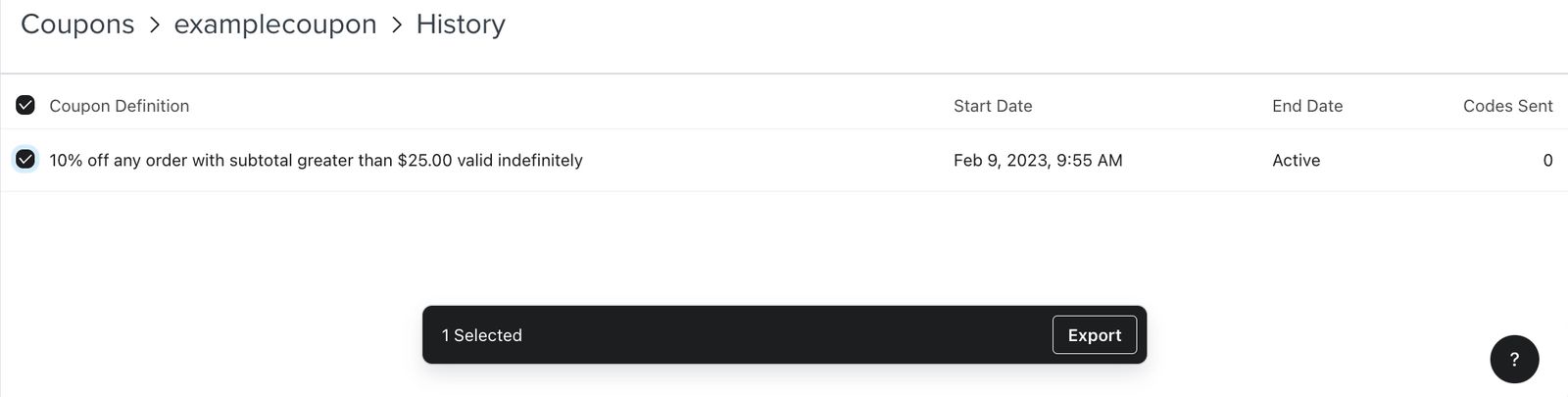
Coupon definitions from before August 26, 2020 were not logged. These versions show No description provided on the coupon history page.
- Once you have selected the definitions, click Export at the bottom of the page.
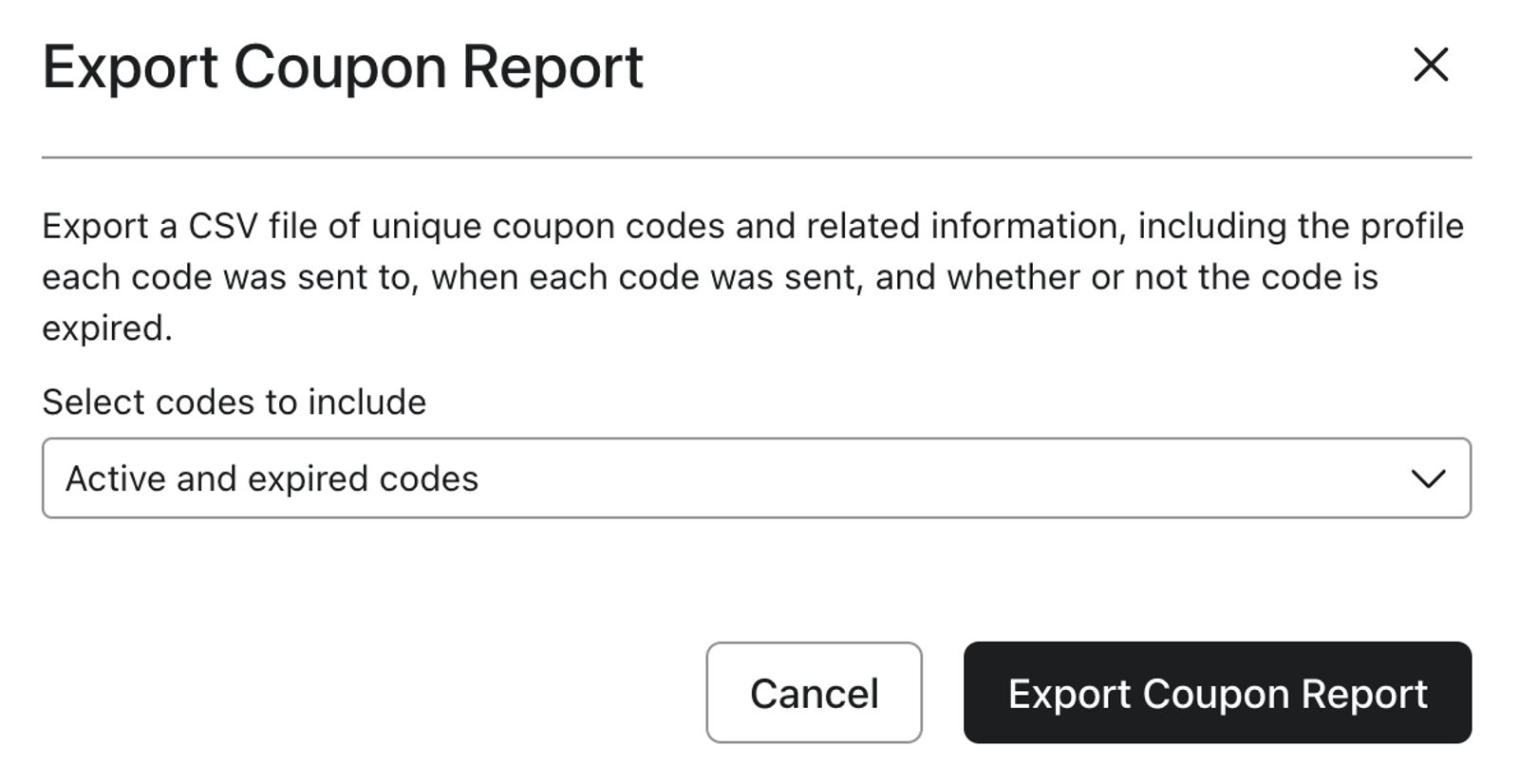
- From the Export Coupon Report modal that appears, select whether you want to export:
- Active and expired codes (the default)
- Active codes only
- Expired codes only
- Select Export Coupon Report.
Your CSV downloads automatically when it is ready. It contains assigned coupon codes from your selected definitions that match the expiration option you chose, with the following information for each code:
- Unique code (if applicable)
- Customer email
- Klaviyo profile ID
- Klaviyo coupon ID
- Coupon name
- Assigned date (when the code was assigned to the customer)
- Expiration date
- Code status
- Coupon definition
- Definition start date
- Definition end date
Export uploaded coupon information
- Navigate to Content > Coupons in Klaviyo's left-hand navigation.
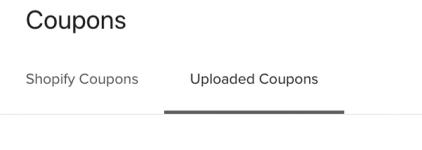
- Select the Uploaded Coupons tab if tabs are shown. If there are no tabs, your uploaded coupons are already displayed.
- Find your coupon and click the 3 dots next to it.
- Click Export.
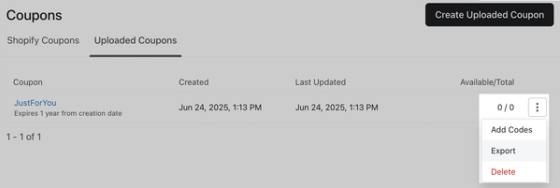
- On the Export Coupon Report modal that appears, select whether you want to export:
- Active and expired codes (the default)
- Active codes only
- Expired codes only
- Choose whether you want to include:
- Sent codes (the default): codes assigned to profiles
- Available codes: unassigned codes
- All codes: both assigned and unassigned codes
- Click Export Coupon Report.
Your CSV downloads automatically when it is ready and includes codes that match your selections. Sent codes and All codes exports include the columns below. Available codes exports omit Email, Klaviyo Profile ID, and Assigned Date.
- Unique code
- Klaviyo profile ID
- Klaviyo coupon ID
- Current coupon name
- Assigned date
- Expiration date
- Code status
- Coupon definition
- Definition start
- Definition end
For uploaded coupons, Coupon Definition, Definition Start, and Definition End are blank. In All codes exports, unassigned codes also have blank Email, Klaviyo Profile ID, and Assigned Date fields.
Additional resources
- How to export a list or segment to a CSV file
Learn how to export any list or segment in Klaviyo to a CSV file.
- How to export all people in your account
Learn how to export all of the people in your account by creating a segment of those profiles and exporting that segment to a CSV file. This CSV file will contain all profiles, regardless of subscription status.
- How to edit coupons in Klaviyo
Learn how to edit coupons that Klaviyo generates so that you can use them in your messaging and encourage subscribers to make a purchase on your website.