How to display recently viewed items in an email
You will learn
Learn how to include a reminder of the items someone has recently viewed or added to their cart in an email.
Before you begin
Before taking the following steps, make sure:
- You’ve synced your product catalog with Klaviyo. Most of Klaviyo’s ecommerce integrations (such as Shopify, WooCommerce, BigCommerce, etc.) sync your catalog automatically.
- For recently viewed items, you have Viewed Product tracking enabled.
- For items added to cart, you have an Added to Cart or checkout metric in Klaviyo, plus an Ordered Product metric or a custom metric configured for product purchases. These metrics must contain product IDs that match your catalog.
Create a personalized product feed
To create a product feed for items someone recently viewed or added to their cart:
- From Klaviyo’s sidebar, click Content > Products.
- Select the Product feed tab.
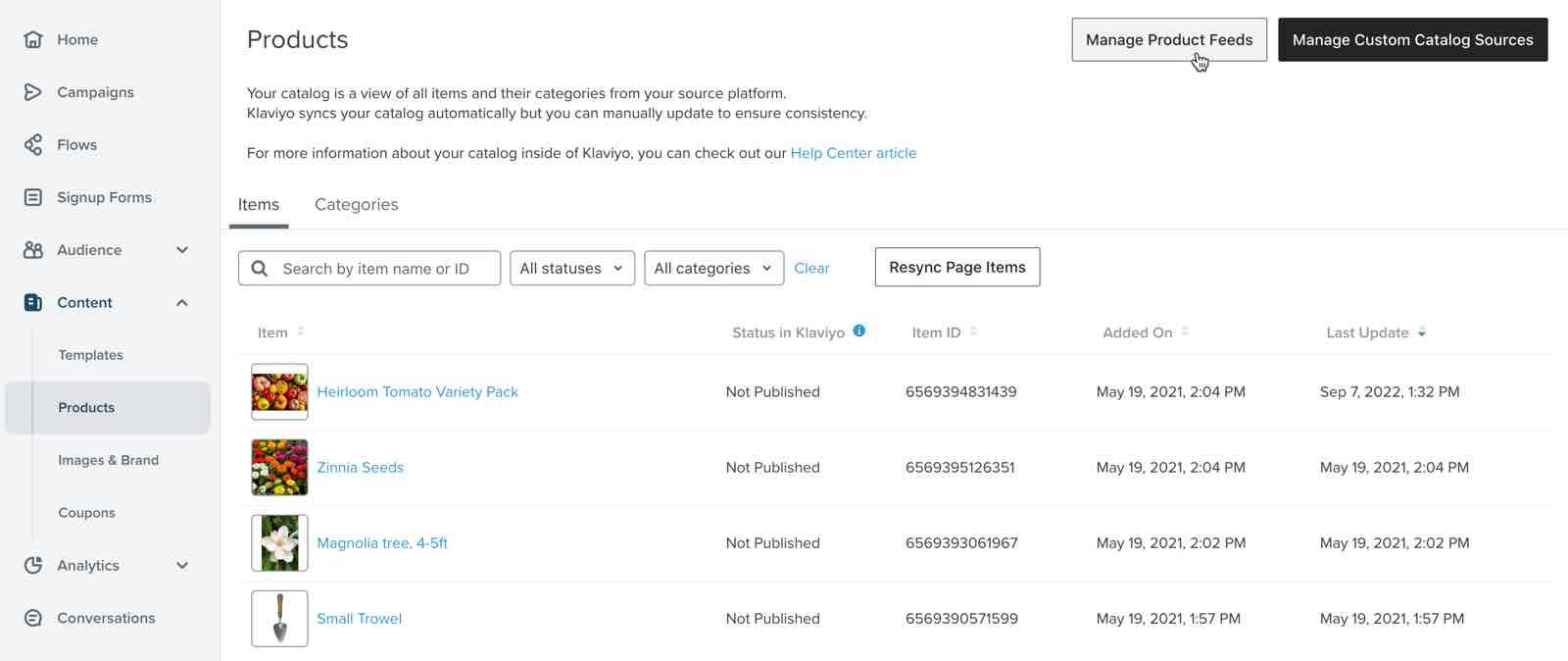
- Click Create feed.
- Name the product feed something descriptive, like RECENTLY_VIEWED_PRODUCTS. Use only letters, numbers, and underscores; spaces are not permitted.
- If you have more than 1 catalog, use What catalog should be included in the product feed? to select the catalog.
- In the What products should the customers view first? dropdown, scroll down and click Products a customer has recently viewed. Alternatively, select Products a customer has added to cart for a feed of items they've recently added to their cart.
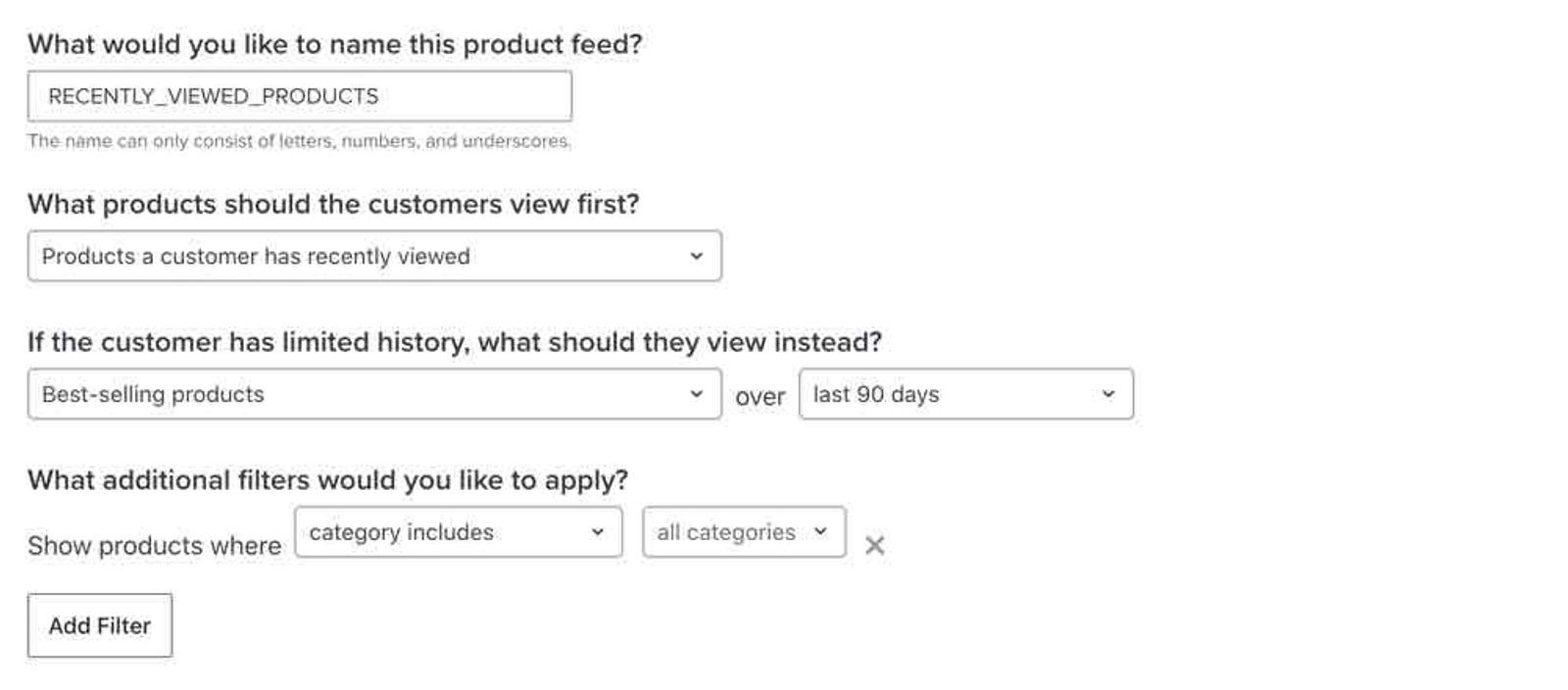
- Under If the customer has limited history, what should they view instead?, choose fallback products, such as Best-selling products. If prompted, select a timeframe, such as last 90 days or last 3 days.
- Optionally, apply filters under What additional filters would you like to apply? to control which products can appear, such as including or excluding product categories.
- Click Save Product Feed.
Add the product feed to an email
Open the drag-and-drop editor for the email template, campaign email, or flow email you’d like to work with:
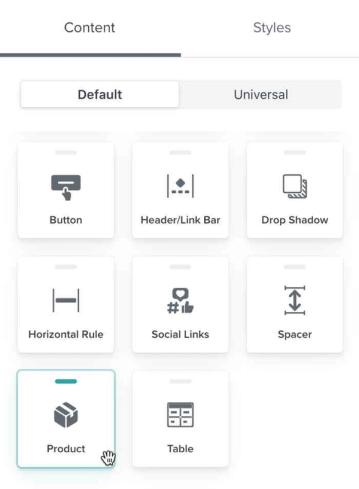
- Drag a Product block into your template.
- In the product block’s Styles tab, select Dynamic, then choose the feed you created under Product selection. If your feed isn’t listed, click View all (or Change selection if another feed is already selected), choose your feed, and click Select product feed.
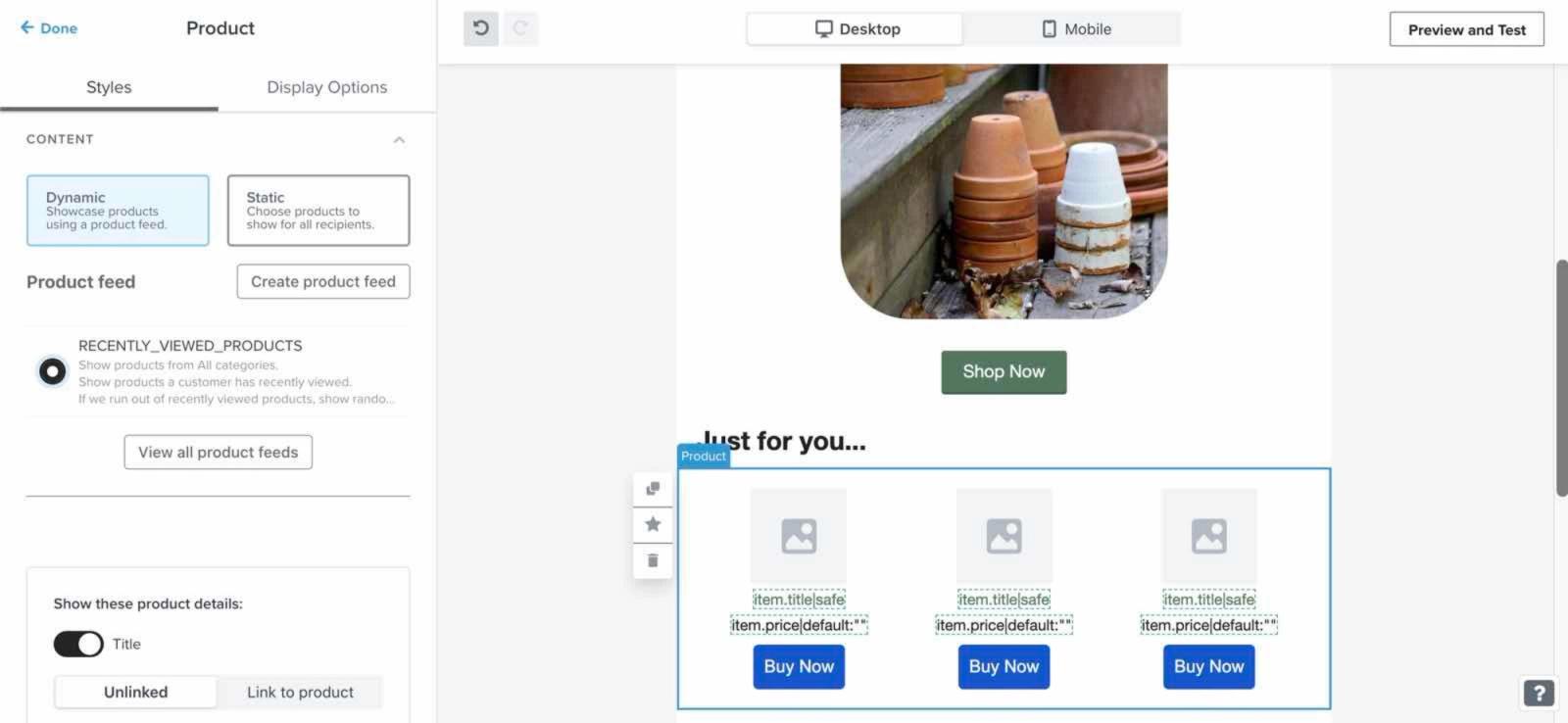
- In Styles, adjust the product details and styling as desired. Under Layout, set Products per row and Number of rows to choose how many products appear in a horizontal layout. For a vertical layout, set Number of items.
- When you’re finished, click the back arrow in the product block’s settings to return to the template. Wait for the editor to finish saving your changes before leaving.
Outcome
When this message is sent, the product block displays products based on each recipient’s browsing, cart, or checkout activity, depending on the feed you selected. Recently viewed products are not necessarily shown in strict chronological order: repeated views can affect their order. If a recipient has little or no relevant history, the block uses the fallback products selected in your feed settings, such as best-selling or most viewed products.
In a metric-triggered flow email, items from the event that triggered the flow are excluded from the product feed. For example, a flow triggered by Viewed Product won’t show that triggering product in this block.
Klaviyo must identify a visitor to associate their viewed products with a profile. Learn how onsite tracking identifies site visitors.
Additional resources
- Troubleshooting viewed product tracking
Learn how to troubleshoot issues with your Viewed Product tracking, which is used to track when visitors view products on your site. For some ecommerce platforms, Viewed Product is tracked automatically when you integrate with Klaviyo. For other ecommerce platforms, a snippet must be manually added to your product page template.
- How to use product feeds and recommendations
Learn how to create a product feed in Klaviyo in order to use product recommendations in your messaging. Product feeds take in data from your product catalog and customer behavior (e.g., the products they’ve viewed or purchased in the past) and use this information to provide custom product recommendations for your subscribers.