How to show favorite buttons on your site and in Customer Hub
You will learn
Learn how to allow shoppers to save their favorite items on your site. By adding favorite buttons alongside your products, you can display shoppers' saved items in the Customer Hub drawer and send follow-up flows to drive conversions.
Customer Hub for Shopify supports standard storefronts and Shopify Headless. The Shopify theme-editor and Liquid steps below apply to standard storefronts. For WooCommerce, see Getting started with Customer Hub for WooCommerce.
Before you begin
This guide covers how to enable Favorites in Customer Hub and add favorite buttons across different pages of your website. Before you begin, enable Customer Hub in Klaviyo. Favorites requires a paid Customer Hub plan or an active free trial.
Learn more about Customer Hub.
About favorites
Favorite buttons allow shoppers to save products they're interested in. A shopper's favorited items display within the Customer Hub drawer, and can be used in flows to drive additional conversions.
When you enable Favorites in Customer Hub, shoppers who meet your visibility settings can use favorite buttons to save products. Saved items appear in their Favorites section. Items saved by logged-in shoppers sync to their Klaviyo profile.
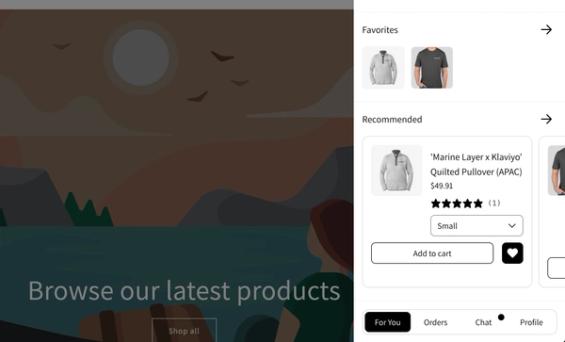
To increase their visibility and encourage use, you can also add favorites buttons to:
- Product detail pages
- Collections pages (also called “product list pages”)
Items favorited from either of these pages also appear in the shopper’s Favorites section in Customer Hub. To let visitors save products without logging in, set favorites visibility to All shoppers in both the Hub and onsite favorites settings. Favorites from visitors Klaviyo does not recognize are saved in their browser and sync to their Klaviyo profile when they log in, or when Klaviyo recognizes them if recognized shopper experiences are enabled.
Enable favorites to display in Customer Hub
To display favorites in the Customer Hub drawer, you must first enable the Favorites setting in Klaviyo.
If Customer Hub is live, publishing your changes applies them to your site. If it is hidden, go to Settings and set Customer Hub visibility to Live, then click Save to make Customer Hub visible on your site.
- In Klaviyo’s main, left-hand navigation, select Website > Customer Hub.
- Click Design > Edit your Hub to open the editor.
- With the Hub set to Open, select Favorites from the Page dropdown above the preview.
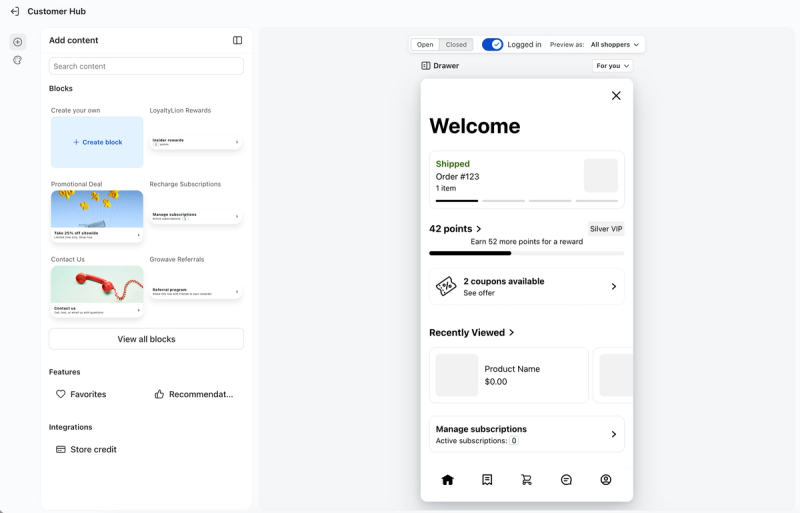
- On the Content tab, set Visibility to the shoppers who should see favorites. Select All shoppers to allow visitors to save products without logging in.
- Under Icon, select a heart or a plus sign for the favorite buttons in Customer Hub.
- Use the preview to check the icon’s appearance. You can preview its selected and unselected states in the onsite favorites editor, described below.
- Click Publish.
Favorite buttons now appear on products in Customer Hub for shoppers who meet your visibility settings. Clicking a button adds the item to their Favorites section.
To add buttons outside Customer Hub, continue to Add favorite buttons to product detail pages.
Import existing wishlists to Customer Hub
If you are transitioning to Customer Hub from another wishlist application, you can import your customers’ saved items so they can continue managing their favorites in Customer Hub.
Native app imports
Klaviyo provides native, out-of-the-box support for importing data directly from popular wishlist apps, including:
- Swym
- Wishlist King
Import via CSV
After enabling favorites in Customer Hub, open the Customer Hub favorites settings. Your file must include shopper email addresses and product IDs; variant IDs are optional. You do not need a specific CSV template, but you must review the field mapping before importing.
- Under Import favorites from another app, click Import. If you previously dismissed the card, click Import favorites from another app to reopen it.
- Upload or drag your CSV file into the upload area, then click Next.
- Review the suggested field mappings. Map the columns containing shopper email addresses to Email and product IDs to Product ID. If your file includes variant IDs, map that column to Variant ID.
- Click Finish to submit the import.
The import screen closes and displays a confirmation after a successful submission. If you see an error, check your file and mappings before trying again.
Add favorite buttons to product detail pages
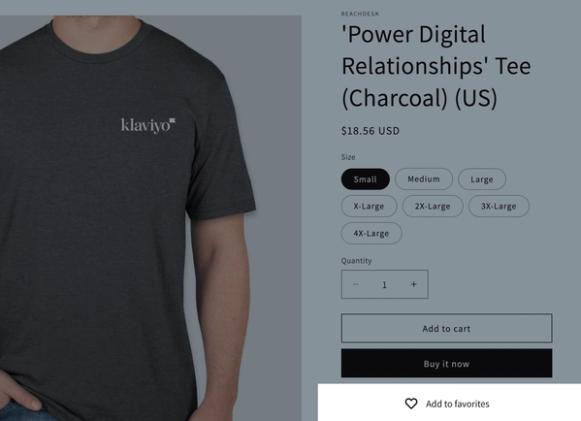
Add favorite buttons to your product detail pages so shoppers can save an item while viewing it.
If you use a vintage Shopify theme, or a custom setup that doesn’t support app blocks, see our instructions for manually installing the favorites button.
- Return to Design in Customer Hub, then select the Favorites card under Onsite blocks. Click Add app block to open your Shopify theme editor.
- Doing so launches your Shopify theme editor in a new window, showing a modal indicating that the Klaviyo Favorites app block was added to your default product page template. Click Got it.
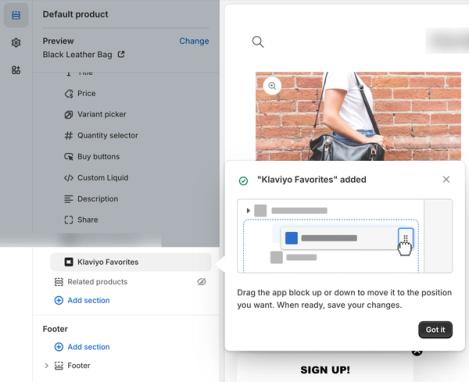
- Click and drag the app to adjust its positioning on your product details page as needed.
- When ready, click Save to save your changes in Shopify. The button appears in the location you chose when Customer Hub is live and onsite favorites are visible to the shopper.
- Return to the onsite favorites editor in Klaviyo. On the Content tab, set Visibility to the shoppers who should see your onsite buttons. This cannot be broader than the Hub favorites visibility.
- Optional: In the onsite favorites editor, select the Style tab to customize the button’s icon, colors, font, alignment, and visual style.
- Under Fonts, select Inherit from site in Button font to use your site’s font, or choose another font. Select Configure custom font to enter a font name and weight. Your custom font must already be installed on your site.
- Under Colors, adjust Button fill and Button text. Under Appearance, set Alignment and Visual style. Choose Icon only, Text only, or Icon and text.
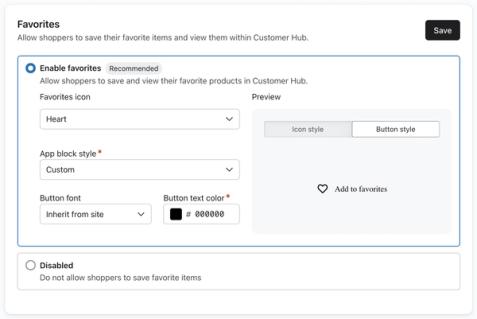
- In the preview, select Product page or Collection list to review each placement. The button starts unselected; click it to preview the favorited state.
- Click Publish to save the onsite visibility and any styling changes in Klaviyo.
Return to your website and open a product detail page to check that the favorite button appears in the location you chose.
Next, skip ahead to the Add favorites buttons to your collections pages section.
Manually install favorite buttons (vintage themes or custom setup)
If you use a vintage Shopify theme or a custom setup that doesn’t support app blocks, manually add the favorites button snippet to the pages where you want shoppers to save products (e.g., product pages).
Before editing your theme, enable favorites in the Hub and set onsite favorites visibility in the Favorites card under Design > Onsite blocks. Customer Hub must be live for the buttons to appear on your storefront.
To do so:
- Open your Shopify store admin.
- Under sales channels, select Online store.
- Click the three dots menu on your current theme, then select Edit code. If you would rather test it on a draft theme, duplicate your current theme first and then edit the code of the duplicate theme.
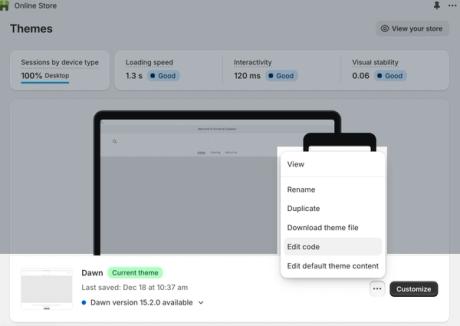
- Find the file for your product details page. This varies by theme, but typically has the word “product” in its name. For example, in the Dawn theme, this is called “main-product.liquid.”
- Paste the following code snippet wherever you want the favorites button to appear:
<div class="klaviyo-wishlist-slot" data-product-id="{{ product.id }}"></div> - Click Save.
- Click Preview store.
- Navigate to a product page within your store preview. The added favorites button should be visible in the designated location.
Add favorite buttons to your collections pages
Install a small snippet of code on your Shopify site to add favorite buttons to your collections pages so shoppers can quickly save items while browsing your products. This is especially useful for shoppers on mobile devices.
Before adding the snippet, enable favorites in the Hub and set onsite favorites visibility in Design > Onsite blocks > Favorites. Customer Hub must be live. The onsite icon and color settings also apply to collection-page favorite buttons.
To do so:
- Open your Shopify store admin.
- Under sales channels, select Online store.
- Next to your current theme, click the three dots menu, then select Edit code.
- If you want to test on a draft theme, duplicate your current theme first and then edit the code in the duplicate theme.
- In the left-hand sidebar, search for and open your collections file. We’ll use the featured-collections.liquid file for this example, however your theme may use a different file.
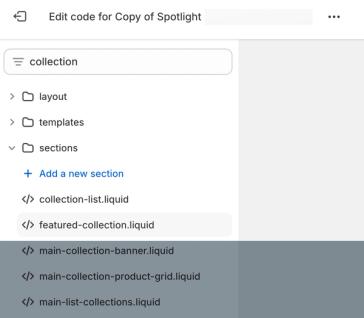
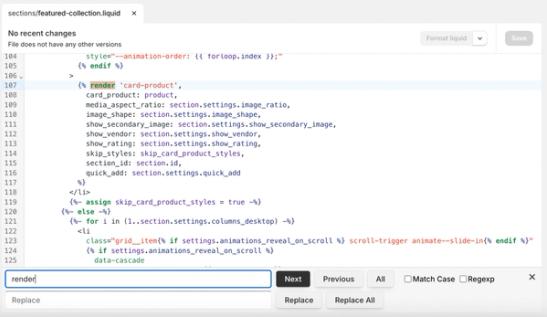
- Within the collections file, use the find shortcut (Command+F on Mac or Control+F on Windows) to search the word “render” within the file. This helps you identify the snippet name containing your product grid.
- The snippet will likely appear in a format similar to: {% render 'snippet-name'%}, where 'snippet-name' is the name of the relevant snippet file (e.g., card-product).
- The snippet will likely appear in a format similar to: {% render 'snippet-name'%}, where 'snippet-name' is the name of the relevant snippet file (e.g., card-product).
- In the left sidebar, search for and open the snippet file identified in the previous step (e.g., card-product.liquid).
- At the top of this file, note the object value listed under “Accepts” (e.g., “card_product”).
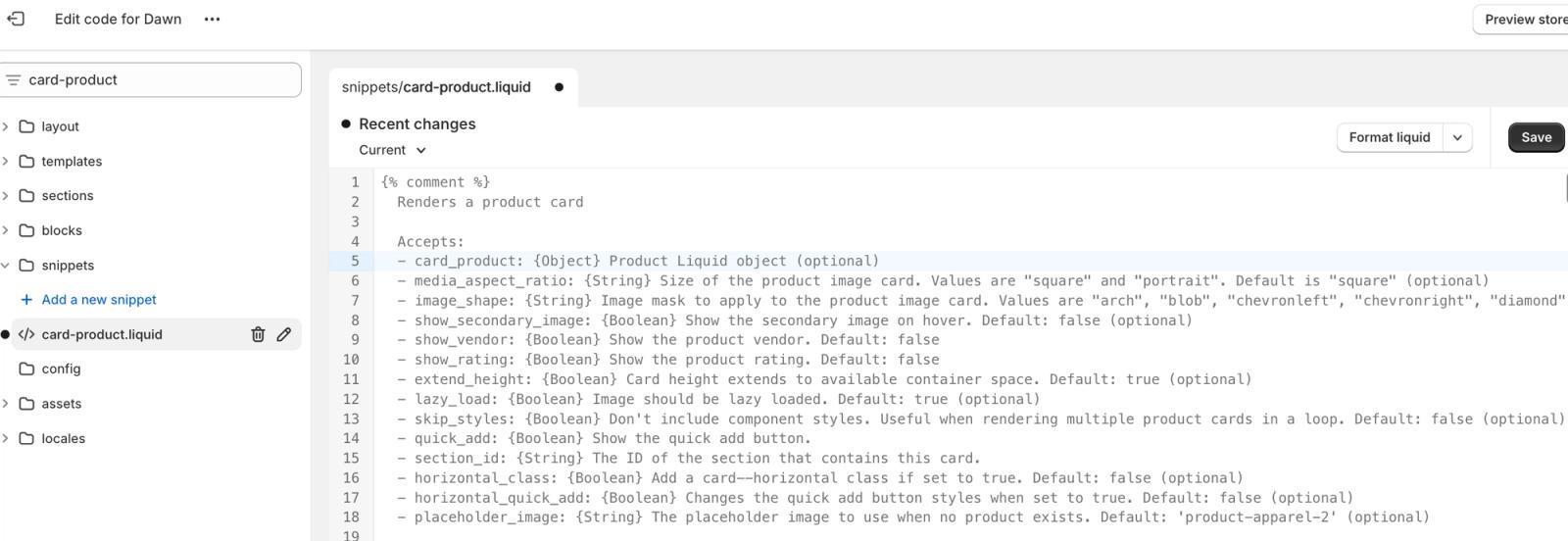
- Copy the following code and paste it into the snippet file:
- Tip: Look for the first instance of the price rendering in your file and paste the code above it.
<divclass="klaviyo-favorites-plp-slot"data-product-id="{{ OBJECT.id }}"data-product-url="{{ OBJECT.url }}"data-variant-id="{{OBJECT.selected_or_first_available_variant.id}}"></div>
- Tip: Look for the first instance of the price rendering in your file and paste the code above it.
- Within the code you pasted, replace
OBJECTwith the object value you noted earlier.- For example, if your file’s object value is “card_product,” the code will look like this when pasted into the file above the price.
- For example, if your file’s object value is “card_product,” the code will look like this when pasted into the file above the price.
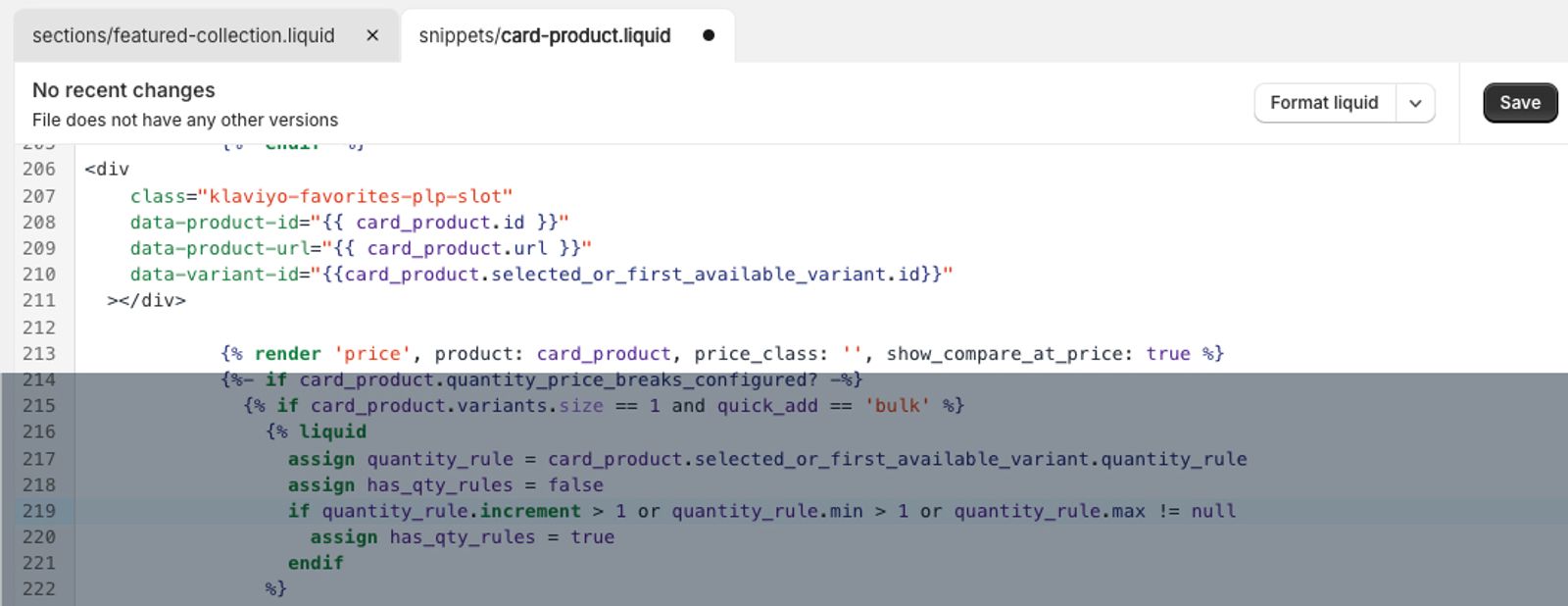
- Click Save in Shopify.
- Open your site’s collections page and refresh. If you edited a duplicate theme, open that theme’s preview and navigate to a collections page instead.
You should now see the favorite buttons appear on each product. Note these may take a few seconds to load. By default, these are positioned in the top right corner. If you wish to change the positioning, consult your developer for assistance with custom CSS.
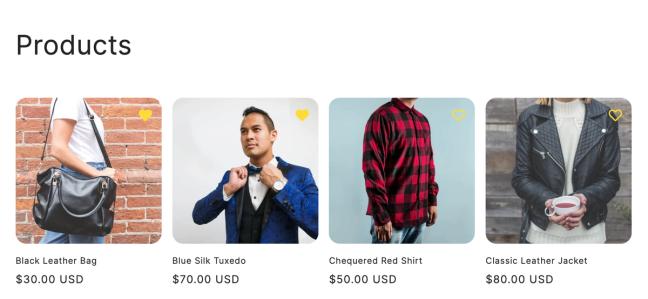
If the favorite buttons still have not appeared, try these troubleshooting steps:
- Confirm that you’ve replaced
OBJECTin the code snippet with your file’s object value. - Try pasting the code elsewhere in the file.
- Verify that you’ve pasted the code in the correct snippet file.
If they still don’t appear, seek assistance from a developer. Klaviyo's support team is not able to directly edit your theme files.
Next steps
Now that you’ve added favorite buttons to your site, set up a favorites reminder flow to remind shoppers about their recently saved items.
Additional resources
- Getting started with Customer Hub on Shopify
Learn about Customer Hub, a unique personalized experience for online store visitors that guides them from product discovery through purchase and post-purchase support.
- How to display product recommendations in Customer Hub
Learn how to display personalized product recommendations in the Customer Hub drawer to tailor shopping experiences for your customers and drive conversions. By showing products that appeal to customers, you can improve conversion rates and provide cross-sell opportunities to increase average order value.
- How to style your Customer Hub
Learn about design options for styling your Customer Hub drawer, and how you can design it to match your brand. Because the Customer Hub interface is ingrained in the customer experience, it’s best practice to style it to appear as an extension of your website.