How to create and manage universal and saved content
You will learn
Learn how to create, edit, and use universal or saved content to reuse specific blocks or sections within a template and avoid duplicative work. For example, if you have a header or a footer that you use in all your email templates, you can save it to avoid recreating it from scratch in every new email.
In Klaviyo’s template editor, you can save blocks or sections as universal content. When you do, you can choose to apply future edits to every instance of the universal block, across all templates.
Create and use universal content
The following sections will cover how to:
- Save a block in a template for reuse
- Save a section in a template for reuse
- Access and use universal content
Save a block for reuse
To save a block in an email template for reuse, save it as new universal content:
- In the template editor, hover over the block that you want to save. Make sure it's formatted the way you would like it to save.
- Select the star icon that appears.
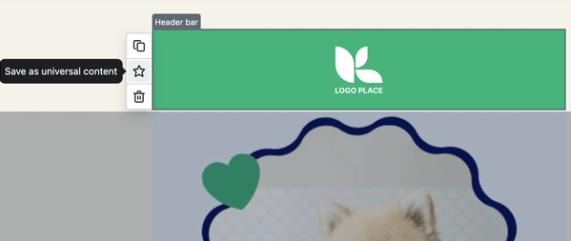
- On the Create universal content modal that appears, name your block. Choose a memorable and descriptive name so it's easy to find later.
- Click Create.
Your block will now be saved in the Universal content tab in Klaviyo.
Save a section for reuse
If the section contains universal blocks, saving the section as universal content unlinks those blocks from their original universal content. The blocks remain in the section and are updated as part of the universal section.
To save a section in an email template for reuse in other templates, save it as universal content:
- In the template editor, hover over the section you'd like to save. To make sure that you're selecting the section (rather than a block within the section), click on the empty space to the right of the template's section.
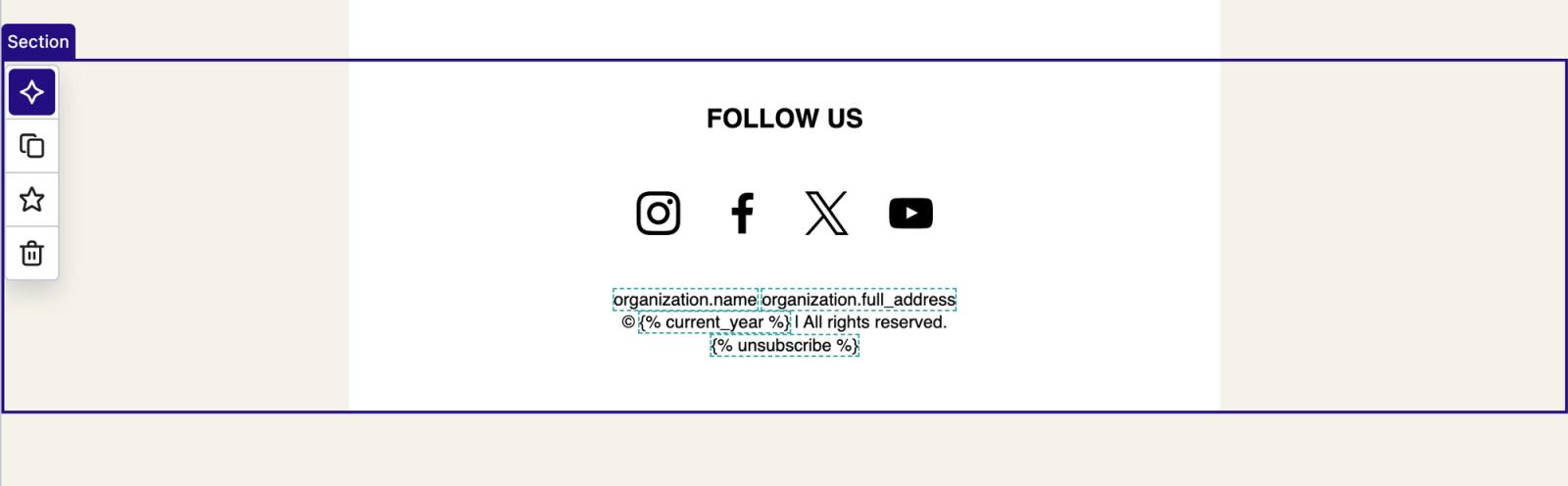
- Select the star icon.
- On the Create universal content modal that appears, name your section. Name it something that will allow you to find it easily, like "Header" or "Footer."
- Click Create.
Your section will now be saved in the Universal content tab in Klaviyo.
Access and use universal content
To access and reuse a block or section you saved as universal content:
- Open your email template in the editor.
- In the sidebar on the left, select Content > Universal.
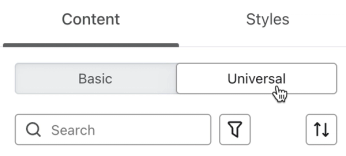
- Your universal content appears in a list. You can search by the content’s name or filter based on type.
- To browse your full library, click Expand at the bottom of the sidebar. For larger libraries, the button reads Expand to view all followed by the number of items.
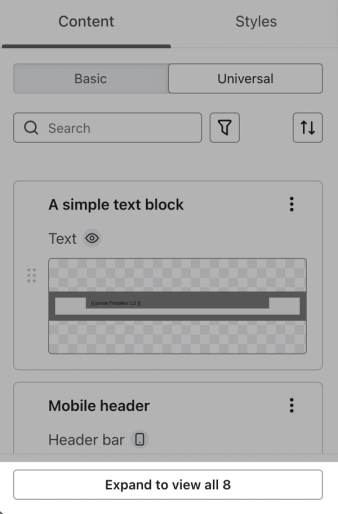
- Once you find the block or section you would like to reuse, click and drag it into your template wherever you'd like it to go.
Edit existing universal content
Publishing changes to universal content updates every linked instance, including scheduled campaigns and live flows. Review the affected emails and templates before confirming.
You can edit universal content in 2 locations:
- By navigating to Content > Universal content in Klaviyo's main navigation.
- In a template where the content is used.
Note: when you submit a flow email for transactional review or mark it as transactional, any universal content blocks or sections in that email are automatically unlinked from the universal content library. The content remains in the email, but edits made to the universal block elsewhere will no longer flow into this transactional email. You'll need to update the content directly in the email.
Manage and edit content from the Universal content tab
To edit content from the Universal content tab in Klaviyo, go to Content > Universal content in Klaviyo's main navigation. Here you'll find a library of all of your saved universal content. You can filter this page to search universal content based on features like device type (i.e., mobile vs. desktop) and content type.
Open the three-dot menu for a universal content block or section to see the following management options:
- Edit
- Rename
- Clone
- Content usage
- Preview
- Delete
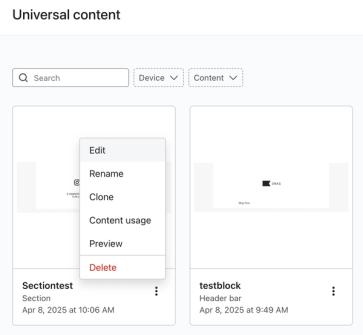
Deleting universal content removes it from the library and unlinks it from the emails and templates that use it. The content remains in those emails and templates. Deleting it from the library cannot be undone.
Select Edit to open a limited editor with only the options relevant to the universal content block or section you’re editing.
- If you’re editing a block, the editor will include block styling options for that specific block, but not any other block types.

- When editing a section, you’ll be able to add blocks, but not sections (since a section cannot contain another section).
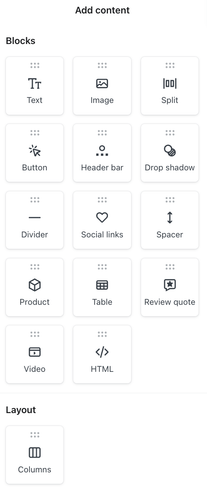
- Make your edits, then click Save.
- Review the affected emails and templates, then click Save & publish. You’ll return to the universal content library.
Edit content from within a template
To edit a universal content block or section within a template:
- Open your email template in the editor.
- Select the piece of universal content in the template preview. Or, if you have not added any to the template yet, drag and drop from the Universal tab.
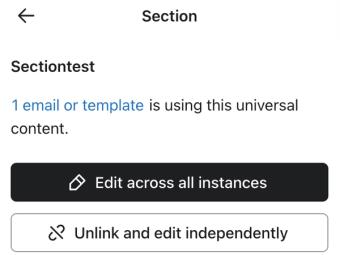
- You'll see 2 options for editing:
- Edit across all instances
Choose this option if you’d like your edits reflected in every template containing this piece of universal content. Click the linked email or template count to see where this content is used. - Unlink and edit independently
Choose this option if you’d like your edits to only apply to the content in the template you’re currently editing. This instance will no longer receive updates made to the universal content.
- Edit across all instances
- Make any desired edits to the universal content.
- If you chose Edit across all instances, click Publish changes. Review the affected emails and templates, then click Save & publish.
If you chose to Edit across all instances, editing other blocks in your template is temporarily disabled. After you confirm with Save & publish, the other blocks in the current template will become editable again.
Additional resources
How to use flows to send transactional emails Learn how to set up transactional emails using metric-triggered flows in Klaviyo, including how to apply for transactional status.
* How to insert your company name and address to an email footerLearn how to use company-specific organization tags to add your company's name and address to the footer of your emails. If you ever update your company name or address in your account settings, those updates will be reflected in any messages using these tags. Including a physical mailing address in your emails is important in order to comply with certain regulations, like CAN-SPAM.
- How to insert your company name and address to an email footer
Learn how to use company-specific organization tags to add your company's name and address to the footer of your emails. If you ever update your company name or address in your account settings, those updates will be reflected in any messages using these tags. Including a physical mailing address in your emails is important in order to comply with certain regulations, like CAN-SPAM.
* How to create a base templateLearn how to create a base email template in Klaviyo. Once you create a base template, you can use it across your campaigns and flows to speed up your building process and ensure your branding is consistent across messages.
- How to create a base template
Learn how to create a base email template in Klaviyo. Once you create a base template, you can use it across your campaigns and flows to speed up your building process and ensure your branding is consistent across messages.