How to embed videos and attach files to emails
You will learn
Learn about the types of content that can be embedded in an email, and how to avoid deliverability issues caused by embedding unsupported content.
About embedded content and attachments
Most major email clients (such as Gmail) view embedded content such as surveys, forms, videos, and other widgets as a security threat. These email clients will often strip out this embedded code completely and your recipients will not see your content rendered when they open your email.
Klaviyo is committed to setting our customers up for success. Because our testing shows that these features do not reliably render across all major email clients, we don't support embedded surveys, forms, videos, or widgets inside of Klaviyo emails.
You can still give your email subscribers access to this content using the options below.
- Learn how to deliver video content via email
- Learn how to deliver attachments and files via email
- Learn how to initiate surveys via email
Deliver video via email using a block
Using a static image with a play button is the most common (and recommended) way to feature a video in an email. That image should link to a hosted version of your video (e.g., a video hosted on YouTube or Vimeo). Klaviyo offers a video block to make this process simple.
- Copy a video’s URL (e.g., from YouTube, TikTok, Vimeo, or another video hosting platform).
- Open an email template in Klaviyo.
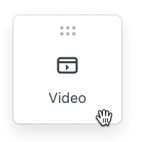
- Drag a Video block into the email.
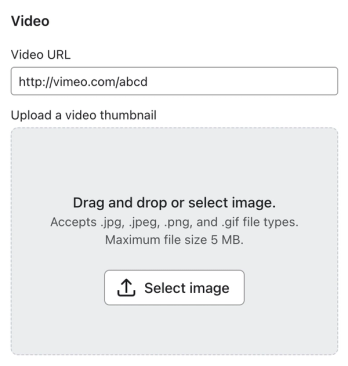
- Paste the video URL into the Video URL field, then click outside the field to load the thumbnail options.
- For the video’s thumbnail:
- Klaviyo can automatically load thumbnails for standard YouTube videos, Vimeo videos, and TikTok videos. Automatic thumbnail detection is not supported for YouTube Shorts URLs.
- If no thumbnail appears, including for YouTube Shorts or videos hosted elsewhere, click Select image to upload a thumbnail or choose one from your image library.
- In the block’s Styles tab, enter a brief description of the video in Alt Text. Turn Show play button on to add a play icon to the thumbnail, and adjust the block padding as needed.
When someone opens your email, they’ll see the video thumbnail. When they click it, they’ll open the linked webpage where they can watch the video. The video block does not make the video play automatically.
Before sending to your audience, send yourself a test email and click the thumbnail to check that it opens the intended video.
Add a GIF
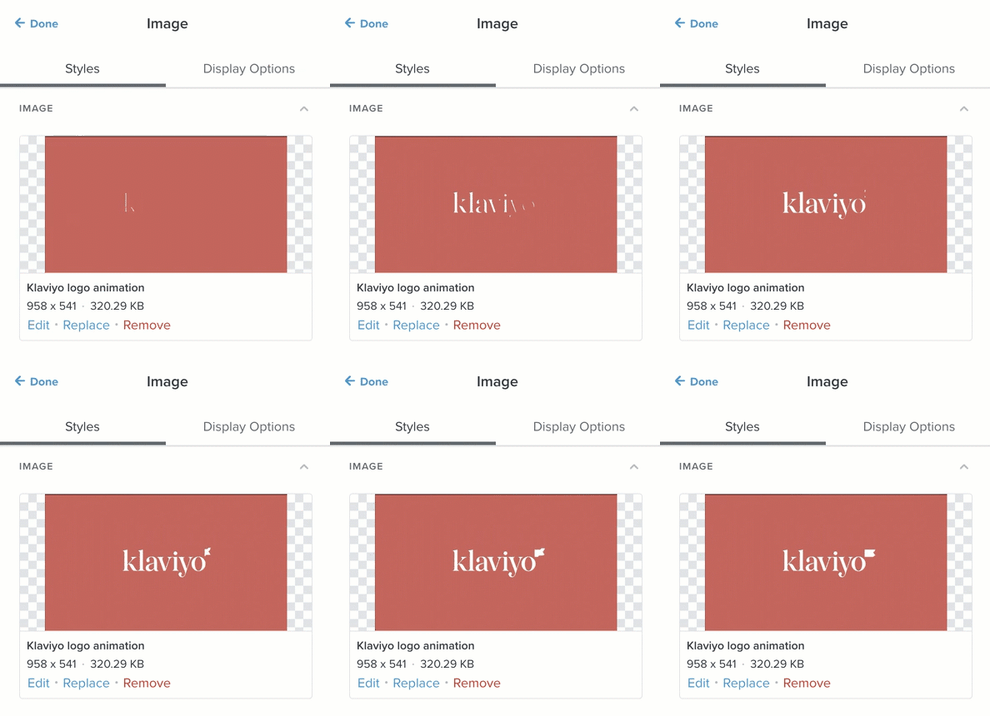
If the video clip you’d like to share is short and doesn’t have sound, try a GIF instead. Klaviyo supports GIF uploads up to 10 MB. You can upload a GIF just as you would upload a JPEG or PNG, by dragging it into your email template.
Share files through links in an email
To share a file like a PDF, Word document, or Google document in an email, first host it online, such as on your website, in Google Drive, or in Dropbox.
To share your file:
- Set sharing permissions so your recipients can view the file. For Google Drive, follow Google’s file-sharing instructions. Use Anyone with the link and Viewer for a file you want anyone with its link to view.
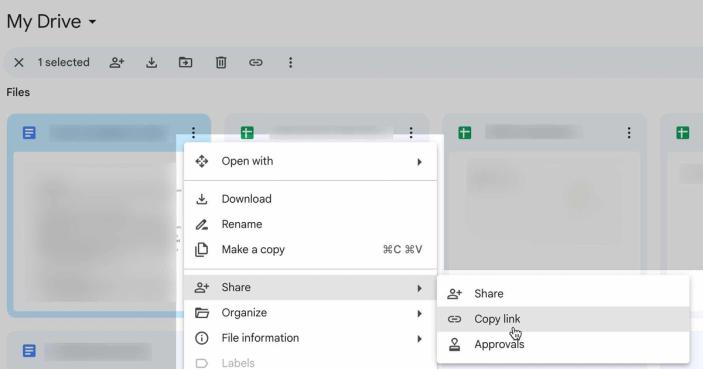
- Copy the file’s sharing link.
- Open the link in a private browser window to check that it works without access to your account.
Then, insert the link in your email. You can add the link to almost any element in an email, including:
- A CTA button
- An image
- Text in a text block
Learn more about using the email editor.
Initiate a survey with an email
Most survey platforms offer a way to pre-populate the first question in a survey based on a button clicked by the recipient. Learn how to use links to preselect an answer in a Typeform survey.
Once you’ve generated these links through your survey platform, add a corresponding button to your email for each answer option. For example, if your email asks “Are you satisfied with your purchase?”, you can add buttons to your email that say “Very satisfied,” “Somewhat satisfied,” and “Unsatisfied.” Then add the corresponding link to each button. When a recipient clicks a button, they will see a survey with their answer automatically selected.
Additional resources
- Accessibility in emails and forms best practice reference
Learn how to make your emails and sign-up forms more accessible. When designing your emails and signup forms, you’ll want to make sure your designs are accessible to all of your recipients.
- How to update a profile property when someone clicks a link
Learn how to build email templates with buttons that tag subscribers with information based on the option they click. You can use this process to add profile properties when they click a link.
- How to use anchor links in your messages and forms
Learn how to use anchor links to target your sign-up forms, or in email and SMS messages to direct visitors to a particular section of a webpage.