Understanding profiles in Klaviyo
You will learn
Learn about profiles, including how to find them and the data available on the profile page. Profiles are used to keep track of all the information you have about your customers and prospects.
About profiles in Klaviyo
Klaviyo maintains a complete record of contact for each person in your account. This means that we create and maintain a single profile for each and every one of your contacts. If, for example, someone is part of three different lists, they won't exist three times in your account. This person will simply have one dedicated profile where we record that they are part of these three lists.
Access a profile in Klaviyo
- Navigate to Audience > Profiles.
- Profile counts: Displays the number of total profiles and numbers of email-specific profiles (separated by active and suppressed profiles). The number listed for Total profiles represents the combined non-email profiles, active email profiles, and suppressed email profiles.
- The profiles table lists profiles and their contact information, creation and update dates, and location. Profiles are listed by creation date, newest first, unless you change the sort order.
- Use the Search field above the profiles table to enter a person's name, email, or exact phone number, then press Enter.
- Click a profile in the search results to see:
- The full timeline of what the profile has done (emails opened and clicked, website activity, support requests, purchases, and more).
- Relevant personal information (basic contact information, referral data, etc.)
Find a profile ID
Every profile has a unique ID that you can find by navigating to the profile and looking at the URL. Look for the 26-character ID (or 6-character ID for older profiles), as illustrated in the image below.

Delete or merge profiles
Deleting a profile will remove the profile from Klaviyo completely and permanently delete all data associated with the profile. We recommend suppressing profiles rather than deleting them, as you can still access and learn from the data of suppressed profiles. Deleted profile data cannot be recovered.
Merging combines 2 profiles for the same contact into 1. The destination profile you select is kept, including its unique ID; the profile you started from is removed.
Note that deleting and merging profiles cannot be reversed.
To merge or delete a profile, you need permission to edit profiles:
- Navigate to an individual's profile.
- Click the Profile actions button in the top-right corner.
- Choose an action:
- To merge, select Merge profile. Enter the name or email of the profile you want to keep, then press Enter. Select that profile from the results and click Merge profiles.
- To delete, select Delete Profile. If you are fulfilling a data privacy request, select Delete profile in compliance with data privacy request. Click Delete profile to confirm. The profile remains accessible until deletion finishes.
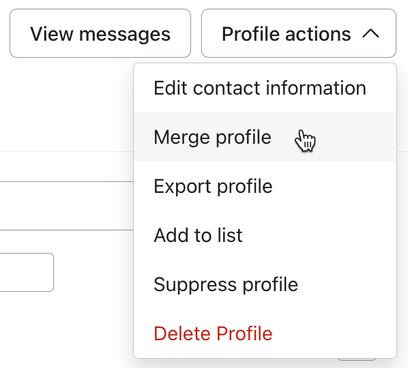
For more information, head to our guide on how to delete, merge, and export a profile.
Review the profile page
The profile page includes the following tabs. The Messages tab is available to users with permission to view personal messages:
- Details
The Details tab provides a general overview of the profile you are looking at, including key information such as contact information and subscription status. - Metrics and insights
The Metrics and insights section of a profile shows you information about a profile’s performance based on a set of key metrics you select, as well as predictive analytics data. - Lists and segments
The Lists and segments tab shows you all the lists and segments a profile is a member of, and allows you to add the profile to new lists. - Objects
The Objects tab displays all custom objects and custom object data associated with the profile. - Messages
The Messages tab lets you review sent and skipped messages and start a personal email.
Understand the profile page
On a contact’s profile page, you'll see the following information:
- Contact information
- A profile's activity log
A profile’s contact information and activity log are visible across all the tabs on the profile page.
Details tab
- Channels a profile has opted into
- Custom properties and source information
- Coupons a profile received
Metrics and insights tab
- Metrics for the profile
- Predictive analytics for the profile
- Recently viewed products
Lists and segments tab
- Lists and segments the profile belongs to
Objects tab
- Objects linked to the profile
Contact Information
You can see a profile's contact information and location in the header of the profile page. This header is visible across all tabs. To find their timezone, open Details and look under Information > Profile details.

Changing a profile's phone number can change their SMS consent status.
To update someone's contact information, you need permission to edit profiles:
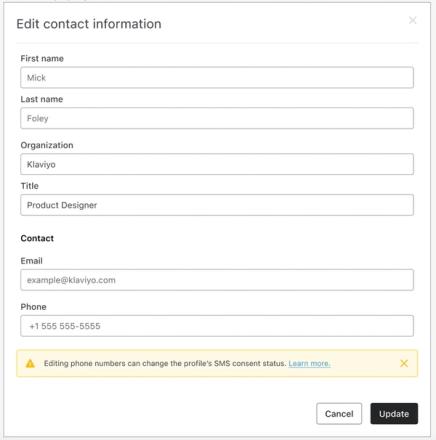
- Click on the Profile actions button in the top-right corner of the profile page.
- Select Edit contact information.
- Edit the contact information, then click Update.
You can't edit someone's location or timezone in this dialog. Learn more about how Klaviyo populates location information and keeps it up-to-date.
Activity log
Each individual profile features an activity log to capture a timeline of their interactions with your business.
The activity log appears on the right side of the page, across all tabs on the profile page.
The default view includes all events, but you can choose to view activity around a specific set of up to 5 metrics from the associated dropdown instead. To view more detailed information about each event, you can expand it using the dropdown.
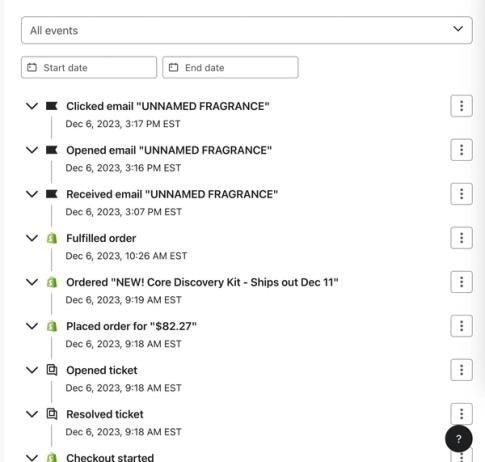
With smaller screen sizes, the activity log has its own tab on the profile page called Activity log.
Channels
On the Details tab, you can see a customer's consent status and ability to receive messages by channel, including email, SMS marketing, SMS transactional, and mobile push notifications.
A green Subscribed indicator shows that the profile has opted in and is not suppressed for that channel. A profile can have consent and still be suppressed.

For more information, head to Understanding consent in profiles.
Custom properties and source information
Custom properties in Klaviyo allow you to store information about the contacts in your account. You can see all the properties that apply to a contact on their profile page in the Custom properties card on the Details tab.
You can have a maximum of 10 properties visible at one time, at which point pagination begins.
The Information card on the Details tab contains profile details, source information, and activity dates, including:
- Klaviyo-assigned First active and Last active dates
- How they found you information that is populated by Klaviyo based on available web tracking data
- The Initial source property
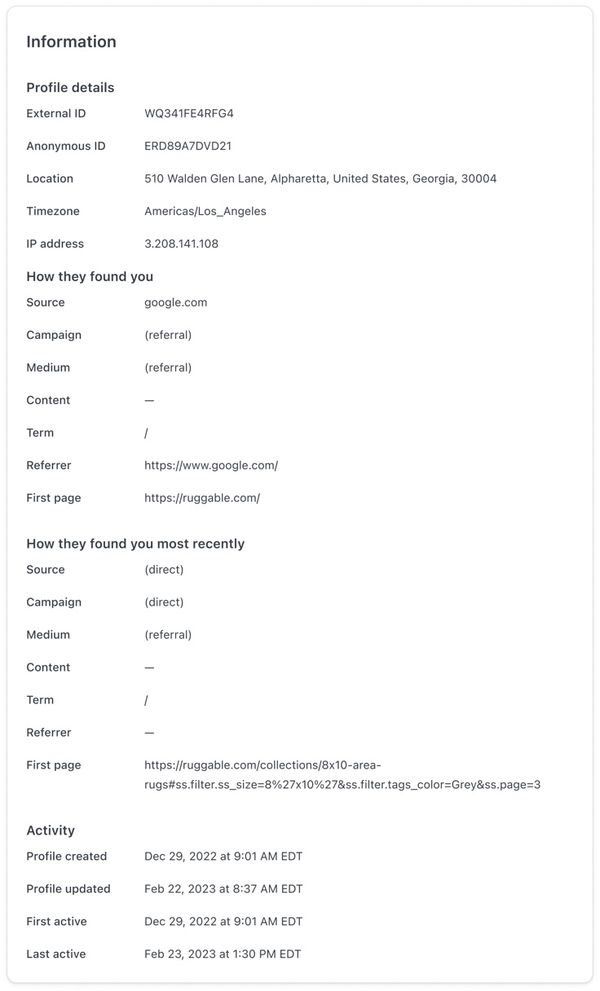
Head to our article on the information section of a profile, for more information.
Coupons
The Coupons section of a profile contains information about coupons and coupon codes that a customer has received. You can see this information on the Details tab. This section won't appear if a customer has not received any coupons.
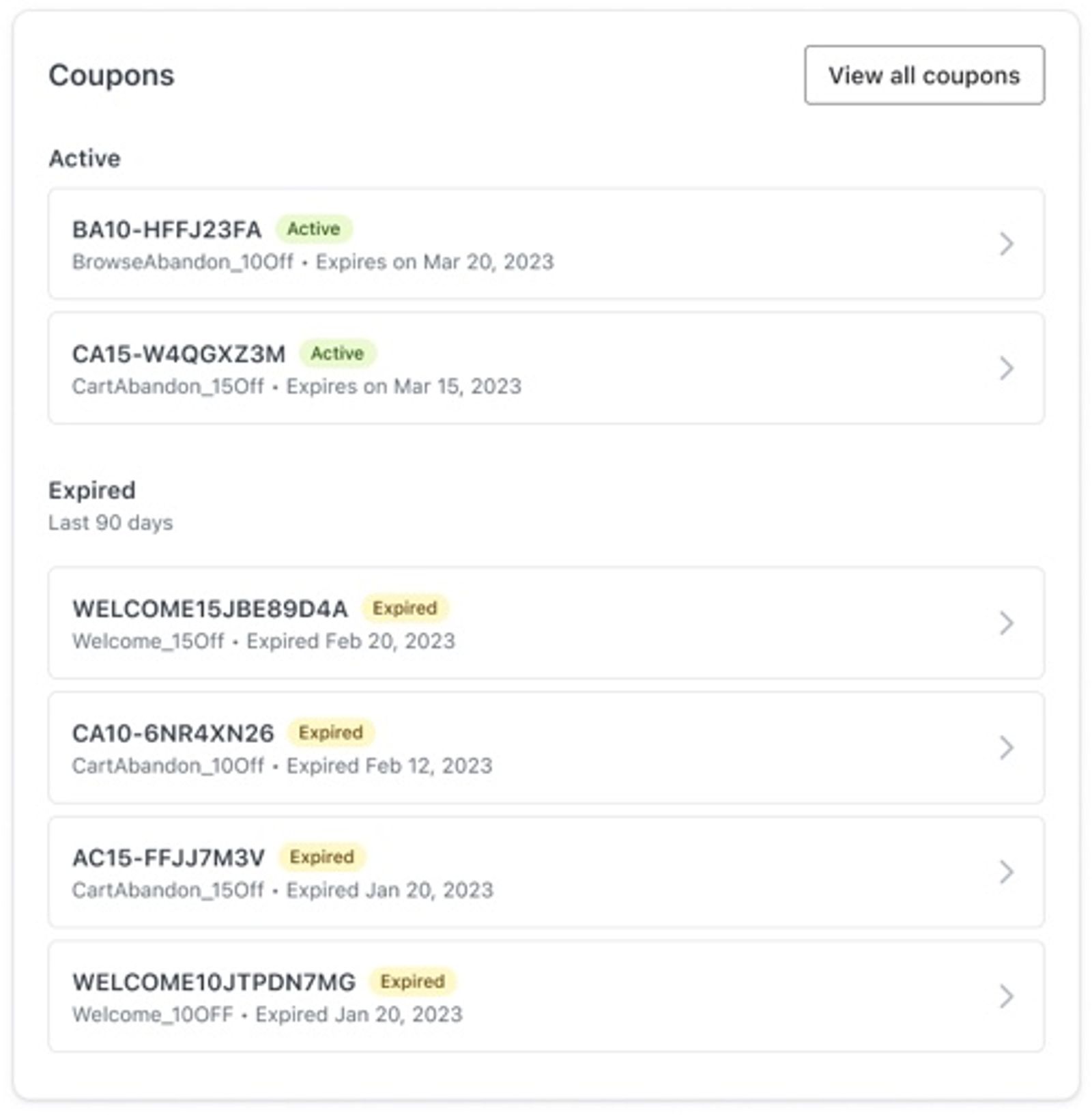
If you need to resend a coupon to a customer, you can use the information in this section to resend the same coupon or unique coupon code.
Metrics
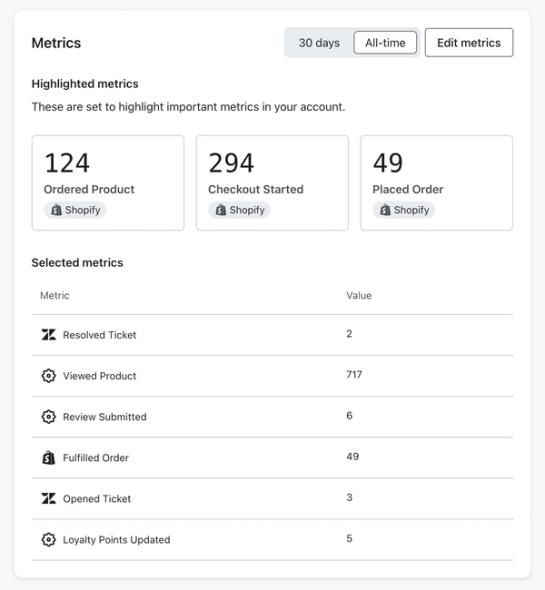
At the top of the Metrics and insights tab on a profile, you will see a card titled Metrics. You need permission to edit profiles to change these metrics. Your selection applies across all profiles. Here you can view highlighted metrics, which can be selected using the Edit metrics button. After choosing your metrics, click Update metrics. Use the Last 30 days or All time view to see the selected metrics for that period.
Predictive analytics
Customer lifetime value (CLV) predictions require the following:
- At least 500 customers have placed an order. This does not refer to active profiles, but rather the number of people who have actually made a purchase with your business. If the CLV section is on a profile but is blank, this means Klaviyo does not have enough data on that individual to make a prediction.
- You have an ecommerce integration (e.g., Shopify, BigCommerce, Magento) or use our API to send placed orders.
- You have at least 180 days of order history and have orders within the last 90 days.
- You have at least some customers who have placed 3 or more orders.
The Predictive Analytics section of a profile displays the contact's customer lifetime value (CLV). You can find predictive analytics on the Metrics and insights tab.
Specifically, this section displays:
- Total CLV, broken into:
- Historic CLV
- Predicted CLV
- Expected date of next order
- Average time between orders
- Churn risk prediction
- Average order value (AOV)
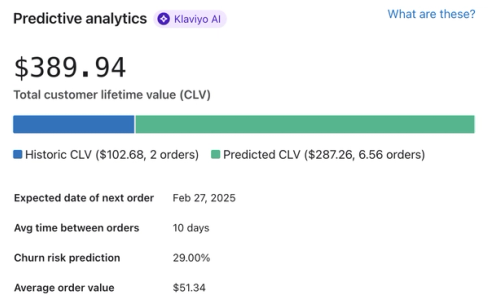
Read more about predictive analytics including definitions of specific fields and information on how they are calculated.
Recently viewed products
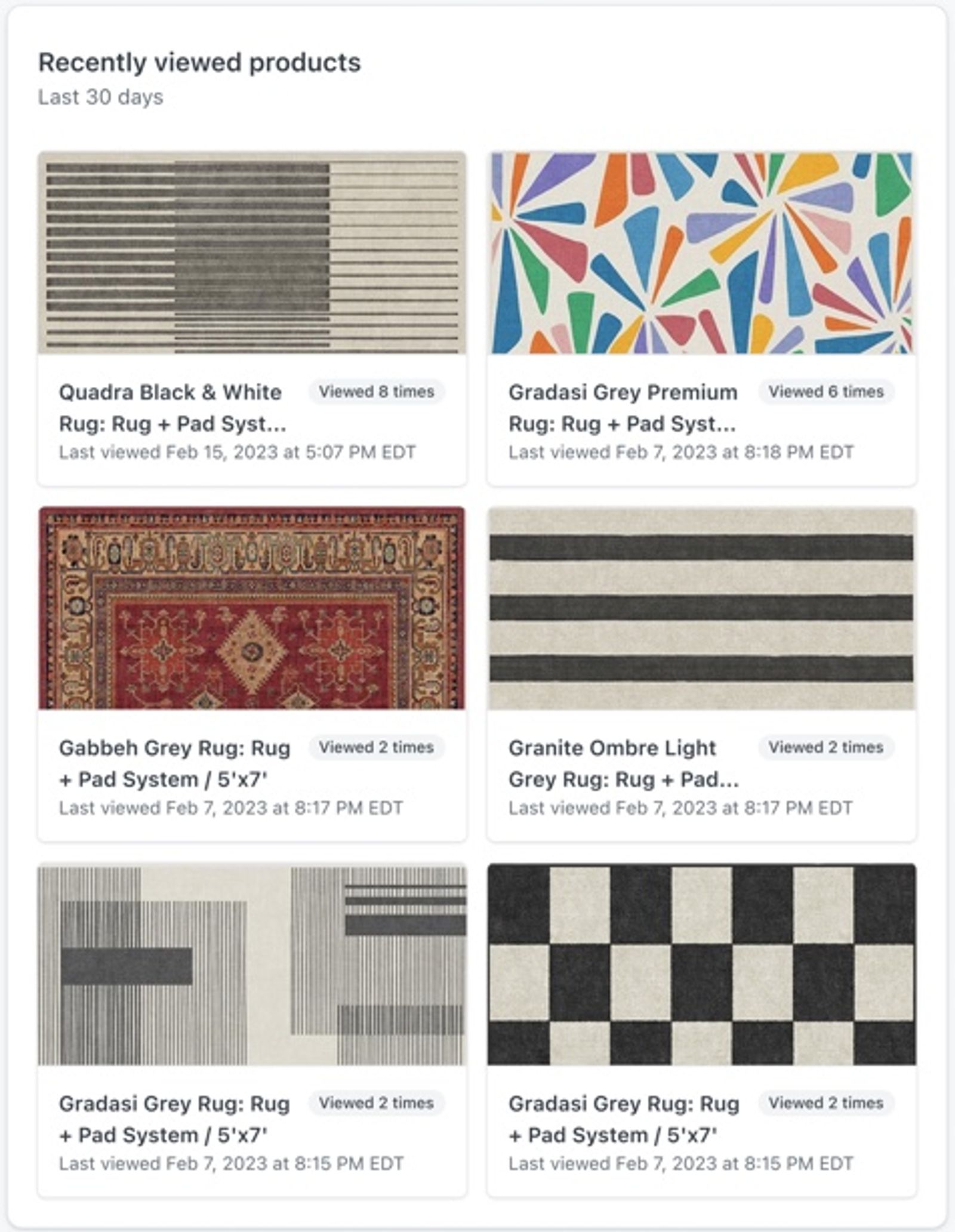
If you have viewed product tracking installed on your website, you can see a customer’s recently viewed products on their profile page. You can see a profile’s recently viewed products at the bottom of the Metrics and insights tab. If a profile has not viewed any products or you do not have viewed product tracking installed, this section does not appear.
Lists and segments
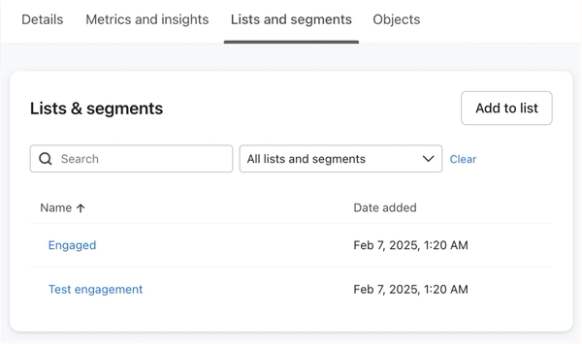
The Lists and segments tab shows all the lists and segments someone belongs to.
To remove the profile from a list, open that list's row actions, select Remove from list, and confirm the removal. This action is available to users who can edit profiles. It is not possible to manually remove an individual from a particular segment because segments are dynamic and constrained by a set of conditions.
Objects
To see custom object records linked to a profile:
- Your account includes custom objects. At a minimum, access to this feature requires a paid email plan or an Advanced KDP trial, which you can request through your CSM. For more on gaining access to this feature, review the account requirements.
- You have uploaded and mapped custom object data into Klaviyo via API and defined a relationship that links the records to the profile. To begin working with custom objects, create an object of your own.
The Objects tab displays all custom object records that pertain to a profile. You can switch between objects using the dropdown menu above the object cards.
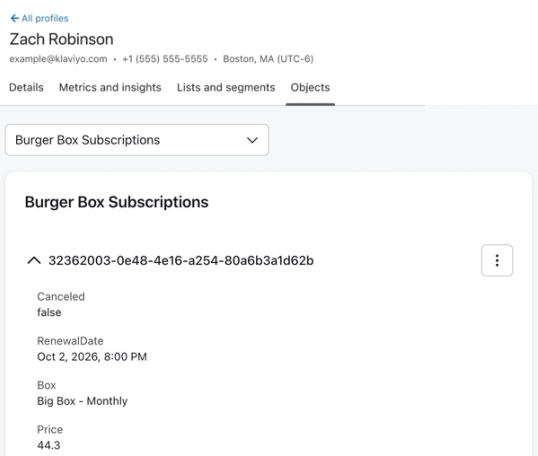
To view a full object record, select the 3 dot menu and click View. A side panel will appear that contains the full object record.
Review a profile's messages
To review a profile's messages, select the Messages tab on the profile page. You can review sent and skipped messages there.
You need permission to send personal emails. To design and send a personal email to a profile, select Send personal email on the Messages tab.
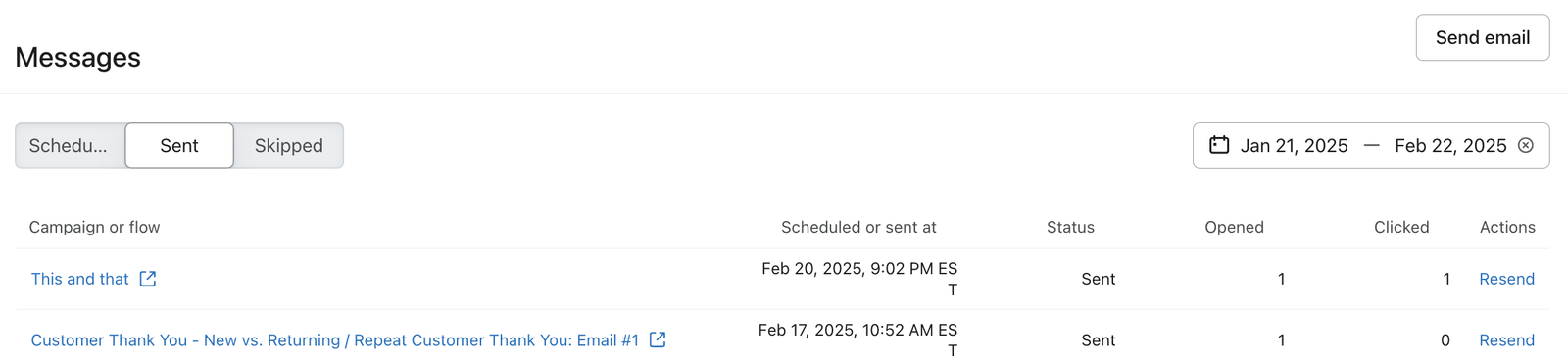
Use the Activity filter to choose which messages to review:
- Delivered: shows sent messages and their open and click counts.
- Skipped: shows messages that did not send and the reason in the Status column.
Note that the skipped event is only shown on a profile's activity log if the skip was due to a send failure. To check why a message did not send, use Activity > Skipped on the Messages tab.
Use the Type filter to choose Campaigns, Flows, or Personal messages. Campaign messages are identified by the campaign name. Flow messages show the message name with the flow name underneath.
Additional resources
- Understanding the information section of a profile
Learn about the information section of a profile in Klaviyo, which contains details such as when and how the profile found you and the last time they were active.
- Profile properties reference
Learn about the difference between custom and Klaviyo properties, how to use them to track information about your subscribers, how to remove them, best practices, and more.
- Understanding consent in profiles
Learn how to understand consent in profiles and best practices for email and SMS compliance.