How to send a personal email in Klaviyo
You will learn
Learn how to email a single recipient in Klaviyo. To learn how to send a message to a group of contacts all at once, head to the guide to creating and sending an email campaign.
Before you begin
Do not send personal messages to profiles that are suppressed from marketing emails, or to SMS-only profiles. To reply to an SMS message in Klaviyo, use Klaviyo Helpdesk.
Personal emails send immediately, so finish editing your message before sending. You need permission to send personal emails and edit email templates.
Create a personal email
- Locate a recipient’s profile by searching for their name or email address in the Search field. Select the option to search profiles, then open the recipient’s profile.
- Click the Messages tab on their profile.

- Click Send personal email.

- Complete the message details (e.g., subject line and sender name/email address).
- Choose how to design your email:
- Drag and drop is the most popular choice. Select a template from Email: saved or Email library, then click Use template. To start with a blank email, click Create.
- For a text-only email, open the 3-dot Template options menu and select Switch to text only editor.
- For an HTML email, open Template options and select Switch to HTML editor.
- If the text-only editor prompts you to review the template, choose Text only for adjusted styling or HTML to preserve the formatting. Click Save, then Save again to confirm before editing. You must continue using the selected editor for this template. Then add your custom content.
- When the message is ready, click Exit in the drag-and-drop editor, or Save in the text-only or HTML editor, to return to the personal email.
- Review the message details, then click Send now.
- Confirm the recipient in the window that appears, then click Send now to send the email.
To reuse content from a flow or campaign email in a new personal email:
- Save the original email as a template.
- In a new personal email, select Email: saved.
- Click on the template you want.
- In the modal, select Use template.
- Edit the content, then follow the steps above to return to the personal email and send it.
- Please note that if you're using a flow template that contains dynamic event data (e.g., an abandoned cart block), this data cannot populate in a personal email.
If you are using the feature to exclude bot clicks, note that personal email reporting still includes and reflects bot clicks. Learn more about bot clicks and how they are tracked in Klaviyo.
If you have coupons with codes already generated in Klaviyo, you can include these in personal emails as well.
View personal email activity
To review sent or skipped personal emails:
- Open the profile’s Messages tab.
- Set Type to Personal, then use Activity to select Delivered or Skipped.
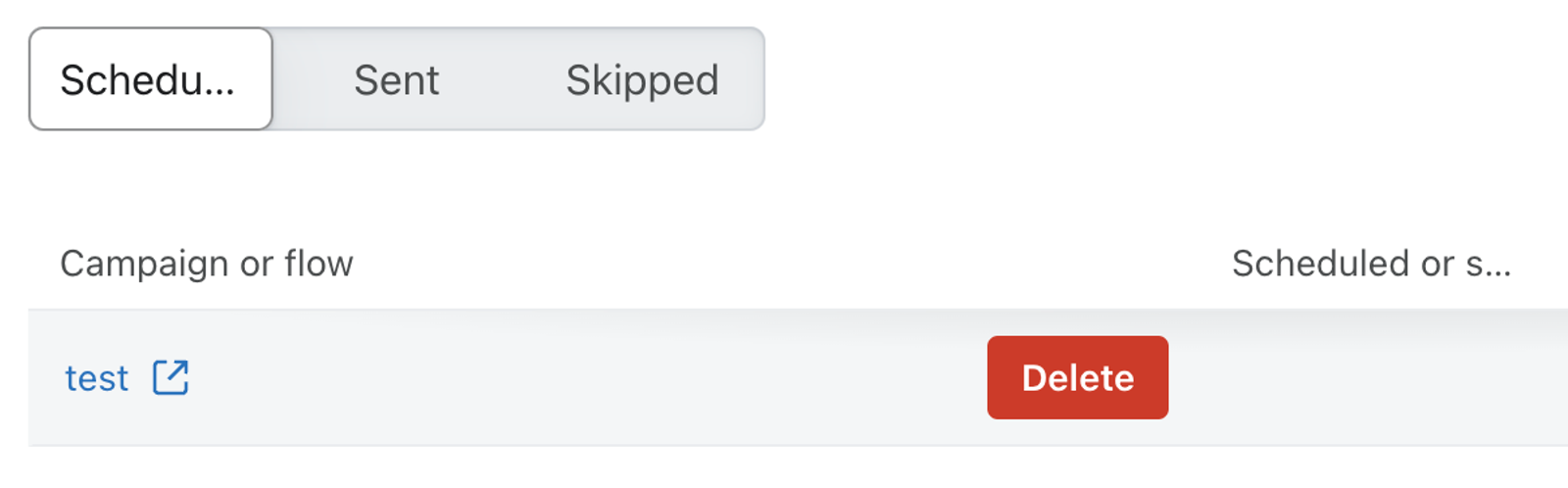
- Adjust Date range if needed to find the message.
Cancel or edit a personal email
Personal emails cannot be scheduled for a future time. Make any changes before confirming Send now; you cannot cancel or change an email once it has been sent. To reuse its content later, save the message as a template before sending.
Additional resources
- Understanding profiles in Klaviyo
Learn about profiles, including how to find them and the data available on the profile page. Profiles are used to keep track of all the information you have about your customers and prospects.
- Understanding consent in profiles
Learn how to understand consent in profiles and best practices for email and SMS compliance.