Getting started with custom objects
Learn about custom objects, which allow you to store and associate multiple properties to a single "object." Custom objects enable you to map diverse, multi-relational data concepts into Klaviyo that can’t be stored using profile properties. You can then use custom objects in your messages, segments, and more.
How are custom objects different from profile properties?
Profile properties are a great way to store simple information. For instance, if you have a favorite color property, you can store each customer's favorite color.
But what if you need more data or multiple versions of that property? A great example is for pets. You can use profile properties to store things like name, age, breed, but those can only be used once per profile.
If someone has multiple pets, you can instead use custom objects. That way, Fluffy the Great Dane has his own digital ID card for his name, age, weight, etc., and Cheeks the hamster has the same information, but with (very) different answers.
Example use cases
Below are some examples that demonstrate how custom objects are flexible in the data you can store in Klaviyo.
Appointment
If you are a business where customers can schedule appointments, you can use an Appointment object to store appointment data for profiles.
Within each object record for the Appointment object, some examples of data you may want to include are:
- Appointment ID
- Appointment date
- Appointment person (e.g., specific doctor, instructor, etc.)
- Appointment location
- Appointment type
Profiles can have multiple object records if they have multiple appointments, and you can use this object data to create segments and send personalized messages and flows.
Subscription
If you are a business where customers can sign up for a subscription, you can use a Subscription object to store subscription data for profiles.
Within each object record for the Subscription object, some examples of data you may want include are:
- Subscription ID
- Subscription product
- Subscription price
- Subscription status
- Next billing date
Profiles can have multiple object records if they have multiple subscriptions, and you can use this object data to create segments and send personalized messages and flows.
Reservation
If you are a business where customers can book reservations, you can use a Reservation object to store reservation data for profiles.
Within each object record for the Reservation object, some examples of data you may want include are:
- Reservation ID
- Reservation date
- Reservation location
- Reservation occasion
- Reservation guest count
Profiles can have multiple object records if they have multiple reservations, and you can use this object data to create segments and send personalized messages and flows.
Pet
If you are a business that serves pet owners, you can use a Pet object to store data about profiles’ pets.
Within each object record for the Pet object, some examples of data you may want include are:
- Pet microchip ID
- Pet name
- Pet type (e.g., dog or cat)
- Pet breed
- Pet birthday
Profiles can have multiple object records if they have multiple pets, and you can use this object data to create segments and send personalized messages and flows.
Account limits
The object limits for your account depend on your plan's profile limit and whether you have an Advanced KDP plan. Free email plans include 1 object, 15 properties per object, and 2,500 records. You can also request an Advanced KDP trial through your CSM. Accounts in an account family use the parent account's plan limits. For more on billing, see how shared billing works in Klaviyo.
Custom objects have 3 sets of account limits:
- Object limit
Total number of objects that an account can have. - Object property limits
The number of properties an account can have per object. - Object record limits
The number of object records allowed for an account.
The number of available objects and object records is based on your plan's profile limit. For an account family, the shared plan's profile limit determines these allowances. Record limits are shared across the family, while object limits apply to each account separately.
A free email plan with a 250-profile limit includes 2,500 object records.
For example, if you have an account family with 5 accounts and a shared email plan with a limit of 500,000 active profiles, the object record multiplier is 10. These accounts can store a combined maximum of 5 million records (500,000 × 10). This means you could have 1 account with 3 million records so long as the remaining 4 accounts have no more than 2 million object records combined. Since the shared profile limit is over 400,000, each account can have up to 5 objects.
For an Advanced KDP plan, the object record allowance is based on the plan's total-profile limit. For an email plan, it is based on the plan's active-profile limit.
Profile limit | Advanced KDP plan | Number of objects | Number of object properties | Object record multiplier |
0 - 400,000 | none | 1 | 15 | 10x |
paid | 5 | 30 | 10x | |
Over 400,000 | none | 5 | 30 | 10x |
paid | 5 | 30 | 10x |
Additionally, all accounts have the following limits:
- Maximum of 500 records per profile per object.
- Every custom object record must be no more than 8 KB.
- Every property value within a custom object record must be no more than 2 KB.
Create an object
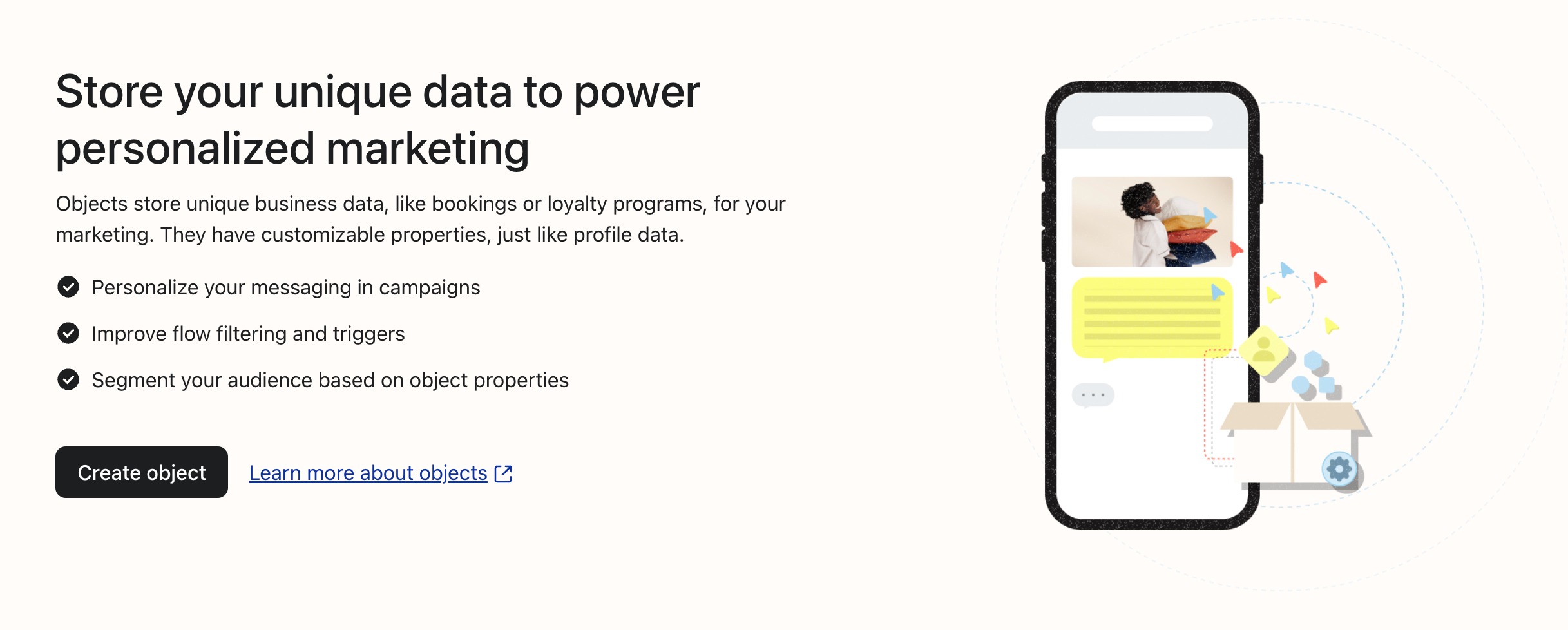
To get started with creating an object in Klaviyo, navigate to Content > Objects and click Create object.
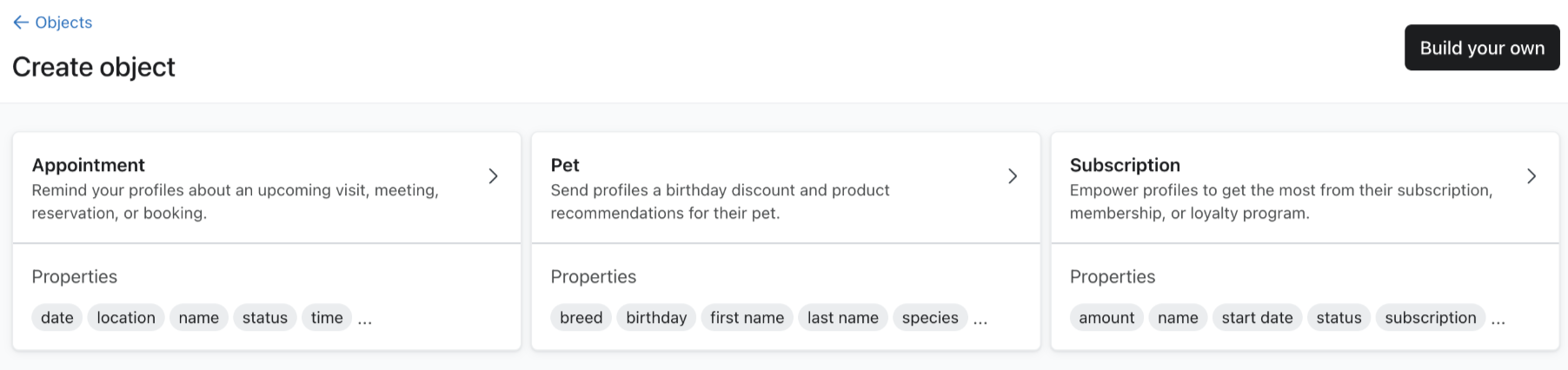
From here, you can either create an object from scratch or select a recommended object template. To create an object from scratch, select the Build your own button.
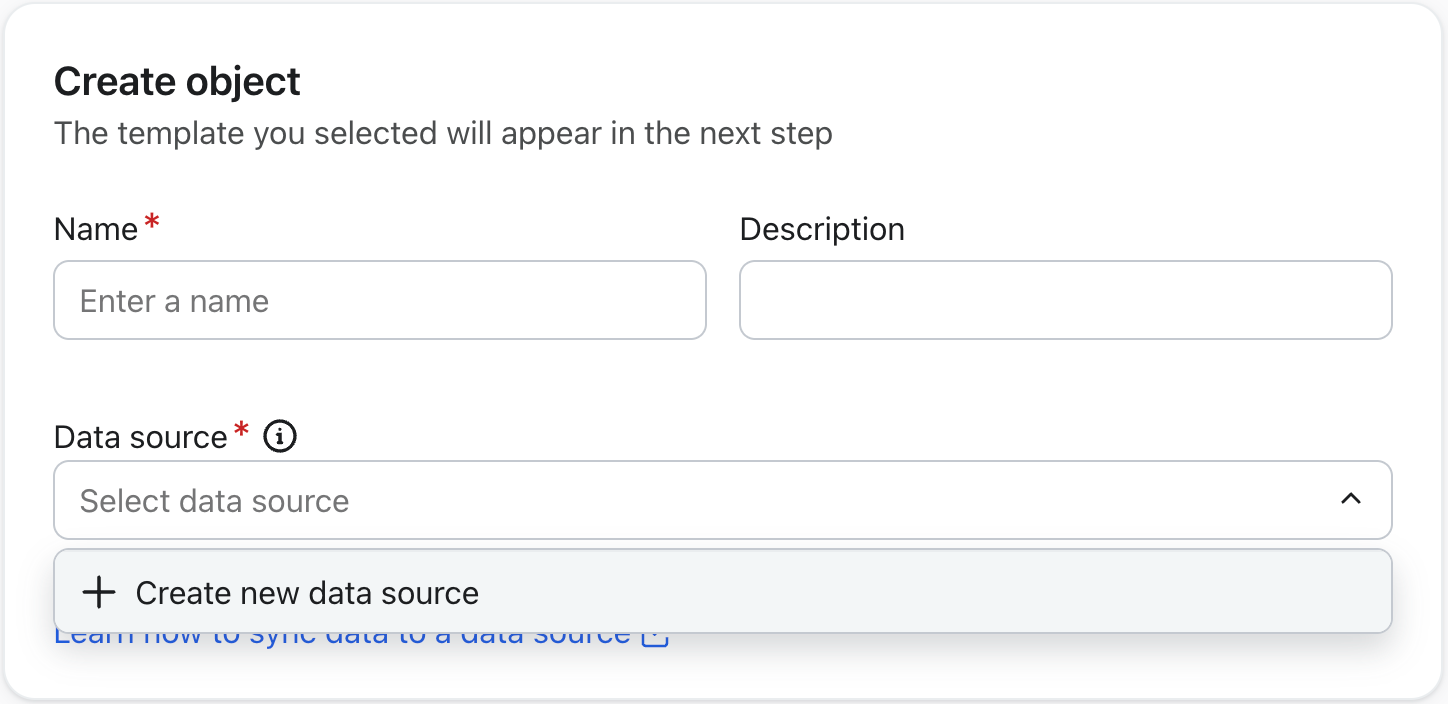
The first part of the object creation workflow requires you to set the following information for your object:
- Name
A name to identify your object - Description (optional)
A description of the data your object represents - Data source
The data source where your object data lives.
To create a new data source, open the Data source dropdown and select Create new data source.
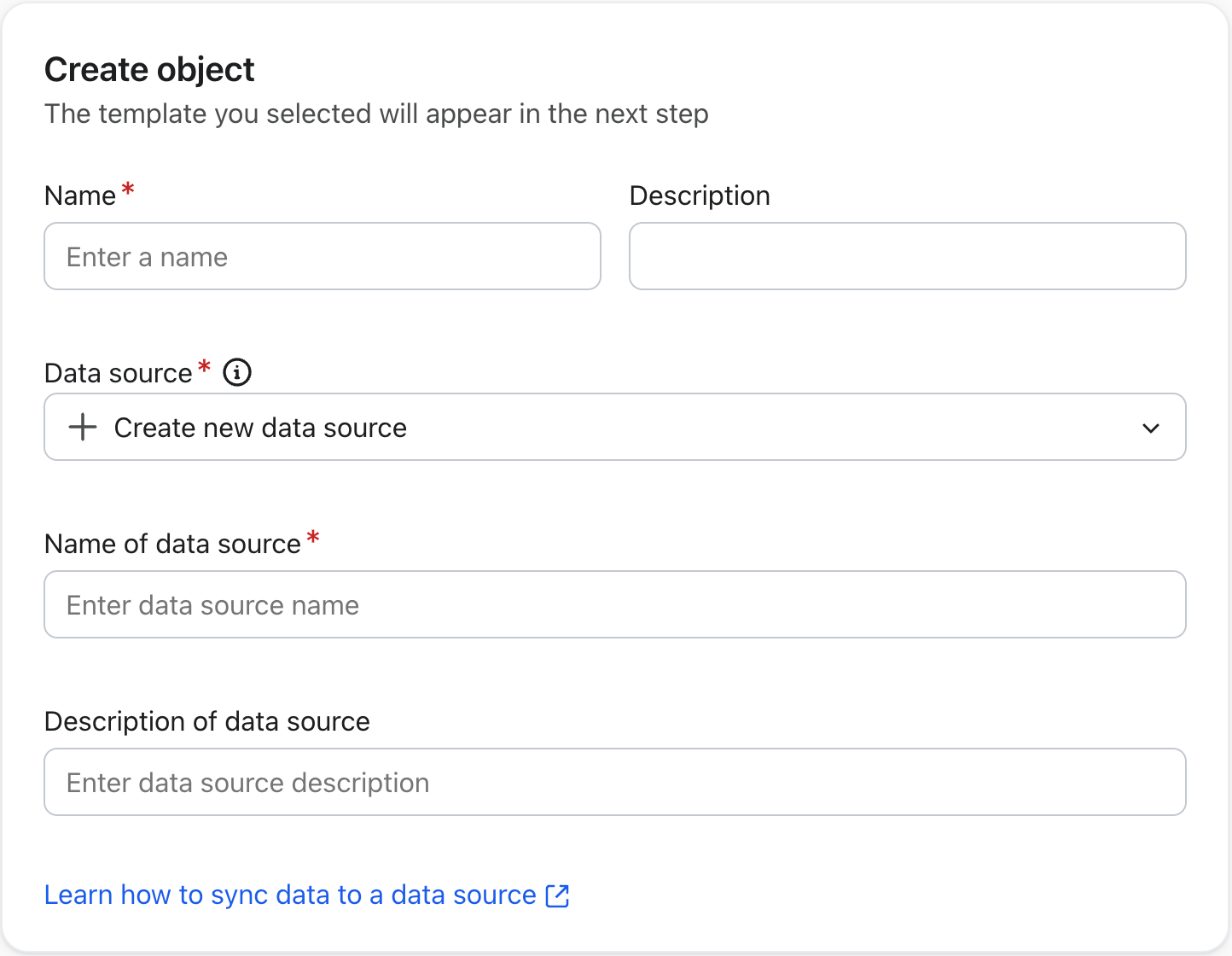
Creating a data source requires you to set the following information:
- Name
A unique name to identify the source of your object data. - Description (optional)
A description of your data source.
Click Next to continue.
Set the object ID
Next, set an object ID and define your object properties. If your data source already contains data sent through the custom object API, you can preview it and select properties to map. If your data source is empty, you can define the properties first and use the sample payload provided after creation to start sending data.
Setting the object ID is necessary to distinguish object records from each other. For a data source that already contains data, select a property in Object ID. For an empty data source, Klaviyo sets the object ID field to id; include a unique value for it in each record you send.
The object ID should be a unique data source property that can be used to identify specific instances of an object record. For example, with a gift card object, you can use something like the unique discount code as the object ID. This is unique for each instance of the data source, and will exist for every object record.
Whenever Klaviyo receives data from your data source with the same object ID, the associated object record will be updated. For this reason, it is important the object ID is unique so the appropriate record is updated.
Send object data
When you send an update through the data source ingestion API, the object record is replaced. Send the entire record, even if you only want to update 1 property.
For example, say you want to update just 1 out of 5 optional properties in a record. If you send the ID and only the property you want to update, the other 4 properties will be null. If you omit a required property, the update is rejected instead. Keep the profile identifier fields in each update so Klaviyo can link the record to the intended profile.
When sending phone numbers, they must be in E.164 format. When sending dates, they must be in one of our acceptable timestamp formats.
Map object properties
By mapping object properties, you can select which information within the data source will be available within an object in Klaviyo.
For a data source that contains data, the dropdown includes properties from the loaded data samples. Click New data sample to preview another sample. If a property is not listed, type its path and choose Create source property for that path.
We recommend sending object data through the object ingestion API in standardized date and timestamp formats. If the value for an optional property is not known, you can set a null value for it.
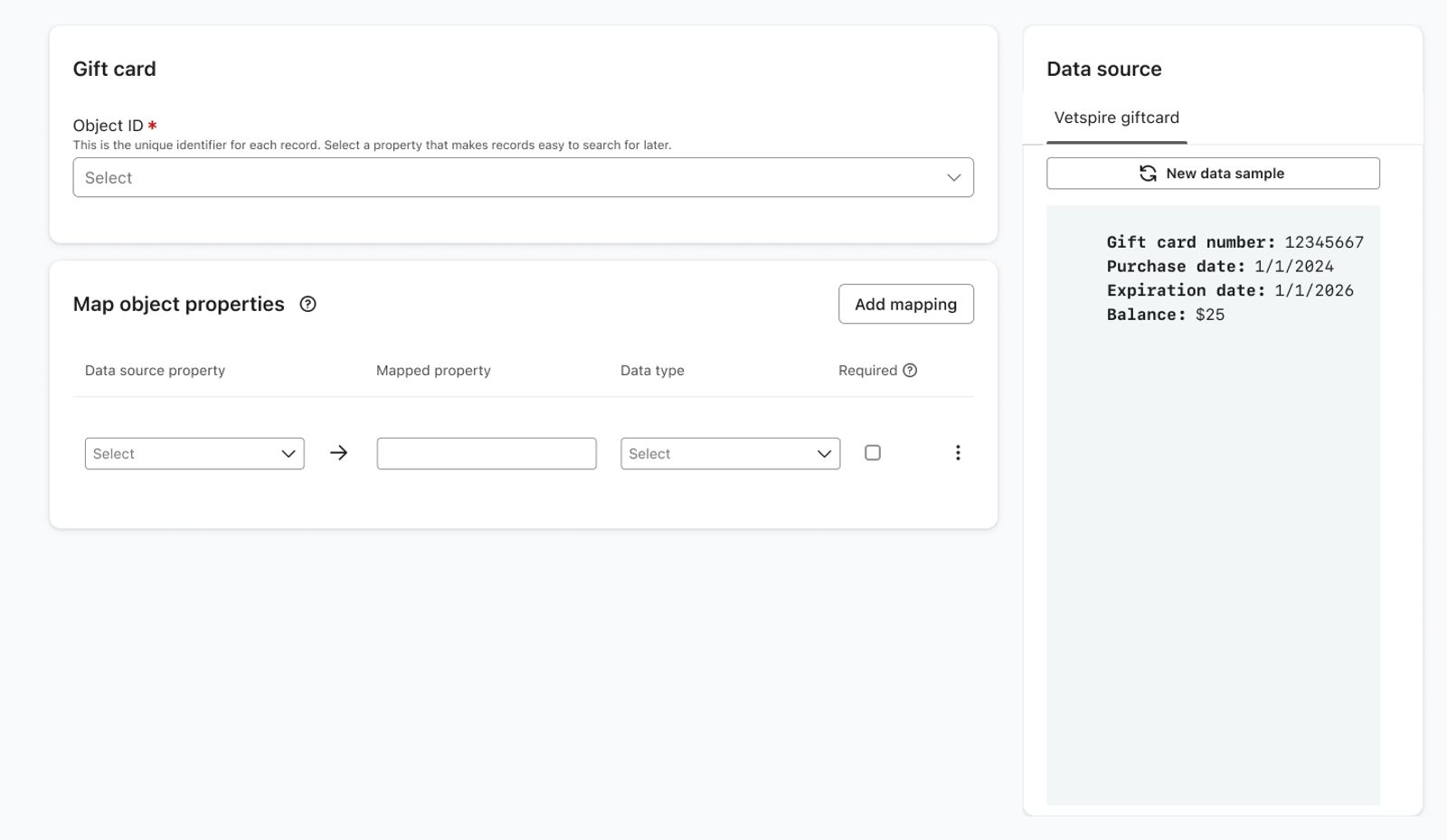
To map object properties:
- If your data source contains data, select the property you want to include from the Source data column. If your data source is empty, skip to the next step.
- In the Mapped property column, enter the name you’d like the data source property to have in the object. For an empty data source, enter the name in the Object property column.
- In the Data type column, select the appropriate data type of your data source property.
- In the Required column, select the checkbox if you’d like this property to be required in the object.
- Select the Add mapping button if you need to map additional object properties.
If an object property is set to Required, it must exist in the data source and cannot have a null value set. If the required property is not present, the object record will not be created.
Nested data in mapping
The property dropdown includes nested fields from the loaded data samples. If a path is not listed, you can enter it manually.
As an example, look at the data source below.
{
  "type": "data-source-record",
  "attributes": {
    "record": {
      "child": {
        "child_id": "d64b8458",
        "name": {
          "first": "Theodore",
          "last": "Customer"
        },
        "birth_date": "2022-04-12",
        "email": "jon.customer@klaviyo.com",
        "phone_numbers": [
              "+11234567899",
              "+13456789123"
        ]
      }
    }
  }
}
To access the child's first name, select or enter child.name.first.
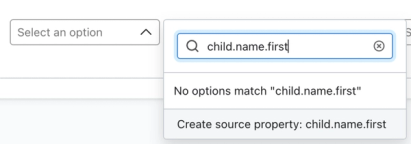
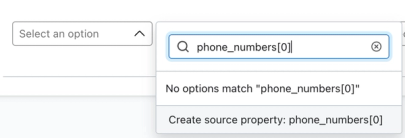
If you have an array in your source data, you can find properties to map by position. For example, you could pull the first phone number within the phone_numbers array by including [0] at the end of your path.
Add relationship
After setting an object ID and mapping your object properties, click Next to add a relationship to your object.
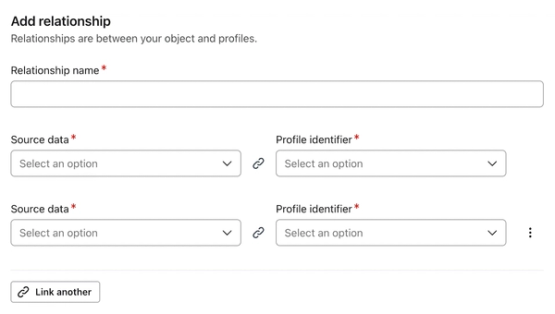
Relationships connect your object to relevant profiles. Define the following information to set a relationship:
- Relationship name
Set a name for your relationship. For example, if you have a pet object, you may want to set the relationship name to be something like “Pet owner”. - Source data
For a data source that contains data, select the properties that identify the profile. This field is not shown for an empty data source. - Profile identifier
Select the profile identifier (e.g., email or phone number) for each source property. Include these identifiers in the data you send so the object can be associated with a profile. Use Link another to add another pair, or Add profile identifier if your data source is empty.
Confirm mappings and create object
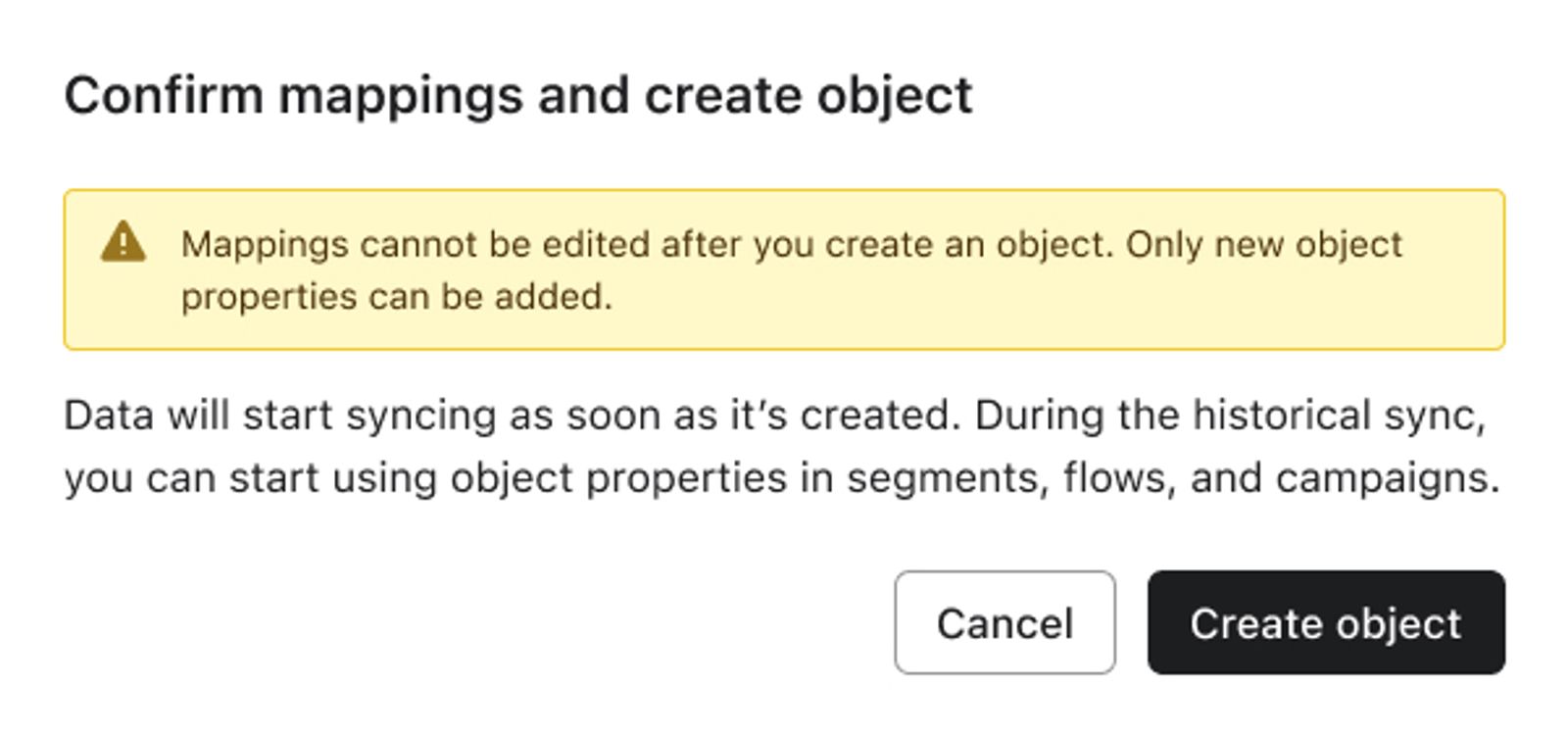
Once you have finished mapping the object properties and setting the relationship, click Create object in the top right. Review the warning, then click Create object in the confirmation dialog. Existing mappings cannot be edited once the object is created, and Klaviyo starts processing any data already in the data source.
On the confirmation page, click Copy JSON to copy a sample payload for your object. Use it as a reference when sending your data through the custom object API.
Click Exit to return to the Objects page. You’ll see your object listed with the following information:
- Object name
- Owner
- Status
Custom object status states
There are 3 main status states when publishing custom objects:
- Draft
The object is still editable and not published or active. - Publishing
The object is creating custom object records from the data you've sent to your data source. A few thousand records can publish quickly. A few million records may take hours. Once complete, the status changes to Published. - Published
The object is published and live. Klaviyo has finished processing the data sent from your data source. New data creates records or updates records with matching object IDs, and profile identifiers determine which profiles they link to.
Objects on profile pages
Relevant objects will also appear on a profile page so you can view the object records that pertain to a profile. To view the object records, navigate to the Objects tab on a profile page. You can switch between objects using the dropdown menu above the object cards.
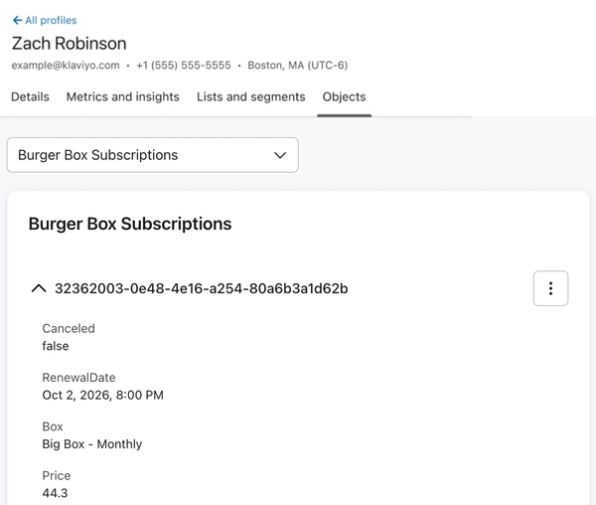
To view a full object record, select the 3 dot menu and click View. A side panel will appear that contains the full object record.
Browse all records within an object
To browse every record within an object, not just the records associated with a single profile, use the record explorer. Click Content > Objects, then click the name of an object to open the record explorer and view its records.
Update an object
When you publish changes to an object, they apply to the active object.
If you want to start sending new data for an object, add the additional object properties to your data source, then edit your object mapping to include them. When the records are reprocessed, a newly mapped property is populated if its value was already present in the source data. Otherwise, it is null until you send an update that includes it.
If you send new object properties that have not yet been mapped to an object, you can update your custom object to include them. All custom object records are then reprocessed to include this data.
To update an object:
- Click Content > Objects in the Klaviyo sidebar.
- Open the menu to the right of the object you want to edit and click Edit.
- Click Next in the top right corner.
- From Map object properties, click Add mapping. If your data source is empty, this section is labeled Object properties.
You can add mappings until you reach your plan's property limit. Existing mappings cannot be edited, and newly mapped properties cannot be required.
- In the Source data column, select the data source property you’d like to include in your object. If your data source is empty, skip to the next step.
- In the Mapped property column, enter the name you’d like the data source property to have in the object. For an empty data source, use the Object property column.
- In the Data type column, select the appropriate data type of your data source property.

Newly mapped properties cannot be marked as required.
- Click Next in the top right corner.
- Review the relationships, then click Publish changes in the top right. You do not need to change the relationships to add a property.
- Click Publish changes in the confirmation dialog.
Click Exit to return to Objects. After you publish the mapping changes, the records from your data source are reprocessed and existing custom object records are updated accordingly.
Delete an object
Once you delete an object, it cannot be retrieved or reversed. Any segments, flows, templates, or campaigns that used these custom objects will no longer work as intended.
To delete an object:
- Click Content > Objects in the Klaviyo sidebar.
- In the menu to the right of your object, click Delete.

- For a published object, type DELETE in the confirmation dialog, then click Delete. For a draft object, click Delete to confirm.
The object and all associated custom object records are deleted.
If you create a new custom object using a previous object’s data source, new custom object records will be generated using the data you have already synced. Although it uses the same data, it is considered a new object with new records, so all segments, flows, templates, and campaigns must be updated to use this new object.
Additional resources
- How to use custom objects in templates
Learn how to use custom objects in templates, so you can use object data in flow and campaign sends.
- How to use custom objects in segments
Learn how to use custom objects in segments so you can create groups of customers based on object data.
- How to use custom objects in flows
Learn how to use custom objects in flows, so you can use object data to create date-triggered flows and set up splits.