Shopware のカゴ落ちフローを作成する方法
このページで学べること
Shopware 6 のカゴ落ちフローを作成して、E コマースの収益を増やし、顧客へのコミュニケーションをパーソナライズする方法を学びましょう。このフローでは、Shopware ストアから同期された「チェックアウト開始」イベントを使用します。
始める前に
このフローを作成する前に、以下を行ってください:
- Klaviyo を Shopware 6 と連携します(方法については Shopware 6 のスタートガイドをご覧ください)。外部連携プロセスの一環として、次の点を確認してください。
- 「チェックアウトの開始」イベントと 「注文の確定」イベントを同期します。このためには、拡張機能の設定でこれらをオンに切り替える必要があります。
フローテンプレートを使用する前に、両方のメトリックがKlaviyoアカウントで利用可能になっている必要があります。
- 「チェックアウトの開始」イベントと 「注文の確定」イベントを同期します。このためには、拡張機能の設定でこれらをオンに切り替える必要があります。
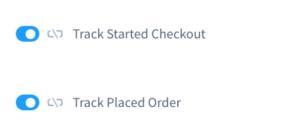
- Shopware 6 の商品カタログを Klaviyo に同期します。
フローを作成
- Klaviyo で、[フロー] タブを選択します。
- [フローを作成] をクリックします。
- カゴ落ちを検索し、Custom Eコマース Cartのカゴ落ちリマインダー:Standardフローを選択してください。
Klaviyo のフロー目的では、Shopware はカスタム E コマースカートです。Klaviyo は、カスタム E コマースカート向けに、データが事前入力された事前構築済みフローを提供しています。
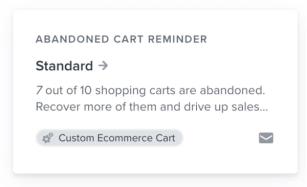
表示されるウィンドウには、フローの仕組みの概要と、どのイベントがトリガーになるか(この場合は、Shopware から同期された「チェックアウトの開始」)が表示されます。このフローでは、フィルタリングのために「注文の確定」イベントも使用します。
- 名前フィールドを確認し、必要に応じてフロー名を編集してから、テンプレートを使用をクリックしてください。
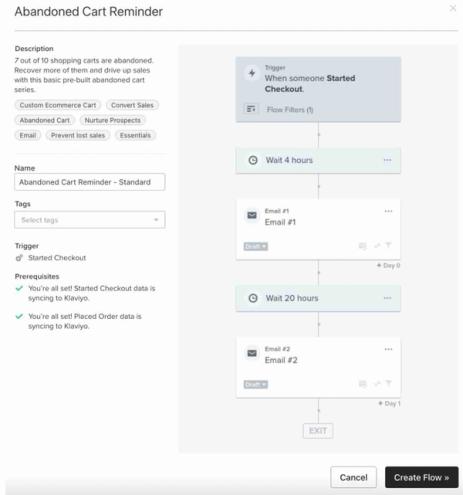
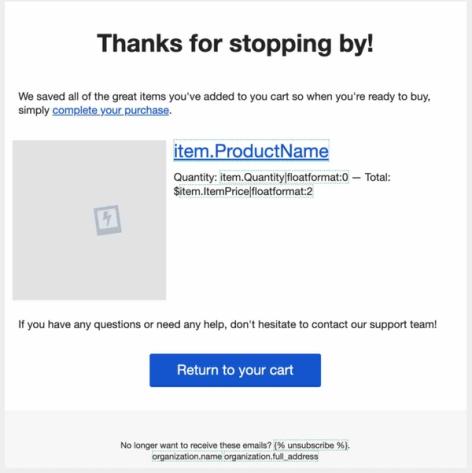
- フロービルダーで、フローとその中のメールをブランドに合うようにカスタマイズします。フローメールは、顧客が購入せずに残したアイテムが表示されるように自動的に設定され、 カートに戻る ボタンから顧客をカートに戻します。カゴ落ちフローのベストプラクティスについて詳しくは、記事カゴ落ちフローの作成方法をご覧ください。
フローをオンにする
顧客にカゴ落ちメッセージを送信する準備ができたら、対象のメッセージを自動送信するにはライブを選択してください。送信前にメッセージを確認して承認したい場合は、手動を選択してください。手動メッセージは自動では送信されません。フローのステータスをライブまたは手動に変更する方法の詳細をご覧ください。
- フロービルダーで確認してオンにするをクリックします。
- フローステータスで、ライブまたは手動を選択してください。ステータスを今すぐ更新を選択したままにしてから、保存をクリックしてください。
カートは作成日から 120 日間のみ再構築でき、その後は期限切れになる点にご注意ください。
達成できること
Shopware 6 のカゴ落ちフローを作成したため、顧客とのコミュニケーションをよりパーソナライズし、収益を促進できるようになりました。
その他のリソース
- フローのスタートガイド
Klaviyo のフローの使い方を取得し、顧客コミュニケーションのパーソナライズと自動化を行う方法、および、フローをライブ設定する方法を学びましょう。(フローはオートメーションやドリップキャンペーンと呼ばれる場合もあります。)
- イベントデータを使用してメールや SMS のフローをパーソナライズする方法
ここでは、動的イベントデータとは何か、どのような場面で使用するのか、どこで確認できるのか、そしてフローメッセージにどのように組み込めるのかについて説明します。 顧客が取るさまざまな行動と、その行動に基づく動的イベントデータを活用し、パーソナライズされたフローを構築する方法についても学びます。例えば、カゴ落ちフローメッセージでイベントデータを使用して、顧客がカートに入れたまま忘れている商品を画像と共に表示できるようになります。これにより、よりパーソナライズされた体験を提供するとともに、コンバージョンの可能性を高めることができます。
- How to use abandoned cart emails to improve sales: strategies, examples, and expert advice