How to create and edit signup forms with Composer
Use Composer to create a signup form or propose changes to an existing one in a conversation. Describe what you want, review the design and display settings, then save the result as a new form or an update to an existing form’s draft.
You will learn
Learn how to create a signup form from a template or an existing form, request edits, review the proposal, and save your work for final review in the form editor.
Before you begin
Composer supports all form types. Open Composer in your account. Have the signup goal, intended audience, and list you want to collect subscribers into available. To edit an existing signup form, identify the form you want to change. Editing requires a form with a single draft version; use the form editor for forms with an A/B test.
A Composer proposal is separate from a saved form draft. Review and refine it before saving. Creating a form saves a new draft in your account. Accepting an update to an existing form replaces that form’s saved draft, so review any work already in the draft before accepting.
Create a new signup form
Open Composer and describe the form you want to create. Include its purpose, form type, the information you want to collect, and any display requirements. Name the list that should receive new subscribers. You can refine these details as you work.
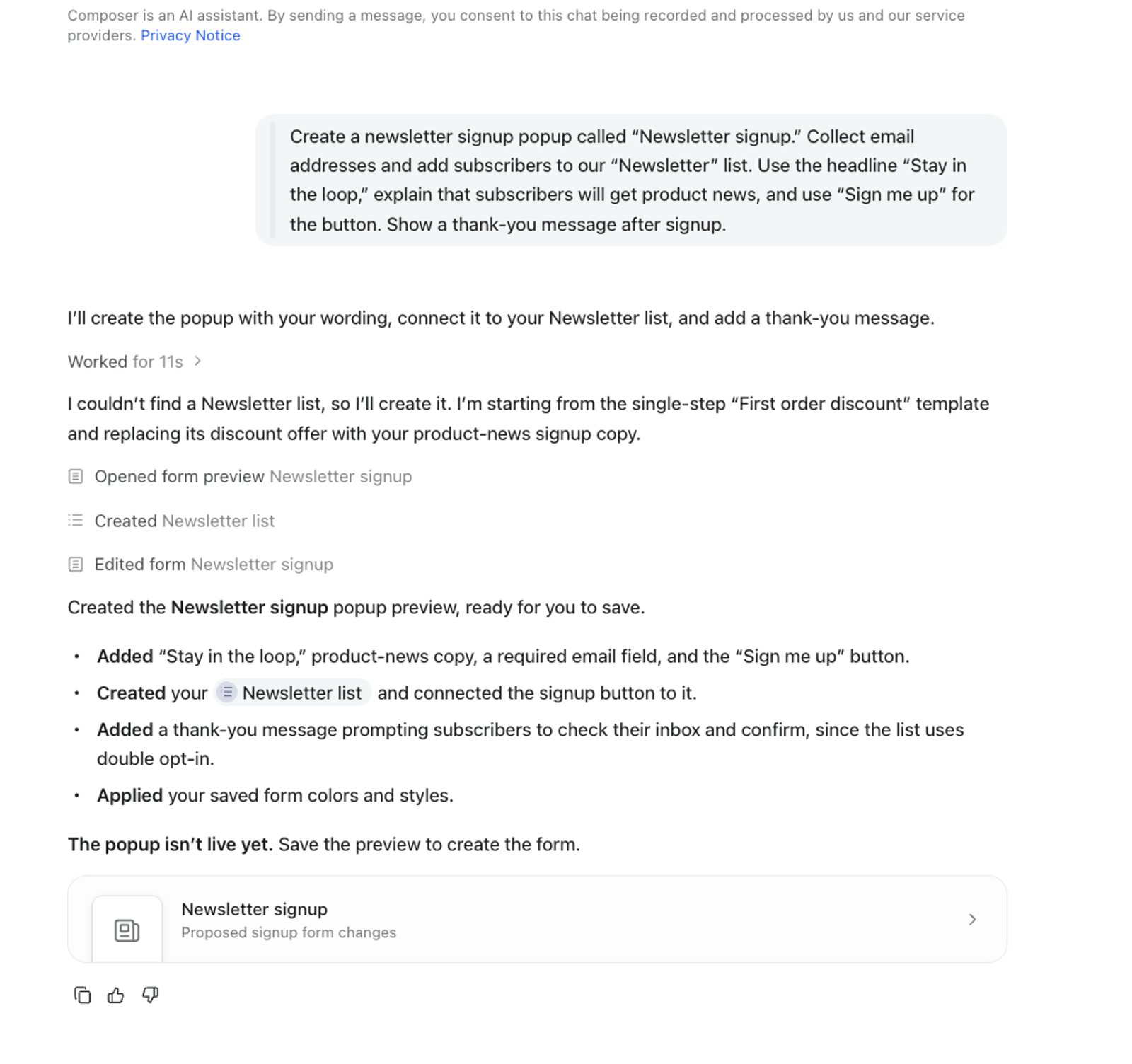
For example:
Create a newsletter signup popup called “Newsletter signup.” Collect email addresses and add subscribers to our “Newsletter” list. Use the headline “Stay in the loop,” explain that subscribers will get product news, and use “Sign me up” for the button. Show a thank-you message after signup.
Replace the list name and copy with your own. If you want to offer a discount, supply the actual offer and its terms. A request to create a form gives Composer the task; the preview lets you check how it has translated your instructions into content and settings.
Composer can start from Klaviyo’s form template library and customize a template for your request. Review the starting point it describes, then check the proposed form’s layout, fields, copy, colors, and fonts. A template is a starting point, so explain any changes you need in the conversation.
Start from a form you already use
If an existing form has the layout or content you want to reuse, identify it and explicitly request a new form. For example:
Create a new form using our “Welcome popup” as a starting point. Name the new form “Newsletter signup.” Keep the layout and image, replace the offer with a newsletter invitation, and add subscribers to our “Newsletter” list.
Check that the proposal is for a new form before saving. Create form saves a new form; Update form applies the proposal to an existing form’s draft. If your intent is to reuse a design, state that the original form should stay unchanged.
Continue with the preview review below before clicking Create form.
Edit an existing signup form
- Open Signup forms and select the form you want to change.
- Open Composer using the sparkle icon while viewing the form.
- Describe the changes you want and the details you want to keep. If you start the conversation elsewhere, include the form’s name or link so Composer can identify it.
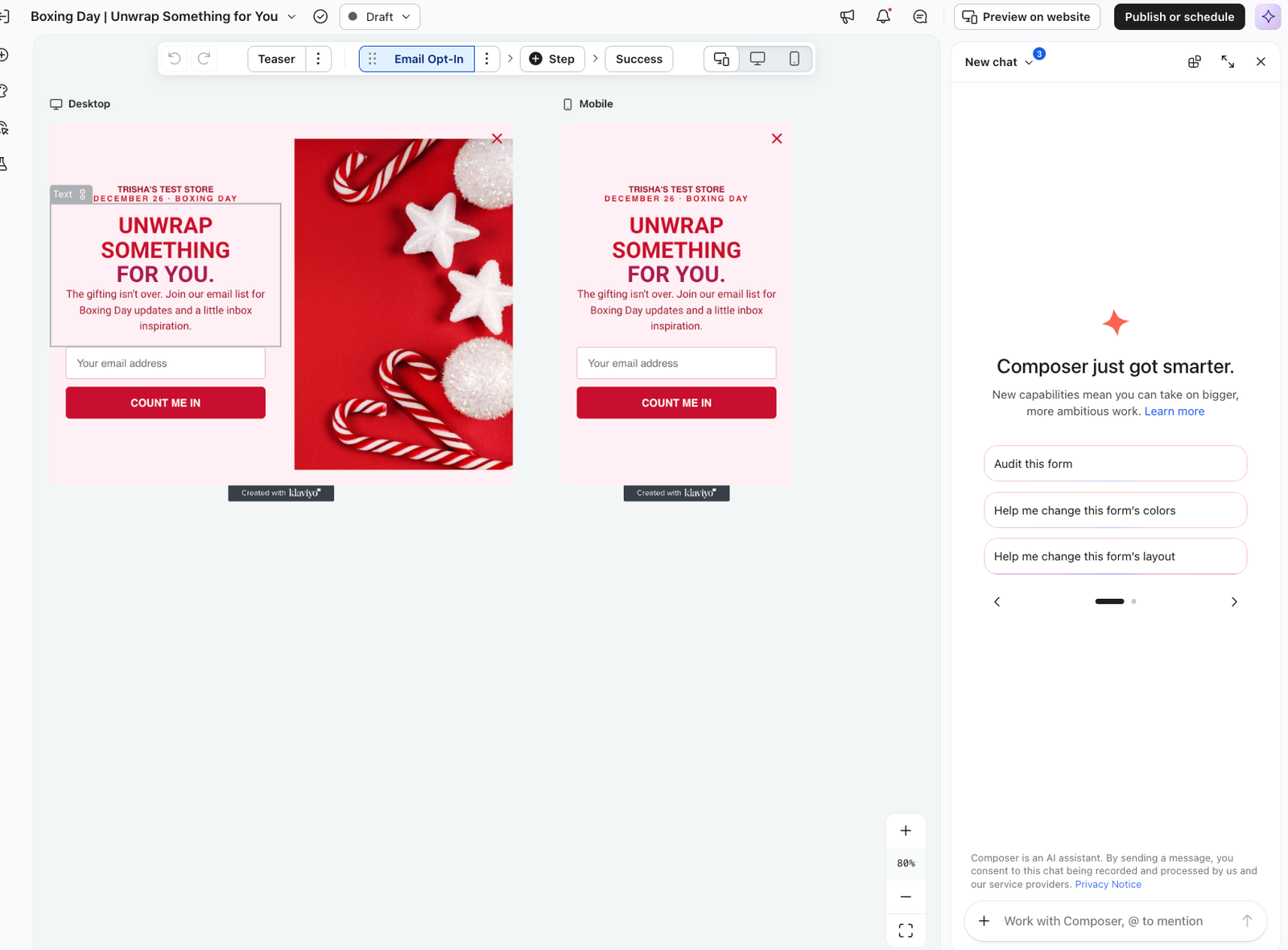
For example, suppose you want a shorter message in an existing welcome popup:
Edit our “Welcome popup” form. Change the headline to “Stay in the loop” and the button text to “Sign me up.” Keep the existing layout, image, list, and display settings.
Replace the form name and wording with your own. Naming what should stay the same helps distinguish a focused copy change from a broader redesign. Check that Composer has selected the intended form before continuing.
Review and refine the proposal
When Composer presents the proposed changes, click Open preview. The proposal is read-only; request further changes in the conversation.
Review the form as a visitor would experience it. Read the headline, field labels, and button text together. Check that the wording describes what visitors are signing up for and that any offer details are accurate.
Inspect the form’s steps and use the desktop and mobile preview controls to review the layout at both sizes. Check the success message as well as the step where a visitor submits their information.
Review the settings alongside the design. Audience, timing, page targeting, and display frequency determine who can see the form and when. A design preview alone does not show whether those settings match your intended experience.
Continue in the same conversation to request a revision. For example:
Keep the new headline and button. Shorten the supporting text to 1 sentence, and keep the existing display settings.
Review the revised proposal before saving it. If Composer asks which list or other account setting to use, provide the intended choice rather than asking it to guess.
Save the form and finish your review
- Wait for Composer to finish, then review the latest proposal.
- For a new form, click Create form to save it to your account as a draft. For an existing form, click Update form to replace its draft with the proposed changes.
- After the save succeeds, click View form to open the saved form.
- Check the content, submission setup, targeting, and any alerts in the form editor. Complete your final review and use the form editor’s publishing workflow when you’re ready to make the draft live.
Saving creates or updates a draft; it does not publish that draft. If you request more changes after saving, review the revised proposal and click Update form to save those revisions to the same form.
If you can’t create or edit a form
If the proposal is unavailable, return to the conversation and ask Composer for a fresh preview of the intended form.
If Create form or Update form is unavailable while Composer is working, wait for it to finish before saving. If the save fails, check the error and the form’s current state before trying again.
For a form with an A/B test, continue in the form editor. Composer’s edit workflow requires a single draft version and cannot replace an A/B test’s variations.
Review alerts in the form editor before publishing. A preview or saved draft is not confirmation that the form is ready to publish, and remaining blocking alerts need to be resolved.