How to create and share artifacts in Composer
You will learn
Learn how to use Composer to create interactive reports, dashboards, plans, briefs, and slide decks that you can reopen and share with others in your Klaviyo account.
An artifact gives your work its own page in Klaviyo. For example, you can ask Composer to turn campaign performance into a dashboard, refine the layout in a conversation, and share the result with your team for a meeting.
Before you begin
Open Composer in your Klaviyo account. These instructions apply when Artifacts is available in Composer.
New artifacts are private. Only you can open an artifact until you change its access setting. Only the owner can change its design, change its access, or delete it. If an artifact uses storage, people with access can add or change data using the controls built into the artifact.
Create an artifact
- Open a conversation in Composer.
- Describe what you want to create and ask Composer to make it an artifact. Include the purpose, date range, metrics, and layout that matter to you.
- When Composer provides the artifact, click its link or preview to open it.
- Review the result. Check the reporting period, metric labels, and figures before using it to make decisions or sharing it.
For a campaign report, try:
Create an artifact showing my email campaign performance for the last 30 days. Include a summary, a table of campaigns with revenue and click rate, and a chart comparing campaign revenue. Show the reporting dates and when the data was retrieved.
For a plan or brief, try:
Create an artifact with a Black Friday campaign brief. Include the audience, offer, key messages, email and SMS ideas, and a checklist of the decisions I still need to make. Leave unknown details for me to fill in.
You can also click Artifacts in the Composer header. If you haven't created any artifacts, click Create an artifact to start a conversation about your first one.
Refine an artifact with Composer
Use follow-up instructions to change the content or presentation. Explain what you want to change and what you want to keep.
For example, after creating the campaign report, ask:
Update this artifact to put the campaign table first. Add a chart comparing click rate by campaign, and keep the same reporting period.
To return to an artifact later:
- Click Artifacts in the Composer header.
- Open an artifact you own.
- Click Edit with Composer to open a conversation about it. If Composer is already open beside the artifact, use that conversation.
- Describe your changes and send the message.
- Review the updated artifact.
Composer saves changes to the artifact, so you can reopen it after leaving the conversation. People with viewing access see the updated artifact when they open it.
Find saved artifacts
Click Artifacts in the Composer header. Use the tabs to choose what to display:
- All shows artifacts you own and artifacts shared with your account.
- Yours shows artifacts you created.
- Shared with you shows artifacts others have made available to your account.
- Library shows examples to help you choose what to build.
Enter part of an artifact's title in Search artifacts to find it. You can switch between cards and a table, then click an artifact to open it.
For reports, check the reporting period and filters before treating the figures as current. Live data can refresh when you open an artifact while still showing the fixed date range you requested. Ask Composer to change the period when you need a different comparison.
Browse the artifacts library
Open Artifacts in Composer and select Library to explore examples such as dashboards, reports, and slide decks. Use the artifact type and connector logos to find an example relevant to your work. The library helps you discover what to ask Composer to build.
Select an example to open a Composer conversation with its starting request filled in. Adapt the request to your business, including the reporting period, information, or layout you need, then send it.
When choosing an artifact, consider whether you need live data from a connected app, saved data your team can work with, or both. Live connector data refreshes from the app; storage keeps the information added or changed in the artifact. The following sections explain how these work.
Use live data from connected apps
An artifact can retrieve live data from your connected apps, alongside Klaviyo data. Each time someone opens the artifact, it pulls the latest data from the app. You can use this to keep a dashboard current without asking Composer to rebuild it.
Refreshing an existing artifact's data does not use Composer credits. This applies whether you ask Composer in chat to refresh only the data, without changing the design or requesting new analysis, or reopen an artifact that uses live connected-app data.
For example, connect Shopify in Composer, then ask: “Make me a dashboard of my Shopify products and how they’re doing in my campaigns.” Include the date range and measures you want to compare.
Connector data uses the connection of the person viewing the artifact. Sharing an artifact does not share your app connection. If a teammate has not connected the app, they see a message asking them to connect it before they can view that data.
Save and work with data in an artifact
An artifact that uses storage saves the data you add or change, so the information is still there when you reopen it. For example, a campaign brief board can keep your team's briefs in one place, or a task board can track work for Composer.
To create a shared place for campaign briefs, try:
Make me a campaign brief board my team can write in, and draft the first brief for our holiday sale.
Use the controls Composer builds into the artifact to add or update its data. Share the artifact with your account when you want teammates to work with the same saved information. Everyone with access uses the same storage, and Composer can read and update it too. For example, you can ask Composer to draft another brief or update a task on the board.
Working with saved data is different from changing the artifact's design. Teammates can use the artifact's data-entry controls; the owner uses Edit with Composer to change its layout or functionality. Storage also does not share connected-app credentials. Live connector data continues to use each viewer's own connection.
Send a request to Composer from an artifact
An artifact can include buttons that send a message to Composer. Use these to follow up on something in a report without copying it into a conversation. For example, a broken-link report can have a button to ask Composer to help fix each link.
Make me a daily report of broken links in my templates with a button to send each one to you to fix.
When Composer builds the artifact, it decides whether a button sends the message immediately or fills in a message draft for you to review. If the button fills in a draft, edit it if needed and send it to continue. If it sends immediately, review Composer's response and any follow-up it requests.
Create and present a slide deck
Slides are a native artifact type in Composer. Ask for a deck to create a presentation you can present in Composer, share with your account, or download as a PDF, PowerPoint, or HTML file.
- Open a conversation in Composer and describe the deck you need. Include its audience, purpose, reporting period, and the information you want to cover.
Make me a slides deck recapping last month’s campaign performance.
- Open the deck from the conversation. Review the slides and check any dates, metrics, and conclusions before presenting or sharing them.
- Use the slide thumbnails to select a slide, or click the play button in the toolbar above the deck to present it.
Download a slide deck
Click the download icon in the toolbar above the deck and choose a format:
- PDF downloads the deck as a PDF file.
- Web page downloads the deck as an HTML file.
- Current slide as an image downloads only the selected slide as a PNG file.
- PowerPoint, current fonts downloads a PPTX file with the deck’s current fonts. PowerPoint, basic fonts downloads a PPTX file with basic fonts; choose this option when you need fonts that work on any computer.
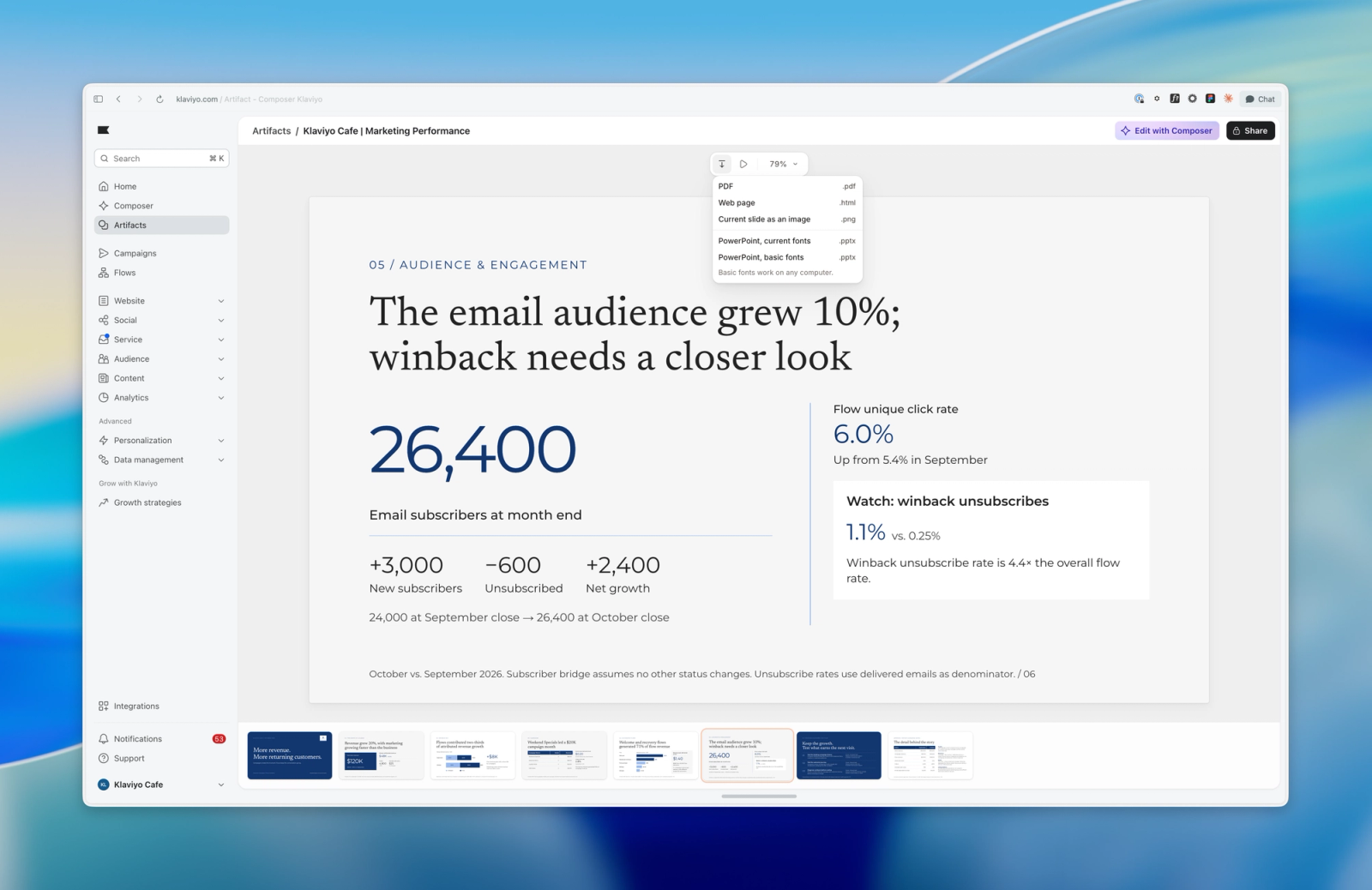
Open the downloaded file to review its layout before using it in a meeting or sending it to someone. You can edit the PPTX file in PowerPoint. To share the deck within your Klaviyo account, use the artifact sharing steps below.
Download a file from an artifact
For other artifacts, ask Composer to create the file format you need. For example, you can ask for a dashboard that you can download as a PDF. For native slide decks, use the download menu described above.
Build me a dashboard of last month’s campaign performance that I can download as a PDF.
Open the artifact and use the download button it provides. Confirm the request to save the file when Composer asks. If an existing artifact does not offer a download, ask Composer to add one for the format you need. Review the saved file before sharing or presenting it.
A downloaded file is a separate copy of the artifact’s output. To obtain updated data later, reopen the artifact and download a new file.
Share an artifact with your account
Review the artifact's contents before sharing. Choosing Workspace can view makes the artifact available to anyone in your Klaviyo account who can access the feature, rather than a selected group of teammates.
- Open an artifact you own.
- Click Share.
- Choose Workspace can view.
- Click Copy link and send the link to people in your account.
Recipients can also find the artifact under Artifacts > Shared with you. Sharing lets them open the artifact and use any controls for its saved data. Only the owner can change the artifact's design or access settings. The link doesn't grant access to people outside your Klaviyo account.
To stop sharing, open Share and choose Private. Copying a link while an artifact is private doesn't make it available to anyone else.
Delete an artifact
Deleting an artifact removes it for everyone it is shared with. If you only want to stop others from viewing it, change its access to Private instead.
- Open Artifacts.
- Open the Artifact actions menu on an artifact you own.
- Click Delete.
- In the confirmation dialog, click Delete again.
Troubleshoot an artifact
You see “Artifact not found”
The artifact may have been deleted or may not be shared with you. Confirm that you're in the same Klaviyo account as the owner, then ask the owner to check Share > Workspace can view.
You can't change an artifact's design
Only the owner can change an artifact's design with Composer. If someone shared the artifact with you, ask them to change its layout or functionality. If it uses storage, you can still add or change data using the controls in the artifact.
An artifact can't be displayed
If you own the artifact and see Fix with Composer, click it to open a conversation with the error details included. Send the request, then review the repaired artifact. If you're viewing someone else's artifact, ask the owner to fix it.
If the page couldn't load the artifact and offers Retry, click Retry to try loading it again.