How to add a scratch card to a sign-up form
Learn how to add a scratch card to a sign-up form so visitors can reveal an offer. Customize the covered message and the offer beneath it, then choose whether revealing the card submits the form, moves to another step, or simply displays the offer.
How scratch cards work
A scratch card has 2 layers: a cover with a prompt, such as “Scratch to reveal your offer,” and the offer text underneath. Visitors can scratch with a mouse or finger, click or tap the card, or focus it with a keyboard and press Enter or Space to reveal the offer.
The reveal threshold controls how much of the cover a visitor must scratch before the full offer appears. For example, a threshold of 50% reveals the offer once half the cover has been scratched. Clicking, tapping, or using the keyboard provides an alternative to scratching.
You write the offer shown beneath the cover. The scratch card reveals that content; it does not select a prize from a set of possible outcomes. If you want visitors to receive different rewards based on a random outcome, use a spin-to-win form.
Plan when to reveal your offer
Choose where the card fits into your sign-up experience before adding it. If visitors should subscribe before seeing the offer, collect their information on an earlier step and place the card on a later step or the success step. If the card should submit the form, place the input fields and card together and set the card’s action to Submit form.
Revealing an offer and collecting a subscription are separate parts of the form. A card set to Do nothing only reveals its content. Include the appropriate input fields, disclosures, and a submit action when your form collects consent.
Write an offer that you can fulfill. For example, if the revealed text includes a static discount code, create that code in your ecommerce platform before using it in the card. Typing a discount into the offer text does not create a redeemable coupon.
Add and customize a scratch card
- In Klaviyo, go to Website > Sign-up forms.
- Open the form’s 3-dot menu and select Edit, or click Create form and complete the initial setup.
- Select the step where you want the card to appear.
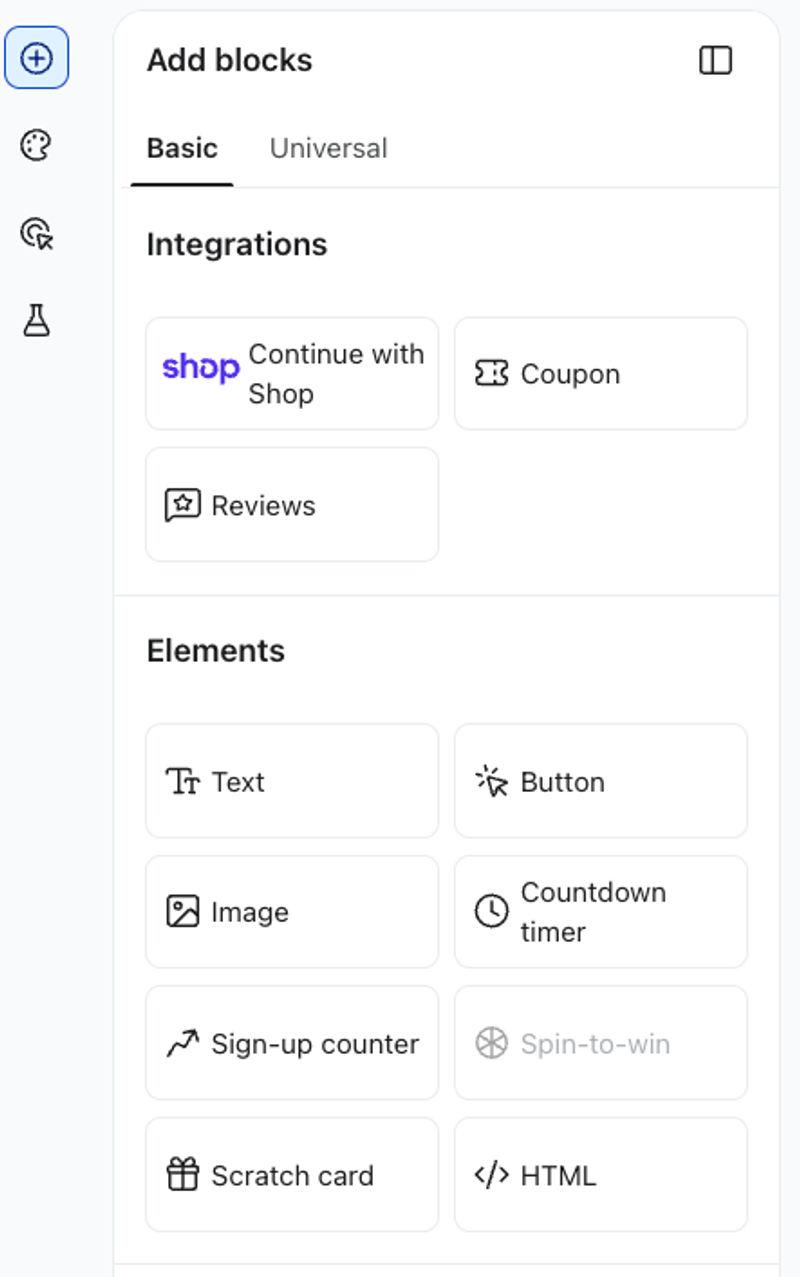
- Click Add content to open the Add blocks panel, then drag the Scratch card block onto the form.
- In the Offer section, enter the text visitors should see after revealing the card. Use the rich text editor to format the offer and add links.
- Turn on Show the offer while editing to see the content beneath the cover while you work. This changes the editor preview; visitors still see the cover on the live form.
- In the Prompt text section, enter the instruction visitors see on the cover. For example, use “Scratch to reveal 10% off.” Adjust the font, size, and text color to fit your design and keep the prompt readable against the cover.
- In the Cover section, adjust Cover color and Corner radius. Choose Full width to fill the available space or Fixed width to set the card’s width, and adjust Height to fit the offer.
- Set Reveal threshold to a whole-number percentage from 1% to 100%. This is the amount of cover visitors must scratch away, rather than the probability of receiving an offer.
- Turn off Show the offer while editing when you want to check how the covered card looks in your design.
Choose what happens after reveal
Use On scratch complete to choose the card’s action. The choices depend on the form and step. Common options include:
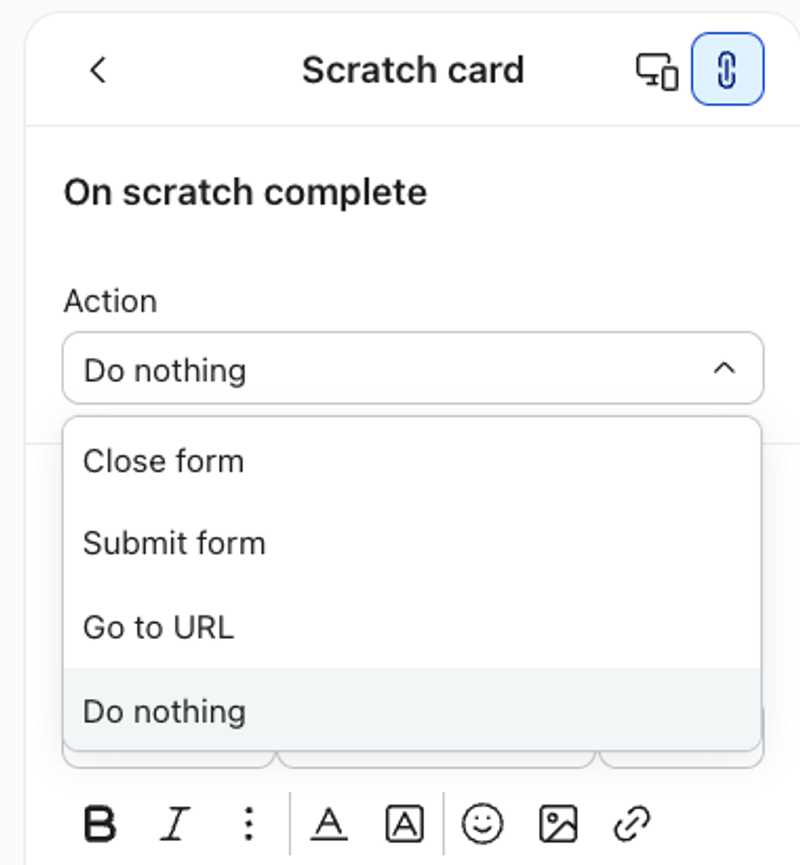
- Do nothing: reveal the offer and leave it visible. Use this when the card’s purpose is to display a message or code, and another part of the form handles submission.
- Submit form: submit the visitor’s information and advance through the form’s configured submission flow. Select the destination list and complete the other settings shown for this action.
- Skip to next step: move the visitor to the next step without using the card as the form’s submit action. Include a submit action elsewhere if you are collecting subscriptions.
- Go to URL: open the destination you specify. Complete the URL settings shown in the panel.
For example, to collect an email address and then display a discount code, put the email field and scratch card on the same step. Set the card to Submit form, select your list, and include the code on the success step so visitors can still read and copy it after the form advances.
When the card submits a form, required fields must pass validation before the offer is revealed. Visitors who leave a required field empty or enter an invalid value need to correct it and try the card again.
Some actions move visitors away from the revealed offer. Keep any information they need, such as a discount code or redemption instructions, available on the destination step or page too.
Review and publish your form
- Check the form’s desktop and mobile layouts. Confirm that the cover prompt and complete revealed offer fit inside the card.
- Review the card’s action, destination, input fields, and consent disclosures together. If the card reveals an offer without submitting, confirm that the form has another way to submit.
- Click Publish or schedule, resolve any blocking alerts, and click Publish now when you are ready to make the form live.
- Visit your website in an incognito browser and test the form. Confirm that visitors can reveal the card, read the offer, and reach the expected next step or destination. Test with a mouse, a mobile device, and the keyboard.
- If the card submits the form, test both valid information and missing or invalid required fields. Confirm that a successful submission reaches the intended list and that the offer’s code or link works as expected.