How to manage translations in bulk with CSV
You must have a paid Klaviyo account and Smart Translations enabled to use this feature.
Manage translations outside Klaviyo by exporting and editing a CSV file, then importing it back to update translations in bulk or collaborate with others.
Export a CSV of your translations
Follow these steps to export the current translations for a single message:
- Open the message you want to update (campaign email, flow email, SMS, WhatsApp message, etc.).
- Click the message’s Translate icon or button, or the button showing the number of translations, to open the translation editor. If the message has not been translated yet, complete the language setup first.
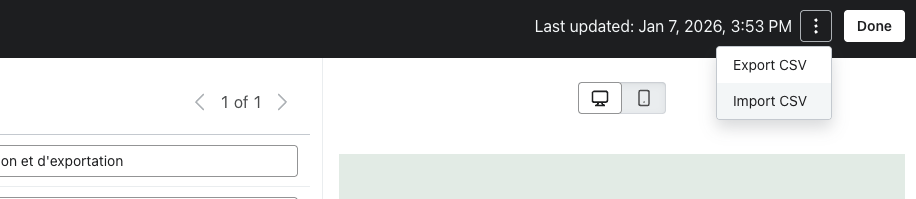
- In the translation editor, open the 3-dot actions menu and click Export.
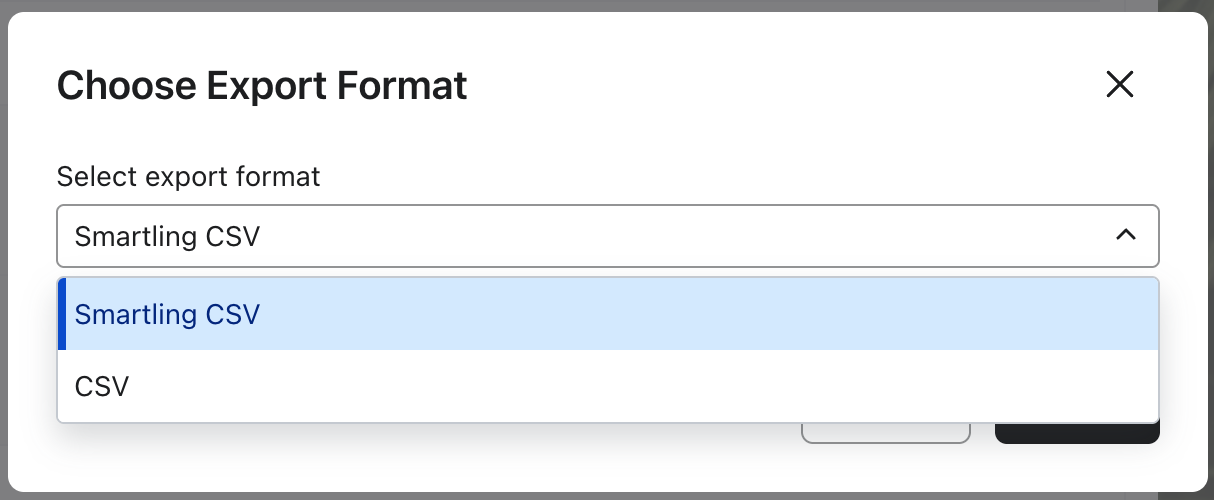
- Under Select export format, choose CSV. Keep Smartling compatible selected if you will send the file to Smartling, or clear it to edit a standard CSV in a spreadsheet.
- Under Languages to export, choose Select all to include all existing translation languages, or Custom selection to choose specific languages. To export only the source text for a translator, choose the source-language-only option. The source language is included in every export.
- Click Export to download the CSV.
Smartling CSV
A Smartling-compatible CSV includes:
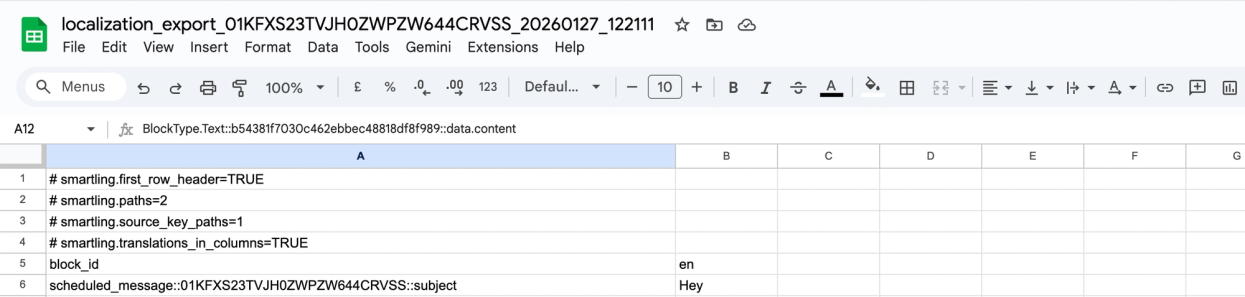
Smartling directives at the top of the file, including:
# smartling.first_row_header=TRUE
# smartling.paths=2
# smartling.source_key_paths=1
# smartling.translations_in_columns=TRUE
- block_id – the unique identifier for each translatable string in this message.
- Source language code (e.g., en) – the original source text for that string.
- Language columns for the translation languages you selected, if any.
You can use this file as-is to import your strings to Smartling. Smartling automatically parses the CSV, extracts the strings, and lets you trigger translation jobs.
After the job finishes, download the translated CSV. Before importing it into Klaviyo, remove any leading # smartling. directive rows so the first row contains the column headers. Keep the block_id column, the source-language column, and at least 1 supported translation-language column. Then follow Import the CSV below.
Standard CSV
A standard CSV includes:
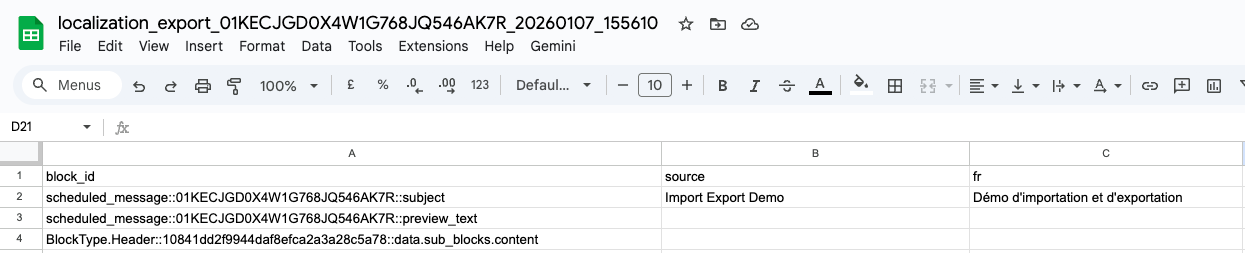
- block_id – the unique identifier for each translatable string in this message.
- source – the original source text for that string.
- Language columns: 1 column per translation language you selected, named with its language code (for example, en, fr, es-MX). A source-only export has no translation-language columns.
You can now open this file in Excel, Google Sheets, or another spreadsheet editor.
Update the CSV
When you edit the CSV, you only need to work in the language columns.
Do not edit, add, or delete any values in the block_id column. If a row has an invalid or missing block_id, that row is ignored during import and its translations are not updated.
What you can safely change
In the CSV:
- Update existing translations by editing the appropriate language column.
- Add missing translations by filling in empty cells for a language column.
- Leave a language’s values unchanged if you do not want to update that language.
- Add one or more new language columns:
- Use a valid BCP‐47 language code (for example, fr-CA, de, ca).
- On import, supported languages with new translation values are added to the translation editor for this message.
What you should not change
Avoid the following:
- Do not edit or delete block_id values.
- Do not add rows. Each row must continue to map to an existing translatable string in the message.
- Do not change the source values in the CSV:
- To change the source content, edit the message directly in the Klaviyo editor, then export a new CSV.
- Keep the
block_idand source column headers unchanged. In a Smartling CSV, keep the source-language column header instead of source. Keep each translation-language column labeled with its supported language code. - Do not change the file format:
- Keep the file as a .csv file.
- Save in UTF‐8 encoding.
Keep personalization variables and template tags, such as {{ first_name }} and {% if ... %}, unchanged in each translation. If these placeholders differ from the source message, validation blocks the import.
Handling empty cells
If you clear out a translation cell in the CSV and leave it empty:
- The import treats that empty string as a value.
- The existing translation for that cell is overwritten with an empty value. This can effectively remove a translation.
If clearing a cell also removes placeholders that are present in the source, validation blocks the import. Restore the placeholders or remove that language column before importing.
If you want to avoid changing a translation, leave its existing value in the CSV or remove that language column entirely before importing.
When you are done editing, save the file as a UTF‐8 encoded .csv.
Import the CSV
After you have updated and saved your CSV:
- Return to the translation editor for the same message.
- Open the 3-dot actions menu and click Import CSV.
- In the import modal, either:
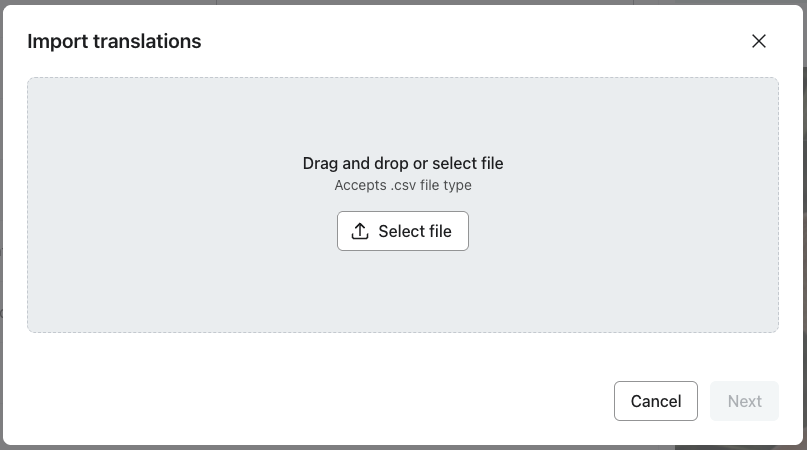
- Click Select file and choose your CSV, or
- Drag and drop your CSV into the upload area.
- Click Next to validate the file and preview the changes.
Klaviyo runs a validation “dry run” and shows:
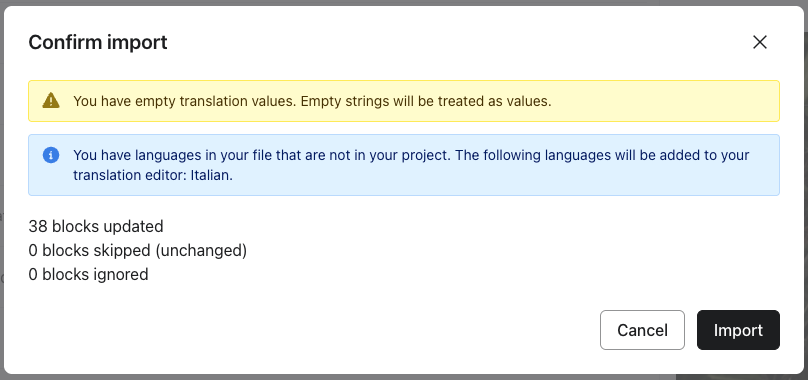
- A summary of how many rows will be updated, unchanged, or ignored
- Any warnings or errors it detected
- Review the summary and warnings carefully.
- If everything looks correct, click Import to apply the changes.
When the import succeeds, the modal closes and your translations are updated in the translation editor. Review the imported translations.
During validation, Klaviyo also checks for:
- File type and encoding: use a UTF-8 encoded CSV.
- CSV columns: keep
block_id, the source column (or the source-language column for Smartling), and at least 1 supported translation-language column. - Language codes that are not recognized or not supported by the channel.
- Empty translation values and other potential issues.
- Personalization variables and template tags that differ from the source message.
If validation fails, you see an error message. Click Select new file after correcting the CSV to try again; validation does not change your translations.
Understand import results
After validation, the import summary shows what will happen if you proceed.
Summary counts
The summary can include counts like:
- Updated: the number of rows where at least 1 translation value will change.
- Skipped (unchanged): rows in the CSV where all included translation values match what is already stored.
- Ignored: rows that will not be imported, such as duplicate rows after the first occurrence or rows whose
block_iddoes not exist in this message.
Counts are calculated per row, not per language. For example, if a CSV has 2 rows and 2 language columns:
- If 1 row updates in 1 language, the Updated count is 1.
- If 1 row updates in both languages, the Updated count is still 1.
- If both rows update in 1 or all languages, the Updated count is 2.
Best practices
To keep your translation data accurate and easy to manage:
- Start from the latest export. Avoid reusing older CSVs, especially after you change content or languages in the message.
- Keep a backup of each export. Save a copy of the CSV before making changes so you can roll back if needed.
- Coordinate with translators. Explain which columns they can edit (language columns only) and which columns they must not change (block_id, source).
- Work in smaller batches if needed. If your file is very large, consider splitting work across multiple messages or running several smaller imports.
- Use supported language codes. When adding new language columns, use supported BCP-47 codes from the Smart Translations article to avoid “unprocessable” languages.
Resolve validation warnings and import errors
If you see warnings or errors during import validation, review the sections below to understand what they mean and how to fix them.
"Required columns are missing."
What it means: The block_id column is missing or renamed, or the CSV starts with directive rows instead of the column headers.
What to do: Start with the original export’s column headers and keep block_id unchanged. Remove any leading Smartling directive rows before importing. Keep source (or the Smartling source-language column) so imported translations remain associated with the correct source content.
"You have empty translation values. Empty strings will be treated as values."
What it means: Your CSV has empty translation values, and empty strings will be treated as values.
What to do: If you proceed, those empty cells overwrite any existing translations for that key and language. If you want to leave those translations unchanged, restore the previous values or remove that language column and re-import the file.
"<count> key(s) does not exist in your project and will not be included in the import."
What it means: Some block_id values in your CSV don’t exist for this template (for example, if block_id values were edited manually).
What to do: Those rows are ignored, and translations for those keys don’t change. To resolve this, remove those rows from the CSV or export a fresh file if needed.
"Your file contains duplicate keys with conflicting values. The first value will be used."
What it means: Two or more rows in your CSV have the same block_id values (for example, if rows were duplicated by mistake).
What to do: The values of the first row are used and the remaining duplicate rows are ignored. To resolve this, remove the duplicate rows from the CSV or export a fresh file if needed.
"Multiple columns resolve to the same language. Only the last column will be used and the others will be ignored."
What it means: Two or more columns in your CSV have the same language code or resolve to the same language (for example, if a language column was duplicated by mistake).
What to do: The values of the last duplicate column are used and the remaining duplicate columns are ignored. To resolve this, remove the duplicate columns from the CSV or export a fresh file if needed.
"Your file contains columns with language codes that are not supported by this channel: <invalid language code>. These will be ignored but valid locales will be imported."
What it means: A column header in your CSV uses a language code that isn’t supported or recognized.
What to do: To add a new language, use one of the supported BCP-47 codes from the Smart Translations documentation. Columns with unsupported codes are ignored.
"You have languages in your file that are not in your project. The following languages will be added to your translation editor: <language detected>."
What it means: Your CSV includes language columns that are not currently part of this template.
What to do:
- To add those languages, include a new translation value in each language column, review the list, and click Import to add them to the translation editor.
- If you don’t want to add them, remove those columns and re-import the file.
"No locale columns found."
What it means: The CSV includes block_id and source columns but no other column header was detected.
What to do: Add at least one supported language column and try again.
"No valid locale columns found."
What it means: The CSV includes block_id and source columns but no valid language columns.
What to do: Add at least one supported language column and try again.
"Some translations contain placeholder mismatches. Please ensure all placeholders in the source text are preserved in translations."
What it means: A translation has missing, changed, or extra personalization variables or template tags compared with the source message.
What to do: Restore the source message’s placeholders in the affected translations, then save the CSV and select the corrected file. Import cannot continue until the placeholders match.
If you see only warnings and understand their impact, you can proceed with the import. If you see an error, you must correct the CSV and re-upload it before continuing. If you continue to see errors, export a fresh CSV from the translation editor, make minimal changes, and try another import to isolate the issue.
Additional resources
- How to enable Smart Translations
Learn how to enable Smart Translations for messages so you can send campaigns and flows in multiple languages based on the language preferences of your audience. Klaviyo can translate email content to 60+ languages.
- How to create a multilingual email campaign using Smart Translations
Learn how to create and send an email campaign in multiple languages, depending on the language preferences of your audience. Klaviyo can translate a campaign’s content to 60+ languages.
- How to create a multilingual SMS campaign using Smart Translations
Learn how to create and send an SMS campaign in multiple languages, depending on the language preferences of your audience. Klaviyo can translate a campaign’s content to 60+ languages.
- How to customize content based on language
Learn how to collect someone's preferred language and then target them in that language.