Understanding email unsubscribe rates
You will learn
Learn and understand how to decrease rising email unsubscribe rates. Unsubscribe rates inform you of how often customers unsubscribe from your emails. A high unsubscribe rate indicates that you’re either sending to those who do not wish to receive your marketing or you’re sending content that does not resonate with this audience.
Unsubscribe rates also impact your deliverability performance, so it is important to monitor this metric and take action to lower unsubscribes. In this article, you will learn more about what unsubscribe rates entail and how to minimize them over time.
This article specifically focuses on email unsubscribe rates. If you are instead focusing on SMS rates, head to Campaign SMS and MMS benchmarks for guidance.
What is an email unsubscribe rate?
Your unsubscribe rate measures how often subscribers opt out of receiving your email marketing. An unsubscribe occurs when someone completes an unsubscribe request, such as through the unsubscribe link in an email. With global unsubscribes enabled, their email consent status becomes Unsubscribed and they can no longer receive your email marketing. This is different from being suppressed for a reason such as a bounced email.
How does Klaviyo calculate unsubscribe rates?
In Klaviyo, your email unsubscribe rate is the number of unique recipients who unsubscribe divided by the number of emails delivered, multiplied by 100 to express it as a percentage.
Why unsubscribe rates matter
As with spam complaints or bounces, a rise in unsubscribes may signal to inbox providers that you are sending content that recipients do not wish to receive. This damages your sender reputation and can eventually lead to more of your emails landing in spam than in the inbox. To maintain a good sender reputation, monitor unsubscribe rates closely, and when you see a rise, take action to lower this metric. In addition, when someone unsubscribes, this is often a sign that your content no longer aligns with their interests or that you are sending too much of the same content.
Aim for an unsubscribe rate below 0.3% per email campaign. For more information on healthy deliverability metrics, see Getting started with email deliverability monitoring and performance metrics.
How to decrease unsubscribe rates
Some key strategies to decrease unsubscribe rates include:
- Clean your lists regularly
- Enable global unsubscribes
- Refresh email content and manage preferences page
Clean your lists regularly
List cleaning is a process that removes any unengaged, misspelled, fake, or spam email addresses that you may collect over time. Doing so can help decrease your unsubscribe rates as you weed out any profiles who should no longer receive your messaging. Proactive list cleaning and suppressing profiles who are unengaged can help protect your sender reputation over time.
For step-by-step instructions on identifying and suppressing subscribers who have never engaged, see How to create a never engaged segment.
Enable global unsubscribes
We highly recommend that you enable global unsubscribes in your account. When enabled, anyone who unsubscribes from an email (either a campaign or flow) will be unsubscribed from all email marketing from your account. Their profile remains in Klaviyo. Unsubscribing from a campaign sent to a list removes them from that list, but they can remain on other lists without receiving email marketing. You can choose to remove suppressed profiles from a list.
If global unsubscribes are off for both your account and a list, someone who unsubscribes from an email sent to that list may still receive email marketing through other lists or flows. They may expect all email marketing to stop and unsubscribe again or mark your emails as spam. Enabling global unsubscribes helps you honor that expectation.
To enable global unsubscribes for a list:
- Navigate to Audience > Lists & segments, then select your list.
- Select Settings > Consent.
- Under Opt-out process, select Unsubscribe from all email marketing, then click Save.

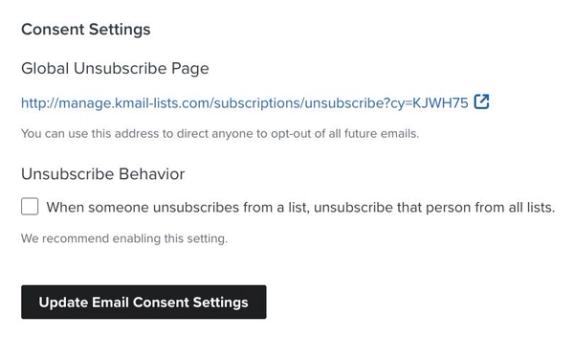
You can also access a direct link to a global unsubscribe page by selecting Settings > Other > Consent pages. Under Global unsubscribe page, copy the URL and send it to anyone who wants to opt out of all future email marketing from your account.
If your account has paid email features, you can also enable global unsubscribes for all lists on this page:
- Under Unsubscribe Behavior, select When a profile unsubscribes from a list, unsubscribe them from all future email marketing for your account.
- Click Update Email Consent Settings.
Refresh email content and manage preferences page
Another scenario that can increase unsubscribes is when your content no longer aligns with subscriber expectations or interests. Here are some best practices to refresh your email content:
- Ensure that your content matches the subject line
When your content and subject lines align, recipients will have accurate expectations when opening an email. If they feel misled in any way, they’re more likely to unsubscribe. - Personalize content with segmentation
If you send too much of the same content to the same people, they may lose interest or feel as though your emails are irrelevant. Segmentation allows you to personalize messaging and target specific audiences so that your emails relate to their purchase history, interests, engagement, location, and more. If you’re new to segmentation, head to Guide to Creating Segments to learn more. If you already have segments built in your account but want to level up, head to our Guide to Advanced Segmentation for inspiration. - Update how often you email subscribers
Unsubscribes may also rise due to your message frequency (i.e., you may send to some contacts more often than they’d like or too little). Consider building out email frequency segments. Then, adjust your content calendar and target these segments according to their level of engagement. - Allow preference management
You can update your list’s preferences page to allow subscribers to choose how often they receive emails from your brand and what content they receive. For example, someone could choose to receive emails daily, weekly, or monthly. They could likewise opt in to receive only information about sales or subscribe to your weekly newsletter, new product updates, etc. These choices are saved as profile properties. Build segments based on those properties, then target and schedule your campaigns to match each segment’s preferences. Collecting a preference does not automatically change your sending schedule. You can include a link to your manage preferences page in the header or footer of your emails for ease of access.
Additional resources
- Getting started with email deliverability monitoring and performance metrics
Learn what good email deliverability metrics look like by industry, and which strategies to use to help improve your email performance. In this guide, find out about the specific open and click rate, both for email campaign and flow messages, that you should strive for after depending on what vertical or industry you are in. Additionally, learn ways to help mitigate potential deliverability issues and how to continue to monitor these rates over time.
- How to create a never engaged segment
Learn how to identify your least engaged email subscribers, so you can avoid contacting them to improve and maintain your deliverability. Once you’ve identified them, consider excluding them from your marketing initiatives, sending them one final re-engagement attempt, or suppressing them during list cleaning. In this article, you will learn how to create this segment.
- Troubleshooting decreasing KPIs
Learn how to adjust your strategy to improve important KPIs within Klaviyo.Key performance indicators (KPI) are metrics that identify how successful your business is in achieving its goals and maintaining good deliverability practices. Some KPIs that measure your success are open rate, click rate, owned revenue, conversion rate, and more.