How to clean your email list to maintain good deliverability
You will learn
Learn how to clean your email lists to avoid sending to contacts who aren’t interested in your content. This process allows you to keep in touch with the subscribers who are most engaged with your messages, so you are seen as a trusted sender with a good reputation.
The process of list cleaning for deliverability involves 3 steps:
- Create a segment of unengaged contacts.
- Exclude that segment from sends.
- Suppress the Never engaged segment.
Why list cleaning is important
List cleaning is key to maintaining good deliverability and making sure your emails land in recipients' inboxes. List cleaning allows you to accomplish the following:
- Increase open and click rates
By pre-emptively excluding unengaged contacts, you are prioritizing sends to those who do open and click. This can improve your overall open and click rates. Sending to interested recipients can also support your sender reputation and inbox placement. Inbox providers use signals such as spam complaints to assess your sender reputation and decide where to place your messages. - Reduce unsubscribe rates and spam complaint rates
By pre-emptively excluding unengaged contacts from your sends, you also reduce the need for contacts to unsubscribe from unwanted emails, or worse, mark them as spam. By removing unengaged contacts ahead of time, you prevent unsubscribes and spam reports that would hurt your sending reputation in the future. - Improve your sender reputation with inbox providers
Most major email service providers (like Google and Yahoo) track how recipients interact with emails from your domain (e.g., how many emails are marked as spam, how many are opened, etc.) ESPs use this information to determine whether to classify your messages as spam. Having a lot of unengaged profiles on your list hurts your efforts to reach those that actually do want to receive your emails. - Retain and engage customers
By learning when people start to disengage with your brand, you can know when to send targeted campaigns to re-engage them. - Personalize content based on your best customers
By knowing that your list is full of real, active, and interested potential customers, you can start to personalize content and analyze data based on those most likely to encourage and promote your brand.
Identify unengaged profiles
Identify your unengaged customers by creating a segment that captures profiles who are receiving your emails, but not opening or clicking them. This segment is a general recommendation. Depending on your audience and sending frequency, you can increase or decrease the time frames and message thresholds. For example, if you send emails daily or several times a week, consider using a 30-day range rather than 90-day in your unengaged email segment.
To create a segment:
- Navigate to Audience > Lists & segments.
- Click Create > Segment.
- Enter a name for your segment, such as Unengaged email. If a naming dialog appears, click Create segment to open the builder.
- Build a segment using the definitions outlined below:
- Person can receive email marketing
AND - What someone has done > Received Email is at least 5 over all time
AND - What someone has done > Opened Email 0 times in the last 90 days
AND - What someone has done > Clicked Email 0 times in the last 90 days
In this example segment, we only include Klaviyo event data. If you integrated your prior ESP (e.g., Mailchimp) or manually imported historical open and click data during the time frame used in the segment, you should add conditions to your segment to filter on this data as well. For example, if you migrated from Mailchimp 1 month ago, make sure to use Mailchimp open and click data in a 90-day unengaged segment.
After adding the conditions, click Create segment to save your segment.
Exclude unengaged contacts from sends
Klaviyo recommends excluding unengaged contacts from the majority of your campaigns. Since these contacts aren’t opening or clicking your messages, continuing to send to them can damage your deliverability.
In addition to excluding these contacts from campaigns, consider excluding them from your most high-volume flows as well, like browse abandonment. It’s fine to allow these contacts to enter flows for certain key touchpoints, like a re-engagement or abandoned cart flow.
You may choose to include unengaged contacts in certain high-priority campaigns, like new product announcements or Black Friday/Cyber Monday.
Exclude unengaged contacts from campaigns
- Navigate to the Campaigns tab in Klaviyo.
- Select Create campaign.
- Enter the campaign’s name, choose Single channel if campaign types are shown, and select Email.
- Click Continue.
- Under Send to, choose the lists or segments you’d like to send to.
- Under Don't send to, select the unengaged email segment you created.
- Click Next to save your audience choices and continue to the content. Finish creating the email, then review and schedule or send the campaign.
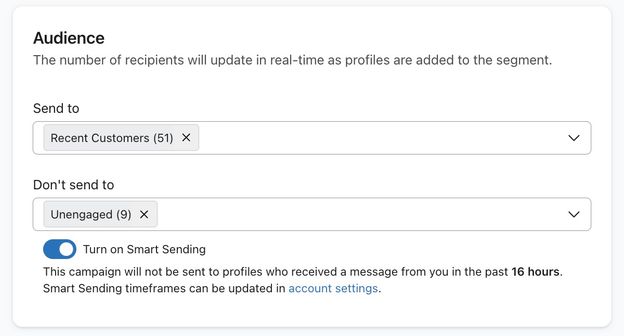
Exclude unengaged contacts from a flow
Flows are triggered by customer actions like subscribing to a list or abandoning a cart. These are key lifecycle touchpoints, and a great opportunity to re-engage a contact who has lapsed.
In general, you should continue to send these flows to customers, even if they become unengaged.
However, if you have certain high-volume flows (e.g., flows that an unengaged contact might reasonably trigger multiple times in a month), you may consider excluding unengaged contacts from it to avoid damaging your sender reputation.
To exclude contacts from high-volume flows:
- Navigate to the Flows tab in Klaviyo.
- Choose an existing flow or create a new one.
- For an email-only flow:
- Click the flow’s trigger to open the trigger menu.
- Next to Profile filters, click Add, or Edit if filters already exist.
- Click Add profile filter, or add another condition group if filters are already configured.
- Set conditions for profiles who should remain eligible for the flow. For the unengaged segment example above, join these conditions with OR:
- What someone has done (or not done) > Received Email is less than 5 over all time
- What someone has done (or not done) > Opened Email at least once in the last 90 days
- What someone has done (or not done) > Clicked Email at least once in the last 90 days
- Join this OR group to any existing requirements with AND. If you changed the time frames, message threshold, or email sources in your unengaged segment, adjust these conditions to match.
- Click Save.
For a flow that includes email and other channels, apply the conditions to individual emails so email engagement does not restrict messages on other channels:
- Click an email in the flow and find Additional filters under Settings.
- Add the same eligibility conditions described above, using OR within the group and AND with any existing requirements.
- Click Save. Repeat for each email you want to exclude unengaged contacts from.
Never engaged segment
The Never engaged segment contains your least engaged email subscribers. You should avoid contacting them to improve and maintain your deliverability. Once you’ve identified them, you can send them 1 final re-engagement attempt through a sunset flow, and then suppress them if they don't engage.
You can either manually create a segment of profiles that never engaged, or open a prefilled Never Engaged (Email) segment from the deliverability hub in Klaviyo.
To use the recommendation when it appears in the deliverability hub:
- Navigate to Analytics > Deliverability and select Email. If your navigation shows Channel health, select that instead of Deliverability.
- In Action Center, locate the Create a "Never engaged" segment recommendation.
- Select Create segment to open the segment builder.
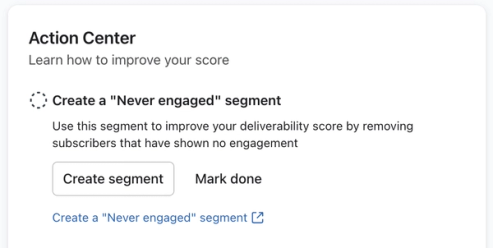
The builder prefills the following criteria. The Placed Order condition is included only when you have an active Shopify integration.
- If someone can or cannot receive marketing > can receive email marketing
AND - What someone has done or not done > Received Email is at least 5 in the last 180 days
AND - What someone has done or not done > Opened email 0 times over all time
AND - What someone has done or not done > Clicked email 0 times over all time
AND - What someone has done or not done > Viewed Product 0 times over all time
AND - What someone has done or not done > Placed Order 0 times over all time
The segment also includes available email delivery, open, and click metrics from integrated email providers. If there are multiple delivery metrics, a profile must have received at least 5 emails through any one of them in the last 180 days. The profile must have no opens or clicks across all included email metrics.
If you use another ecommerce integration, add a Placed Order condition for that integration with 0 orders over all time if you want to exclude customers who have purchased.
Review the name and conditions, then click Create segment in the builder to save.
After saving, you’ll see the segment on the Lists & segments page in Klaviyo. Its default name is Never Engaged (Email).
If the recommendation is not shown, check Lists & segments for an existing Never Engaged (Email) segment. You can also create a segment manually using the criteria above.
Suppress profiles
If you run a sunset flow, wait until profiles have completed it without engaging before suppressing them. Follow the sunset flow guide linked above to create a segment of those profiles. Otherwise, you can suppress the current members of your Never Engaged (Email) segment.
Suppression prevents profiles from receiving email marketing across your account. It does not suppress SMS or push notifications. This bulk action applies to the segment’s current members; profiles who join later are not automatically suppressed.
To suppress the segment:
- Go to Audience > Lists & segments.
- Find the segment you want to suppress and open the 3-dot action menu beside its name.
- Click Suppress current members to open the confirmation dialog.
- If the dialog offers Suppress inactive profiles and Suppress everyone, choose which profiles to suppress before continuing.
- Review the number of profiles to suppress, then click Suppress profiles (or Bulk suppress) to confirm.
Learn more about how to suppress emails in bulk.
Outcome
After completing these steps, unengaged contacts you exclude will receive fewer emails, which can improve your deliverability over time. Profiles you suppress will no longer receive email marketing.
You must continue excluding your unengaged segments from your campaigns on an ongoing basis.
Unengaged contacts who have not been suppressed may still receive occasional high-priority messages, like abandoned cart flows, re-engagement messages, or occasional important campaigns (like new product releases) if you choose not to exclude unengaged contacts from those sends.
Additional resources
- How to create a sunset flow
Learn how to set up a sunset flow that is designed to phase out customers who are no longer engaging with your brand. You can use this flow as a last-ditch effort to win back their business, and then delete or suppress anyone who is not responsive. You will also see how this recommended sunset segment definition connects to the prebuilt Sunset (Email) segment in the Segment Library. This will help you maintain a clean list and avoid having inactive customers contribute towards your Klaviyo billing plan.
- Understanding email deliverability
Learn about email deliverability, including the steps you can take to establish a strong sender reputation so that your emails are delivered to the inbox.
- How to create an engaged segment of email subscribers
Learn how to create an engaged email segment, which can help you improve your open, click, and conversion rates.