How to create and send an SMS campaign
Learn how to create and send an SMS campaign in Klaviyo. Note that the process is almost exactly the same for MMS campaigns. The only difference is that you add an image or GIF during the content creation stage.
What is an SMS campaign?
An SMS campaign is a one-time text message to a list or segment of subscribers, notifying them of events such as product launches, flash sales, or other promotions. You can set an SMS campaign to send either immediately or at some point in the future.
Before you begin
Before sending an SMS campaign, you must have:
- Turned on SMS and set up a sending number for each country you want to message
- Collected SMS consent
- Note: having someone's phone number does not count as consent; someone must have explicitly agreed to receive SMS marketing messages
You should also have a list or segment of those who you want to send to, such as everyone who is subscribed to SMS.
Campaigns vs. flows
Campaigns | Flows |
1-time sends that are manually scheduled | Automated and ongoing sends |
Sent to a specific list or segment | Triggered by customer actions or profile properties |
Content is more broad with limited personalization | Content is more specific and can be highly personalized |
Smart Send Time is only available with email
Note that unlike with email, you cannot use Smart Send Time with SMS, MMS, or push notifications.
Create an SMS campaign
- Head to the Campaigns tab.
- Click Create campaign in the upper right.

- Name your campaign.
- If you see a choice of campaign types, select Single channel. Choose Text message as the channel.
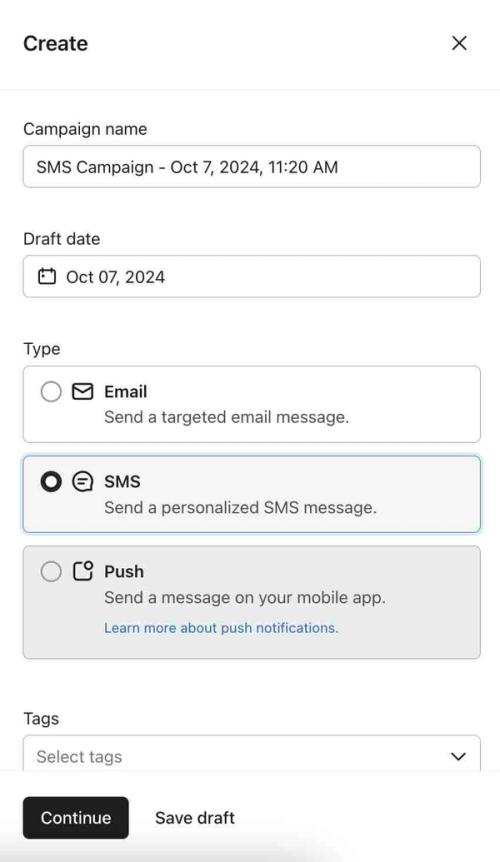
- Click Continue.
- Under Send to, select the list(s) or segment(s) you want to send to.
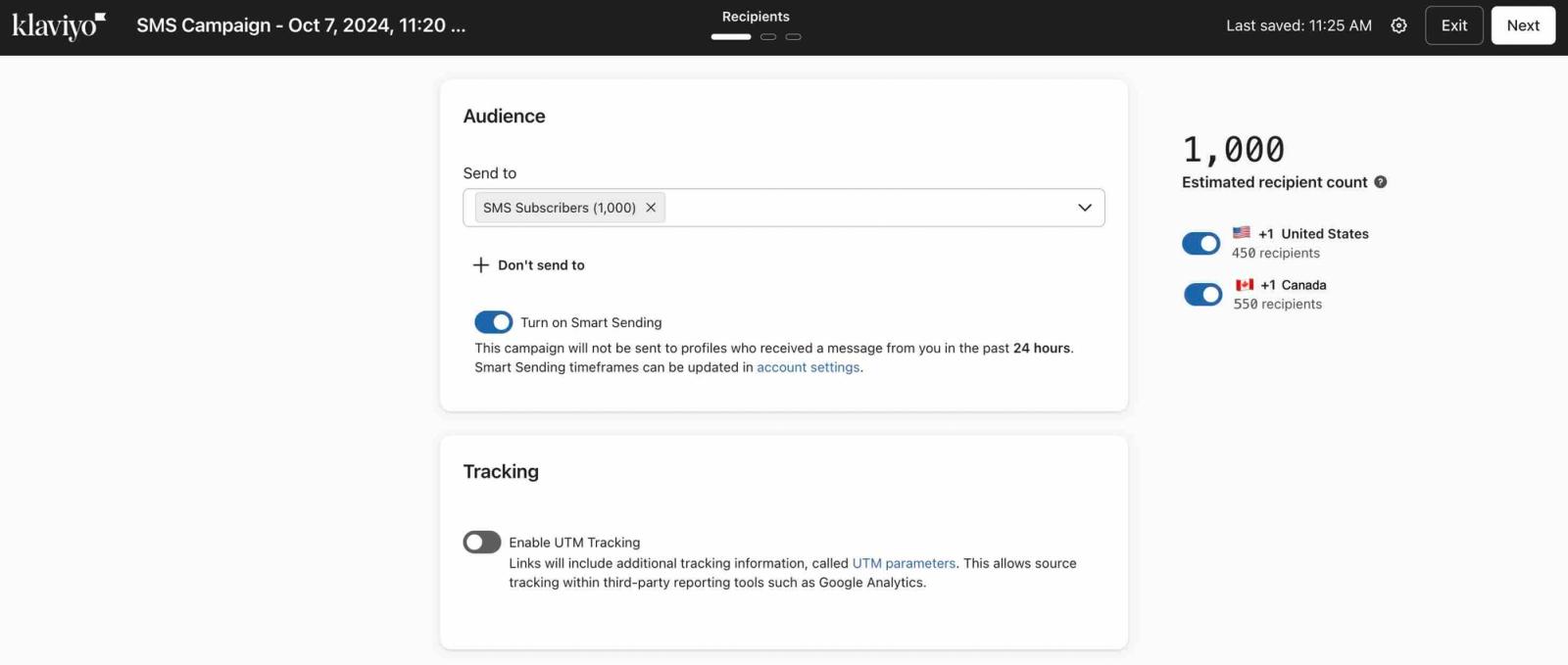
- Optional:
- To avoid sending to certain groups, add a list or segment under Don't send to.
- To avoid sending to certain groups, add a list or segment under Don't send to.
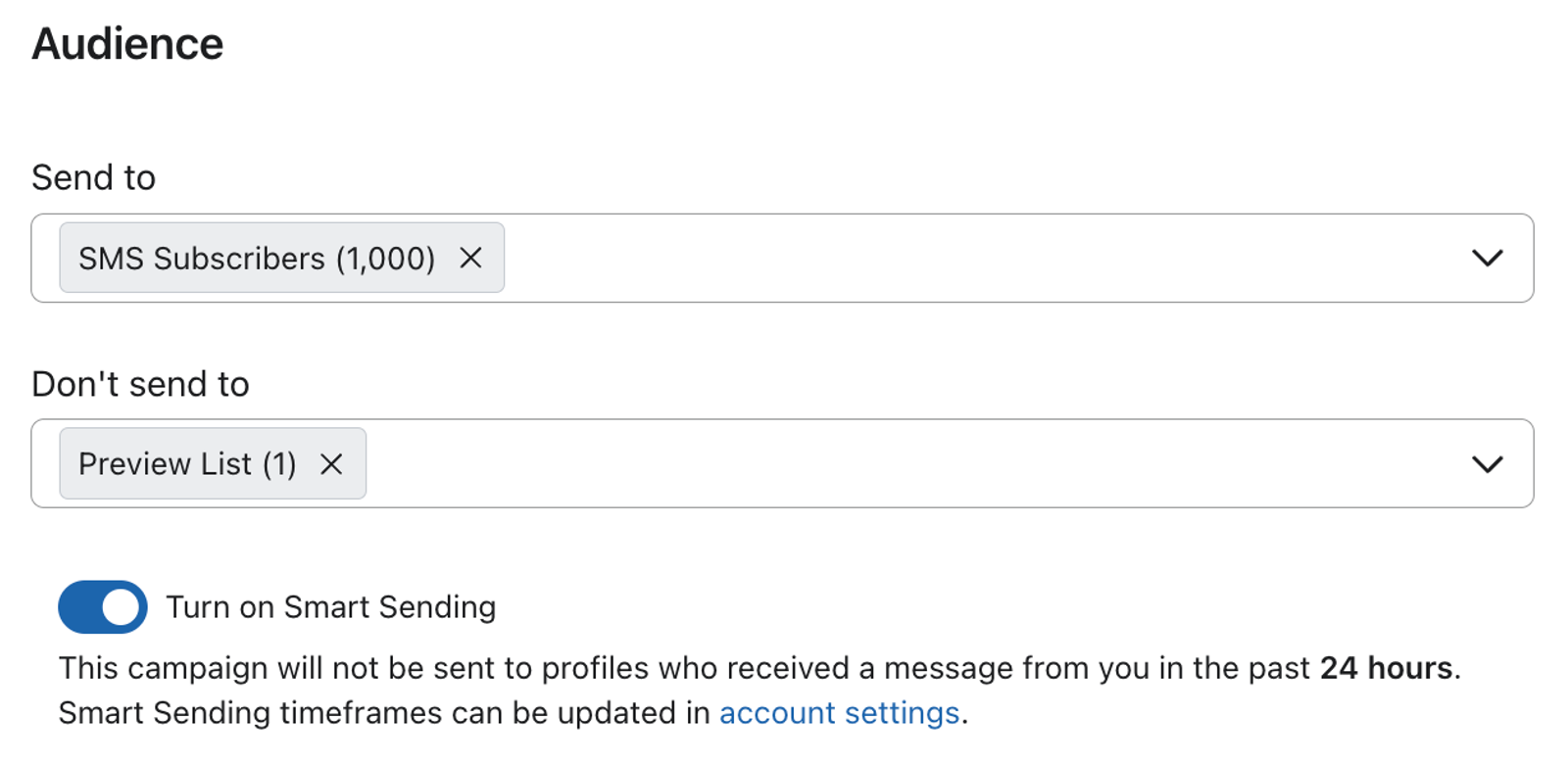
- To avoid sending recipients too many SMS messages at once, turn on Smart Sending to skip profiles who have recently received a message. With SMS, you can specify whether to skip based on a recently received campaign message, flow message, or both.
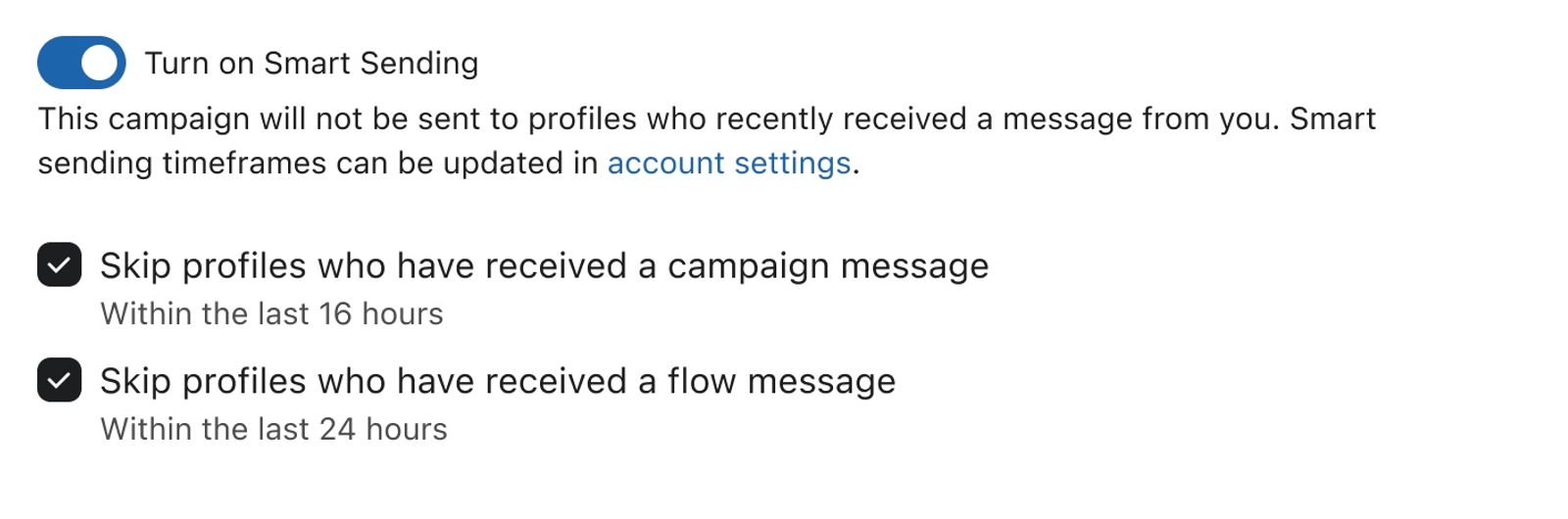
You can also choose whether Smart Sending checks recent campaign messages, flow messages, or both for SMS flow messages.
- Click Next.
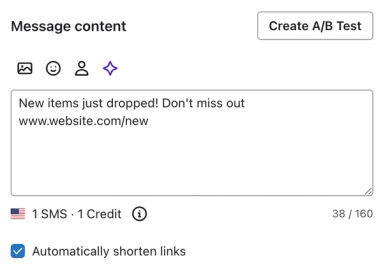
- Open Content and enter your SMS message.
- A single SMS segment supports up to 160 characters, or 70 characters when it contains an emoji or certain special characters. Longer messages are split into multiple segments and cost more to send. The editor supports up to 1,600 characters in total; check the message count and estimated cost before sending.
- Add a link to your message so that Klaviyo can track clicks and attribute conversions.
- Do not uncheck the Automatically shorten links box.
- Do not uncheck the Automatically shorten links box.
- Note: disabling the options in the Compliance panel is not recommended.
- Certain aspects (opt-out language/links, contact information, etc.) are required in some jurisdictions.
- Optional: In Attachment, add an image or GIF to turn your message into an MMS.
- The image or GIF must be under 600 KB.
- MMS supports up to 1,600 characters in a single message.
- MMS availability depends on both the recipient’s country and your sending number.
- MMS costs more than SMS. Check the estimated cost before sending. For details on rates and how charges are calculated, see Understand Klaviyo's mobile messaging system.
- MMS is not recommended during holiday seasons.
- Optional:
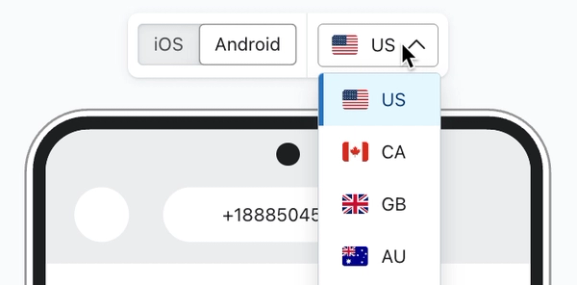
- Click Preview to preview the message as a certain profile.
- Click Preview to preview the message as a certain profile.

- Select the country dropdown to view how the message appears to recipients in a specific country.
- Click Next.
- On the review page, check that the campaign:
- Is sending to the right audience.
- Can be tracked.
- Does not exceed your available plan spend.
SMS and MMS messages delayed by sending throughput can time out after around 4 hours and be skipped. You may need to break up large campaigns if your sending number is a long code, toll-free number, or branded sender ID. This sending timeout is separate from the quiet-hours delay or skip setting you choose when scheduling.
- Click Schedule or send on the bottom right when the campaign is ready to go out.
- Select Send now to send immediately, or Schedule to choose a future send. If you schedule the campaign, choose the sending strategy, date, time, and time zone before continuing.
- Before sending or scheduling, choose how to handle recipients in quiet hours: Delay to next compliant time or Skip messages. If you choose to delay, you can select Set a maximum delay to skip messages that would arrive too late for your offer. Learn more in Quiet hours in campaigns.
- Click either Schedule or Send now.
Best times and days to send
The best times and days to send depend on your audience, so you should always test what works best for your brand.
However, if you're not sure where to start, the following generally holds true:
- Weekday vs. weekend
- Weekday campaigns lead to higher revenue.
- Weekend campaigns have higher click rates.
- Time of day
- 1 to 5 p.m. and 6 to 8 p.m. (in local timezones) have higher click rates than other hours.
Additional resources
Learn more about SMS in the Help Center:
- How to create an SMS welcome flow
Learn how to create a welcome flow for your SMS subscribers.
- Understanding and reviewing your SMS deliverability
Learn the important aspects of SMS deliverability, including how to evaluate it and best practices.
- Getting started with Klaviyo SMS