How to calculate revenue per recipient
You will learn
Learn how to calculate revenue per recipient (RPR) and understand how each of your marketing channels is performing. RPR helps you to determine the success of a campaign or flow and is a great way to review individual channel performance and opportunities for growth.
Before you begin
Ensure that your Klaviyo account is integrated with an ecommerce platform and that you have sent a campaign or flow so that you have data to generate RPR. You can also use a custom placed order metric to determine revenue per recipient as long as that metric uses $value as a property.
We recommend that you have at least a month’s worth of campaigns to get an accurate baseline portrait of RPR.
Revenue per recipient review
Calculate RPR by dividing the revenue attributed to your messages by the number of successful deliveries for the same messages and reporting period.
For example, $500 in attributed revenue ÷ 1,000 delivered emails = $0.50 per recipient.
Cumulative 30-day email campaign RPR
The Campaigns section shows RPR across your email campaign messages for the last 30 days. It divides their total attributed revenue by their total successful deliveries.
To see this summary, your account must have sent at least 3 email campaign messages to at least 10 recipients each and delivered at least 100 campaign emails in the last 30 days. It is unavailable for accounts hosted outside the US or while guided warming restricts sending to a warming audience. If you do not see the summary, use the individual campaign message steps below.
- Navigate to the Campaigns tab.
- Expand Email performance and find Revenue per recipient. This is your RPR for the last 30 days, with a performance rating of Excellent, Good, Fair, or Poor compared with similar businesses.
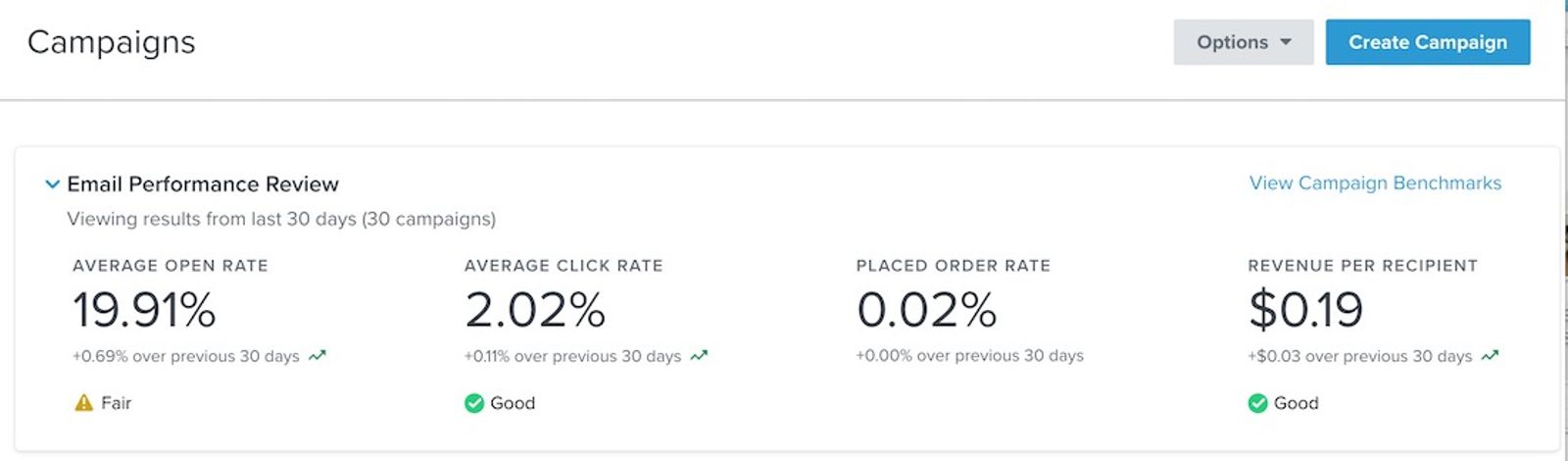
Individual campaign message RPR
The overview dashboard provides a way to review an individual campaign message’s RPR performance.
- Navigate to Analytics > Dashboards.
- Open an existing custom dashboard, or click Create Dashboard, enter a Dashboard Name, and click Create Dashboard to open the new dashboard.
- At the top of the dashboard, select your revenue metric, such as Placed Order, from Conversion metric.
- Click Time period, choose the reporting period, and click Apply.
- Look for the Campaign message performance detail card. If it is missing, click Add card, select Campaign message performance detail, and click Add Data View.
- Select the channel tab for the message you want to review, then find the campaign message in the table. Use the page controls at the bottom of the card to find additional messages within your selected reporting period.
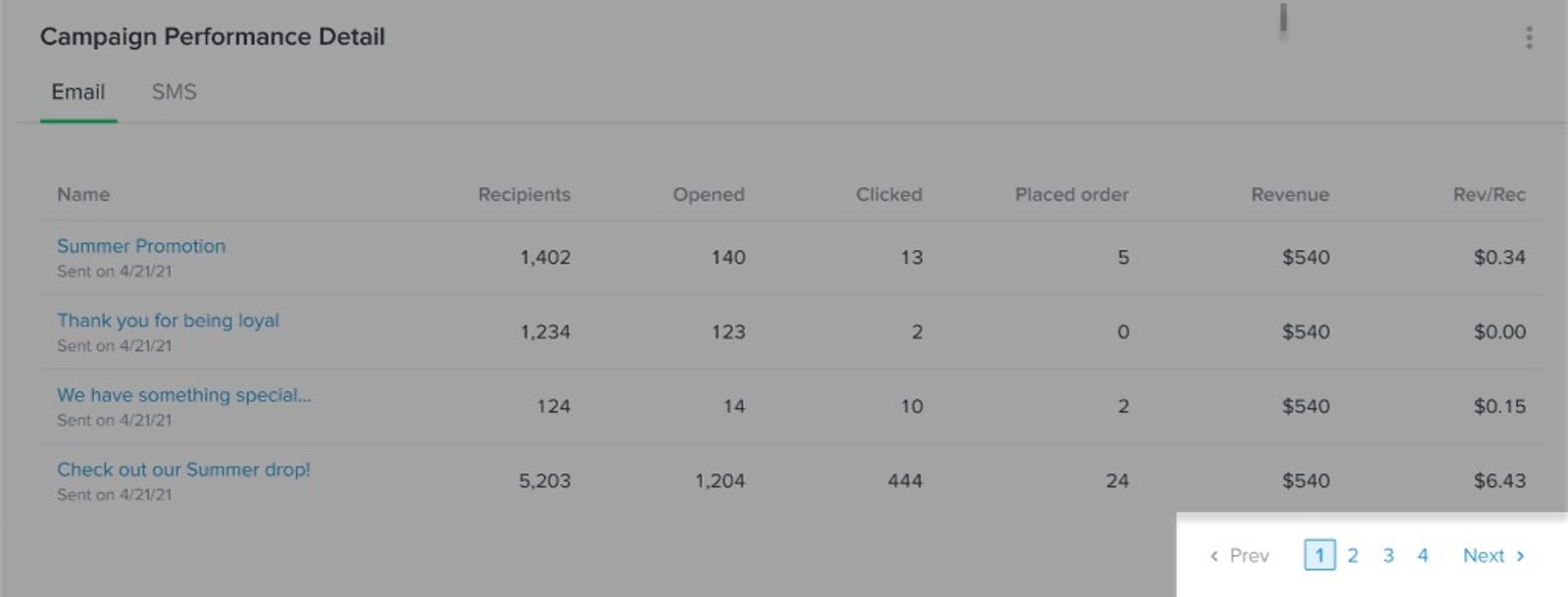
- Once you find the campaign message you want to analyze, review the Rev / rec column; this is your RPR for that message.
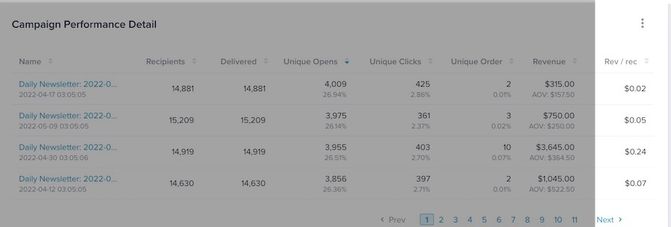
RPR, shown as Rev / rec, is the revenue attributed to a campaign message divided by its successful deliveries. Messages that could not be delivered are excluded.
Individual flow RPR
The overview dashboard provides a way to review an individual flow’s RPR performance.
- Navigate to Analytics > Dashboards.
- Open an existing custom dashboard, or click Create Dashboard, enter a Dashboard Name, and click Create Dashboard to open the new dashboard.
- At the top of the dashboard, select your revenue metric, such as Placed Order, from Conversion metric.
- Click Time period, choose the reporting period, and click Apply.
- Look for the Flows Performance Detail card. If it is missing, click Add card, select Flow Performance Detail in the library, and click Add Data View.
- Select the channel tab you want to review, then find the flow in the table. Use the page controls at the bottom of the card to find additional flows.
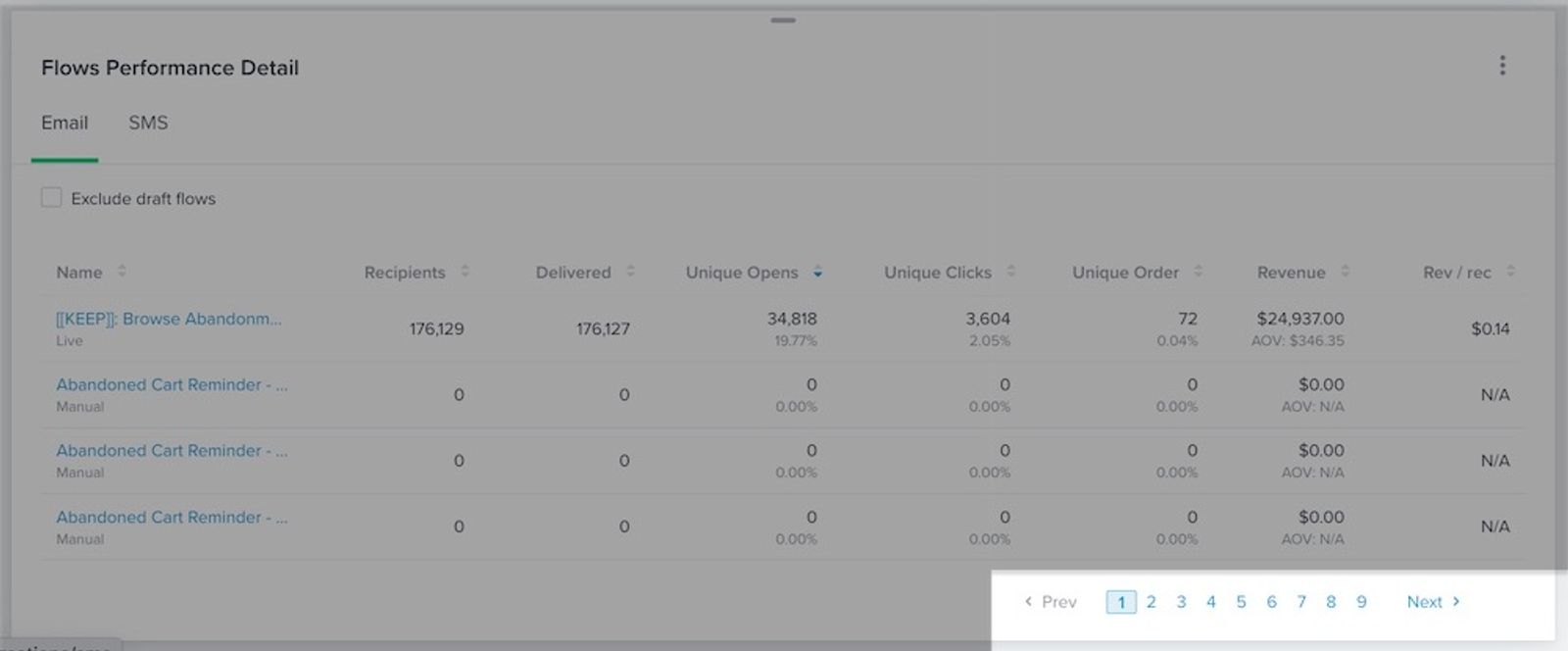
- Once you find the flow you want to analyze, review the Rev / rec column; this is your RPR for that flow in the selected channel and reporting period.
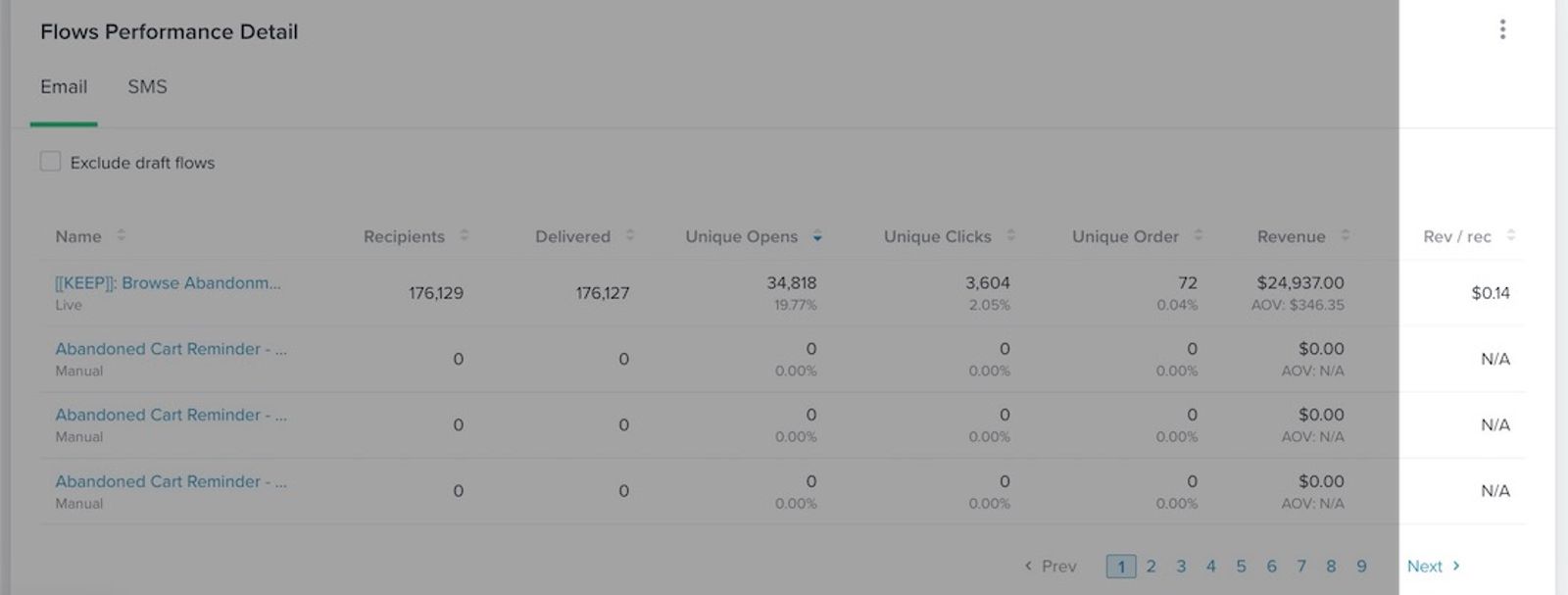
RPR, shown as Rev / rec, is the revenue attributed to a flow divided by its successful message deliveries for the selected channel and reporting period. Messages that weren’t delivered are excluded.
Additional resources
- Using revenue per recipient to inform your marketing strategies
Learn how to use revenue per recipient (RPR) in your marketing strategies to improve your campaign performance.
- Getting started with analytics or overview dashboards
Learn how to use analytics dashboards (also referred to as overview dashboards) and understand how each data card can measure performance. Once you send messages from Klaviyo, this dashboard is a place to visualize the data points and trends that matter most to your business.
- Getting started with email deliverability monitoring and performance metrics
Learn what good email deliverability metrics look like by industry, and which strategies to use to help improve your email performance. In this guide, find out about the specific open and click rate, both for email campaign and flow messages, that you should strive for after depending on what vertical or industry you are in. Additionally, learn ways to help mitigate potential deliverability issues and how to continue to monitor these rates over time.