How to identify and reactivate an inactive segment
You will learn
Learn the criteria for an inactive segment, how to manually deactivate segments, as well as how to reactivate one.
Inactive segments are segments that have been manually deactivated or automatically deactivated after a period without qualifying use. They appear under Inactive segments on your Lists & segments page. Once a segment has been marked as inactive, you will no longer see it available for campaigns, flow triggers and filters, exporting, or sign-up forms. You can reactivate an inactive segment using the steps below.
You can also manually deactivate segments. You may wish to do this when you need to reduce the number of active segments in your account, or simply want to clean them up to make your account easier to navigate. Segment deactivation is an alternative to permanent segment deletion, if you think you might want to use or refer to that segment again in future.
Criteria for an inactive segment
A segment is automatically moved to Inactive segments when it meets all of the criteria below for 45 consecutive days:
- Is not used to trigger a flow, target an active sign-up form, or sync an ad audience (e.g., Facebook, Google Ads)
- Has not been used in any campaigns
- Is not starred
- Name or definition has not been updated
- Its membership has not been retrieved through the public API
- Segment memberships haven’t been exported
- Segment performance report and growth report have not been viewed
- Segment has not been opened/viewed (note: this means clicking the segment link; simply expanding the definition on the Lists & segments page doesn’t count)
For starred segments, the usage criteria above apply over 365 consecutive days instead of 45. Starred segments in accounts with Personalization or Advanced KDP are exempt from automatic deactivation for segment inactivity.
General segment activity (i.e., profiles moving in and out of segments based on its definition) does not prevent a segment from becoming inactive.
Additionally, if a Klaviyo account is not on a paid plan and is inactive for 12 months, all segments in the account will be deactivated (including starred segments).
How to prevent automatic segment deactivation
To prevent automatic deactivation, take any of the following qualifying actions while the segment is still active:
- Use in a campaign (by selecting the segment in the recipient list or exclusion list)
- Use in a segment-triggered flow. As long as the flow is active, the segment will also remain active.
- Use in a form. As long as the form is active, the segment will also remain active.
- Use in an ad sync operation. As long as the ad sync is active, the segment will also remain active.
- Retrieve the segment’s membership through the public API
- Export segment memberships
- View the segment performance or segment growth reports
- Update the segment name or definition
- Open and view the segment by clicking its name. Simply expanding the definition on the Lists & segments page doesn’t count.
- Star the segment to extend its inactivity window to 365 days, or remove that inactivity limit if your account includes Personalization or Advanced KDP. Learn more about starred segments.
How to manually deactivate a segment
Deactivating a segment can affect campaigns, flows, ad syncs, forms, helpdesk routing, and other features that use it. Review those uses before confirming.
- Navigate to Audience > Lists & segments and find the segment you wish to deactivate.
- Click the 3-dot menu next to the segment.
- Select Deactivate segment from the dropdown menu. You'll be prompted to confirm whether you want to deactivate the segment.
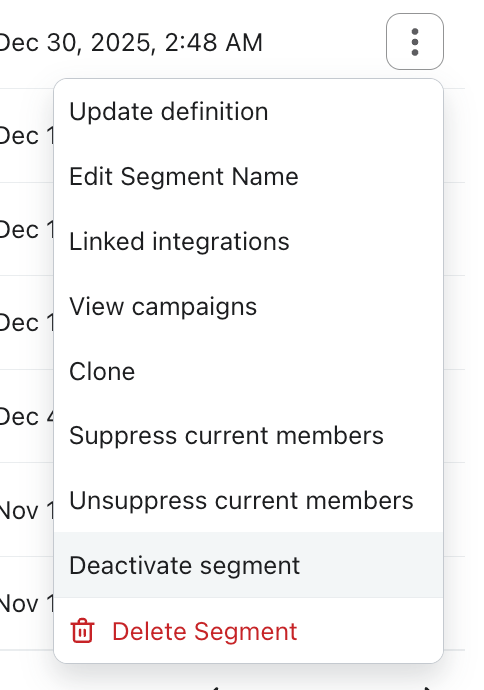
- Click Deactivate to confirm. The segment moves to Inactive segments on your Lists & segments page.
Reactivate an inactive segment
If your account has reached its limit for active segments, deactivate or delete another segment before reactivating one.
Reactivating a segment that uses funnel analysis conditions requires access to Personalization or Advanced KDP.
To reactivate an inactive segment:
- Navigate to Audience > Lists & segments.
- Select Inactive segments.
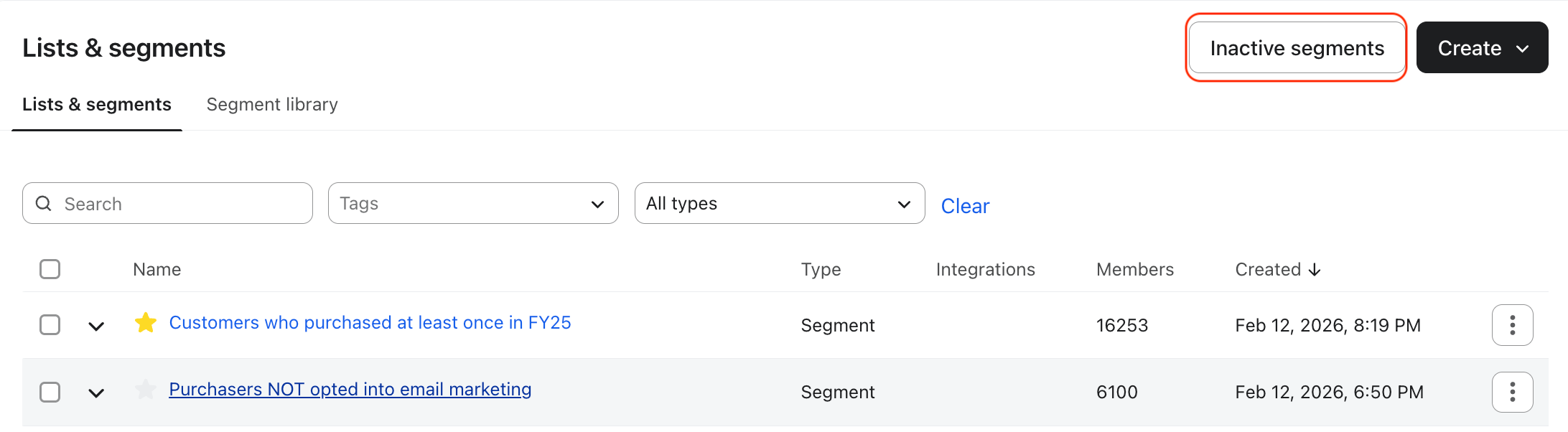
- Find the segment you want to reactivate.
- Click Reactivate.

- Click Update segment.
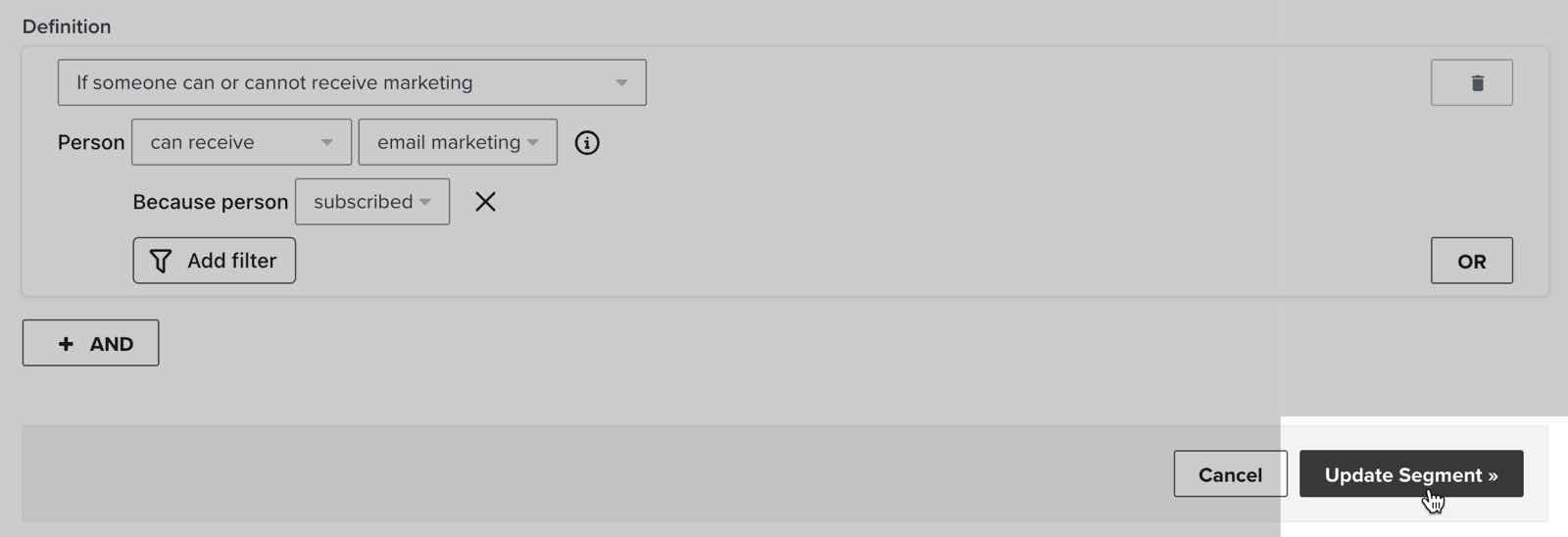
The segment then appears among your active lists and segments, and Klaviyo recalculates its membership. Wait for it to finish populating before using it in a campaign.
What are starred segments and how do I use them?
Starring a segment allows that segment to avoid the 45-day inactivity limit, and extends that inactivity window up to 365 days. That means that a starred segment can go for up to 365 days without any qualifying action.
After 365 days have passed with no qualifying action, a starred segment will be made inactive and lose its star unless your account includes Personalization or Advanced KDP. It can be reactivated using the same steps above. After reactivating it, star it again if you want the longer inactivity window.
If your account includes Personalization or Advanced KDP, starred segments are exempt from automatic deactivation for segment inactivity. You can still deactivate them manually.
To star a segment, go to Audience > Lists & segments and click the star icon next to the segment name.

Starred segments are also used in the Klaviyo app in the following ways:
- To filter for starred lists and segments on the Lists & segments page
- To specify which segments appear on the Audience performance dashboard in accounts with access to Personalization or Advanced KDP.
Additional resources
- Getting started with segments
Learn how to create and use segments in Klaviyo, which are a powerful tool for understanding your audience and sending targeted messages.
- Advanced segmentation reference
Learn effective advanced segmentation strategies that provide insights into your customer base and create highly personalized experiences for your subscribers.