Understanding review statuses and types
You will learn
Learn about review verification and publication statuses. These indicators determine whether and how a review appears on your website and product pages.
Understanding reviews and ratings
When someone reviews a product from your store, they can choose to leave a review that consists of a rating only, a rating and a text review, or a rating and any combination of the following elements:
Review element | Required? |
Rating | Always required |
Text | Can be required; can set minimum word count |
Title | Always required if collected |
Media | Never required |
Custom questions | Can be required |
To require that all reviews include a title or text:
- Navigate to Reviews > Reviews settings.
- Select Review submission page.
- If the submission-page editor opens, select Behavior. Under Submission page, select the settings you’d like to enable:
- Require a review title by selecting Ask for review title.
- Require review text by selecting Require review text for submission.
- Optionally, select Set minimum word count and select a number to set a minimum word count for text reviews.
- Click Publish changes in the editor, or Save changes on the settings page.
Reviews without text
As of September 26, 2024, all reviews (including reviews without text) appear in the All reviews tab. If a review does not include text, you will see the label This review does not contain text. Learn how to moderate rating-only reviews.

To see only reviews with text, select Show only > Includes text in the filters sidebar.
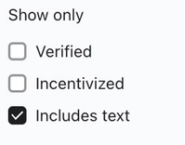
This change increases your visibility into your customers' feedback and your control over what appears on your site.
Verified reviews
If Klaviyo can determine confidently that a true purchaser of the product submits a review, it will mark the review as verified. In the Klaviyo All reviews list, verified reviews have a small checkmark next to the reviewer's display name.
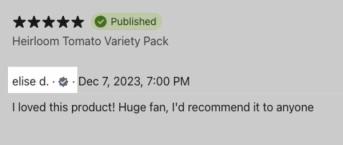
Additionally, verified reviews will have a Verified buyer badge on your site when published, if the widget’s Verified badge setting is enabled.
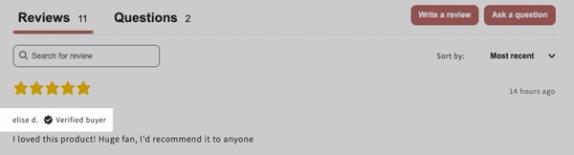
Klaviyo marks a review as verified when:
- A customer submits a review by clicking a link in a Klaviyo Review request flow.
- A user uploads a list of verified reviews from a past platform.
- A customer submits a review manually (i.e., by clicking the Write a review button on a product page) using an email address attached to a previous order containing that product.
Verification occurs at the time a review is submitted. If 2 profiles are merged, one containing the review event, and the other containing a placed order event for the reviewed product, the review will not retroactively be marked as verified.
Importing verified reviews
Note that Klaviyo only supports verified uploaded reviews from certain platforms. Your upload file must contain a column indicating whether the review is verified or not.
- Verified reviews are supported for reviews uploaded from Yotpo, Stamped, Okendo, Loox, and Fera.
- Verified reviews are not supported for reviews uploaded from Yelp, Shopify Product Reviews, and Judge.me. However, you can manually edit your CSV file to match Klaviyo's template and import using the Other/Not Sure option to import reviews from these platforms as verified.
It is not possible to manually mark a review as verified after it has been imported into Klaviyo.
Publication statuses
Every review you receive has a publication status (i.e., pending, published, or rejected). By default, Klaviyo will automatically publish 4- and 5-star reviews, while 1-, 2-, and 3-star reviews are pending until you approve or reject them. Reviews with media, profanity, or flagged words may still require manual approval, depending on your publishing rules. To adjust your reviews auto-publish settings:
- Select the Reviews tab in Klaviyo.
- Click Reviews settings.
- Click Publishing rules and notifications.
- Make adjustments as desired, then click Save changes.
The default status for reviews imported from another platform is Pending. However, if your CSV contains a column indicating approval status, approved reviews will be imported as Published. The following statuses import as Published:
- Fera: state column = "approved"
- Judge.me: curated column = "ok"
- Loox: status column = "Active"
- Okendo: isApproved column = "true"
- Shopify Product Reviews: state column = "published"
- Stamped: published column = "published"
- Yotpo:
- Review Status column = "Published", or
- Review Is Published (Yes / No) column = "Yes", or
- Published column = "TRUE"
All reviews imported from Yelp are automatically published.
Pending
All other reviews that do not meet your auto-publish requirements remain in Pending status until you publish or reject them. As a best practice, approve or reject any pending reviews at least once per week.
Note: When you publish all pending reviews, the system disregards any rules including any flagged words and publishes everything. You should reject reviews that violate rules before publishing all pending reviews.
To publish all pending reviews at once:
- Navigate to Reviews in Klaviyo.
- In the Overview tab, scroll to the Pending activity card.
- Open the additional options (3 dots) menu.
- Select Publish all pending reviews.

- In the modal that appears, confirm that you’re ready to publish all pending reviews.
Published
All approved reviews are marked as Published. These reviews are visible within the Klaviyo Reviews widgets on your site.
To reply publicly to a published review, click the reply arrow next to it in Klaviyo, enter your response, and click Reply and publish.
Replies appear in the product reviews widget when the Store reply setting is enabled. If Review and Q&A reply notifications is enabled under Reviews > Reviews settings > Requests and replies, Klaviyo can also email the reviewer when you reply. Learn more about reply visibility and notifications.
Rejected
Use caution when rejecting reviews, as regulators have limitations on moderating reviews to ensure the integrity and accuracy of the reviews-related practices followed by businesses. Reviews may be rejected for the following reasons:
- Profanity / inappropriate
Contains inappropriate, crude, or sexual language - Contains private information
Contains identifying or otherwise private information like phone numbers, email addresses, etc. - Unrelated to the product or service
Complaints related to shipping delays, or otherwise unrelated to the product/service being reviewed - False or misleading
Contains inaccurate information that could mislead a potential customer - Fake
Reviews submitted by bots or people who have never used the product/service
For another valid rejection reason, select Other and enter an explanation. You must also enter an explanation when rejecting a review without text.
Learn more about reviews regulations and best practices.
Featured reviews
Featured reviews appear in the featured review carousel widget, if you choose to install it on your site. Note that only published product reviews containing text can be featured.
To feature a review:
- Navigate to Reviews > All reviews in Klaviyo.
- Select the Feature button next to your desired review. If you see More feature options instead, open it and select Add to featured reviews to feature the full review.
To feature only the AI highlight, select Feature review highlight from More feature options. This option appears when the review has an AI highlight, shown by a purple underline in the review text.
Incentivized reviews
Any review that was provided in exchange for something, like a discount code or free product, is incentivized. Indicate which reviews are incentivized in your review widgets by manually adding an incentivized tag or automatically noting this through your review request flows.

Product and store reviews
There are 2 types of reviews in Klaviyo:
- Product reviews
Reviews associated with a particular product. - Store reviews
Reviews of your entire company/brand. You can import store reviews from providers like Stamped, Yotpo, or Okendo. When store review collection is enabled, customers who have not already reviewed your store can leave a store review after submitting a product review.
Learn more about store reviews.
Additional resources
- How to moderate reviews in Klaviyo
Learn how to moderate product and store reviews in Klaviyo. Moderating allows you to publish all valid reviews while rejecting inappropriate or irrelevant reviews (e.g., reviews with offensive content).
- How to request reviews from your customers with Klaviyo Reviews flows
Learn how to configure key flows in Klaviyo to start acquiring customer reviews.