Understanding UTM tracking in Klaviyo
You will learn
Learn what UTM tracking is, how it works, and how you can use it in your Klaviyo messages to gain a deeper understanding of your marketing performance.
Looking to add UTM parameters to Klaviyo messages? Head to our article on how to add UTM tracking to campaigns and flows.
As of June 2, 2025, the default values of utm_medium have changed from campaign and flow to Message type which includes email, SMS, WhatsApp, and push. If you customized and saved your UTM settings before June 2, you will see the old values in your account, otherwise the new values will be set. No other values have been changed.
What is UTM tracking?
UTM parameters are small codes added to the end of links that help Google Analytics and other site traffic tracking tools to identify where your visitors originated from. By adding UTM parameters to your Klaviyo email, SMS, WhatsApp, and push messages, you can better understand how the messaging you send through Klaviyo contributes to your overall traffic and conversions.
When UTM tracking is enabled for a message, Klaviyo requires 2 parameters: utm_source and utm_medium. Klaviyo also provides 3 optional parameters: utm_campaign, utm_id, and utm_term. Select or clear these optional parameters in your UTM settings as needed.
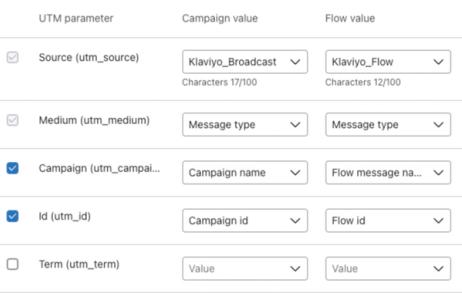
For each of the 5 prebuilt UTM parameters, choose between a built-in Klaviyo option (e.g., “Message type” for utm_medium) or add a custom value by typing in a new value to the Search or add new... field within the dropdown.
In addition, you can create up to 5 fully custom UTM parameters by clicking Add UTM parameter and filling out the fields that appear.
Configure your account's default UTM tracking
To customize your account's global UTM tracking settings:
- Click your account name in the bottom left of your screen.
- Select Settings in the dropdown.
- Click Other > UTM tracking.
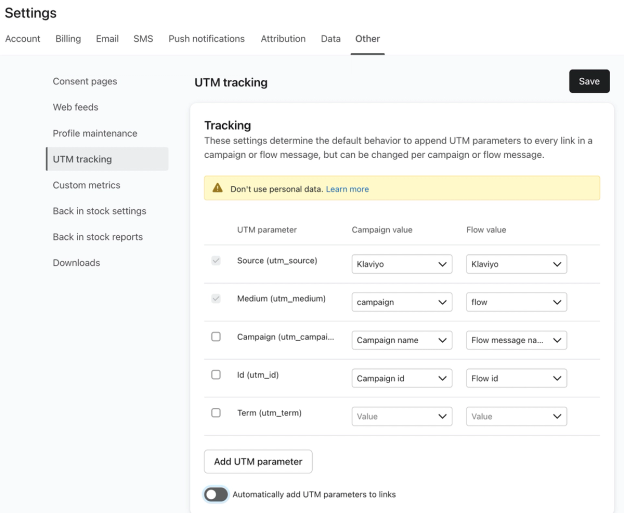
- Select the checkbox next to each optional parameter you want to include. The required source and medium parameters cannot be turned off individually.
- Select an option under Campaign value and Flow value for each parameter.
- Recommended: set the UTM medium as Message type if using (or planning to use) multiple channels (e.g., email, SMS, WhatsApp, and push).
- Toggle on Automatically add UTM parameters to links to turn on UTM tracking by default for new campaigns and flow messages. This does not turn tracking on for existing messages that have it disabled.
- Click Save to save your changes.
To disable UTM tracking for a campaign, turn off Include tracking parameters. For a flow email, clear Enable UTM Tracking. Alternatively, you can leave Automatically add UTM parameters to links turned off in your account settings and manually turn on UTM tracking for individual messages.
Changes to your global UTM values apply when messages using your global settings are sent. Messages with custom UTMs or with UTM tracking disabled keep their own settings. To use global settings for a message, turn on UTM tracking and turn off Customize tracking parameters for campaigns or clear Use custom tracking parameters for flows.
How a list or segment value is selected
If you use List or segment name(s) as the value for a parameter such as utm_source and send a campaign to multiple lists and/or segments, the utm_source value that populates for a particular recipient will be the list or segment that the recipient is a part of when the campaign is sent.
The value for utm_source can only refer to 1 list or segment. This means that if the recipient was part of multiple lists or segments to which the campaign was sent, only 1 list or segment will be chosen based on whichever was selected first in the campaign wizard.
For example, let's say Jane is a subscriber in your account. She is in both the VIP Customers segment and the High-Engagement segment. When creating an email campaign, you send to both of these segments, but you select VIP Customers first. This means that when the campaign is sent, the value for utm_source will be VIP Customers for Jane's email, and her activity will be attributed to this segment.
Note that this logic applies for any tracking parameter campaign value for which one of the following 3 parameter values are selected:
- List or segment id(s)
- List or segment name(s)
- List or segment name(s) (list or segment id)
About Klaviyo’s UTM parameter options
For most UTM parameters, you can choose between a dynamic, static, or custom value. In addition, you can choose different default values for campaign and flow messages.
Static values
Static values remain the same for all messages, but you can choose a different static value for campaigns and flows. All custom values are static, but you can also choose a default static value from the options provided by Klaviyo.
Static values include:
- Klaviyo
- sms
- push
- Either campaign or flow
Dynamic values
Dynamic values change based on what kind of message you send (e.g., email, SMS, WhatsApp, and push, or flows and campaigns). For example, if you set the utm_medium parameter to Message type, then links in SMS messages you send will include utm_medium=sms and links in emails will include utm_medium=email.
Campaigns and flows have different dynamic value options. Within each category, the same options are available for each parameter. At the message level, options also depend on the channel: Email subject and Link text or alt text are not available for SMS, WhatsApp, or push messages.
When UTM tracking is enabled, Klaviyo adds the selected UTM parameters, including dynamic values, to HTTP and HTTPS links in the rendered email. This includes links from product blocks and data feeds. Links with click tracking disabled are excluded.
Custom values
To add a custom value to any UTM parameter:
- In Settings > Other > UTM tracking, open the Campaign value or Flow value dropdown for the parameter you want to customize.
- In the Search or add new... field, type the value you’d like to use, such as "campaign+message". This value applies to the campaign or flow column you are editing.
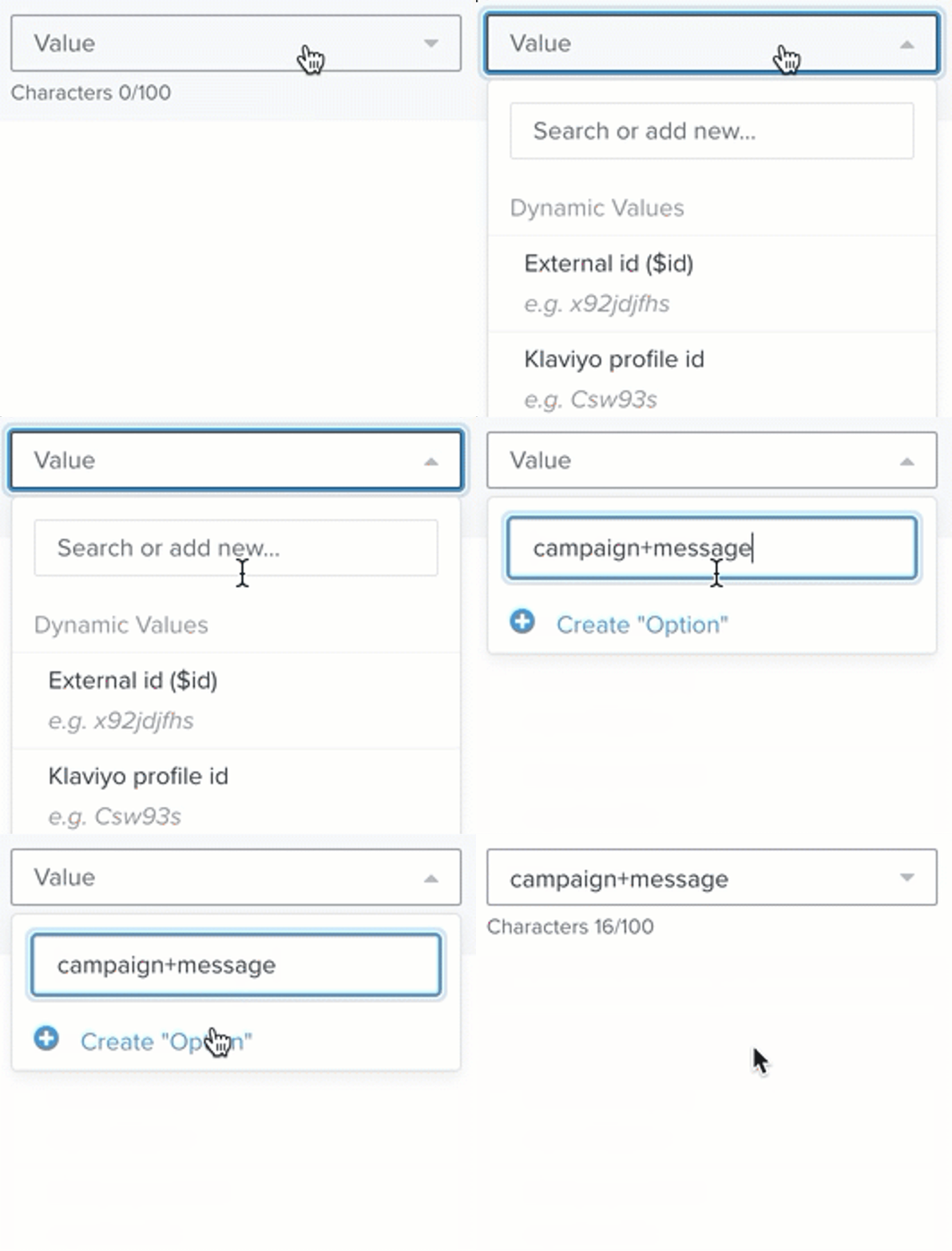
- Click Create followed by the value you entered (e.g., Create campaign+message).
- Click Save to save your account settings.
These parameters will be used exactly as they appear in your UTM settings.
Global vs. message-level UTM parameter settings
Global UTM parameters (set in Settings > Other > UTM tracking) set the defaults that are used in your messages across Klaviyo. Turning on automatic UTM tracking in your account settings enables it by default for new campaigns and flow messages. For an existing message, turn on UTM tracking within that message’s settings to use the global values, and leave custom tracking parameters off.
Message-level UTM parameters are fully customizable and don't necessarily match your global UTM settings. Changes to your global UTM settings will not apply to messages that have customized message-level UTM parameters.
UTM variation letters
UTM variation letters are available for email, not SMS.
UTM variation letters allow you to compare the performance and link activity when A/B testing your campaign and flow emails. For example, if you have 3 variations of a campaign and want to find out which directs the most traffic to your site, enable Track links separately in each variation. Klaviyo then adds a variation parameter to distinguish the versions, such as a, b, and c, so you can compare their traffic in your analytics tool.
The variation parameter is controlled by Track links separately in each variation, independently of the main UTM tracking setting. To report on this parameter in Google Analytics 4, configure your site’s Google Analytics tracking to send the variation value as an event parameter, then create an event-scoped custom dimension for it before running the test. See Google’s custom dimensions guidance.
To learn how to add UTM variation letters to campaigns and flows, head to How to add UTM tracking to campaigns and flows.
Comparing Klaviyo conversion tracking and Google Analytics
Klaviyo and Google Analytics can report different conversion results because they use different tracking data and attribution settings. UTM parameters help Google Analytics identify traffic from clicked message links. Klaviyo uses conversion events received from your integrations or API and attributes them according to your account’s message attribution settings. Compare the attribution models and windows in both tools when interpreting differences.
For example, a subscriber might open an email without clicking a link, then visit your store and buy. Klaviyo can attribute the purchase to the email if the purchase is associated with the same profile and meets your email-open attribution settings. Similarly, a customer might click an SMS link on their phone and later buy on a desktop. Klaviyo can attribute that purchase to the SMS if it is associated with the same profile and meets your SMS-click attribution settings. SMS delivery can also qualify for attribution when delivery-based attribution is enabled. In each case, the conversion must fall within the applicable message attribution windows. Google Analytics may still record the purchase while assigning credit differently. Use Klaviyo’s conversion analytics to evaluate your Klaviyo messages, and Google Analytics to understand the website traffic and conversions measured there.
Additional resources
- How to add UTM tracking to campaigns and flows
Learn how to use UTM tracking in your Klaviyo email, text, WhatsApp and mobile push messages to develop insights and improve your Google Analytics conversion tracking.
- Understanding cookies in Klaviyo
Learn more about how Klaviyo uses cookies as a part of our web tracking to gather information and help improve conversion rates and email performance. This article explains the specific cookie we use and its purposes so that you understand how customers are tracked. This information helps you understand how Klaviyo gathers data, and how this may impact customer privacy and compliance laws.
- Understanding message conversion tracking
Learn how conversion tracking works for email, SMS, and mobile push messaging and how to edit these settings. For each campaign and flow sent, Klaviyo automatically tracks conversions. This allows you to analyze the performance of your marketing channels and their individual success.
- Getting started with Klaviyo onsite tracking
Learn about the different ways that Klaviyo can support onsite tracking on your ecommerce site. There are 2 key types of onsite tracking: