How to integrate with Chargebee
You will learn
Learn how to integrate Chargebee with Klaviyo in order to personalize and target messaging based on invoice and payment data from your customers. The following data is synced from Chargebee to Klaviyo:
- When an invoice is issued, and the items included in each invoice
- Payment information for when a user fails payment, is refunded, or successfully pays
- When a subscription is created, activated, or cancelled
Add the Chargebee integration
- In Klaviyo, select the Integrations tab.
- Select Explore apps to open the Klaviyo App Marketplace in a new tab. Search for Chargebee, open its listing, then click Install.
- In Subdomain, enter only the subdomain of your Chargebee URL. For example, enter yoursubdomain for https://yoursubdomain.chargebee.com.
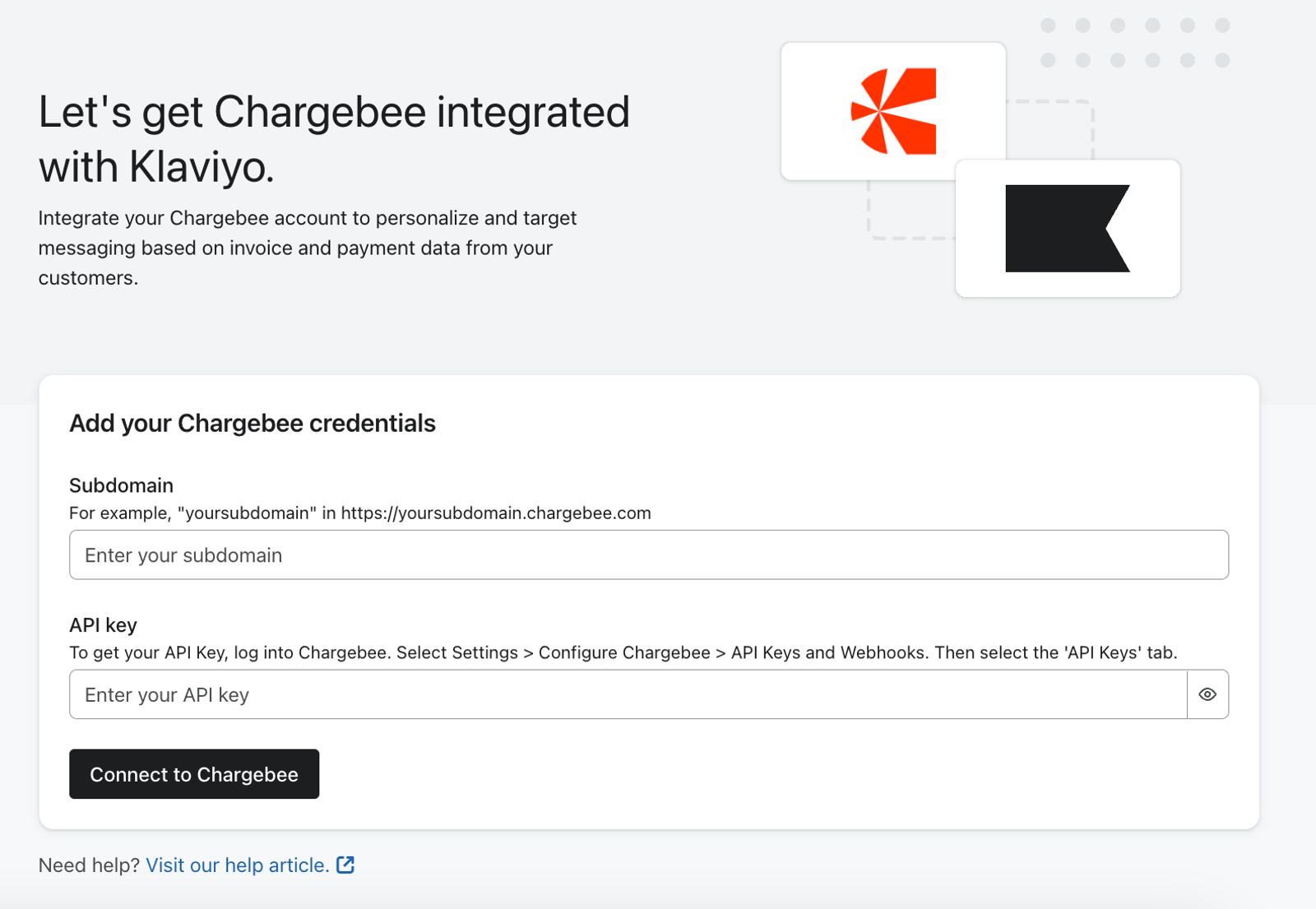
- Enter your Chargebee API key in the API key field.
- Click Connect to Chargebee.
After you connect, your historical Chargebee data starts syncing. New events sync every 5 minutes.
Monitor the Klaviyo sync and verify data
To check the data synced from your integration:
- Click the Analytics dropdown in Klaviyo and select Metrics.
- In the Integration filter, select Chargebee.
- Click the Issued Invoice metric, then select the Activity feed tab.
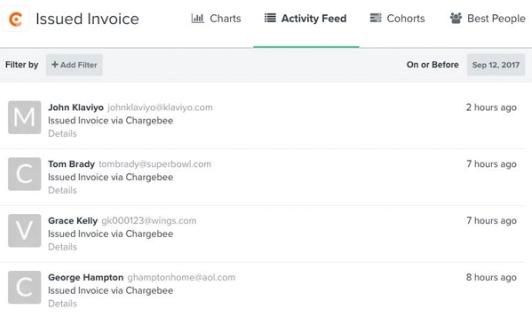
- If your integration has started syncing data, you'll see Issued Invoice events added to this activity feed.
Klaviyo imports the invoice, payment, subscription, and associated customer data described below. Events without a valid customer email address are not synced. After the historical sync finishes, use the following steps to compare successful payment transactions for a particular day with Chargebee.
- In Klaviyo, navigate to Analytics > Metrics.
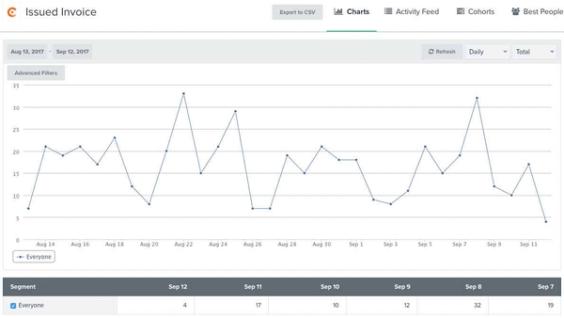
- Filter by Chargebee, then click the Successfully Paid metric to open its chart, which shows the last 30 days of data by default.
- Set View by to Daily and Measurement to Total. Under Filter, select WHERE, then choose Status = success.
- Mouse over the data points from the previous day or look in the table of data below the chart to see how many payments you had yesterday.
- Compare this total with successful payment transactions for the same day in Chargebee, excluding customers without a valid email address. If the totals differ, check that the sync has finished and compare the underlying transactions.
Data synced from Chargebee
Chargebee metrics
The following metrics are synced to Klaviyo from Chargebee:
- Activated Subscription
This metric records when a subscription is activated, including subscriptions that start without a trial. - Cancelled Subscription
This metric records when a subscription is cancelled. If Chargebee provides a cancellation reason, such as non-payment or missing card details, it appears in the event's CancelReason property. - Created Subscription
This metric records when a subscription is newly-created. - Failed Payment
This metric records an event when a payment is marked as failed in Chargebee. With this metric, you can target customers who fail to make payments and let them know they have an overdue balance. - Issued Invoice
This metric records an event every time an invoice is issued to your customers through Chargebee. This metric is useful for segmenting customers who have been issued an invoice but either have not paid or had a failed payment. It can also be used to trigger flows to notify customers of an upcoming payment. - Refunded Payment
This metric records an event when you refund a payment through Chargebee. - Successfully Paid
This metric records payment transactions that are not marked as failed in Chargebee. Check the event's Status property before treating it as confirmation of a completed payment. Events include customer data and, when linked invoices are available, invoice and product details. After confirming payment, you can use these details to send automated invoices to customers. You can also use email flows to identify customers who have been active on your website but haven't made payments for your products or services, then send them emails offering discounts.
Customer data
When Klaviyo syncs an invoice, payment, or subscription associated with a valid email address, it creates a profile if that email address is not already in Klaviyo. The profile includes the following information when it is available in Chargebee:
- General Contact Details
First Name, Last Name, Company, Phone Number - Custom Properties
ChargeBee CustomerID, ChargeBee CardStatus, ChargeBee PaymentMethodType, ChargeBee PaymentMethodStatus, and ChargeBee SubscriptionStatus*
*Note that the ChargeBee SubscriptionStatus property may not accurately reflect the most recent subscription status.
Outcome
You've now integrated with Chargebee and reviewed the data that syncs from Chargebee to Klaviyo. You can now use your Chargebee data to personalize and target messaging based on invoice and payment data from your customers.
Additional resources
- Understanding the types of information exchanged between Klaviyo and apps
Learn about what types of data are exchanged between Klaviyo and external apps, and where that data is found in your Klaviyo account. When you integrate a third-party application with Klaviyo, the two platforms exchange information. Most data exchange with Klaviyo is one-way; data is pulled into your Klaviyo account so you can leverage a broad scope of your customers' data within Klaviyo.